Have you ever felt like your WordPress website needs a fresh, new look? Maybe it’s starting to feel outdated, or perhaps you’re just in the mood for a change.
Refreshing your WordPress theme can breathe new life into your site, making it more appealing to visitors and enhancing the user experience. This process doesn’t have to be daunting or complicated. In fact, with the right guidance, you can easily transform your site into a stunning masterpiece that reflects your style and meets your needs.
Imagine having a website that not only captivates your audience but also represents your brand perfectly. By the end of this article, you’ll have all the tools and confidence you need to give your WordPress site the makeover it deserves. Let’s dive in and discover how you can refresh your WordPress theme with ease!
Choose A New Theme
Think about what your website needs. Do you want a simple look or something colorful? Consider the purpose of your site. Business sites might need a professional theme. Blogs could have playful designs. List important features. Do you need a photo gallery? Make a wish list of what you want.
Visit the theme library. Many options are available for free. Popular themes might have better support. Try different styles. Some themes have unique layouts. Experiment with colors and fonts. Preview the themes before selecting. Look for themes with good ratings.
Ensure the theme works with your plugins. Some themes may not support certain plugins. Check the theme details. See if it updates regularly. Look for user reviews about compatibility issues. Contact the theme developer if unsure. It’s best to choose themes that are compatible with most plugins.
Prepare For The Change
Refreshing your WordPress theme can enhance your website’s look and performance. Start by backing up your site. Explore new designs and update plugins for compatibility. Then, implement the chosen theme and customize to suit your brand. Regular updates ensure security and keep your site engaging.
Backup Your Website
Always create a backup of your website. This saves your data. Use plugins like UpdraftPlus or BackupBuddy. Store backups in safe places. Like an external drive or cloud storage. This ensures your data is safe.
Create A Child Theme
A child theme keeps changes safe. It is a copy of your main theme. Start by creating a new folder. Name it after your main theme. Add a style.css file. This file should have a few lines of code. It links to your main theme. You can now add changes without worry.
List Desired Features
List the features you want. New colors, fonts, or layouts? Write them down. This list helps you plan. It makes changes easier. You know what to focus on. Having a clear list saves time.
Install The New Theme
First, download the new theme file. It should be a .zip file. Open your WordPress dashboard. Go to Appearance and click on Themes. Click Add New. Then, click Upload Theme. Select the .zip file from your computer. Click Install Now. Wait for the upload to complete. Activate the theme once it installs. Your site now has a fresh look.
Start by downloading the new theme file. Unzip the .zip file. Use an FTP client, like FileZilla. Connect to your site’s server. Navigate to wp-content/themes folder. Upload the unzipped theme folder there. Open your WordPress dashboard. Go to Appearance and click on Themes. You will see the new theme. Click on Activate. Your site now has the new theme.

Credit: make.wordpress.org
Customize The Theme
Change the look of your site with new colors. Choose different fonts to make your text stand out. Rearrange elements to suit your style. Keep it simple and clean for easy navigation. A fresh layout will attract more visitors.
Add widgets to show extra info on your site. These can include contact forms or calendars. Menus help visitors find what they need. Organize them in a way that makes sense. Easy navigation keeps users on your site longer.
Plugins add new features to your site. Install them to improve functionality. Choose plugins that are trusted and updated often. They help keep your site running smoothly. Too many plugins can slow down your site. Choose wisely.
Test Your Website
Check Functionality: Ensure all buttons and links work. Click them to test. Make sure forms submit correctly. Interactive elements must respond. Errors can ruin the user experience.
Ensure Responsiveness: Your site should look good on phones. Shrink your browser window to check. Every page must adjust to different screens. Tablets and desktops should display properly. Responsive design is crucial.
Verify Load Times: Fast loading keeps visitors happy. Use tools to check speed. Page delays can lose visitors. Optimize images for quicker load. A slow site impacts user satisfaction.
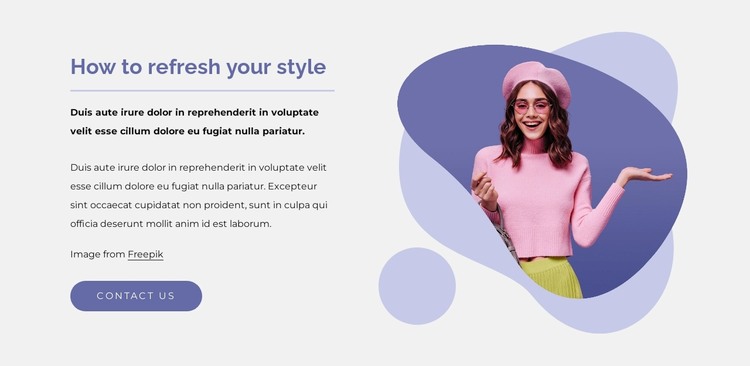
Credit: nicepage.com
Launch The Refreshed Site
Announce the Update to your audience. Use a blog post or social media. Tell them about the new features and design. Excite them with what’s new. Make it easy for them to find your site. Share links and show screenshots. Let them know why this update is important.
Monitor User Feedback closely. Listen to what users say about the changes. They might find bugs or issues. Be ready to fix them quickly. User feedback helps improve your site. Encourage them to share their thoughts. Thank them for their input. Keep improving based on their suggestions. Happy users will visit more often.
Credit: nicepage.com
Frequently Asked Questions
How To Update WordPress Theme Safely?
To update your WordPress theme safely, first back up your website data. Then, navigate to the “Appearance” section in your dashboard. Click “Themes” and select the theme you want to update. Follow the on-screen instructions. Ensure compatibility with your plugins and test the updated theme on a staging site.
Can I Refresh Theme Without Losing Customization?
Yes, you can refresh a theme without losing customization. Use a child theme to preserve customizations. Before refreshing, back up your settings and custom codes. After updating, reapply your customizations. Alternatively, use plugins that save your theme settings. Always test changes on a staging site first.
What Should I Check Before Theme Refresh?
Before refreshing your theme, check its compatibility with your current WordPress version. Ensure your plugins are also compatible. Backup your data and customizations. Verify if the theme update includes security patches. Review any new features or settings introduced in the theme update.
Is Theme Refresh Necessary For Performance?
Refreshing your WordPress theme can enhance performance. Updates often include optimized code, improved speed, and better security. Regular refreshes can fix bugs and introduce new features. A well-maintained theme ensures compatibility with the latest WordPress updates, improving your site’s performance and user experience.
Conclusion
Refreshing your WordPress theme enhances your site’s look and performance. It’s simple and effective. Start by backing up your site to ensure safety. Choose a theme that aligns with your brand and goals. Test it on different devices for responsiveness.
Update plugins for compatibility. Customize settings to fit your needs. Stay consistent with your site’s overall style. Keep your content organized and clean. A fresh theme can boost user experience. It improves navigation and engagement. Take the time to refresh your theme.
Your site visitors will appreciate the effort.