Are you looking to make your WordPress site easier to navigate? Adding a mega menu can be the game-changer your website needs.
Imagine your visitors finding exactly what they want in just a few clicks—no more confusion or endless searching. In this guide, you’ll learn simple, step-by-step ways to create a mega menu that looks great and works perfectly. Keep reading, and you’ll discover how to boost your site’s user experience and keep your audience engaged longer.
Let’s get started!
Benefits Of Mega Menus
Mega menus offer many benefits for WordPress websites. They help visitors find content quickly. This keeps users happy and engaged. Websites with many pages or categories gain the most from mega menus.
Below are some key benefits of using mega menus on your site.
Improved User Experience
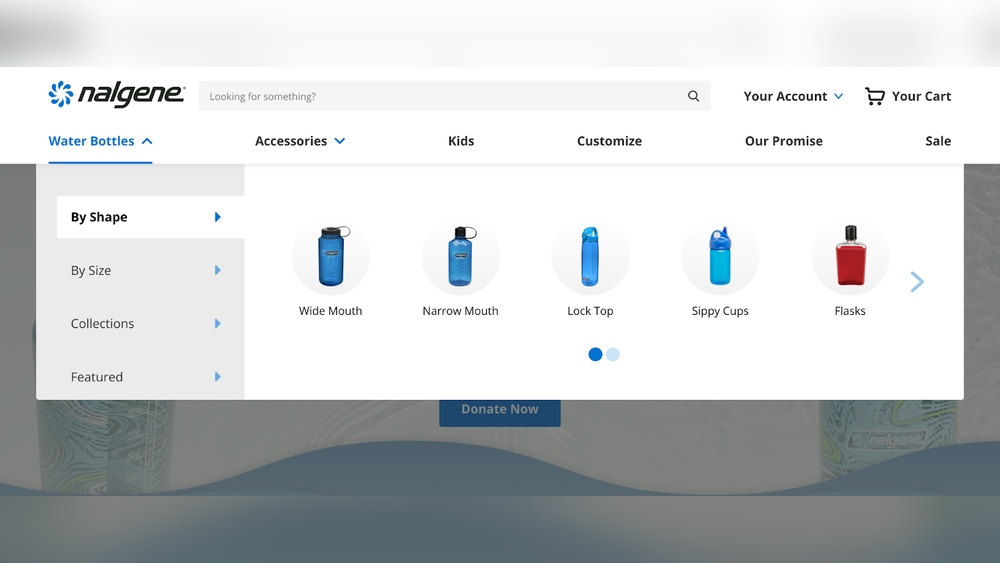
Mega menus show many options at once. Visitors do not need to click multiple times. They see all choices clearly in one place. This reduces confusion and saves time. Users feel in control and enjoy browsing.
Enhanced Site Navigation
Mega menus organize links into clear groups. This helps visitors understand the site structure. Navigation becomes simple and direct. Users can find main and subcategories easily. This lowers the chance of getting lost on the site.
Better Organization Of Content
Mega menus allow you to display large amounts of content. You can arrange links by topic or theme. This keeps the menu clean and tidy. Visitors get a clear overview of what the site offers. It also helps highlight important sections.

Credit: docs.oceanwp.org
Choosing The Right Mega Menu Plugin
Choosing the right mega menu plugin is important for your WordPress site. It affects how users navigate your content. A good plugin should be easy to use and match your site’s style. It should also work well with other tools you use. This section helps you pick the best option.
Popular Free Plugins
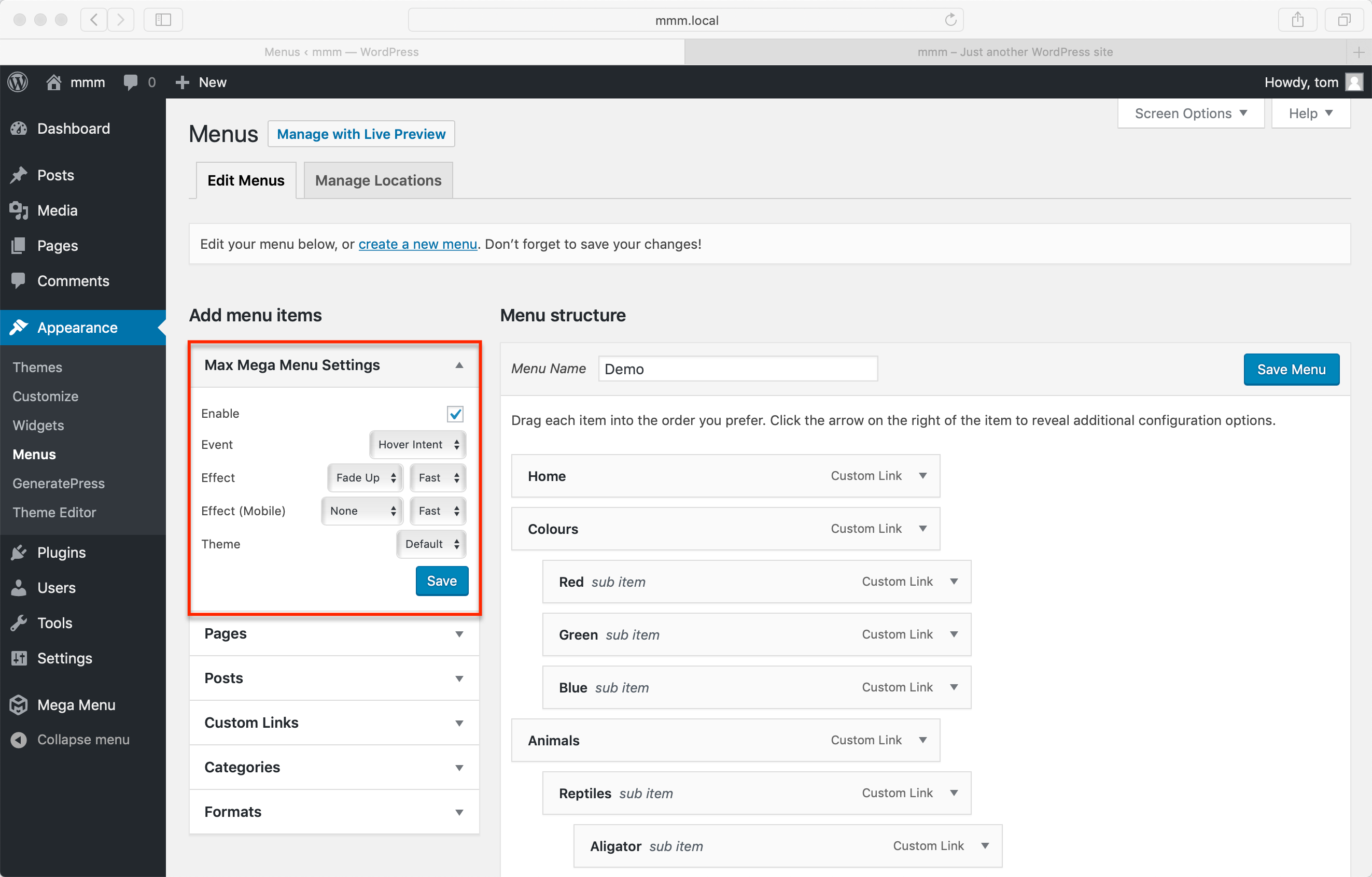
Several free mega menu plugins offer great features. “Max Mega Menu” is a favorite for many users. It lets you create menus with drag-and-drop ease. Another option is “WP Mega Menu,” which includes icons and widgets. These plugins work well for simple sites. They are easy to set up and customize.
Premium Plugin Options
Premium plugins provide more tools and support. “UberMenu” is a top choice with many design options. It supports images, maps, and icons in menus. “Mega Main Menu” offers smooth animations and mobile-friendly layouts. Paid plugins often include updates and customer help. They suit sites needing advanced features and style.
Compatibility And Features
Check if the plugin fits your theme and WordPress version. Some plugins may slow down your site. Look for lightweight options to keep speed fast. Features like responsive design are a must. Also, see if the plugin supports custom layouts. Ensure it works well with your page builder. Good plugins add value without causing trouble.
Preparing Your WordPress Menu
Preparing your WordPress menu is a key step before adding a mega menu. This process helps organize your site’s navigation clearly. A well-prepared menu improves user experience and site structure. It also makes the mega menu setup smoother and faster.
Start by creating the basic menu items. Then, group related links into submenus. Finally, plan the layout to match your site’s needs. Each step builds the foundation for a strong mega menu.
Creating Menu Items
Begin by going to your WordPress dashboard. Navigate to Appearance > Menus. Click “Create a new menu” and name it. Add pages, posts, or custom links as menu items. Keep the names short and clear. These items form the main navigation points for your visitors.
Structuring Submenus
Organize related menu items under parent items. Drag and drop items slightly to the right to nest them. This creates a submenu below the main item. Submenus help group similar content. They make navigation easier and more logical for users.
Planning Menu Layout
Think about how many columns your mega menu will have. Group menu items by category or topic. Decide which items need images or icons. Make sure the layout is simple and balanced. A clean layout keeps users focused and improves site navigation.
Installing And Activating The Plugin
Adding a mega menu in WordPress starts with installing the right plugin. This step is simple and quick. Plugins help extend WordPress features without coding.
After installation, activating the plugin is essential. Activation makes the plugin ready to use. You can then begin setting it up to fit your website.
Plugin Installation Steps
Log in to your WordPress dashboard. Go to “Plugins” and click “Add New.”
Type “mega menu” in the search bar. Find a plugin that suits your needs.
Click “Install Now” next to the chosen plugin. Wait a few seconds for the process to finish.
Activating The Plugin
Once installed, click the “Activate” button. The plugin becomes active on your site.
Check the plugin list to confirm it is active. An active plugin usually shows a green status.
Initial Setup
Go to the plugin settings in your dashboard. Follow the setup guide or wizard provided.
Choose menu style and layout options. Save your settings before leaving the page.
Test the mega menu on your site to ensure it works well.
Configuring The Mega Menu
Configuring the mega menu in WordPress makes your site easier to navigate. It helps visitors find what they want quickly. A well-set mega menu improves user experience and site structure. This section explains how to set up your mega menu step by step.
Assigning Mega Menu To Menu Items
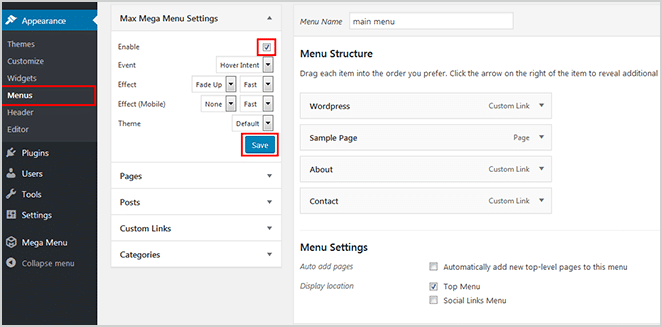
Start by opening your WordPress dashboard. Go to Appearance and select Menus. Choose the menu where you want the mega menu. Click on a menu item to expand its settings. Look for the option to enable the mega menu. Check the box or toggle the switch. Save the menu to apply changes. Repeat for other menu items if needed.
Customizing Appearance
Access the mega menu settings from your theme or plugin options. Choose colors that match your website’s style. Adjust font size and style for clear readability. Set the menu width to fit your layout. Use spacing to avoid clutter. Preview changes before saving to see the effect. Keep the design simple and clean for easy use.
Adding Widgets And Icons
Widgets add useful content inside your mega menu. Open the widget area linked to your mega menu. Drag and drop widgets like search bars, recent posts, or categories. Icons improve visual appeal and guide visitors. Add icons next to menu items for quick recognition. Use icons that match the menu text. Save your settings and check how they look on the site.
Optimizing For Mobile Devices
Optimizing your mega menu for mobile devices is essential. Mobile users expect smooth and easy navigation. A menu that works well on phones keeps visitors engaged. It also helps improve your site’s SEO by reducing bounce rates.
Focus on making the menu simple and clear. Menus that are too complex can frustrate mobile users. Keep the design clean and the options easy to tap. This makes browsing faster and more enjoyable.
Responsive Design Tips
Use a responsive layout that adjusts to different screen sizes. The mega menu should fit well on all devices. Avoid fixed widths that cause horizontal scrolling. Use flexible grids and percentage widths instead. This ensures the menu looks good on small screens and tablets.
Hide less important menu items on small screens. Show only the main categories. Use collapsible sections for submenus. This keeps the menu tidy and easy to use on mobile.
Touch-friendly Navigation
Make menu items large enough to tap easily. Small buttons cause mistakes and frustration. Keep a minimum size of 44×44 pixels for touch targets. Add enough space between links to avoid accidental taps.
Use clear visual feedback when users tap a menu item. This confirms their action and improves usability. Avoid hover-based menus, as they do not work on touch screens.
Testing On Different Screens
Test your mega menu on multiple devices and browsers. Check how it behaves on phones, tablets, and desktops. Look for any layout issues or broken links. Test touch interactions to ensure smooth navigation.
Use browser developer tools to simulate various screen sizes. Ask others to try the menu and provide feedback. Regular testing helps catch problems early and keeps the menu user-friendly.
Troubleshooting Common Issues
Adding a mega menu to your WordPress site can enhance navigation. Yet, some common problems may occur. Troubleshooting these issues helps keep your site user-friendly and fast. This section covers frequent challenges and easy fixes.
Menu Not Displaying Correctly
Sometimes the mega menu looks broken or does not appear at all. Check if you assigned the mega menu to the correct menu location. Clear your browser cache to see the latest changes. Verify that the menu items have proper settings for dropdowns. Make sure your theme supports mega menus or uses compatible code.
Conflicts With Themes Or Plugins
Different themes or plugins can cause conflicts that stop the mega menu from working. Disable all plugins except the mega menu plugin. Check if the menu works now. If it does, activate plugins one by one to find the conflict. Switch to a default WordPress theme to see if your theme causes the issue. Update all plugins and themes to their latest versions.
Performance Optimization
Mega menus can slow down your site if not optimized. Use caching plugins to reduce load time. Limit the number of menu items and columns in your mega menu. Compress images used in the menu for faster loading. Avoid heavy scripts or animations inside the menu. Test your site speed after making changes to ensure better performance.
Credit: wpengine.com
Tips For Stunning Navigation Design
Creating a stunning navigation design is key for a great website experience. A well-designed mega menu helps visitors find what they want fast. It also keeps your site looking clean and organized. Focus on simple, clear, and user-friendly design. This makes your menu easy to use on any device.
Using Clear Labels
Choose labels that describe the content clearly. Avoid long or confusing words. Short and direct labels help users scan the menu quickly. Use common terms that your visitors understand well. This reduces confusion and keeps them on your site longer.
Balancing Visual Elements
Keep your menu visually balanced. Use enough spacing between items to avoid clutter. Add icons or images only if they support the menu labels. Use consistent colors and fonts that match your site’s style. A balanced menu looks professional and guides users smoothly.
Keeping Menus Intuitive
Design your menu so users can guess where to find things. Group related items together logically. Limit the number of menu options in each section. Avoid deep or complex menu structures. An intuitive menu helps visitors navigate with ease and confidence.
Credit: www.megamenu.com
Frequently Asked Questions
What Is A Mega Menu In WordPress?
A mega menu is an advanced navigation menu displaying multiple columns. It helps organize content clearly. WordPress supports mega menus through themes or plugins, improving user experience by making navigation easier and more visually appealing.
How Can I Add A Mega Menu Without Coding?
You can add a mega menu using WordPress plugins like Max Mega Menu or Elementor. These plugins offer drag-and-drop interfaces for easy setup. No coding skills are needed, making it accessible for beginners to create custom menus quickly.
Are Mega Menus Mobile-friendly In WordPress?
Yes, most modern mega menu plugins and themes are mobile-friendly. They include responsive designs that adapt menus for smaller screens. This ensures your site navigation remains user-friendly on all devices, improving usability and SEO.
Can I Customize The Appearance Of My Mega Menu?
Absolutely, WordPress mega menu plugins allow full customization. You can change colors, fonts, layout, and add images or icons. This flexibility helps match your website’s branding and enhances the visual appeal of the navigation menu.
Conclusion
Adding a mega menu to your WordPress site improves navigation. It helps visitors find pages quickly and easily. You can create menus with categories, images, and links. This makes your site look more organized and professional. Follow the steps carefully to set up your menu right.
Test it on different devices to ensure it works well. A clear menu keeps users happy and engaged. Start enhancing your website’s user experience today.