
Are you ready to make your website live but unsure how to connect your domain to your hosting? Redirecting your domain to hosting might sound tricky, but it’s simpler than you think.
By following a few straightforward steps, you can ensure your visitors land on the right page every time. Keep reading, and you’ll discover exactly how to link your domain to your hosting without any hassle. This guide is designed for you—clear, easy, and quick to follow.
Don’t miss out on getting your site up and running smoothly!
Choosing The Right Hosting
Choosing the right hosting is a key step in redirecting your domain. Hosting affects your website’s speed, security, and uptime. Picking the right type ensures your site runs smoothly. It also helps you avoid extra costs and technical issues.
Understanding different hosting types and what to consider helps you make a smart choice. This guide explains the basics clearly.
Types Of Hosting Services
Shared hosting is the most common and affordable option. Many websites share the same server resources. It suits small websites with low traffic.
VPS hosting offers more power and control. Your site runs in a virtual private server, separated from others. It fits medium-sized sites with growing traffic.
Dedicated hosting gives you a whole server. This option is best for large websites needing top speed and security. You get full control over server settings.
Cloud hosting uses multiple servers to host your site. It offers great flexibility and uptime. This type adjusts resources based on site needs.
Factors To Consider
Check your website size and expected traffic first. Small blogs need less power than online stores.
Consider your budget. Shared hosting is cheapest, dedicated hosting costs more.
Look at uptime guarantees. High uptime means your site stays online longer.
Review security features. Hosting with SSL and backups keeps data safe.
Check customer support quality. Fast help is important if problems arise.
Think about scalability. Choose hosting that grows as your site grows.
Credit: www.namecheap.com
Preparing Your Domain
Preparing your domain is an important step before redirecting it to your hosting provider. This process helps ensure your domain is ready and correctly set up for the change. It avoids errors and downtime.
Start by accessing your domain registrar and checking your domain status. These steps confirm your domain is active and you have control over it.
Accessing Domain Registrar
Find the website of your domain registrar where you bought your domain. Log in using your username and password. If you forget your details, use the recovery option.
Inside the account, look for the domain management or domain settings section. This area lets you control important domain features needed for redirection.
Checking Domain Status
Check that your domain is active and not expired. An expired domain cannot be redirected. Ensure the domain is unlocked. Locked domains cannot update DNS settings.
Also, verify your contact details are up to date. Registrars often send important messages about your domain to this contact. Keep your email valid and checked.
Updating Dns Settings
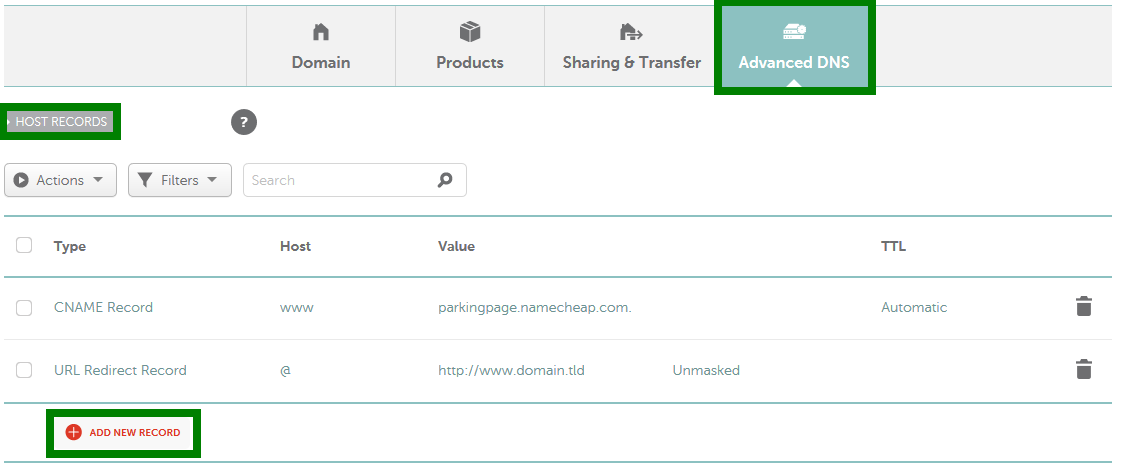
Updating DNS settings is a key step in redirecting your domain to your hosting. DNS tells the internet where to find your website. Correct settings ensure visitors reach your site without trouble. This process involves changing nameservers, modifying A records, or using CNAME records. Each option works differently but aims for the same goal.
Changing Nameservers
Nameservers link your domain to your hosting provider. You get nameserver addresses from your host. Log into your domain registrar’s control panel. Find the section to update nameservers. Replace old nameservers with the new ones from your host. Save changes. It may take a few hours to update worldwide.
Modifying A Records
A records connect your domain to a specific IP address. Your hosting provider gives you the IP address. Access the DNS settings at your domain registrar. Find the A record for your domain. Change the IP address to your hosting server’s IP. Save the changes. DNS propagation can take some time.
Using Cname Records
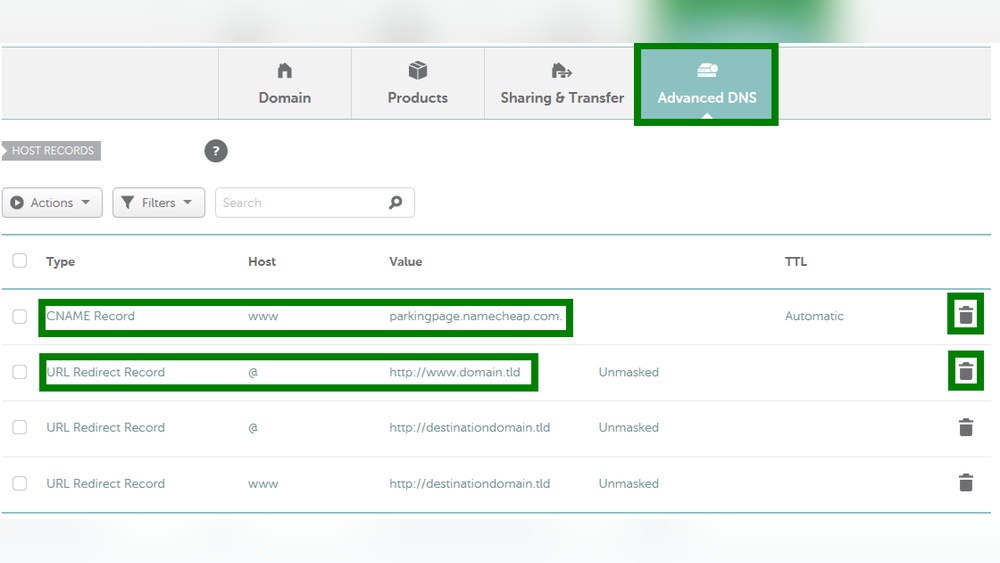
CNAME records point your domain or subdomain to another domain. Use this to redirect subdomains like www to your main domain. In your DNS settings, find the CNAME record. Set it to the domain provided by your hosting provider. Save the settings. This method keeps your domain linked correctly.
Credit: www.webhostinghub.com
Configuring Hosting Account
Configuring your hosting account is a key step to redirect your domain properly. This process links your domain name to your hosting space. It makes your website accessible on the internet. Setting up the hosting account correctly avoids common errors and downtime.
Adding Domain To Hosting Panel
First, log into your hosting control panel. Look for the section called “Domains” or “Addon Domains.” Enter your domain name here. The panel will check if the domain is valid. Confirm to add the domain to your hosting account.
This step tells the server to recognize your domain. It creates a folder for your website files. This folder stores all content linked to your domain. Without adding the domain, your site won’t load.
Setting Up Website Files
Next, upload your website files to the right folder. Use a file manager or FTP client provided by your host. Place files in the folder created for your domain. The main file is usually “index.html” or “index.php.”
Ensure the files are complete and correctly named. This setup allows the server to display your site content. Check file permissions to avoid access issues. Correct file setup makes your website live and visible.
Verifying The Redirection
Verifying the redirection is a key step after setting your domain to point to your hosting. It confirms your domain leads visitors to the correct website. This step avoids confusion and ensures your site is accessible.
Checking the redirection helps catch errors early. It saves time and keeps your site professional. Use simple tools and methods to verify the setup effectively.
Using Online Tools
Online tools make checking domain redirection easy. Enter your domain URL into these tools. They show if your domain points to the right hosting server.
Popular tools include Redirect Checker and DNS Lookup. These services provide clear results quickly. They display HTTP status codes and server locations.
Look for status code 301 or 302. These codes mean the redirection works properly. If you see errors, the redirection might be incorrect.
Troubleshooting Common Issues
Redirection might fail due to DNS propagation delays. Wait up to 48 hours after setup before testing.
Clear your browser cache to avoid old data. Try different devices to confirm the issue.
Check your domain’s DNS records carefully. Ensure A records or CNAME records match your hosting details.
Verify your .htaccess or server configuration files. Incorrect rules can block or loop redirections.
Contact your hosting provider if problems persist. They can help identify server-related issues.
Tips For Smooth Setup
Setting up a domain redirect to your hosting needs care and attention. Small steps can avoid big problems. Follow these tips to make the process smooth and efficient. This helps your website stay live and visitors find you easily.
Propagation Time Expectations
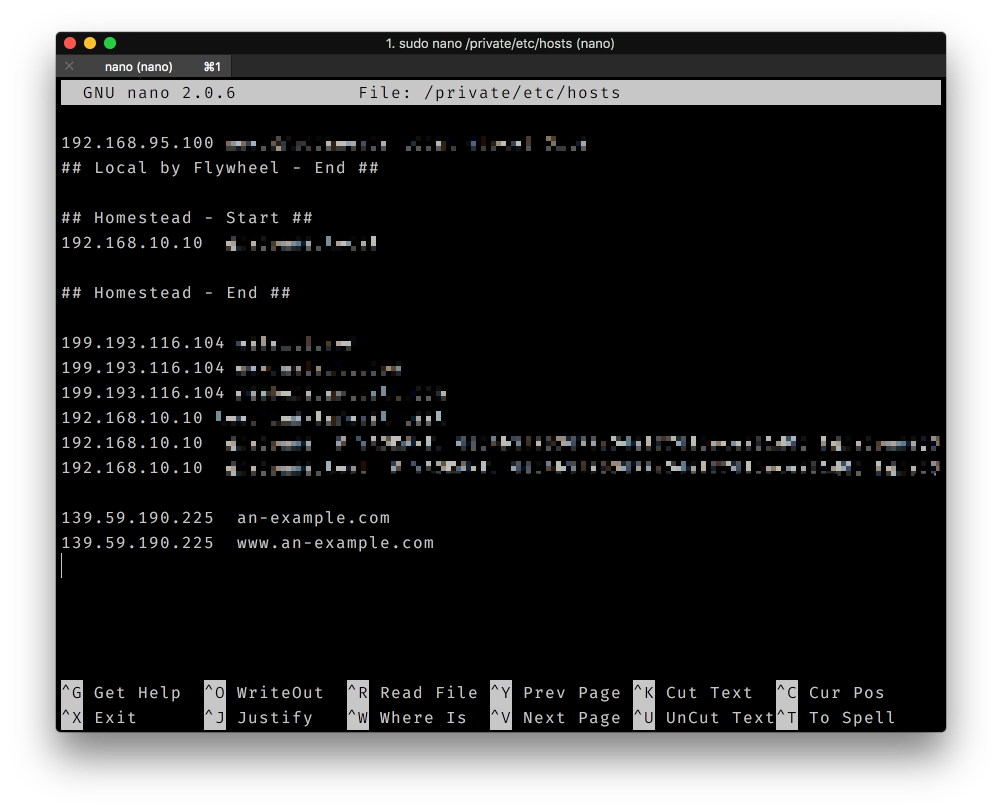
DNS changes take time to spread worldwide. This delay is called propagation. It can take from a few minutes to 48 hours. Be patient during this time. Avoid making repeated changes. Check the status using online DNS tools. Your site may seem down, but it is normal during propagation.
Maintaining Seo During Redirection
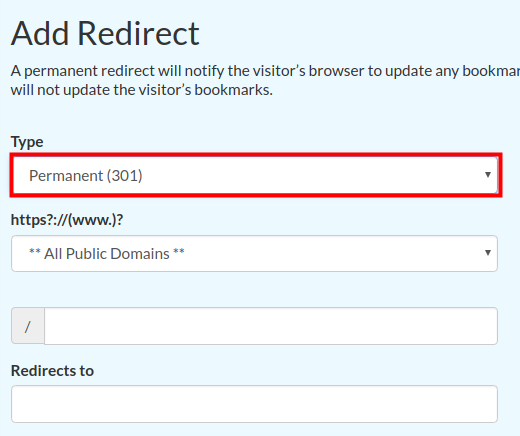
Use 301 redirects to keep your SEO ranking. This tells search engines your site moved permanently. Avoid using temporary redirects like 302. Update all links to point to the new domain. Keep the content consistent to avoid ranking drops. Monitor your site traffic to catch issues early. Proper SEO care protects your site’s visibility and ranking.
Credit: gridpane.com
Frequently Asked Questions
What Is Domain Redirection And Why Use It?
Domain redirection sends visitors from one URL to another automatically. It helps manage multiple domains, improves SEO, and directs traffic to your main site effectively.
How Do I Redirect My Domain To Hosting?
To redirect your domain, update the domain’s DNS settings or use your hosting control panel’s redirect feature. Point the domain to your hosting server or target URL as needed.
Can I Redirect A Domain Without Changing Dns?
Yes, using a URL redirect or forwarding service in your domain registrar’s dashboard allows redirection without DNS changes, but DNS updates provide more control and flexibility.
How Long Does Domain Redirection Take To Work?
Domain redirection usually takes a few minutes to 48 hours to propagate fully. DNS changes and cache clearing affect how fast the redirect becomes active.
Conclusion
Redirecting your domain to hosting is simple when you follow clear steps. Start by updating your domain’s DNS settings carefully. Check that your hosting details are correct before saving changes. Wait for the changes to spread across the internet, which can take some time.
Test your website to confirm the redirect works well. Taking time with each step helps avoid common errors. Stay patient and double-check your work. This way, your website will connect smoothly with your hosting service.


