
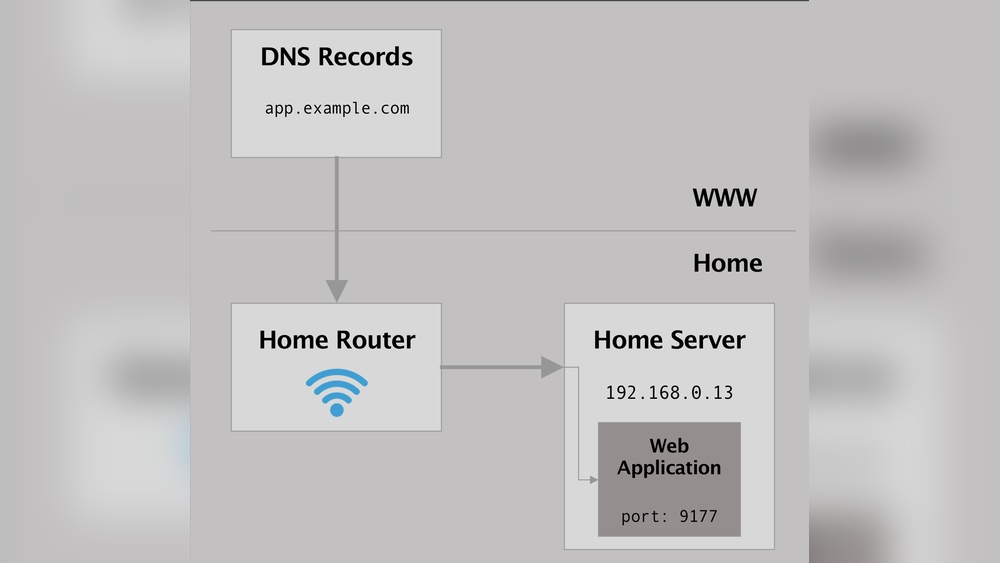
Are you struggling to redirect your virtual host to a subdomain? You’re not alone.
Many website owners face this challenge and wonder how to make the switch without breaking their site or losing visitors. The good news is, with the right steps, you can easily set up a smooth redirect that keeps your traffic flowing and improves your site’s organization.
You’ll learn exactly how to redirect your virtual host to a subdomain, using clear, simple instructions that anyone can follow. Ready to take control of your website’s structure and boost your online presence? Keep reading—your solution is just ahead.
Credit: forum.virtualmin.com
Virtual Hosts Basics
Understanding virtual hosts is key for managing multiple websites on one server. Virtual hosts let you run different sites using a single IP address. This setup saves resources and organizes your web projects better.
This section covers the basics of virtual hosts. It explains what they are and why they matter. You will learn how virtual hosts work and their main purpose.
What Are Virtual Hosts
Virtual hosts are configurations on a web server. They direct traffic to different websites using the same server. Each virtual host has its own domain or subdomain. This way, the server knows which website to show visitors.
There are two types: name-based and IP-based virtual hosts. Name-based uses the domain name to choose the site. IP-based uses different IP addresses for each site.
Purpose Of Virtual Hosts
Virtual hosts help host many websites on one server. This reduces hosting costs and simplifies management. They allow each site to have its own domain name and files. Visitors see the correct website based on the address they type.
They also support testing and development. Developers can create sites on subdomains without extra servers. Virtual hosts improve server efficiency and organization.
Credit: forum.virtualmin.com
Subdomain Setup
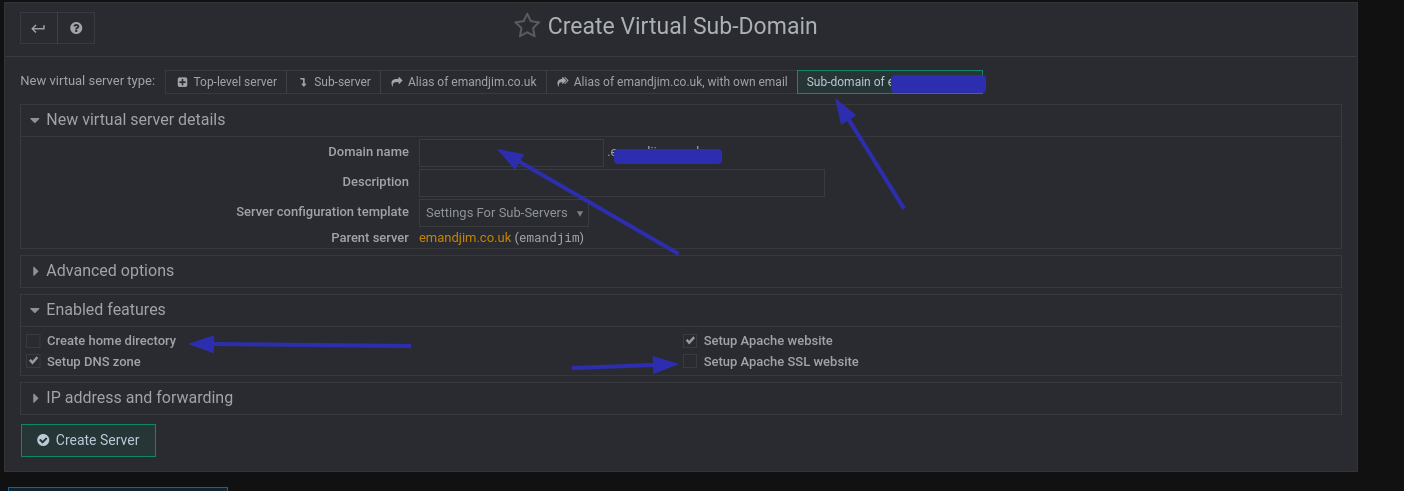
Setting up a subdomain is the first step to redirect a virtual host. It helps organize your website and target specific content. A proper subdomain setup ensures smooth traffic flow and better site management.
This section covers how to choose a subdomain and configure DNS records correctly. Both steps are essential for a successful redirect and site performance.
Choosing A Subdomain
Pick a subdomain name that is simple and clear. It should reflect the content or purpose of the redirected site. For example, use “blog” for a blog section or “shop” for an online store.
Keep the subdomain short and easy to remember. Avoid special characters or spaces. Use only letters, numbers, and hyphens.
This helps users recognize the subdomain easily and improves user experience.
Configuring Dns Records
Access your domain’s DNS management panel to add the subdomain. Create an “A” record or “CNAME” record for the subdomain.
The “A” record points the subdomain to an IP address. The “CNAME” record points to another domain name.
Make sure the DNS record matches your hosting provider’s requirements. Double-check the spelling and values to avoid errors.
After saving, wait for DNS propagation. This process can take up to 48 hours but often completes sooner.
Redirect Methods
Redirecting a virtual host to a subdomain involves several methods. Each method suits different server setups and needs. Choosing the right one helps maintain site traffic and SEO rankings. Below are three common techniques to achieve this redirection.
Using Apache .htaccess
The .htaccess file allows you to set rules for Apache servers. To redirect a virtual host, add these lines to your .htaccess file:
RewriteEngine On RewriteCond %{HTTP_HOST} ^example\.com$ [NC] RewriteRule ^(.)$ http://sub.example.com/$1 [L,R=301]This rule sends visitors from the main domain to the subdomain. The 301 status code tells browsers and search engines the redirect is permanent.
Redirects In Nginx
Nginx uses server block configurations for redirects. Open the server block file for your virtual host and add:
server { listen 80; server_name example.com; return 301 $scheme://sub.example.com$request_uri; }This block redirects all requests to the subdomain. The 301 code signals a permanent redirect, helping SEO.
Php Redirection Approach
PHP redirection works inside your site’s code. Insert this at the top of your main index.php file:
php header("Location: http://sub.example.com"); exit(); ?This method sends users to the subdomain quickly. Use PHP redirection if server access is limited.
Configuring Apache Virtual Host
Configuring an Apache virtual host is essential for managing multiple websites on a single server. It allows you to direct traffic to different domains or subdomains. This setup is crucial when redirecting a virtual host to a subdomain. The process involves editing configuration files and setting redirect rules. These tasks ensure that visitors reach the right part of your website smoothly.
Editing The Configuration File
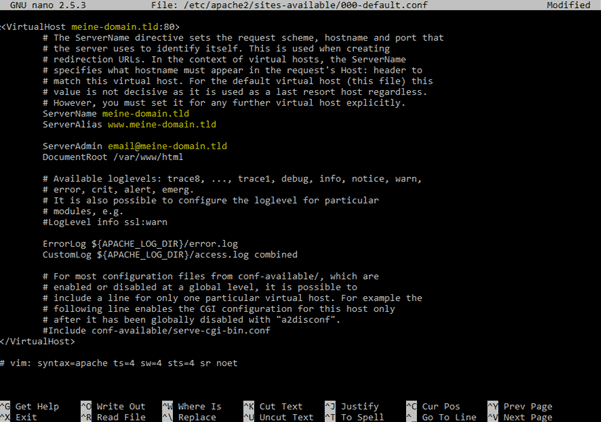
Start by locating your Apache virtual host configuration file. This file is usually found in the /etc/apache2/sites-available/ directory on Linux systems. Open the file with a text editor like nano or vim. Look for the section that defines the virtual host you want to redirect.
Change the ServerName or ServerAlias to match your main domain. Ensure that the DocumentRoot points to the correct directory for your original site. Save the changes before moving on. Always back up the configuration file before editing it.
Setting Up Redirect Rules
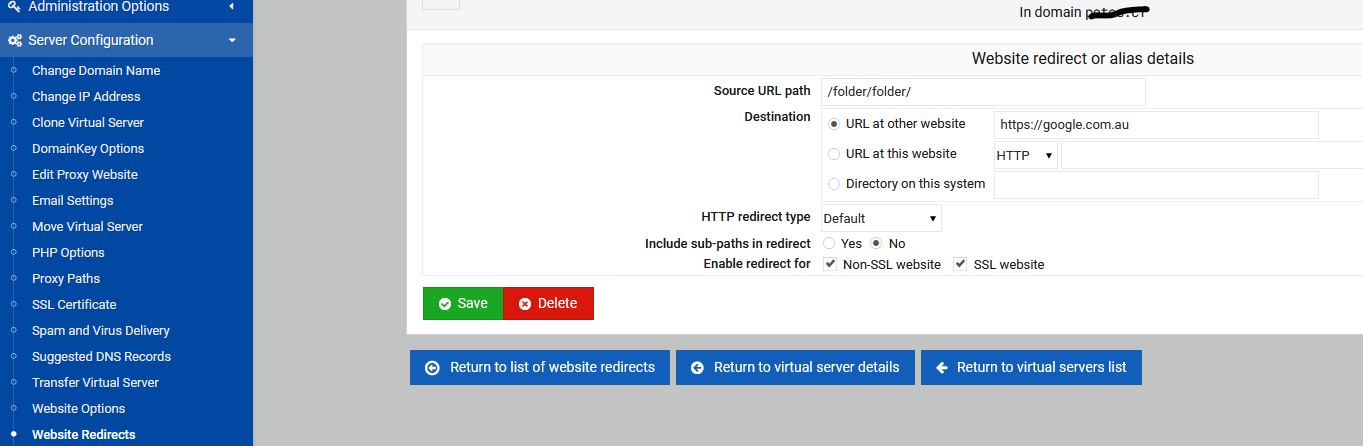
Inside the same configuration file, add redirect rules to send traffic to your subdomain. Use the Redirect or RewriteRule directives inside the virtual host block. For example, use Redirect permanent / https://subdomain.example.com/ to create a permanent redirect.
Alternatively, enable the rewrite engine with RewriteEngine On. Then add rules like:
RewriteCond %{HTTP_HOST} ^example\.com$ [NC] RewriteRule ^(.)$ https://subdomain.example.com/$1 [L,R=301]These rules tell Apache to redirect all requests from the main domain to the subdomain. After editing, save the file and test the configuration with apachectl configtest. Restart Apache to apply changes using sudo systemctl restart apache2.
Configuring Nginx Server Block
Configuring the Nginx server block is key to redirecting a virtual host to a subdomain. This process involves editing the server block files to change how Nginx handles requests. It ensures traffic goes to the right place without confusion.
Each server block controls one website or domain. By adjusting these settings, you tell Nginx where to send visitors. This setup helps maintain smooth website operations and improves user experience.
Modifying Server Block Settings
First, find the Nginx server block file. It is usually in /etc/nginx/sites-available/. Open it with a text editor like nano or vim.
Look for the server_name directive. Replace the current domain with your subdomain. For example, change example.com to sub.example.com.
Check the root path. This sets the folder where your website files are stored. Update it if needed to match your subdomain’s content location.
Save the changes and exit the editor. This prepares the server block for the redirect setup.
Implementing Redirects
Add a new server block to handle the redirect. Set the server_name to your original domain.
Inside this block, use the return 301 directive. This sends a permanent redirect to the subdomain. For example:
return 301 https://sub.example.com$request_uri;This code tells browsers to load the subdomain instead of the old domain. It keeps the same page path and query parameters.
Test your configuration with nginx -t. If all is well, reload Nginx using systemctl reload nginx.
Now, visits to your main domain will redirect smoothly to the subdomain.
Testing Redirects
Testing redirects ensures your virtual host points correctly to the subdomain. This step confirms visitors reach the right location. It helps catch errors before going live. Two simple methods work well for testing.
Using Browser Tools
Open your web browser and enter the original virtual host URL. Watch the address bar for changes. The browser should load the subdomain URL automatically. Use developer tools to check HTTP status codes. Look for codes like 301 or 302. These show the redirect is working. Clear your cache to avoid old data. Repeat the test in different browsers for accuracy.
Command Line Testing
Open a terminal or command prompt window. Use commands like curl -I followed by your URL. This shows HTTP headers and redirect status codes. A 301 or 302 status means the redirect works. You can also use wget --server-response for detailed info. Command line testing is quick and reliable. It helps you verify redirects without opening a browser.
Common Issues
Redirecting a virtual host to a subdomain can sometimes cause problems. These issues often confuse beginners and slow down the setup process. Understanding common errors helps fix them fast. Here are the most frequent problems you might face.
Redirect Loops
A redirect loop happens when your site keeps sending visitors back and forth. This traps browsers in a cycle that never ends. It usually occurs because the redirect rules point to each other. Check your configuration files for repeated redirects. Fixing these loops stops your site from crashing.
Permission Problems
Permission issues block access to files needed for redirection. If your server cannot read the config files, redirects fail. Set proper permissions so the web server can access these files. Use secure but open enough permissions to allow reading and execution.
Dns Propagation Delays
DNS changes take time to spread across the internet. This delay means your subdomain might not work right away. It can last from a few minutes to 48 hours. Patience is key while waiting for DNS updates to finish. During this time, some users may see old settings.
Credit: gridscale.io
Best Practices
Redirecting a virtual host to a subdomain requires careful planning. Following best practices helps keep your website efficient and user-friendly. These practices protect your SEO rankings and improve site speed. Simple steps make the process smooth and effective.
Seo Considerations
Use 301 redirects to tell search engines about the move. This passes most of the original page’s ranking to the new URL. Avoid multiple redirects; they slow down crawling and harm SEO. Update internal links to point directly to the subdomain. This reduces confusion for search engines and users. Check that your sitemap reflects the new URLs. Submit the updated sitemap to search engines for faster indexing.
Maintaining Site Performance
Keep redirect rules simple and efficient. Avoid complex conditions that slow down server response time. Test redirects regularly to ensure they work without errors. Use caching to reduce server load and speed up redirects. Monitor site speed after applying redirects. Fix any slowdowns quickly to keep visitors happy. Proper redirects reduce bounce rates and improve user experience.
Frequently Asked Questions
What Is A Virtual Host In Web Hosting?
A virtual host allows multiple websites to share one server. It uses domain names to direct traffic to the correct site. This setup saves resources and simplifies management for multiple sites on one server.
How Do I Redirect A Virtual Host To A Subdomain?
Use server configuration files like Apache’s. htaccess or Nginx config. Add redirect rules pointing the virtual host domain to the subdomain URL. This ensures visitors are automatically sent to the subdomain.
Why Redirect A Virtual Host To A Subdomain?
Redirecting improves user experience by consolidating traffic to one site. It helps manage content better and can enhance SEO by avoiding duplicate content issues.
Can I Redirect Virtual Hosts Without Losing Seo Ranking?
Yes, use a 301 permanent redirect for virtual hosts. This tells search engines the site moved permanently, preserving SEO value and avoiding ranking drops.
Conclusion
Redirecting a virtual host to a subdomain is simple and useful. It helps organize your website and improve user experience. Follow the steps carefully to avoid errors. Test your changes to ensure everything works well. Keeping your site structure clear helps visitors find content fast.
Try these methods and see the difference on your site. Consistent practice will make the process easier over time. Stay patient and keep learning new web hosting skills.


