
Are you struggling with redirecting a URL on Namecheap? You’re not alone.
Many find the process confusing, but it doesn’t have to be. Imagine being able to guide your visitors exactly where you want them to go, without losing traffic or compromising your site’s performance. We’ll unveil the simple steps to redirect a URL using Namecheap, empowering you to maintain control over your web traffic.
Whether you’re rebranding, fixing a broken link, or simply tidying up your digital footprint, this guide is your roadmap to a smoother online experience. Dive in, and unlock the potential of your website with ease and confidence.

Credit: www.youtube.com
Why Redirect A Url
Redirecting a URL is essential for managing website traffic efficiently. It guides users from an old or incorrect web address to a new one. This process ensures users reach the intended content without confusion. Understanding why you should redirect a URL is crucial for maintaining a seamless user experience.
Benefits Of Url Redirection
URL redirection improves user navigation. It leads visitors to the correct webpage without hassle. Search engines value redirections for maintaining the integrity of your site. This helps preserve SEO rankings. Redirects prevent broken links. They reduce the risk of users facing error pages.
Moreover, URL redirection enhances website credibility. It shows users that the site is well-maintained. This boosts trust and engagement. Redirecting URLs also aids in managing website updates. It allows changes without losing visitors or rank.
Common Use Cases
Redirects are used during website migrations. They ensure users find the new site easily. Changing domain names requires URL redirection to transfer traffic seamlessly. Redirects are vital for managing expired content. They lead users to relevant, updated pages.
URL redirection is useful for marketing campaigns. They direct users to landing pages designed for specific promotions. Redirects help in correcting incorrect links. This minimizes user frustration and potential traffic loss. Redirects also support analytics tracking. They help monitor user behavior across different URLs.
Preparing For Redirection
Learn how to redirect a URL on Namecheap effortlessly. Access your account, navigate to the Domain List, and select Manage. Configure the redirect settings by choosing the appropriate options, ensuring a seamless transition. Save your changes, and your URL redirection is complete.
Redirecting a URL with Namecheap might seem daunting, but with some preparation, you can make the process smooth and efficient. Preparation is crucial because it helps you avoid potential pitfalls and ensures the redirection works seamlessly. Before diving into the technical steps, it’s important to gather all the information you need and review your domain settings. ###Gather Necessary Information
Start by collecting all relevant details about the URL you want to redirect. This includes the current URL and the new destination URL. Having this information at your fingertips will save you time and reduce errors. Think about why you’re redirecting the URL. Is it to improve your website’s user experience or to boost SEO? Clarifying the purpose will help you make better decisions during the setup process. Consider documenting any changes you make. This will help if you need to troubleshoot issues later or revert to the original setup. ###Check Domain Settings
Log into your Namecheap account and navigate to the domain list. Ensure your domain is properly configured and active. A misconfigured domain can lead to redirection issues. Review the DNS settings to ensure they are correctly set up for your domain. Incorrect DNS settings can prevent your redirection from working as expected. Verify that there are no existing redirects that might conflict with the new one. Conflicting redirects can cause confusion and may lead to unexpected behavior on your website. By taking these preparatory steps, you set yourself up for success. Are you ready to create a seamless user experience with your URL redirection?Accessing Namecheap Account
Log into your Namecheap account to redirect a URL quickly. Navigate to the Domain List section and select “Manage. ” Find the Redirect Domain tab and enter the destination URL. Save changes to complete the process. It’s straightforward and effective for directing traffic to a new site.
Accessing your Namecheap account is the first step in redirecting a URL. Whether you’re a seasoned domain manager or a newcomer, the process is straightforward and user-friendly. Let’s dive into the steps to ensure you’re on the right track with managing your domain effectively.Logging Into Your Account
Begin by visiting the Namecheap website. You’ll see the login option prominently displayed at the top right corner. Enter your credentials—your username and password—and click the login button. If you’re like me, juggling multiple passwords, consider using a password manager. It can be a lifesaver, especially when you need quick access to your account.Navigating To Domain List
Once logged in, your dashboard is your command center. Look for the ‘Domain List’ option on the left sidebar; it’s your next destination. Click on it, and you’ll see a list of all the domains you own. Think about how straightforward the interface is—everything you need is just a click away. This user-centric design makes domain management less daunting, even if you’re just getting started. Redirecting a URL is a task that can seem intimidating. But with Namecheap’s intuitive platform, it becomes a simple, manageable process. What’s the most challenging part for you when managing domains? Let’s turn challenges into opportunities for growth.Setting Up Url Redirect
Setting up a URL redirect on Namecheap is straightforward. This process allows traffic from one URL to go to another URL. It is useful for managing domain changes or simplifying navigation. Here’s a guide to help you set up URL redirects effectively.
Choosing The Domain
Select the domain you want to redirect. Log into your Namecheap account. Navigate to the “Domain List” section. Click on “Manage” next to your chosen domain. Ensure you pick the right domain to avoid misdirecting traffic.
Selecting Redirect Type
Decide on the redirect type. Namecheap offers several options. Choose between permanent (301) or temporary (302) redirects. Permanent redirects tell search engines that the URL has moved for good. Temporary redirects suggest a temporary change.
Entering Destination Url
Input the destination URL. This is where you want users to land. Enter the full URL, including “https://” or “http://”. Double-check for errors. Incorrect URLs can lead to broken links and lost traffic.
Testing The Redirection
Learn how to redirect a URL in Namecheap effortlessly. Change your domain’s path with easy-to-follow steps. Ensure your visitors reach the correct webpage smoothly.
Testing your URL redirection is crucial. You’ve made the changes, but how do you know they’re working? It’s like building a bridge; you need to walk over it to trust its strength.Verify Dns Changes
Start by checking if your DNS changes have propagated. DNS changes can take some time, sometimes up to 48 hours, to fully update across the internet. You can use online tools like DNS Checker to see if your new settings are recognized globally. These tools show you results from multiple locations, offering a clear picture of where your changes stand. Patience is key here. Have you ever refreshed your browser repeatedly, hoping to see instant results? It’s tempting, but give it time.Ensure Proper Redirect
Once DNS changes are verified, it’s time to test the actual redirection. Use your browser to enter the old URL and see if it lands on the new page as expected. Check the HTTP status code using tools like Redirect Detective or browser extensions. A 301 status code indicates a permanent redirect, while 302 is temporary. Are you seeing the right page? If not, double-check your settings in Namecheap. Sometimes, a small oversight like a typo can lead to frustration. What do you do if it’s still not working? Reach out to Namecheap’s support. They’re equipped to help troubleshoot any persistent issues you might face. Testing is not just about confirming changes. It’s about gaining confidence in your setup. After all, how can you be sure your visitors are getting to the right place if you don’t test it yourself?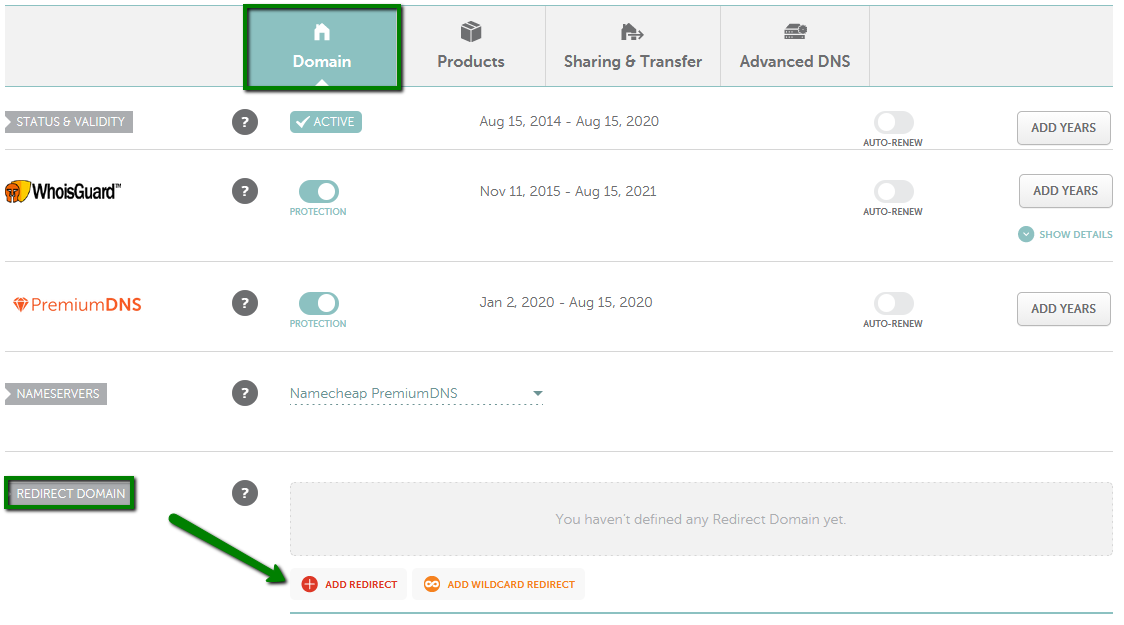
Credit: www.namecheap.com
Troubleshooting Common Issues
Easily redirect a URL with Namecheap by accessing the dashboard. Navigate to the domain list and select manage. Set your desired destination under the redirect domain section. Save changes to update the URL path.
Troubleshooting common issues in URL redirection with Namecheap can sometimes feel like solving a puzzle. You may encounter various hiccups that disrupt the smooth flow of your website traffic. Identifying these problems and addressing them promptly ensures your visitors reach the right destination without any hassle.Resolving Redirect Errors
Redirect errors are often the first roadblock. They can manifest as endless loops or error messages. It’s crucial to first verify that your redirect settings in Namecheap are correct. Double-check the URL paths to ensure there are no typos or incorrect entries. Sometimes, it’s as simple as an extra slash or a missing character causing the problem. Make sure the redirect type (301 or 302) aligns with your intended outcome. A 301 redirect is permanent, while a 302 is temporary. Choosing the wrong one can lead to confusion for both search engines and users.Checking Browser Cache
Your browser cache might be another sneaky culprit. Imagine this: you’ve updated your redirect settings, but your browser still leads you to the old page. This happens because browsers tend to remember past visits for faster loading. Clear your browser cache to see the changes take effect. Most browsers allow you to do this through settings or preferences. If you’re unsure, a quick search for instructions specific to your browser should help. Don’t forget to ask yourself: could this simple step be the solution to your redirect woes? Effective troubleshooting requires patience and attention to detail. Stay curious and willing to try different solutions. With persistence, your redirection issues with Namecheap will soon be a thing of the past.Advanced Redirection Techniques
Redirecting a URL on Namecheap involves accessing your account settings. Navigate to the domain list and select your domain. Choose the redirect option and input the new URL.
Redirecting URLs is an essential skill for any website owner. It ensures your visitors land in the right place and enhances your site’s performance. Simple redirections are common, but advanced techniques can give you more control and flexibility. Let’s explore these advanced methods to sharpen your redirection skills with Namecheap. ###Using Regular Expressions
Regular expressions (regex) offer powerful ways to match URL patterns. They can handle complex redirection scenarios with ease. Imagine you have a series of URLs with similar patterns, like `/blog/post1`, `/blog/post2`, etc. With regex, you can redirect all these to a new structure using just one rule. This saves time and reduces the risk of errors. To use regex in Namecheap, you’ll need to access the .htaccess file of your hosting account. Be cautious, though, as a small mistake can lead to unexpected results. Always back up your .htaccess file before making changes. Have you ever tried regex? It might seem daunting at first, but once you grasp the basics, it becomes an invaluable tool. ###Implementing Https Redirects
In today’s digital world, securing your website with HTTPS is non-negotiable. It not only protects your visitors but also boosts your site’s credibility and SEO. Redirecting HTTP traffic to HTTPS ensures every visitor benefits from a secure connection. It’s like rolling out a red carpet for your users, showing them you care about their safety. On Namecheap, you can set up an HTTPS redirect easily. Head to your cPanel and locate the “Redirects” section. From there, choose “Permanent (301)” redirect type and ensure all HTTP requests point to their HTTPS counterparts. Have you noticed a drop in bounce rates after switching to HTTPS? Many site owners report increased trust and engagement. It’s a small step with significant rewards. By mastering these advanced redirection techniques, you’re not just following best practices—you’re setting your site up for long-term success. What advanced technique will you try next?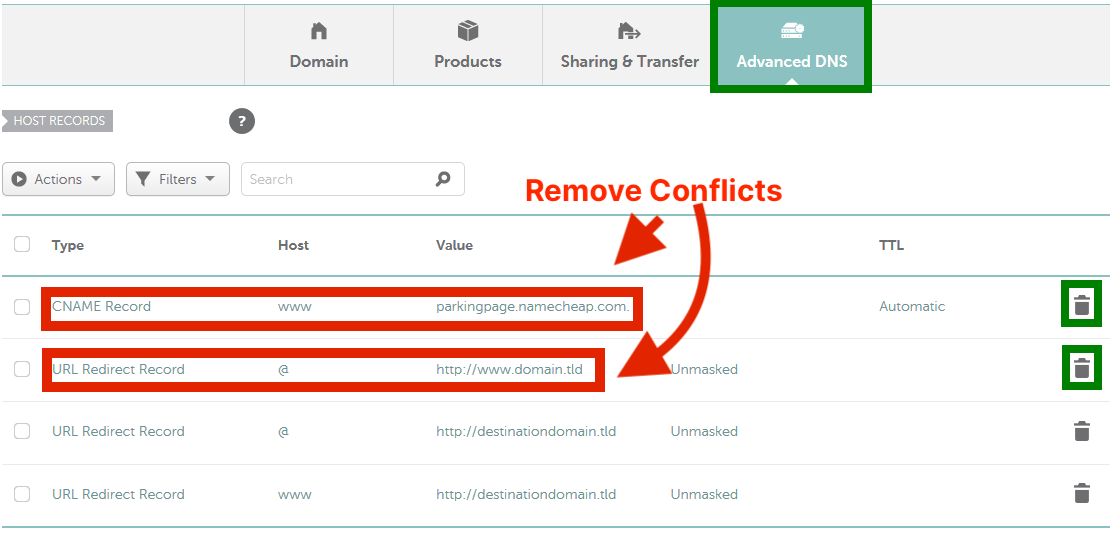
Credit: typedream.com
Frequently Asked Questions
How To Redirect Url To Another Url On Namecheap?
Log in to Namecheap, select “Domain List,” click “Manage,” choose “Advanced DNS,” and set up URL Redirect Record.
How Do I Redirect A Url To Another Url?
Use a 301 redirect in your. htaccess file to redirect a URL. Locate your. htaccess file in the root directory, then add the line: `Redirect 301 /old-url /new-url`. This tells search engines the page has permanently moved. Ensure both URLs are correct for effective redirection.
Is A Cname The Same As A Redirect?
A CNAME is not the same as a redirect. CNAME records map one domain to another, affecting DNS. Redirects send users from one URL to another, impacting browser navigation. Both serve different purposes in web management.
How Do I Redirect Http To Https In Namecheap?
Log into Namecheap, go to “Domain List,” then “Manage. ” Under “Advanced DNS,” add a URL Redirect Record. Set the record type to “Permanent (301)” and redirect “http://yourdomain. com” to “https://yourdomain. com. ” Save changes to enable the HTTPS redirection.
Conclusion
Redirecting a URL on Namecheap is simple with these steps. First, log into your account. Find the domain you want to redirect. Then, choose the redirect option and enter the new URL. Save your changes. That’s it! Your domain now points to the new location.
Remember, redirects help maintain website traffic and improve user experience. It’s important to check the URL after setting it up. Ensure everything works smoothly. This process is key for managing your online presence efficiently. Now you’re ready to manage redirects with confidence.


