

Are you ready to give your WordPress website a fresh, professional look? Adding an Envato theme can transform your site instantly, making it stand out and work exactly the way you want.
But if you’re not sure where to start or feel overwhelmed by the process, don’t worry. This guide will walk you through every step, using simple language and clear instructions. By the end, you’ll have your new theme up and running smoothly, boosting your site’s appeal and performance.
Keep reading to discover how easy it really is to add an Envato theme to your WordPress site!
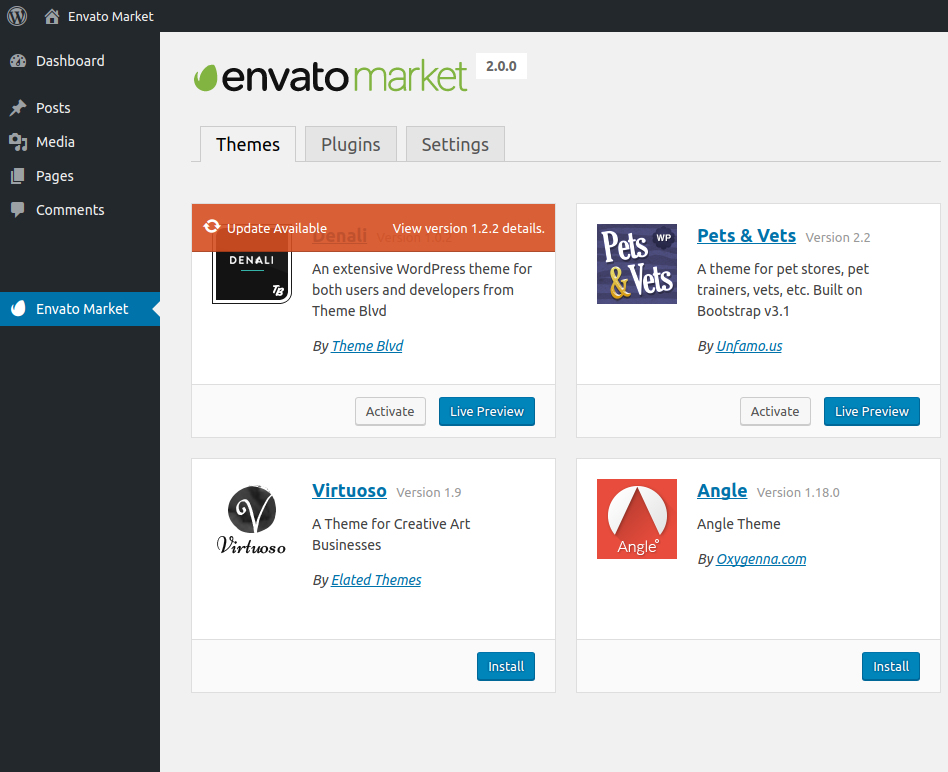
Credit: www.envato.com
Preparing For Theme Installation
Preparing for theme installation is an important step before adding an Envato theme to WordPress. It helps avoid errors and ensures a smooth setup. Proper preparation saves time and reduces frustration during the process.
This section covers how to select the right theme, download the files, and check WordPress requirements. Following these steps creates a solid base for your website design.
Choosing The Right Envato Theme
Select a theme that fits your website’s purpose. Consider the style, layout, and features you need. Look for themes with good ratings and recent updates. A well-maintained theme often works better and stays compatible with WordPress.
Think about your audience and what they expect. A clean and simple design usually works best for easy navigation. Avoid themes with too many complicated features. These can slow down your site and make editing harder.
Downloading The Theme Files
Log in to your Envato account to download the theme. Find the theme in your purchase list. Download the main theme file, usually a .zip archive. Do not unzip the file before uploading it to WordPress.
Save the file in a folder you can easily access. Some themes come with extra files like documentation or plugins. Download these if you want full functionality but install only the theme file first.
Checking WordPress Requirements
Check your WordPress version. Most Envato themes need WordPress 5.0 or higher. Ensure your hosting server meets PHP and MySQL version requirements. These details are in the theme documentation or Envato product page.
Update WordPress and plugins before installing the theme. This reduces compatibility problems. Back up your website before starting the installation. A backup keeps your data safe if something goes wrong.
Credit: help.elements.envato.com
Uploading Envato Theme To WordPress
Uploading an Envato theme to WordPress is a key step to start building your website. This process allows you to use the theme’s design and features. There are two common methods to upload your theme: using the WordPress dashboard or FTP. Both ways are simple and effective.
Choose the method that suits your comfort level and access. Follow the steps carefully to avoid errors. Let’s explore each method in detail.
Using WordPress Dashboard
First, log in to your WordPress admin area. Go to the “Appearance” menu and click “Themes.” Next, click the “Add New” button at the top.
Then, select “Upload Theme” and click “Choose File.” Find the Envato theme file on your computer. It should be a .zip file.
After selecting the file, click “Install Now.” WordPress will upload and install the theme. Wait until the process finishes. Finally, click “Activate” to use the theme on your site.
Uploading Via Ftp
FTP upload requires an FTP client like FileZilla. Open your FTP client and connect to your web server. Use your FTP credentials to log in.
Locate the WordPress themes folder. It is usually inside “wp-content/themes.” Unzip the Envato theme file on your computer first.
Upload the extracted theme folder to the “themes” directory. Wait until all files transfer completely. After uploading, go to your WordPress dashboard.
Navigate to “Appearance” > “Themes.” Find your new Envato theme and click “Activate.” Your theme is now ready for customization.
Activating And Customizing The Theme
Activating and customizing your Envato theme is the next step after installation. This process makes your website look professional and unique. It also helps you set up your site quickly with the right design and features. Follow simple steps to activate the theme and adjust it to fit your needs.
Activating The Theme
Go to your WordPress dashboard. Click on “Appearance” and then “Themes.” Find the Envato theme you uploaded. Click “Activate” to start using the theme on your site. Activation connects the theme to your website’s frontend. Now your site shows the new design and layout.
Importing Demo Content
Most Envato themes include demo content. This content helps you understand the theme’s design and structure. Find the “Import Demo” option in the theme settings. Click it to load sample pages, posts, and images. Demo content saves time and gives a clear base to edit. You can delete or change this content later.
Configuring Theme Settings
Open the theme options panel in your dashboard. Adjust colors, fonts, and layouts here. Set your logo, header, and footer styles. Customize menus and widgets to match your brand. Use simple controls to change the look without coding. Save your changes and check your website to see updates live.
Troubleshooting Common Issues
Troubleshooting common issues helps keep your Envato theme running smoothly. Problems may arise during installation or use. Knowing simple fixes saves time and stress.
Below are solutions for typical problems with Envato themes on WordPress. These tips work well for beginners and experienced users alike.
Handling Upload Errors
Upload errors happen often due to file size limits or server settings. Check your hosting provider’s upload limit. Increase it if the theme file is too large.
Use a reliable internet connection. Interrupted uploads cause errors. Try uploading the theme via FTP if the WordPress uploader fails.
Ensure the theme file is a valid .zip format. Corrupt files won’t upload correctly. Download the theme again from Envato if needed.
Fixing Theme Compatibility Problems
Theme compatibility issues occur if WordPress or PHP versions are outdated. Update WordPress to the latest version. Also, update your PHP to meet theme requirements.
Check the theme’s documentation for required versions. Some themes need specific plugins or settings to work well.
Deactivate other themes before activating the new Envato theme. This reduces conflicts and helps isolate compatibility problems.
Dealing With Plugin Conflicts
Plugin conflicts can break theme features or slow down your site. Deactivate all plugins and test the theme. Reactivate plugins one by one to find the problem.
Use plugins that are compatible with your WordPress version and theme. Avoid outdated or rarely updated plugins.
Contact the plugin or theme support if conflicts persist. They often provide fixes or updates to resolve issues quickly.
Optimizing Theme Performance
Optimizing your Envato theme’s performance boosts user experience and site ranking. A fast, smooth website keeps visitors engaged and reduces bounce rates. Focus on key areas to make your WordPress theme run better and faster.
Installing Required Plugins
Many Envato themes need specific plugins to work well. These plugins add features and improve design. Install all recommended plugins right after activating the theme. Use the WordPress dashboard to find and activate them easily.
Keep plugins updated for security and better performance. Remove any plugins you do not use. This reduces site clutter and speeds up loading times.
Improving Loading Speed
Loading speed affects visitor satisfaction and SEO ranking. Optimize images by compressing them before uploading. Use plugins like WP Super Cache or W3 Total Cache to enable caching. Caching stores parts of your site to load faster on repeat visits.
Minimize CSS and JavaScript files by combining and compressing them. Choose a reliable hosting service with good speed. Avoid using too many heavy animations or large files.
Ensuring Mobile Responsiveness
Most visitors use mobile devices to browse websites. Your Envato theme must look good on all screen sizes. Test your website on phones and tablets regularly. Use responsive design features built into the theme settings.
Adjust font sizes and button placements for easy tapping. Avoid elements that cause horizontal scrolling. A mobile-friendly site improves usability and search engine ranking.
Credit: help.market.envato.com
Frequently Asked Questions
How Do I Upload An Envato Theme To WordPress?
To upload an Envato theme, download the theme ZIP file from Envato. Then, log into your WordPress dashboard, go to Appearance > Themes > Add New, and upload the ZIP file. Finally, activate the theme to apply it to your site.
Can I Customize Envato Themes In WordPress?
Yes, Envato themes are fully customizable. Use the WordPress Customizer or theme options panel to change colors, fonts, layouts, and more. Many themes also support page builders for easy drag-and-drop design.
What Are The System Requirements For Envato Themes?
Envato themes usually require WordPress 5. 0 or higher and PHP 7. 2 or above. Check the theme documentation for exact requirements to ensure compatibility and smooth performance.
How Do I Update My Envato Theme In WordPress?
Update your Envato theme by downloading the latest version from Envato. Then, upload and replace the old theme files via the WordPress dashboard or FTP. Always back up your site before updating to avoid data loss.
Conclusion
Adding an Envato theme to WordPress is simple and quick. Just follow the step-by-step guide carefully. You can customize your site easily afterward. Choose a theme that fits your style and needs. Keep your WordPress and theme updated for best performance.
Enjoy building a website that looks professional and works well. This process helps you create a unique online presence. Start now and watch your site take shape!


