
Are you looking to make your WordPress pages more dynamic without coding? Adding shortcodes is one of the easiest ways to do that.
Imagine inserting complex features like galleries, forms, or buttons with just a few simple steps. This guide will show you exactly how to add shortcodes to your WordPress page, helping you save time and make your site stand out. Keep reading, and you’ll discover how to unlock the full potential of your WordPress content right now.
What Are WordPress Shortcodes
WordPress shortcodes are small code pieces that add special features to your pages. They let you insert complex content quickly. You do not need to write long code or know programming.
Shortcodes are placed inside square brackets. WordPress reads these codes and shows the related content. They work like shortcuts to add things like galleries, forms, or buttons.
What Does A WordPress Shortcode Look Like?
A shortcode looks like this: [example]. You type it in the editor. WordPress replaces it with the content it represents. Some shortcodes have extra options called attributes. These change how they work. For example, shows images in medium size.
Where Can You Use Shortcodes?
Shortcodes can be used in posts, pages, and widgets. Some themes and plugins add their own shortcodes. You can also create custom shortcodes. They help you add features without touching code every time.
Why Use Shortcodes In WordPress?
Shortcodes save time and effort. They keep your pages neat and easy to edit. You avoid repeating the same code many times. Shortcodes make your site more flexible and user-friendly.
Where To Use Shortcodes On Your Site
Shortcodes are small pieces of code you add to your WordPress site. They help you add features without writing full code. Knowing where to use shortcodes can improve your site’s look and function. They work in many places on your site. Use them smartly to save time and effort.
Using Shortcodes In Pages And Posts
Pages and posts are the main content areas. You can insert shortcodes directly into the text editor. This adds things like buttons, forms, or galleries. It keeps your content dynamic and interactive. Shortcodes make it easy to change features without changing the whole page.
Adding Shortcodes To Widgets
Widgets are small blocks you place in sidebars or footers. Some widgets allow shortcode use. This lets you add custom content like contact forms or sliders. It helps keep your sidebar or footer interesting. You can update the content quickly with shortcodes.
Inserting Shortcodes In Theme Files
For advanced users, shortcodes can go into theme files. This requires editing PHP files. It lets you add special features site-wide. Use this method carefully to avoid errors. It’s a good way to add code that appears on every page.
Using Shortcodes In Custom Post Types
Custom post types like portfolios or testimonials can use shortcodes. This adds extra features tailored to that content. It helps display content in a unique way. Shortcodes make these sections more functional and attractive.
Finding The Right Shortcode
Finding the right shortcode is key to making your WordPress page work well. Shortcodes save time and add useful features without complex coding. They come from different sources and serve many purposes.
Knowing where to find shortcodes helps you pick the best one. Some shortcodes are built into WordPress. Others come from plugins or are made just for your site. Understanding each type makes adding shortcodes easier.
Built-in Shortcodes
WordPress has some shortcodes included by default. These cover common needs like galleries, audio, and video. For example, the shortcode creates an image gallery quickly. These shortcodes work without extra setup. They are simple and reliable for basic functions.
Plugin Shortcodes
Many plugins add their own shortcodes. These expand what your site can do. For instance, a contact form plugin might add a shortcode to display a form. Plugin shortcodes often need the plugin to be active. They offer specialized features beyond WordPress basics.
Custom Shortcodes
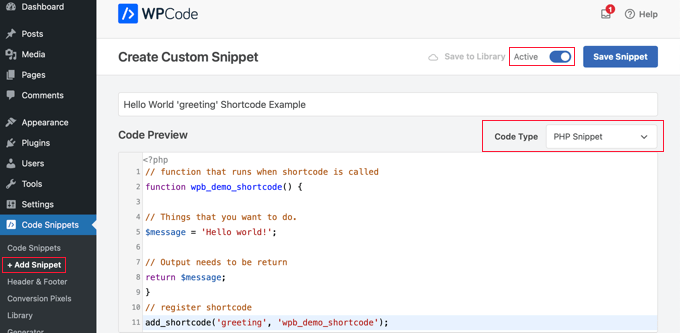
Custom shortcodes are made just for your site. Developers create these to add unique content or functions. You can use code snippets or plugins to build custom shortcodes. They give full control to fit your exact needs. This option suits users with coding knowledge or developer help.
Adding Shortcodes In The Block Editor
Adding shortcodes in the WordPress Block Editor is simple. It lets you insert custom features without coding. Shortcodes save time and make pages more interactive. The Block Editor has special tools to handle shortcodes easily.
Using The Shortcode Block
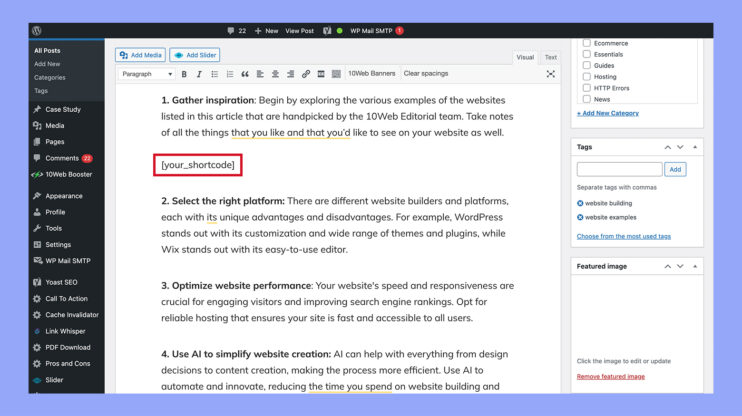
The Shortcode block is the easiest way to add shortcodes. Click the plus (+) icon to add a new block. Search for “Shortcode” and select it. Paste your shortcode inside the block. The editor shows the shortcode text, but it works when you publish.
This block is perfect for inserting basic shortcodes. It keeps your shortcode separate and clean. You can move or edit the block anytime.
Embedding Shortcodes In Other Blocks
You can also place shortcodes inside other blocks. For example, use a Paragraph block or a Group block. Just type or paste the shortcode within the block’s content area.
This method helps if you want to mix text and shortcodes. The editor processes the shortcode when you view the page. This way, shortcodes blend with your page design smoothly.
Inserting Shortcodes In The Classic Editor
The Classic Editor in WordPress offers a simple way to insert shortcodes. It allows users to add dynamic content without coding knowledge. Shortcodes act like shortcuts to add features such as galleries, forms, or videos. Understanding how to place these codes correctly can improve your page design and function.
This section explains the steps to insert shortcodes in the Classic Editor. It shows how to use the editor’s tools to place shortcodes easily and correctly.
Using The Visual Tab To Insert Shortcodes
Open the page or post in the Classic Editor. Click the Visual tab at the top right of the editor box. Place your cursor where you want the shortcode to appear. Type or paste the shortcode directly into the content area. The Visual tab shows the shortcode as plain text, not as the final content.
Inserting Shortcodes In The Text Tab
Switch to the Text tab beside the Visual tab. This view shows the HTML and shortcode as raw code. Paste or type the shortcode exactly where you want it. The Text tab helps avoid formatting issues from the Visual tab. Save or update your page to apply the shortcode.
Using Shortcode Buttons In Classic Editor Plugins
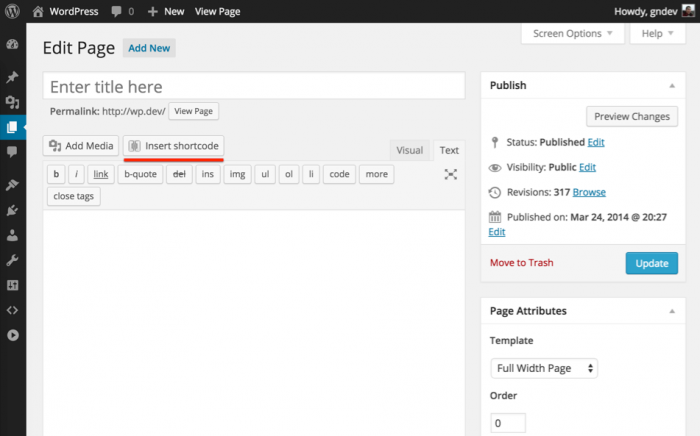
Some plugins add shortcode buttons to the Classic Editor toolbar. These buttons insert shortcodes with one click. Click the shortcode button and fill in any required options. The plugin adds the correct shortcode automatically. This method reduces errors and saves time.
Credit: 10web.io
Using Shortcodes In Widgets And Sidebars
Shortcodes can be placed in widgets and sidebars to show dynamic content easily. Just paste the shortcode into a text widget and save. This method helps add features without editing page files.
What Are Shortcodes In Widgets And Sidebars?
Shortcodes are small code snippets that add features to your site. They work inside widgets and sidebars too. This helps you show content like galleries, forms, or buttons without coding.
Using shortcodes in widgets and sidebars can make your site more dynamic. It allows you to place interactive elements in side areas of your pages. This improves user experience and site functionality.
How To Enable Shortcodes In Text Widgets
WordPress does not always run shortcodes in text widgets by default. You need to enable this feature. Add a small code snippet to your theme’s functions.php file to allow shortcodes.
Here is the code you can use:
add_filter('widget_text', 'do_shortcode');This code lets WordPress read shortcodes inside text widgets. After adding it, any shortcode you put in a text widget will work properly.
Steps To Add Shortcodes In Widgets And Sidebars
Go to your WordPress dashboard. Then, click on Appearance and select Widgets.
Find the Text widget or Custom HTML widget. Drag it to your chosen sidebar or widget area.
Paste the shortcode inside the widget content box. Save the widget settings.
Visit your site to see the shortcode in action on the sidebar or widget area.
Common Shortcode Errors And Fixes
Shortcodes make WordPress pages powerful and flexible. Yet, errors with shortcodes can confuse users. These mistakes stop shortcodes from working properly. Fixing common shortcode errors helps keep your site smooth.
Below are frequent shortcode errors and simple solutions. Each fix helps your shortcode display content correctly. Learning these tips saves time and improves your WordPress skills.
Incorrect Shortcode Syntax
Shortcodes must follow exact syntax rules. Missing brackets or wrong characters cause errors. Always write shortcodes inside square brackets like this: [shortcode].
Check for extra spaces or typos. Even a small mistake breaks the shortcode. Use the shortcode exactly as the plugin or theme instructs.
Shortcode Not Executing
Sometimes shortcodes show as text instead of content. This happens if shortcodes are placed outside the main content area. Ensure you add shortcodes in the WordPress editor, not in HTML widgets or text widgets.
Also, verify the plugin or theme supporting the shortcode is active. Deactivated plugins stop shortcodes from running.
Missing Required Parameters
Some shortcodes need extra information called parameters. Missing parameters lead to blank or wrong output. Check shortcode documentation for required parameters.
Include all needed attributes within the shortcode brackets. Example: .
Plugin Or Theme Conflicts
Conflicts with plugins or themes may block shortcode functions. Deactivate other plugins one by one to find the conflict. Switch to a default theme to test if the theme causes problems.
Update all plugins and themes regularly to avoid compatibility issues.
Shortcode Output Shows Raw Code
Raw shortcode code appears if WordPress does not parse it. This can happen in the wrong editor mode. Use the Visual or Block editor to insert shortcodes, not the Text editor.
Wrapping shortcodes inside paragraph tags can also cause issues. Remove extra HTML tags around the shortcode.
Credit: www.active24.de
Tips For Managing Shortcodes Effectively
Managing shortcodes well helps keep your WordPress site clean and fast. It makes editing content easier and reduces errors. Follow these tips to handle shortcodes smartly and avoid common problems.
Use Descriptive Names For Shortcodes
Choose clear, simple names for your shortcodes. This helps you remember what each shortcode does. Avoid vague names like “code1” or “itemA”. Use words that describe the function or content.
Keep Shortcodes Organized
Store your shortcode functions in one place, such as a custom plugin or your theme’s functions file. This keeps your site tidy and makes it easier to update or fix issues later.
Test Shortcodes On Different Pages
Check how your shortcodes work on various pages and posts. Ensure they display correctly and do not break your layout. Testing helps catch problems early.
Limit The Number Of Shortcodes
Avoid using too many shortcodes on one page. Too many can slow down your site and confuse visitors. Use only the necessary shortcodes for better performance.
Document Your Shortcodes
Write simple notes about what each shortcode does and how to use it. Keep this information accessible for yourself or other editors. Good documentation saves time and prevents mistakes.
Credit: www.wpbeginner.com
Frequently Asked Questions
How Do I Add A Shortcode To A WordPress Page?
To add a shortcode, open the WordPress page editor. Paste the shortcode directly into the content area. Update or publish the page to apply changes. WordPress automatically processes the shortcode and displays the desired output on the page.
Can I Use Multiple Shortcodes On One Page?
Yes, you can insert multiple shortcodes on a single WordPress page. Each shortcode will execute independently. Just place each shortcode where you want its content to appear. This flexibility allows you to combine different functionalities easily.
Are There Any Plugins To Manage WordPress Shortcodes?
Several plugins help you manage and create shortcodes. Popular options include Shortcodes Ultimate and WP Shortcode. These plugins offer easy shortcode insertion and customization without coding. They enhance your site’s functionality and save development time.
What If My Shortcode Doesn’t Work On The Page?
If a shortcode doesn’t work, check for common issues. Ensure the shortcode is typed correctly with brackets. Verify the plugin or theme providing the shortcode is active. Clear caching plugins and refresh the page to see changes.
Conclusion
Adding shortcodes to your WordPress page is simple and quick. Shortcodes save time and make your site more flexible. You can add them anywhere on your page or post. Just copy and paste the shortcode, then update your content. This method helps you show features without coding.
Keep practicing to get comfortable using shortcodes. Your website will look better and work smoother. Start using shortcodes today to improve your WordPress pages.


