
Have you ever found yourself puzzled about redirecting a domain on Namecheap? You’re not alone!
Many people find this technical task a bit daunting at first. But don’t worry; you’re about to discover how simple it can be. Imagine effortlessly guiding visitors from one domain to another, ensuring they land exactly where you want them.
Mastering this process can save you time, boost your site’s traffic, and improve your online presence. Curious to learn more? Let’s dive into the step-by-step guide, crafted just for you, to make domain redirection on Namecheap a breeze.

Credit: www.youtube.com
Domain Namecheap Basics
Understanding the basics of Domain Namecheap can open new doors for your online ventures. Whether you’re a seasoned webmaster or a beginner, there’s something for everyone to learn. Let’s dive into the essentials that will empower you to navigate the world of domain redirection with ease.
Domain Registration
Registering a domain with Namecheap is straightforward. You simply search for your preferred domain name, add it to your cart, and purchase it. They offer competitive prices and a user-friendly interface, making the process smooth.
Domain Management Tools
Namecheap provides robust tools for managing your domains. From your account dashboard, you can easily update domain settings, renew your domains, and access your DNS settings. These tools are designed with simplicity in mind.
Understanding Dns Settings
DNS settings are crucial when redirecting a domain. You’ll need to access these settings to point your domain to a new server or web service. Namecheap makes it easy to modify your DNS records, providing clear instructions.
Importance Of Domain Privacy
Domain privacy is essential to protect your personal information. Namecheap offers free domain privacy protection for the first year, ensuring your details are safe from prying eyes. This is a valuable feature, especially for new users.
Personal Insight
When I first started using Namecheap, I was amazed at how intuitive their platform was. The process of setting up my domain and redirecting it was seamless. Have you ever thought about how a simple tool can transform your online presence?
These basics provide a solid foundation for managing your domains efficiently. With Namecheap, you’re not just buying a domain; you’re gaining access to a suite of tools that simplify your digital journey.
Preparation Steps
Start by logging into your Namecheap account. Then, locate the “Domain List” section. Select your domain. Click on “Manage. ” Finally, find the “Redirect Domain” option and input the desired URL. Save changes to complete the process.
Redirecting a domain on Namecheap requires some preparation. Before diving into the process, ensure you have everything ready. These preparation steps will guide you for a smooth domain redirect.Check Domain Registration
First, confirm your domain is registered with Namecheap. Log into your Namecheap account. Navigate to the “Domain List” section. Check if your domain appears there. If not, your domain might be with another registrar. Ensure you have access to the registered email address. This is crucial for verification and communication.Access Domain Dashboard
Once your domain is confirmed, access the domain dashboard. Click on the domain name from the list. This will open the domain dashboard. Here, you can manage DNS settings and other configurations. Familiarize yourself with the dashboard layout. Understanding it will help you make changes confidently. These preparation steps are vital. They set the foundation for a successful domain redirect.Choosing Redirection Type
Select the right redirection type to manage domain traffic effectively on Namecheap. Use 301 for permanent moves or 302 for temporary changes. Ensure visitors find the correct destination quickly and easily.
Redirecting your domain on Namecheap might seem daunting at first, but understanding the type of redirection you need is a crucial step. Choosing the right redirection type ensures that your visitors find the content they’re looking for, without any hiccups. It’s like setting the GPS to guide them smoothly to their destination. Let’s explore the different types of redirection to help you make an informed choice.Permanent Vs Temporary
Deciding between a permanent (301) and temporary (302) redirection depends on your goals. A permanent redirect is like changing your address with the post office—it tells search engines and browsers that this is the new permanent home for your content. This helps preserve your SEO rankings and ensures that link equity is passed to the new URL. On the other hand, a temporary redirect is useful when you need a detour. Perhaps you’re updating your website or running a limited-time campaign. It tells search engines that the change is not permanent, so the original URL’s ranking won’t be affected long-term.Www To Non-www Redirection
The choice between www and non-www redirection is more than just aesthetics. It’s about consistency and branding. If you’ve ever felt frustrated typing a URL and landing on an error page, you understand the importance of seamless redirection. Redirecting www to non-www (or vice versa) ensures that all traffic points to one version of your domain. This helps avoid duplicate content issues, which can harm your SEO. Plus, it gives your website a cleaner, more professional look. Imagine telling someone your website address—having one consistent format makes it easier for them to remember and revisit. Have you ever considered how your redirection choice might affect your site’s performance or user experience? Choosing wisely can enhance both. When setting up redirection, think about how each choice impacts your visitors and search engines. It’s about creating a seamless experience for everyone who visits your site.Setting Up Url Forwarding
Redirecting a domain with Namecheap is straightforward. Begin by logging into your Namecheap account. Navigate to your domain list and select the domain you want to forward. Choose the redirect option and enter the destination URL. Save the changes, and your domain will point to the new address.
Setting up URL forwarding with Namecheap is a straightforward process. This feature lets you redirect visitors from one domain to another. It’s useful if you’re moving your site or want a shorter URL. With URL forwarding, you ensure your visitors reach the right destination. Let’s dive into the steps to set this up.Navigate To Redirect Settings
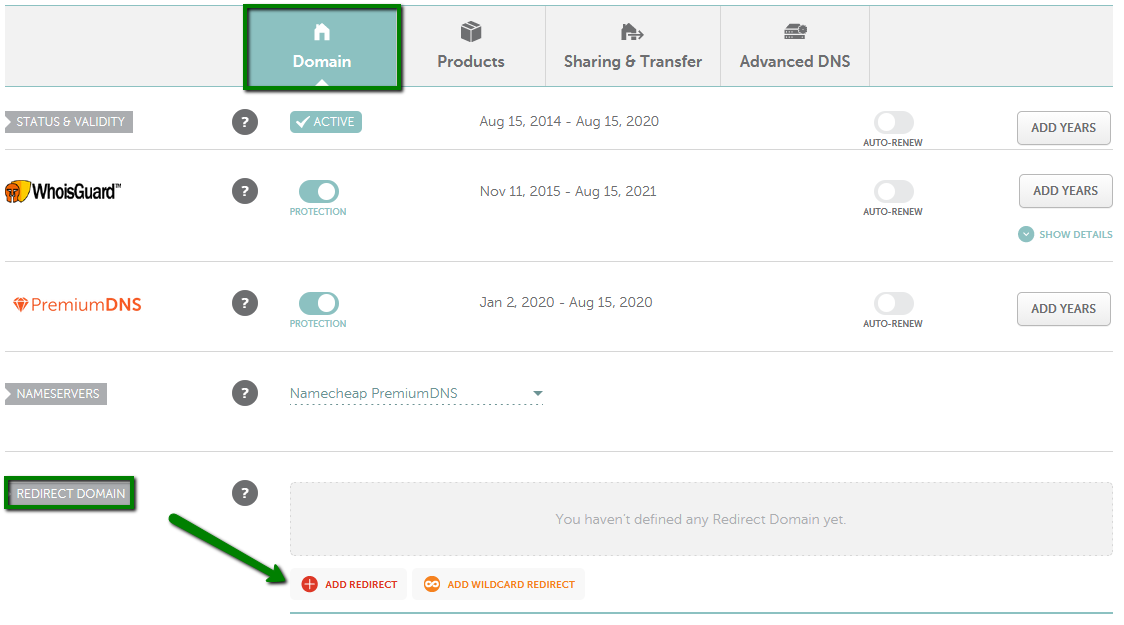
First, log in to your Namecheap account. Once logged in, go to the “Domain List” on your dashboard. Here, find the domain you want to redirect. Click the “Manage” button next to it. This takes you to the domain settings page. Look for the “Advanced DNS” tab. Click on it to access more settings. Find the “Redirect Domain” section. This is where you’ll set up your URL forwarding.Enter Forwarding Url
In the “Redirect Domain” section, locate the “Add Redirect” button. Click it to start the process. You will see two fields appear. The first field is for the source URL. Enter the domain you want to redirect. The second field is for the destination URL. Here, type the URL where you want visitors to land. Ensure the destination URL is correct. Double-check for typos or errors. Once filled, save your changes. Your domain will now redirect to the new address.Dns Settings Adjustment
Adjusting your DNS settings is a crucial step in redirecting your domain on Namecheap. It ensures your web traffic flows smoothly to the right destination. But how do you do it effectively without getting lost in technical jargon? Let’s break it down into actionable steps that even a beginner can master. A little personal insight—when I first tackled DNS settings, I felt like I was solving a puzzle. But with the right guidance, it quickly became second nature.
Update Dns Records
Start by accessing your Namecheap account. Navigate to the Domain List and click on ‘Manage’ next to your domain. Look for the ‘Advanced DNS’ tab. Here, you’ll find various DNS record types like A, CNAME, and MX.
Each record type serves a different purpose. For a simple redirect, focus on the A record. This directs your domain to a specific IP address. Enter the new IP address, save changes, and you’re on your way!
Remember, each change might take some time to propagate. So patience is key. Have you ever updated something only to see no immediate effect? That’s common with DNS adjustments due to propagation delay.
Verify Dns Changes
You’ve updated your DNS records, but how do you ensure they’re working? Utilize online tools like DNS Checker. Enter your domain and select the record type you updated. This will show you how DNS changes are propagating worldwide.
Don’t be alarmed if you see inconsistent results initially. DNS changes can take up to 48 hours to fully update across all servers. During this time, you might wonder if you’ve done everything correctly. Just give it some time.
Are you curious if there’s a faster way to verify? You can also check through the command line using commands like ‘nslookup’ or ‘dig’. This gives you direct feedback from your local DNS server.
Adjusting DNS settings may seem daunting at first. But with these steps, you can confidently redirect your domain and ensure everything is set correctly. So, what’s stopping you from diving in? Embrace the challenge and take control of your domain’s destiny!
Testing Domain Redirection
Redirecting a domain with Namecheap involves accessing the account dashboard. Locate the domain settings and select the redirect option. Enter the target URL to complete the process. This simple adjustment ensures your domain points to the desired web address efficiently.
Testing domain redirection is a crucial step to ensure your visitors seamlessly reach your new site without hiccups. Whether you’re moving to a new domain or setting up a temporary redirect, thorough testing can save you from potential traffic loss. Imagine spending time setting up a redirect only to find out it’s not working as expected. Let’s dive into how you can effectively test your domain redirection. ###Check Propagation Status
When you set up a domain redirect, it doesn’t go live immediately. The changes need to propagate across the internet, which can take anywhere from a few minutes to 48 hours. It’s like sending a letter across the globe; it takes time to reach every destination. To check if your domain redirect is live, use tools like WhatsMyDNS or DNS Checker. These tools let you see if the DNS changes have propagated in different parts of the world. Simply enter your domain and look at the results. Are you seeing consistent updates across multiple locations? ###Validate Redirect Functionality
Once you’ve confirmed the DNS changes have propagated, it’s time to validate the redirect functionality. Open your favorite browser, clear the cache, and type in your old domain URL. Does it redirect smoothly to the new one? For a more detailed check, tools like Redirect-Checker or HTTP Status Code Checker can come in handy. These tools will show the HTTP status code, ensuring your redirect is set correctly as a 301 or 302. Imagine visiting your favorite website and being greeted with a “Page Not Found” message instead of the content you were expecting. Not a great experience, right? That’s why this step is vital. Testing your domain redirection isn’t just a technical box to check off. It’s about ensuring your visitors have a seamless experience, just as you would want when browsing online. Have you ever faced challenges while redirecting a domain? How did you overcome them?Troubleshooting Common Issues
Redirecting a domain on Namecheap involves updating DNS settings. Ensure DNS records point to the new server. Verify changes through Namecheap’s dashboard for smooth redirection.
Navigating the digital landscape of domain management can occasionally lead to hiccups, especially when you’re dealing with redirects on Namecheap. Troubleshooting these common issues is crucial to ensure your website maintains its seamless flow. Here’s a guide to help you swiftly tackle typical challenges, keeping your site running smoothly and efficiently. ###Resolving Dns Errors
DNS errors can be a real headache, but they’re often straightforward to fix. First, ensure that your DNS settings are correctly configured in your Namecheap account. Check that your nameservers point to the correct hosting provider. If your site isn’t loading, it might be due to DNS propagation. This process can take up to 48 hours. During this time, your changes may not be visible immediately, so patience is key. Have you ever thought about verifying your DNS records using tools like DNS Checker? It can provide real-time insights into how your domain is resolving globally, helping you pinpoint the issue. ###Handling Redirect Conflicts
Redirect conflicts occur when multiple rules compete, leading to unexpected behavior on your site. Ensure you have only one active redirect rule for each URL. Check your .htaccess file for conflicting directives, especially if you’re using shared hosting. A simple mistake in this file can lead to infinite loops or 404 errors. Are you using multiple plugins or third-party services for redirects? This can cause conflicts. Consolidate your redirects under one system to streamline operations and reduce errors. Remember, the key to troubleshooting is staying calm and methodical. By addressing DNS errors and handling redirect conflicts with precision, you can ensure your website functions flawlessly. Have you encountered any other common issues? Share your experiences and solutions in the comments below!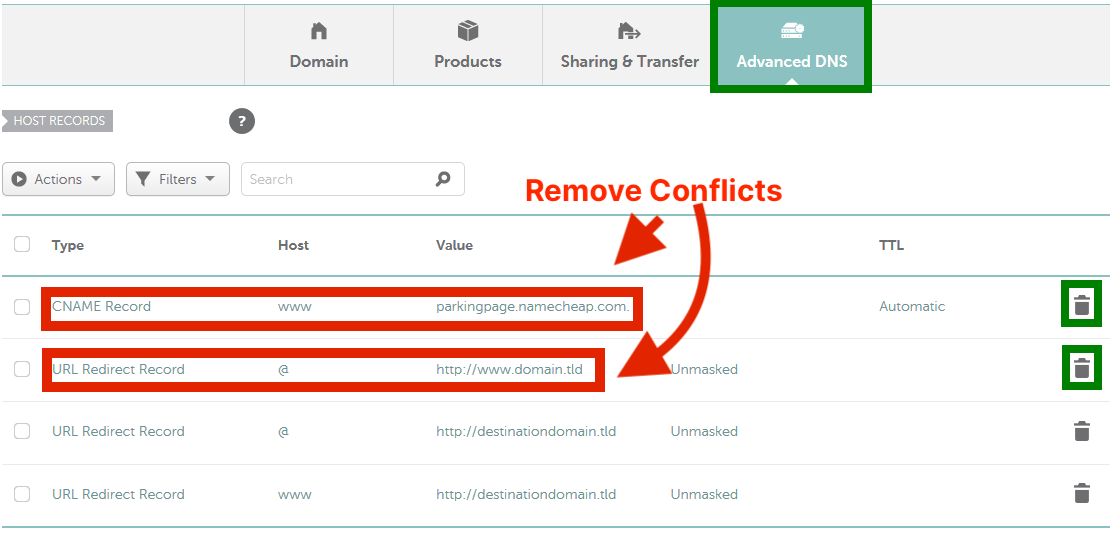
Credit: typedream.com
Credit: www.namecheap.com
Frequently Asked Questions
How Do I Redirect A Domain In Namecheap?
To redirect a domain in Namecheap, log in to your account. Go to the Domain List. Click “Manage” next to your domain. Under the “Redirect Domain” section, enter your destination URL. Save changes. Your domain will redirect to the specified URL.
How Do I Redirect A Domain To Another Domain?
To redirect a domain, edit the. htaccess file on your server. Add this line: `Redirect 301 / http://newdomain. com/`. Ensure DNS settings point to the correct server. Verify the redirection is working by visiting the old domain.
Is A Cname The Same As A Redirect?
A CNAME is not the same as a redirect. CNAMEs point domain names to another domain. Redirects send users to a different URL. Both have distinct purposes in domain management and website navigation.
How Do I Redirect A Domain To A Path?
Use an. htaccess file to set up domain redirects. Add a redirect rule like “Redirect 301 / http://newdomain. com/path/”. Ensure the server supports. htaccess and has mod_rewrite enabled. Test the redirect to confirm it works as expected.
Conclusion
Redirecting a domain on Namecheap is simple and effective. You can easily enhance your online presence by following these steps. Start by accessing your Namecheap account. Navigate to the domain settings. Choose the redirect option and enter the new URL.
Save your changes. Your domain now points to the new destination. This process ensures your audience finds your content effortlessly. Redirecting helps manage your online identity seamlessly. With Namecheap, you have control over your domain’s path. Keep your digital strategy smooth and efficient with proper redirection.
Your audience will appreciate the seamless experience.


