
Imagine being able to peek behind the curtain and see exactly how visitors interact with your WordPress site. That’s the magic of Google Analytics.
But before you can start tracking, you need to know how to place that powerful code into your WordPress theme. This might sound daunting, but it’s simpler than you think. By the time you finish reading this guide, you’ll be equipped with the knowledge to seamlessly integrate Google Analytics and unlock insights into your audience’s behavior.
Let’s make sure every click, scroll, and visit is accounted for, giving you the power to enhance your website’s performance and reach. Ready to transform your understanding of your site’s traffic? Let’s dive in.
Credit: www.hostinger.com
Understanding Google Analytics
Google Analytics helps you see how people use your site. It shows you which pages are popular. You can find out where visitors come from. It tells you how long people stay. This tool helps you understand what is working. You can improve your site with this info. Better websites bring more visitors. More visitors can mean more business.
Google Analytics uses a special code on your site. This code tracks what visitors do. It collects data about each visit. The code sends this data to Google. Google analyzes the data for you. You can then see reports. These reports show visitor trends. They help you understand your audience.
Credit: pixelgrade.com
Preparing Your WordPress Site
Always back up your theme files before making changes. This keeps your site safe. Use a plugin for easy backups. Some popular ones are UpdraftPlus and BackWPup. These tools save your files in a safe place. You can also download files to your computer. Check the settings and start the backup process. This step is quick but very important. A backup helps if something goes wrong.
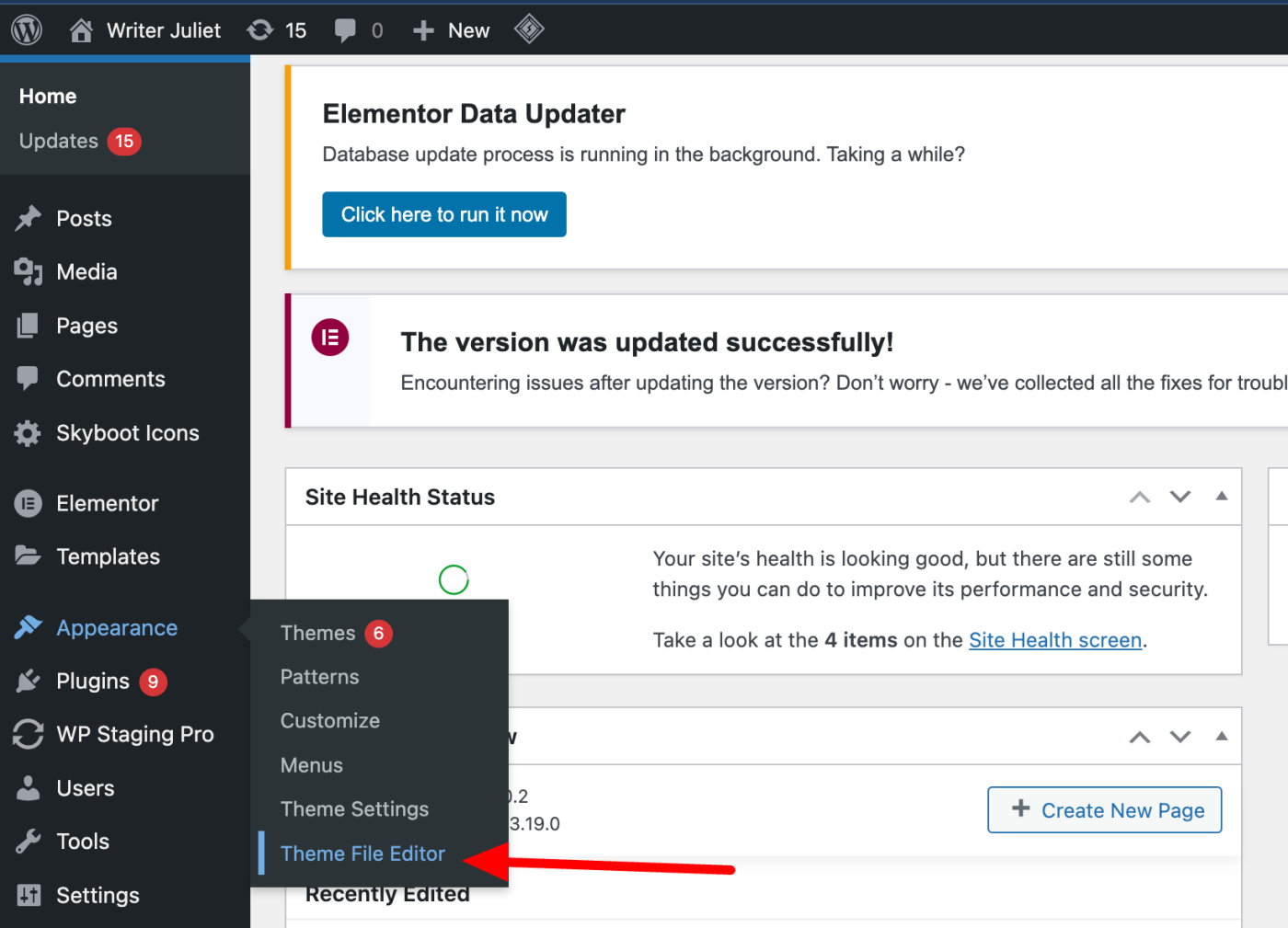
Log in to your WordPress dashboard. Use your username and password. Find the left menu. Click on Appearance. Then choose Editor. This is where you can change theme files. Be careful here. Changes can affect your site. Double-check before saving anything. Always keep your login details safe. Regularly update your password to protect your site.
Locating The Theme Header File
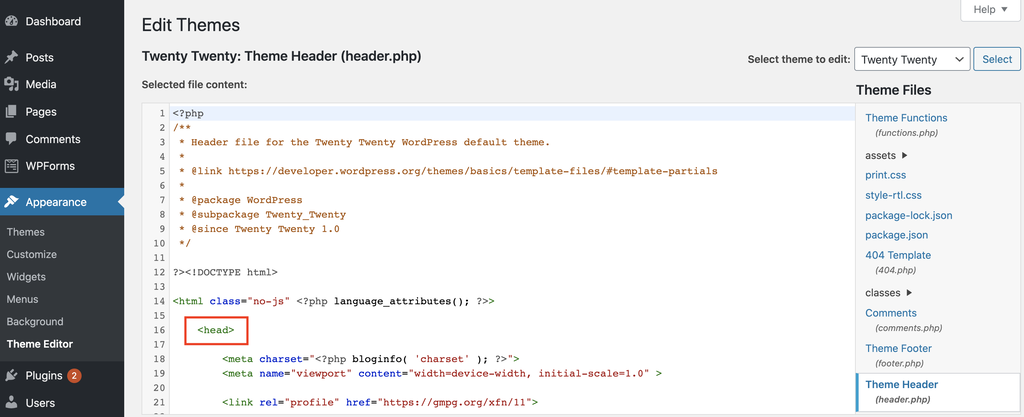
Find the theme header file in your WordPress dashboard by navigating to Appearance, then Theme Editor. Insert the Google Analytics code within the header. php file to start tracking your site’s performance efficiently.
Finding The Header.php File
Start by opening your WordPress dashboard. Look for the Appearance tab on the sidebar. Click it. A list will appear. Select Theme Editor. It shows your theme files. Find the header.php file. It’s usually on the right side of the page. This file is important. It helps with adding Google Analytics code.
Understanding Theme File Structure
WordPress themes have many files. Each file has a job. Header.php is one of them. It controls the top part of your site. It’s like a template. This file is special. It shows on every page. Other files might change often. Header.php stays the same. It’s a good place for analytics code.
Inserting Google Analytics Code
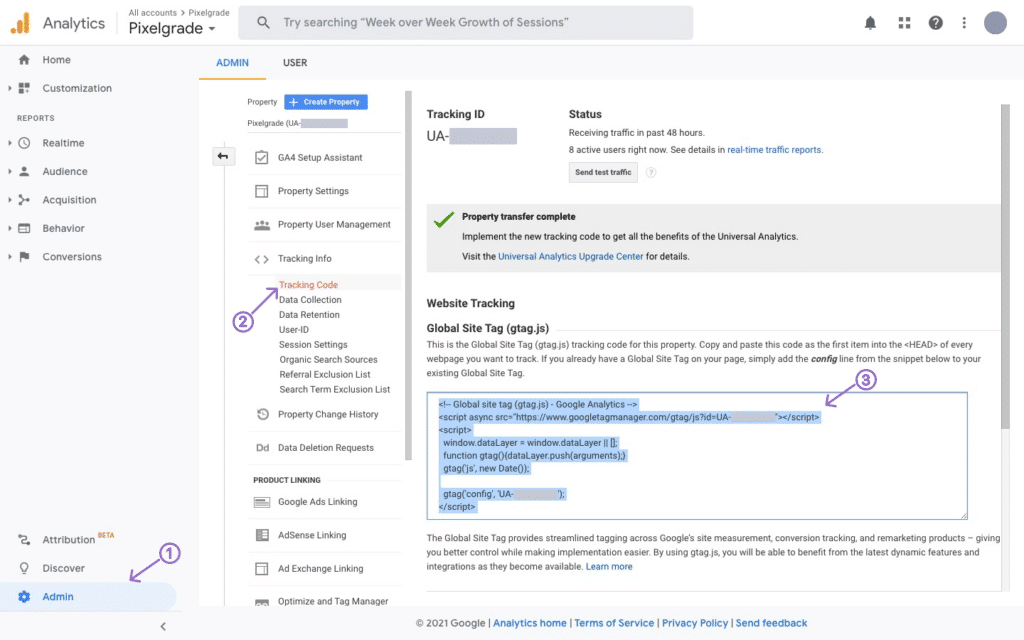
First, log into your Google Analytics account. Find the property you want to track. Click on Admin at the bottom left. Under the property column, click on Tracking Info, then Tracking Code. Copy the code you see. This code is your tracking code. It helps track your website visitors.
Log into your WordPress dashboard. Go to Appearance and then Theme Editor. On the right, find and click on the Header.php file. Paste the Google Analytics code before the closing tag. Save your changes. Now, your website is ready to track visitors.
Verifying Code Installation
Google Tag Assistant helps check if your Google Analytics code works. It is a free tool. Install it as a browser extension. It shows tags on your website. Green means the tag is good. Red means there is a problem. Fix issues for accurate data. Tag Assistant helps keep your analytics working.
Click the extension icon. It shows the tags on the site. Look for the Google Analytics tag. It should be green. Red means an issue. Check settings if the tag is red. This tool is easy to use. It helps confirm your analytics setup.
Checking Real-time Analytics
Use Real-Time Analytics to see live data. Open Google Analytics. Go to the Real-Time section. Visit your site. Watch for your visit in Analytics. It should appear quickly. This shows the code is working. Real-Time data is fun to watch. It shows users on the site now.
Troubleshooting Common Issues
Discover how to easily add Google Analytics code to your WordPress theme. Solve common issues with step-by-step guidance. Enhance your website’s tracking capabilities effortlessly.
Fixing Incorrect Code Placement
Placing the code in the wrong spot can cause problems. Check if the code is in the right place. It should be inside the header.php file. Misplacing the code can stop Google Analytics from working. Use the theme editor to find the correct location. Make sure the code is between the tags. This ensures proper tracking.
Resolving Conflicts With Other Plugins
Some plugins might not work well with Google Analytics. Conflicts can stop tracking. Try deactivating plugins one by one. This can help find the problem. If you find a conflicting plugin, look for alternatives. Some plugins have settings to fix conflicts. Update all plugins regularly. This can prevent new issues.
Maintaining Your Analytics Setup
Updating Analytics Code is important. Google Analytics changes over time. New features might be added. Code updates ensure your website stays in sync. It helps track visitor data accurately. Missing updates can lead to errors. Errors mean loss of valuable data. Stay informed about changes. Regularly check Google’s official site. They announce updates there. Implement updates promptly. It keeps your site running smoothly. Site performance depends on accurate tracking.
Monitoring Site Performance is crucial. Analytics tools help track visitors. They show how people find your site. They show what people do on your site. Understanding these patterns is vital. It helps improve your website. Look at metrics like page views. Check bounce rates too. High bounce rates may mean issues. Fix them to improve user experience. Keep reviewing performance regularly. Adjust strategies as needed. Data helps make informed decisions. Better decisions lead to better results.
Credit: zapier.com
Frequently Asked Questions
How Do I Find My Google Analytics Code?
To find your Google Analytics code, log in to your Google Analytics account. Navigate to the Admin section, select your account and property, and click on “Tracking Info. ” Here, you’ll find your Tracking ID and the full tracking code needed for integration with your WordPress theme.
Can I Add Google Analytics Without A Plugin?
Yes, you can add Google Analytics without a plugin. Go to your WordPress theme editor, open the header.php file, and paste the Google Analytics tracking code before the closing tag. Save changes to ensure the code is correctly integrated.
Where To Paste Google Analytics Code In WordPress?
Paste the Google Analytics code in the header.php file of your WordPress theme. Insert it before the closing tag. Access the file via the WordPress dashboard by navigating to Appearance > Theme Editor > header.php.
What Is The Purpose Of Google Analytics?
Google Analytics helps track and analyze website traffic and user behavior. It provides insights into visitor demographics, pages visited, and duration of visits. This data aids in optimizing content, improving user experience, and enhancing marketing strategies to grow your website effectively.
Conclusion
Adding Google Analytics to your WordPress theme is easy. Follow the steps carefully. You’ll gain valuable insights into your website’s performance. Monitor traffic, understand visitor behavior, and improve your site. Regularly check your analytics dashboard. Make adjustments based on data.
Remember, data-driven decisions enhance user experience. A little effort goes a long way. Stay informed about your audience. Keep your WordPress site optimized. Analytics is a powerful tool. Use it wisely to grow your online presence. With practice, integrating analytics becomes second nature.
Start today and watch your site thrive.


