
Are you ready to give your WordPress blog a fresh new look without losing your mind over technical details? Updating your blog theme can feel like a daunting task, but it doesn’t have to be.
Imagine the satisfaction of a refreshed design that captivates your audience and enhances their reading experience. You might be wondering if this is something you can handle on your own. The answer is yes! In this guide, we’ll show you how to effortlessly push blog theme updates in WordPress.
You’ll discover simple steps and insider tips that make the process smooth and stress-free. Get ready to transform your blog’s appearance and engage your readers like never before. Let’s dive in and unlock the potential of your WordPress theme updates!

Credit: www.wpzoom.com
Preparing For Theme Updates
Always backup your website before any updates. This ensures safety. Use plugins like UpdraftPlus or BackupBuddy. They make it easy. Store backups safely. Choose external storage. Cloud services work well. Google Drive is a good option. Never rely solely on server backups.
Check theme compatibility with plugins. This avoids conflicts. Look for developer notes on updates. They provide valuable information. Ensure your WordPress version supports the theme. Older versions may cause issues. Visit forums for advice. Other users share experiences. This helps find solutions. Always test updates on a staging site first.
Finding The Latest Theme Version
Visit the developer’s website for the latest theme version. The website often has a download page. Check this page for updates. Look for a version number. It tells you the theme’s newest version. Some websites have a changelog. This shows all updates and changes. Always download themes from trusted sites. This keeps your site safe from harm.
The WordPress repository is a good source for theme updates. Search your theme’s name in the repository. It shows the latest version available. Check the theme’s page for a version number. This confirms you have the newest update. The repository also gives a changelog. This helps you see what is new or fixed. Always ensure you use the official WordPress site. This helps keep your site secure.
Updating The Theme Via WordPress Dashboard
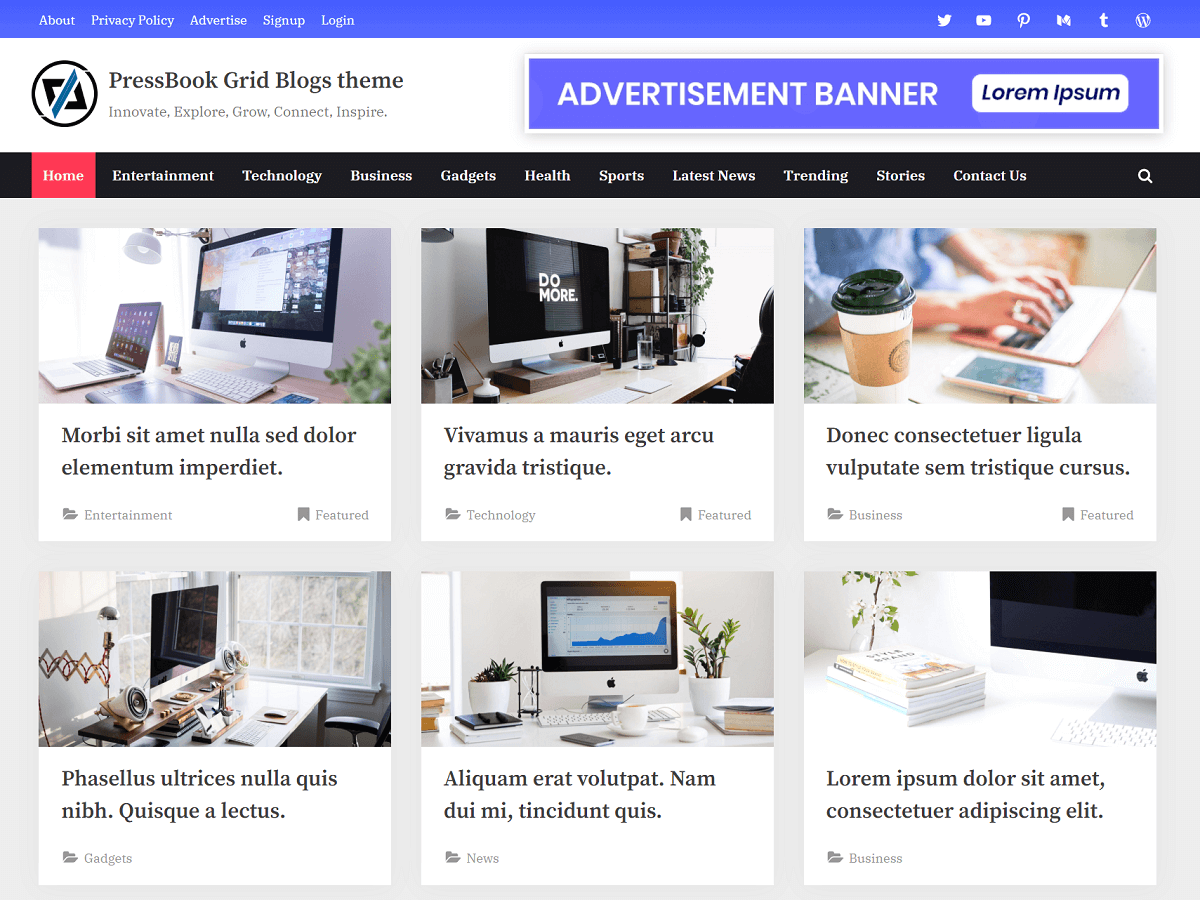
First, log in to your WordPress dashboard. Find the Appearance option on the left menu. Click on it to see the Themes section. Here, you can view all your installed themes. Ensure you choose the right one for updates. This step is important to avoid mistakes.
In the Themes section, locate your active theme. If an update is available, you’ll see a notice. Click on the Update Now button. WordPress will download and install the update automatically. After the update, activate the theme again. This ensures all changes are applied. Check your site to see the new features.
Credit: scriptstown.com
Using Ftp For Theme Updates
First, open your FTP client like FileZilla. Enter your server details to connect. The details include the hostname, username, and password. Look for the public_html or www directory. This is where your WordPress files live. Click to open it. Find the wp-content folder. Inside, you will see the themes folder. This is where your theme files are stored.
Download the updated theme to your computer. Extract the files if they are in a zip format. In the FTP client, go to the themes folder. Drag and drop the updated theme folder there. This will overwrite the old files. Make sure the files are transferred completely. Check for any error messages. If everything is fine, your theme is now updated.
Testing After Updates
Pushing blog theme updates in WordPress requires careful testing to ensure functionality and design remain intact. Always back up your site before making changes. After updates, test features and appearance on different devices to maintain user experience and site performance.
Check Frontend Functionality
It is important to check the frontend of your site. Look at how each page shows up. Make sure all images load. Check that links work. Look at buttons and forms. All parts should look right. They should work right too.
Verify Plugin Compatibility
Plugins can break with updates. Open your dashboard. Check each plugin is working. Look at plugin settings. Make sure they show right. Try using each plugin. See if they do their job. Update plugins if needed. Keep site safe and smooth.
Troubleshooting Common Issues
Style conflicts can break your site. Check if two styles clash. Use browser tools to find which ones. Adjust the CSS code to fix it. Test changes in different browsers. This ensures the site looks good for everyone.
Broken layouts make sites look odd. Inspect layout issues with browser tools. Clear cache to see updates. Sometimes, deactivate plugins to find the cause. Update plugins and themes regularly. This helps prevent layout problems.
Leveraging Child Themes
Child themes help keep your changes safe. They sit on top of the main theme. This way, your edits stay when you update. Think of them as a safety net for your blog.
Use a child theme to save your custom tweaks. Your colors, fonts, and layouts remain. Updates won’t erase your hard work. This method keeps your blog looking how you want.
Updating the parent theme is important. It brings new features and fixes. With a child theme, these updates are safe. No need to worry about lost changes. You get the best of both worlds.
Maintaining Theme Customizations
Customize your blog look with Custom CSS. This is the best way to keep changes when updating themes. Use the WordPress Customizer to add your CSS. It is safe and easy. Your changes stay even after updates. Avoid editing the main theme files. You might lose all changes if you do. Always test CSS changes on a small part first. Make sure it works well.
Use a child theme for custom functions. This keeps your changes safe during updates. A child theme is a small extra theme. It uses your main theme but adds your custom code. Put new functions in the child theme’s functions.php file. This way, main theme updates will not touch your custom work. It’s a simple way to keep things tidy and secure. Always back up before making changes.
Credit: www.wpexplorer.com
Frequently Asked Questions
How Do I Update My WordPress Theme?
To update your WordPress theme, go to the dashboard. Click on “Appearance,” then “Themes. ” Check for any available updates. If there is an update, click “Update Now” to install it. Always backup your site before updating to prevent any data loss.
Can I Update A WordPress Theme Without Losing Customization?
Yes, you can update without losing customization. Use a child theme for your customizations. This way, when you update the parent theme, your changes remain intact. Always backup your site before updating to ensure data safety.
Why Should I Update My WordPress Theme?
Updating your WordPress theme ensures better security and performance. New updates often include security patches and enhancements. They also bring new features and fix bugs. Keeping your theme updated helps maintain a secure and efficient website.
What Happens If I Don’t Update My Theme?
If you don’t update, your site may face security vulnerabilities. Outdated themes can be susceptible to hacking. You might also miss out on new features and improvements. Regular updates help keep your site secure and functional.
Conclusion
Updating your WordPress blog theme is simpler than it seems. Follow each step carefully. Back up your site. Choose a theme that suits your content. Test updates in a safe environment. Ensure compatibility with plugins. Regular updates keep your blog fresh and secure.
Avoid skipping them. A well-maintained theme improves user experience. It also boosts your site’s performance. Your blog deserves regular attention. Keep it up-to-date. Happy blogging!


