
Are you ready to give your WordPress site a fresh look but unsure about how to preview a theme before committing to it? You’re not alone.
Choosing the right theme can be a game-changer for your website’s appeal and functionality. Yet, many find themselves overwhelmed by the sheer number of options available. You wouldn’t buy a car without test driving it first, right? The same goes for WordPress themes.
Previewing a theme is like taking it for a spin, ensuring it aligns with your vision and needs. This article will guide you step-by-step on how to effortlessly preview a WordPress theme, empowering you to make informed decisions that enhance your site’s performance and aesthetic appeal. Stick with us, and you’ll discover how to transform your WordPress site into a captivating digital space that truly represents you or your brand.
Choosing The Right Theme
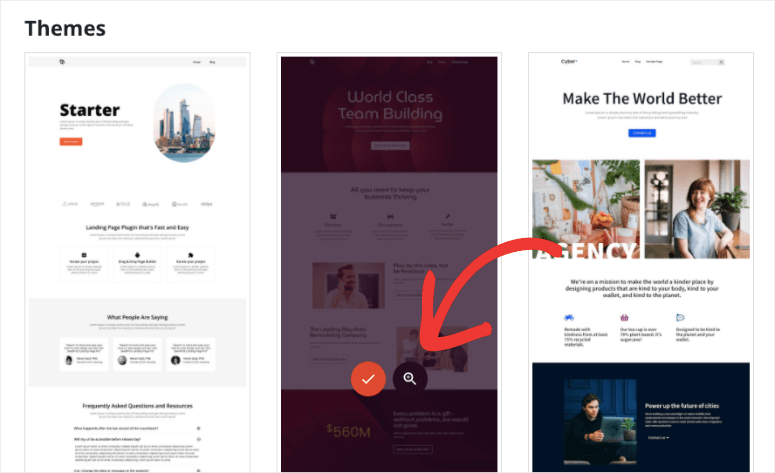
Think about your website purpose. Is it for selling products? Or for sharing ideas? Knowing your needs helps pick the best theme. Different themes offer different styles. Choose one that fits your goals.
Many websites sell themes. Some popular ones are ThemeForest and Elegant Themes. These sites have many choices. Browse and see what they offer. Find themes that catch your eye. Read reviews to know what others think.
Themes come with features. Some have sliders, galleries, or custom colors. Think about what you need. Do you want a contact form? Or social media buttons? Choose a theme that has useful features for your site.
Credit: www.isitwp.com
Installing A WordPress Theme
First, go to your WordPress website. Log in with your username and password. You will see the WordPress Dashboard. It’s like the control room for your site.
On the left side, find Appearance. Click on it. Now, click on Themes. This is where you can see all your themes.
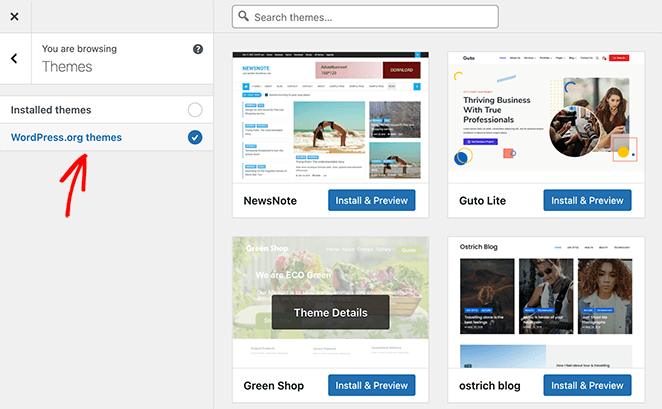
Want a new theme? Click on Add New. You can now search for a theme or upload one. To upload, click Upload Theme and choose your file. To select, just click Install and then Activate.
Previewing A Theme Before Activation
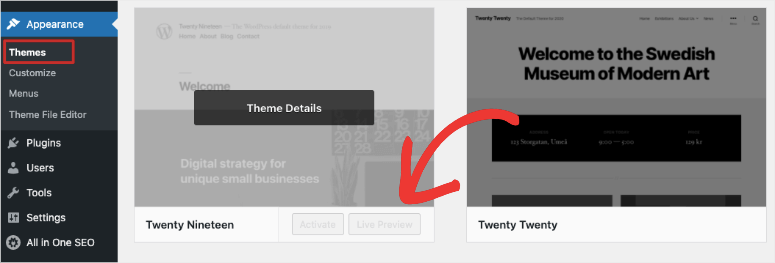
WordPress offers a Live Preview feature for themes. This tool helps users see changes before activation. It shows how the site will look with the new theme. This can prevent unwanted surprises. Access it from the themes menu. Click “Live Preview” to start. Adjust settings and observe changes immediately. It saves time and effort.
Themes must work well with plugins. Some themes may not support certain plugins. Compatibility is key for smooth operation. Check plugin lists when previewing. Ensure essential plugins work with the theme. This ensures all site features operate correctly. It’s crucial for maintaining site functionality.
Responsive design is important. A theme should adapt to different screens. Test layout on mobile and desktop. Responsiveness affects user experience. Users should easily navigate the site. Check buttons and menus in the preview. Ensure they function smoothly across devices. This helps in retaining visitors.
Customizing The Theme
WordPress themes have settings to change. These can help make your site unique. Start with the theme settings. Explore the dashboard options. Change the layout to suit your style. It’s like giving your website a new outfit.
Choose colors that match your brand. Colors make your site look better. Fonts are important too. They make reading easy. Pick a font that is clear. Adjust sizes to fit. This makes your site more welcoming.
Widgets add cool tools to your site. They bring extra features. Menus help people find things fast. Create menus for easy navigation. Drag and drop widgets where you want. This makes your site user-friendly.
Testing The Theme’s Functionality
Verify mobile responsiveness by opening the theme on your phone. Check if everything looks good. Make sure buttons are easy to click. Pictures should fit the screen. If things look strange, the theme might not be mobile-friendly.
Ensure browser compatibility by testing the theme on different browsers. Try Chrome, Firefox, and Edge. Each browser may display the theme differently. Make sure all features work well everywhere. If something breaks, the theme may need updates.
Check site speed and performance using online tools. Slow sites can upset visitors. Use tools like Google PageSpeed Insights. They show how fast your site loads. A fast site keeps users happy. If the site is slow, tweak the theme settings.
Credit: www.isitwp.com
Finalizing And Activating The Theme
Easily explore the look of your site by previewing WordPress themes. This step ensures your choice aligns with your brand. Adjust settings and see changes live before finalizing and activating the theme.
Review All Customizations
Check every change made to the theme. Ensure all colors, fonts, and layouts match your style. Pay attention to the header and footer areas. Make sure the menu works well and looks nice. Test the site on different devices. Everything should look good on phones and tablets too.
Backup Current Theme Settings
Save your current theme settings before making changes. Use a plugin or manual method to create a backup. This keeps your site safe. If something goes wrong, you can easily return to the old settings. Backing up is easy and important. It only takes a few minutes.
Activate The New Theme
Go to the WordPress dashboard. Click on Appearance, then Themes. Find the new theme and click Activate. Check your site again. Ensure everything works as expected. The new theme should now be live for everyone to see.
Credit: www.seedprod.com
Frequently Asked Questions
How Can I Preview A WordPress Theme?
Previewing a WordPress theme is simple. First, log in to your WordPress dashboard. Navigate to Appearance > Themes. Hover over the theme you want and click “Live Preview. ” This allows you to see how the theme looks on your site without activating it.
Can I Preview Themes Before Activating Them?
Yes, you can preview themes before activating them. WordPress offers a “Live Preview” feature. This lets you see how the theme will appear on your site. You can make adjustments and check compatibility before making it live.
Are Theme Previews Accurate On WordPress?
Theme previews are generally accurate but may vary slightly. They show how your website will look with the new theme. However, some features might require additional settings after activation. It’s a good way to test the design and layout.
How Do I Test Theme Compatibility?
To test theme compatibility, use the “Live Preview” option in WordPress. This lets you see how your site’s content fits into the new theme. Check for display issues, plugin conflicts, and responsive design. Ensure everything aligns with your site’s requirements.
Conclusion
Previewing a WordPress theme is simple with these steps. Start by exploring different themes. Use the WordPress Customizer to see changes live. This helps you choose what fits your site best. Remember, a theme should match your style and needs.
Test its responsiveness on various devices. This ensures a smooth user experience. Don’t rush your decision. Spend time finding the right theme. A well-chosen theme improves your site’s appeal and functionality. Keep exploring until you’re satisfied. Your site deserves the best look and feel.
Happy theming!


