

Have you ever needed to test a website before making it live or troubleshoot domain issues on your computer? Knowing how to point your domain server using the hosts file can save you time and headaches.
This simple trick lets you control where your browser sends requests, without changing anything on your actual domain settings. In this guide, you’ll learn exactly how to edit your hosts file step-by-step, so you can take full control of your web experience quickly and easily.
Keep reading, and you’ll discover a powerful tool that many beginners overlook but every web user should know.

Credit: www.youtube.com
What Is The Hosts File
The hosts file is a simple text file on your computer. It helps your system find websites by linking domain names to IP addresses. Before your browser connects to the internet, it checks this file first. This way, the hosts file acts like a small local map for domain names.
Using the hosts file can speed up website access or block certain sites. It is a useful tool for testing websites or fixing network issues. The hosts file works behind the scenes and does not require internet connection to function.
Where Is The Hosts File Located?
The hosts file is stored in different places depending on your operating system. On Windows, you can find it in C:\Windows\System32\drivers\etc. For Mac and Linux, it is usually in the /etc/ folder. You need special permissions to edit this file.
How Does The Hosts File Work?
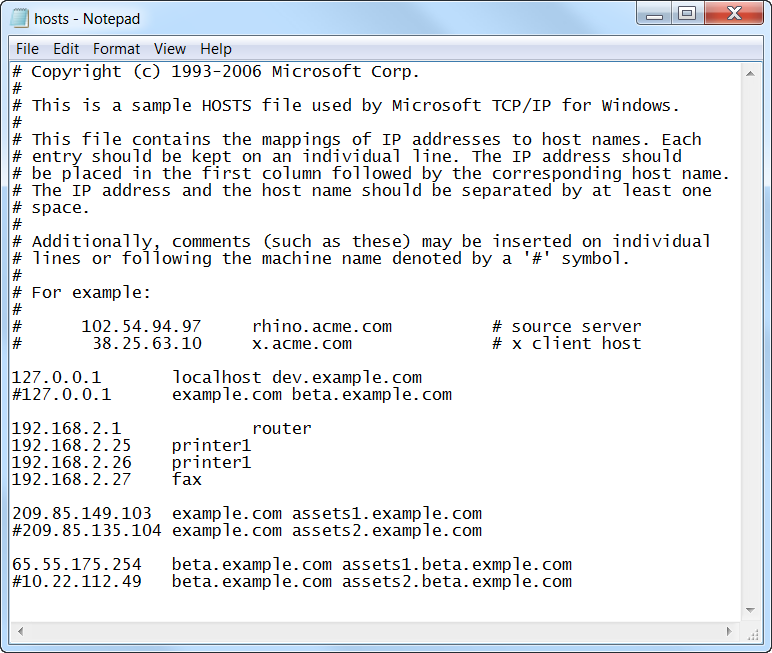
The file contains lines with IP addresses followed by domain names. When you type a website address, the system reads the hosts file first. If it finds a matching entry, it uses that IP address. Otherwise, it asks a DNS server for the information.
Why Use The Hosts File?
The hosts file helps you control website access on your device. It can block harmful sites or redirect domains to different servers. Developers use it to test sites locally without changing DNS records. It is a simple way to manage domain mapping quickly.
Credit: smyl.es
Why Point To A Domain Server
Pointing to a domain server through the hosts file helps control website access. It directs your computer to the correct server for a domain. This is useful in many situations, especially for testing and troubleshooting.
Changing the hosts file overrides normal DNS lookup. This means your computer follows your instructions first. It helps avoid delays and errors from external DNS servers.
Testing Website Changes Locally
Developers often use the hosts file to test website updates. They can see changes without making them public. This keeps the live site safe and avoids visitor confusion.
Fixing Dns Issues Quickly
Sometimes DNS servers have problems or delays. Editing the hosts file lets you bypass these issues. Your computer connects directly to the right server instantly.
Blocking Unwanted Websites
Users can block harmful or distracting sites by redirecting them. The hosts file points these domains to a non-existent server. This stops the browser from loading the unwanted page.
Speeding Up Access To Frequent Sites
Using the hosts file to set domain servers can speed up loading. It skips external DNS queries for known domains. This saves time and improves browsing experience.
Locating The Hosts File
The hosts file is a small but powerful tool on your computer. It helps direct traffic from domain names to specific IP addresses. Before you can edit this file, you need to find it on your system. Each operating system stores the hosts file in a different place. Knowing where to find it is the first step to pointing your domain server correctly.
Windows Path
On Windows, the hosts file is located inside the system folder. You can find it at:
Accessing this file usually needs administrator rights. Use Notepad or another text editor with admin permissions to open it.
Mac Path
Mac users find the hosts file in the system library. The exact path is:
Use the Terminal app and a text editor like nano or vim to open this file. You will need to run the command with sudo for permission.
Linux Path
On Linux systems, the hosts file is also stored in the etc folder. The path is:
Open the file using a text editor in the terminal. Use sudo to gain the necessary access rights.
Credit: www.liquidweb.com
Editing The Hosts File Safely
Editing the hosts file can help you point your computer to a specific domain server. This file controls how your system resolves domain names. Changing it without care can cause problems accessing websites. Safety is key when editing this file. Follow steps to protect your system and avoid errors.
Using Administrator Privileges
The hosts file requires administrator rights to edit. Without these rights, changes will not save. Open your text editor as an administrator before editing. On Windows, right-click the editor and choose “Run as administrator.” On Mac or Linux, use “sudo” in the terminal. This step ensures you have permission to make changes.
Backing Up The File
Always create a backup of the hosts file before editing. Copy the original file to a safe location. This backup helps you restore settings if something goes wrong. Use simple names like “hosts-backup.txt” for easy access. Keeping a backup reduces the risk of losing important settings.
Step-by-step Guide To Point Domain
Pointing your domain to a server using the hosts file is a quick way to test websites. This method helps you see your site on a new server without changing DNS settings. Follow this step-by-step guide to edit your hosts file correctly.
Open Hosts File
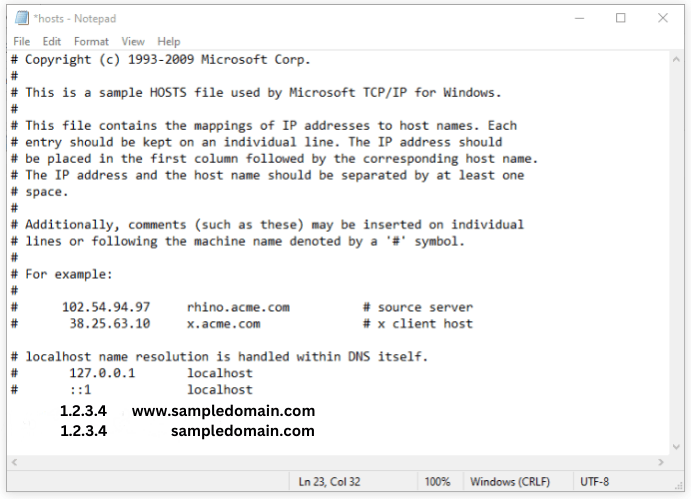
First, find the hosts file on your computer. On Windows, open Notepad as administrator, then open C:\Windows\System32\drivers\etc\hosts. On Mac or Linux, open Terminal and type sudo nano /etc/hosts. This file controls domain to IP mappings.
Add Domain And Ip Entry
Next, add a new line at the end of the hosts file. Write the server’s IP address, press space, then type your domain name. For example, 123.45.67.89 example.com. This tells your computer to use the IP for that domain.
Save Changes
After adding the entry, save the file. On Windows, click File > Save in Notepad. On Mac or Linux, press Ctrl+O, then Enter, and Ctrl+X to exit nano. Restart your browser to see the changes take effect.
Testing Your Changes
Testing your changes after editing the hosts file is important. It ensures your domain points to the correct server. Without testing, you might face errors or delays in seeing the changes. Follow simple steps to confirm your updates work as expected.
Clear Dns Cache
Your computer saves DNS information to speed up browsing. This cache can show old settings after you update the hosts file. Clear the DNS cache to remove old records. On Windows, open Command Prompt and type ipconfig /flushdns. On Mac, use the Terminal and enter sudo dscacheutil -flushcache; sudo killall -HUP mDNSResponder. After clearing, your system fetches the new IP address from the hosts file.
Verify Domain Resolution
Use tools like ping or nslookup to check domain resolution. Open Command Prompt or Terminal and type ping yourdomain.com. The returned IP should match the one in your hosts file. If it does, your changes are working. You can also open the domain in a browser to confirm it loads the intended server.
Common Errors And Fixes
Editing the hosts file to point to a domain server can cause errors. These mistakes may stop your computer from connecting properly. Knowing common errors helps fix problems quickly. This section highlights frequent issues and their solutions. Follow these tips to avoid frustration and save time.
Incorrect Ip Address Entry
Typing the wrong IP address is a usual error. Even one wrong digit breaks the connection. Double-check the IP address before saving the file. Use the exact numbers given by your server provider.
Missing Or Extra Spaces
The hosts file needs proper spacing between IP and domain. Missing spaces or adding too many causes errors. Use one or more spaces or a tab between entries. Avoid any extra spaces at the line end.
Lack Of Administrator Permission
Editing the hosts file requires admin rights. Without permission, your changes will not save. Open the text editor as an administrator before editing. This step ensures your changes take effect.
File Extension Errors
The hosts file must have no extension like .txt. Saving it as hosts.txt stops it from working. Choose “All Files” in the save dialog. Name the file just “hosts” with no extension.
Forgetting To Flush Dns Cache
Changes may not show until the DNS cache clears. Old records stay in memory and cause confusion. Run the command prompt and type “ipconfig /flushdns”. This clears the cache and applies your changes.
When Not To Use Hosts File
Avoid editing the hosts file for complex domain setups or large networks. It is not suitable for permanent or large-scale changes. Use it only for quick, local testing or simple domain pointing tasks.
The hosts file is a simple tool to map domain names to IP addresses. It works well for quick testing or local development. But it is not always the best choice for every situation. Knowing when not to use the hosts file can save time and avoid problems.
One main issue is that the hosts file only affects the local computer. It does not change DNS records for the entire internet. This means other users or devices will not see your changes. For permanent or shared domain pointing, use DNS management instead.
For Large Scale Or Public Changes
The hosts file is not suitable for large or public updates. Editing it on many computers is slow and error-prone. DNS servers handle these updates efficiently and globally. Use DNS settings for changes that affect many users or devices.
When Using Dynamic Or Changing Ip Addresses
IP addresses often change, especially with home or cloud servers. Updating the hosts file every time is tedious and prone to mistakes. DNS services can update records automatically or quickly. Avoid using the hosts file if your IP address is not fixed.
For Complex Domain Setups
Complex domain setups require advanced DNS features. The hosts file cannot manage subdomains, mail servers, or load balancing. DNS providers offer these functions easily. Use DNS management tools for any setup beyond simple IP mapping.
When Multiple Users Need Access
The hosts file works only on one device at a time. It does not share changes with others automatically. For teams or organizations, DNS is the proper choice. It keeps everyone on the same page without manual updates on each computer.
Frequently Asked Questions
What Is The Hosts File In Domain Server Pointing?
The hosts file maps domain names to IP addresses locally. It helps override DNS settings for specific domains. This file is useful for testing or blocking websites without affecting the global DNS.
How To Edit Hosts File To Point Domain Server?
Open the hosts file with admin rights. Add a line with the domain and target IP. Save changes and flush DNS cache to apply new settings.
Can Pointing Domain Server In Hosts File Affect Website Access?
Yes, it directs your computer to a specific IP for that domain. This can change website access locally without affecting other users or DNS servers.
Why Use Hosts File Instead Of Dns For Domain Pointing?
Hosts file changes are immediate and local. It’s ideal for testing or development before DNS propagation. DNS changes affect all users and take time to update.
Conclusion
Editing the hosts file to point to a domain server is straightforward. It helps test websites before making changes live. Always save a backup before you start. Small steps lead to fewer mistakes. With practice, this process becomes quick and easy.
Use this method to control how your computer finds websites. Stay patient and follow each step carefully. This simple skill can save time and effort. Give it a try and see how it works for you.


