
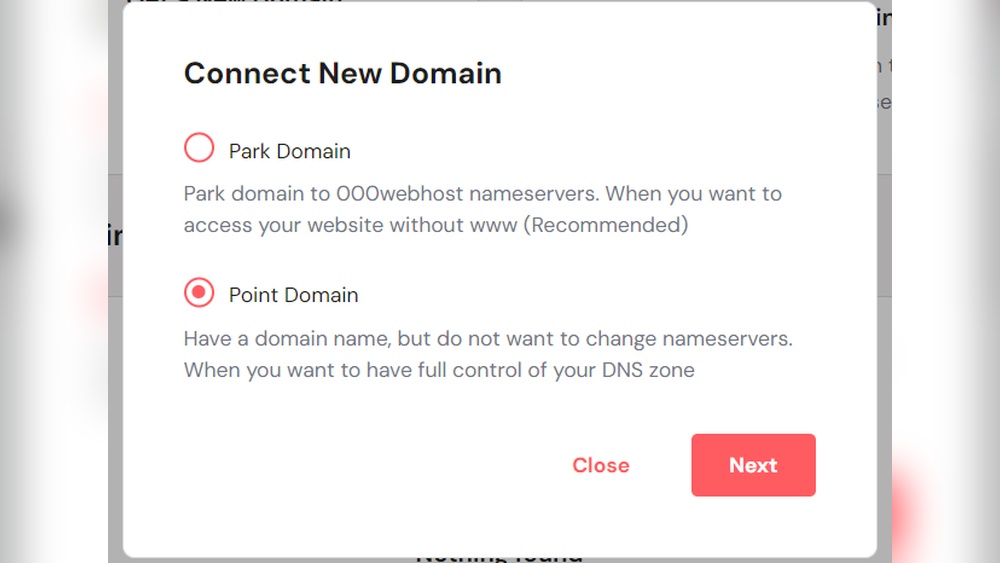
Are you ready to make your website live but unsure how to connect your domain to 000Webhost? Pointing your domain to your hosting service might sound tricky, but it’s easier than you think.
In this guide, you’ll learn simple, step-by-step instructions to link your domain to 000Webhost quickly and without hassle. By the end, you’ll have your site up and running, ready to impress visitors. Keep reading—you’re just minutes away from taking full control of your online presence.

Credit: colorlib.com
Choose A Domain Registrar
Choosing the right domain registrar is the first step to point your domain to 000Webhost. The registrar is where you buy and manage your domain name. Picking a reliable registrar ensures your domain stays active and easy to manage.
Some registrars offer better prices, support, and extra tools. These can help you connect your domain to 000Webhost faster. Keep your needs simple and clear. Focus on what matters most for your website.
What Is A Domain Registrar?
A domain registrar is a company that sells domain names. They manage the reservation of domain names on the internet. This company lets you buy, renew, and update your domain settings. Without a registrar, you cannot own a domain name.
How To Pick A Good Registrar
Look for a registrar with good customer support. Check if their prices fit your budget. Find out if they offer easy domain management tools. These help you change DNS settings without trouble. Read reviews to see user experiences.
Popular Domain Registrars
Some popular registrars are Namecheap, GoDaddy, and Google Domains. They have simple interfaces and strong customer support. These registrars provide clear guides to connect domains to 000Webhost. Choosing a well-known registrar can make the process smoother.
Register Your Domain
Registering your domain is the first step to build your website on 000Webhost. A domain is your website’s address on the internet. It helps visitors find your site easily. Without a domain, your site can only be accessed by a long URL from 000Webhost. Choosing the right domain name is important. It should be simple, easy to remember, and related to your website’s content.
Domain registration is simple and fast. Many companies offer domain registration services at affordable prices. After registration, you own the domain for a specific time, usually one year. Renew it before it expires to keep your website active.
Select a trusted domain registrar to register your domain. Popular options include GoDaddy, Namecheap, and Google Domains. Check prices and services before deciding. The registrar manages your domain name and DNS settings. Make sure it allows easy access to DNS controls.
Search For Your Domain Name
Use the registrar’s search tool to find available domain names. Enter your desired name and see if it is free. If taken, try variations or different extensions like .net or .org. Keep the name short and relevant. Avoid numbers or special characters for clarity.
Register The Domain
Once you find an available domain, add it to your cart. Provide your contact information for registration. Choose the registration period, usually one year or more. Some registrars offer privacy protection to hide your personal details. Complete the payment to finalize your registration.
Sign Up For 000webhost
Signing up for 000Webhost is the first step to hosting your website for free. The process is quick and simple. You can start building your website without any cost or complex steps.
Creating an account gives you access to the hosting control panel. This panel lets you manage your website, files, and domain settings easily. Follow the steps below to create your 000Webhost account.
Visit The 000webhost Website
Open your web browser and go to www.000webhost.com. This is the official site where you sign up. The homepage clearly shows the sign-up button.
Fill In Your Registration Details
Enter your email address, choose a strong password, and type your website name. Keep the information accurate to avoid problems later. Use a real email address for verification.
Confirm Your Email Address
After registration, check your inbox for a confirmation email. Click the link inside to verify your account. This step activates your hosting service.
Log In To Your New Account
Use your email and password to log in. The dashboard will appear, showing options to create and manage your website. You are now ready to point your domain to 000Webhost.
Find Your 000webhost Nameservers
To point your domain to 000Webhost, you need the correct nameservers. These nameservers tell the internet where your website lives. Finding them is simple and fast.
Knowing your 000Webhost nameservers helps connect your domain and hosting smoothly. This step is key for your site to load properly.
Log In To Your 000webhost Account
Start by signing into your 000Webhost dashboard. Use your email and password to access your account. This is where you manage all your websites.
Access The Control Panel
Once logged in, go to the control panel or dashboard. Look for the section that lists your websites or hosting plans. This area holds important details.
Locate The Nameserver Information
Find the domain or DNS settings section. Here, you will see the nameservers assigned by 000Webhost. Typically, they look like ns01.000webhost.com and ns02.000webhost.com.
Copy The Nameservers For Later Use
Write down or copy the nameservers exactly as shown. These will be needed when updating your domain’s DNS settings at your domain registrar.
Access Domain Dns Settings
Accessing your domain’s DNS settings is the first step to point your domain to 000Webhost. DNS stands for Domain Name System. It controls how your domain connects to the internet.
Changing DNS settings lets you link your domain with your hosting account. This makes your website visible online through your domain name.
Log In To Your Domain Registrar Account
Start by logging into the website where you bought your domain. This site is called a domain registrar. Use your username and password to sign in.
Once logged in, find the section where your domains are listed. Select the domain you want to connect to 000Webhost.
Find The Dns Management Or Zone Editor
Look for options named “DNS Management,” “DNS Settings,” or “Zone Editor.” This area controls your domain’s DNS records.
Different registrars may use different names. The goal is to find where you can edit DNS records.
Locate Your Dns Records
After opening DNS settings, you will see records like A, CNAME, and NS records. These records tell the internet where your domain points.
Do not change anything yet. Just find where these records are listed to prepare for updates.

Credit: www.whtop.com
Update Nameservers To 000webhost
Updating your domain’s nameservers to 000Webhost connects your website to their hosting service. This step tells the internet where to find your website files. Without updating nameservers, your domain will not display your 000Webhost site.
The process is simple and takes only a few minutes. You need to access your domain registrar’s control panel to make changes. The main goal is to replace the current nameservers with the ones provided by 000Webhost.
Find 000webhost Nameserver Details
Log in to your 000Webhost account dashboard. Look for the section named “Set up domain” or “Nameservers.” You will see two or more nameserver addresses. These usually look like ns01.000webhost.com and ns02.000webhost.com. Write them down exactly as shown.
Access Your Domain Registrar Panel
Go to the website where you bought your domain. Sign in with your username and password. Find the “Domain Management” or “DNS Settings” area. This is where you can update nameservers. Each registrar has a slightly different layout but the option should be easy to find.
Replace Old Nameservers With 000webhost Nameservers
Locate the current nameserver fields in your domain settings. Delete the old nameserver addresses. Enter the nameservers you copied from 000Webhost. Make sure to enter all nameservers provided. Double-check for typos before saving the changes.
Save Changes And Wait For Propagation
After updating, save the new settings. Changes may take some time to apply across the internet. This process is called DNS propagation. It can take from a few minutes up to 48 hours. During this time, your website might not appear correctly.
Verify Domain Connection
Verifying your domain connection is a key step after pointing your domain to 000Webhost. It confirms your website is linked properly to the hosting service. This check helps avoid issues like your site not loading or showing errors.
Verification ensures your domain and hosting settings match. It may take some time for changes to reflect. Patience is important during this process.
Check Domain Status In 000webhost Dashboard
Log in to your 000Webhost account. Go to the “Manage Website” section. Find the domain status area. It shows if your domain is connected correctly. Look for messages like “Active” or “Connected.”
Use Dns Propagation Tools
Use online tools to check DNS updates. Enter your domain name and see if the new host IP appears. This shows whether your domain points to 000Webhost. It can take up to 48 hours for full propagation.
Verify Nameserver Settings
Access your domain registrar’s control panel. Confirm the nameservers match those given by 000Webhost. Correct nameservers are essential for the connection to work. Incorrect settings cause verification failure.
Test Website Access
Type your domain in a browser. Check if your website loads from 000Webhost. If the site appears as expected, the connection is verified. If not, recheck previous steps for errors.
Troubleshoot Common Issues
Troubleshooting common issues helps fix domain pointing problems fast. It saves time and avoids frustration. Most problems come from simple errors in settings or waiting times.
Checking these common issues can get your domain working with 000Webhost quickly. Follow clear steps to find the problem and solve it easily.
Check Dns Propagation Status
DNS changes take time to spread across the internet. This process is called DNS propagation. It can take up to 24-48 hours. Use online tools to check if your domain’s DNS has updated correctly. Patience is key during this time.
Verify Nameserver Settings
Incorrect nameservers cause domain connection issues. Make sure your domain points to 000Webhost nameservers exactly. Copy and paste the nameserver addresses carefully. Any typo can stop your site from appearing.
Clear Browser And Dns Cache
Old data in your browser or computer cache can block new changes. Clear your browser cache and flush your DNS cache. This step forces your device to load fresh information from the internet.
Confirm Domain Registration Status
Expired or inactive domains cannot connect to hosting. Check your domain registration is active and paid for. Renew it if needed. Only active domains work with 000Webhost.
Review 000webhost Hosting Setup
Improper hosting setup causes domain errors. Check your 000Webhost control panel for correct domain addition. Make sure your website files are uploaded properly. Follow 000Webhost instructions carefully.
Manage Domain And Hosting
Managing your domain and hosting is key to getting your website online. It means connecting your domain name to your 000Webhost account. This process lets visitors find your site by typing your domain name in the browser.
Good management keeps your site running smoothly. It helps avoid downtime and ensures your visitors always reach your content. Understanding the steps makes the process easier and faster.
Access Your Domain Control Panel
First, log in to the site where you bought your domain. This is called the domain registrar. Find the control panel or dashboard for your domain. It shows all your domain settings.
Change Nameservers To 000webhost
In the domain control panel, look for nameserver settings. Replace the current nameservers with 000Webhost nameservers. These usually look like ns01.000webhost.com and ns02.000webhost.com.
Saving these changes tells the internet to use 000Webhost for your domain hosting.
Check Dns Propagation Status
After updating nameservers, wait for DNS propagation. This can take from a few minutes to 24 hours. Use online tools to check if your domain points to 000Webhost. This confirms the update is active worldwide.
Verify Hosting Setup On 000webhost
Log in to your 000Webhost account. Check if your domain appears in the hosting panel. Confirm your files and website are ready to load. This step ensures your site is live and working.
Credit: googiehost.com
Frequently Asked Questions
How Do I Point My Domain To 000webhost?
To point your domain to 000Webhost, update your domain’s nameservers to 000Webhost’s provided NS records. This links your domain with your hosting account for proper website access.
What Are The 000webhost Nameservers For Domain Pointing?
The main 000Webhost nameservers are ns01. 000webhost. com and ns02. 000webhost. com. Use these in your domain registrar’s DNS settings to connect your domain to 000Webhost hosting.
How Long Does Dns Propagation Take For 000webhost?
DNS propagation typically takes 24 to 48 hours. During this time, your domain updates spread worldwide, and your website will become accessible via 000Webhost hosting.
Can I Use A Custom Domain With 000webhost Free Hosting?
Yes, 000Webhost supports custom domains even on free plans. Point your domain’s nameservers to 000Webhost, and add the domain in your hosting control panel.
Conclusion
Pointing your domain to 000Webhost is simple and clear. Just follow each step carefully and check your settings. Changes may take some time to show online. Keep your domain and hosting information handy. This process helps your website go live for visitors.
Stay patient and double-check your work to avoid errors. Now, you can share your site with the world easily.


