
Are you ready to connect your domain from GoDaddy to Enom Host but don’t know where to start? You’re in the right place.
Pointing your domain correctly is key to making sure your website works smoothly and your visitors find you without any hassle. This guide will walk you through each simple step, saving you time and frustration. By the end, you’ll have full control over your domain settings and feel confident managing them on your own.
Keep reading to unlock the easy way to link your GoDaddy domain to Enom Host—no technical jargon, just clear instructions made for you.
Prepare Your Domain At Godaddy
Before pointing your domain from GoDaddy to Enom Host, you need to prepare your domain settings. This step ensures a smooth transfer and avoids delays. You will access domain settings, unlock your domain, and get an authorization code. Follow these simple steps carefully.
Access Domain Settings
Log in to your GoDaddy account first. Go to the “My Products” page. Find the domain you want to transfer. Click on “Manage” next to your domain. This opens the domain settings page. Here, you can change important domain options.
Unlock Your Domain
Domains are locked by default to prevent unauthorized transfers. Look for the “Domain Lock” option. Turn off the lock to make your domain ready for transfer. Save the changes. Your domain is now unlocked and ready for the next step.
Obtain Authorization Code
The authorization code is needed to transfer your domain. In the domain settings, find the “Get Authorization Code” or “Transfer Code” option. Click it to receive the code. This code will be sent to your email or shown on screen. Keep it safe for the Enom Host transfer process.
Set Up Account On Enom Host
Setting up an account on Enom Host is the first step to point your domain from GoDaddy. This process is simple and fast. You need a valid email and some basic information to get started.
Creating your account correctly helps avoid delays later. Follow the steps carefully to ensure smooth domain pointing. Once the account is ready, you can move on to domain management and hosting setup.
Create Enom Host Account
Visit the Enom Host website and click on the sign-up button. Enter your full name, email, and choose a secure password. Provide a contact phone number for verification. Agree to the terms and conditions before submitting the form. You will receive a confirmation email shortly after registration.
Verify Account Details
Open the confirmation email and click the verification link. Log in to your new Enom Host account. Check your profile to ensure all details are correct. Update any missing information like billing address or phone number. Verifying these details is important for domain and payment processing.
Update Nameservers At Godaddy
Updating nameservers at GoDaddy is an important step to point your domain to Enom Host. This process tells the internet where to find your website files. Changing nameservers ensures your domain directs visitors to your Enom hosting account. The update is simple and quick. Follow the steps below to complete it easily.
Locate Dns Management
First, sign in to your GoDaddy account. Go to the “My Products” page. Find your domain name in the list. Click on “DNS” or “Manage DNS” next to the domain. This opens the DNS Management page where you can change nameservers.
Enter Enom Nameservers
On the DNS Management page, scroll to the “Nameservers” section. Click “Change” to edit the current nameservers. Select the option to enter custom nameservers. Type the nameservers provided by Enom Host carefully. Usually, they look like ns1.enom.com and ns2.enom.com.
Save Changes
After entering the Enom nameservers, click “Save” or “OK” to confirm. The system may ask you to verify your choice. Confirm to proceed. It can take a few minutes to hours for changes to take effect. Your domain will then point to your Enom hosting account.
Credit: www.zoho.com
Configure Domain In Enom Host
Configuring your domain in Enom Host is a key step after purchasing your domain from GoDaddy. This process helps connect your domain to your hosting service. It ensures your website works properly and visitors find your site without trouble.
Follow these simple steps to set up your domain in Enom Host. The process includes adding your domain to the Enom dashboard, verifying ownership, and setting DNS records. Each step is important for smooth domain management.
Add Domain To Enom Dashboard
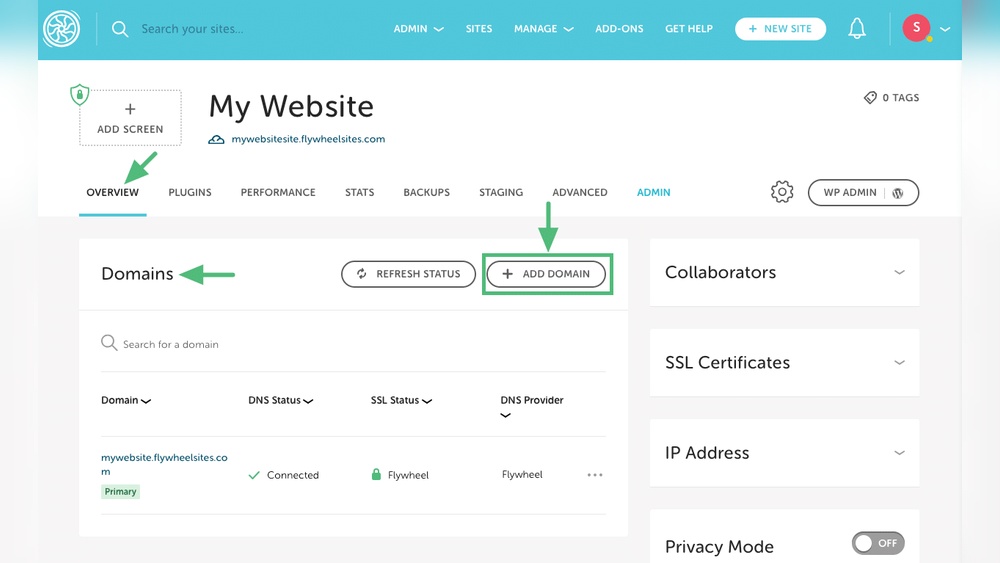
Start by logging into your Enom Host account. Find the “Domains” section on the dashboard. Click on “Add Domain” or “Register Domain.” Enter your domain name purchased from GoDaddy. Confirm the details and save. This action links your domain to Enom’s system.
Verify Domain Ownership
Enom requires proof you own the domain. You will receive an email with verification instructions. Follow the link provided in the message. Sometimes, you may need to add a special code or file to your domain. This step stops others from using your domain.
Set Dns Records
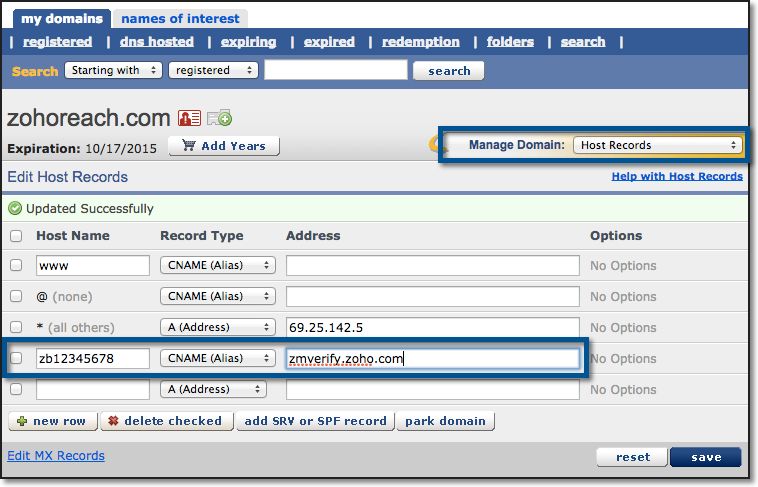
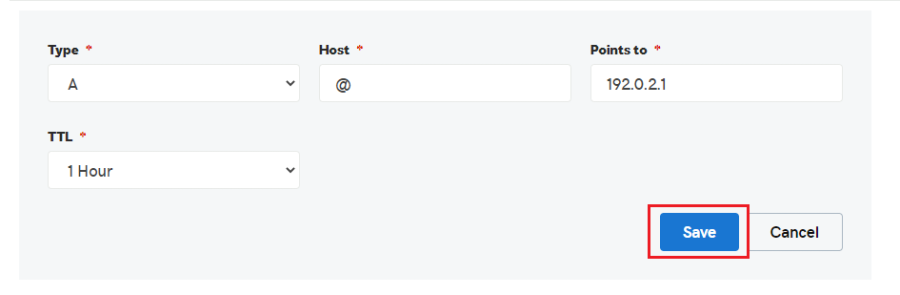
DNS records control where your domain points. Go to the DNS settings in your Enom dashboard. Add or edit records like A, CNAME, and MX to match your hosting needs. Save changes and wait for the update to complete. This process connects your domain to your website and email services.
Check Propagation Status
Checking the propagation status is an important step after pointing your domain from GoDaddy to Enom Host. It helps you know if the DNS changes are active worldwide. DNS propagation means updating internet servers with your new domain settings. This process can take some time. Monitoring propagation ensures your website works smoothly for all visitors.
Use Dns Lookup Tools
DNS lookup tools show the current status of your domain’s DNS records. These tools check if the new settings from Enom Host have spread to different servers. Popular tools include WhatsMyDNS, DNSChecker, and MXToolbox. Enter your domain name to see if it points to Enom’s servers. These checks help confirm your domain is set correctly.
Estimate Propagation Time
Propagation time varies by DNS servers and location. It usually takes between a few minutes and 48 hours. Some servers update faster, others slower. Be patient during this period. Frequent checks with DNS tools give updates on progress. Knowing the estimated time helps plan website launches or email setups.

Credit: support.enom.com
Troubleshoot Common Issues
Troubleshooting common issues helps ensure your domain points correctly from GoDaddy to Enom Host. Some problems can delay your website or stop it from working. Understanding these errors saves time and stress. Below are common issues you might face and simple ways to fix them.
Nameserver Errors
Nameservers tell the internet where to find your website. If you enter wrong nameservers at GoDaddy, your site won’t load. Double-check the nameserver addresses from Enom Host. Make sure there are no extra spaces or typos. Use only the nameservers given by Enom Host, not others.
Dns Propagation Delays
DNS changes take time to update worldwide. This is called DNS propagation. It can take up to 48 hours for changes to show everywhere. During this time, your site may not appear or may show the old version. Wait patiently and avoid making repeated changes.
Domain Lock Problems
Domains often have a lock to prevent unauthorized changes. If your domain is locked at GoDaddy, you cannot update nameservers. Check your domain status in your GoDaddy account. Unlock the domain before changing nameservers. Remember to lock it again after changes.
Credit: docs.plesk.com
Frequently Asked Questions
How Do I Point My Godaddy Domain To Enom Host?
Log in to your GoDaddy account. Find DNS settings. Replace existing nameservers with Enom’s nameservers. Save changes. It may take up to 48 hours to propagate globally.
What Are Enom Nameservers For Domain Pointing?
Enom’s default nameservers are usually ns1. enom. com and ns2. enom. com. Confirm these in your Enom hosting account before updating. Using correct nameservers ensures proper domain routing to your Enom host.
Can I Keep My Email Active After Pointing Domain?
Yes, but update MX records in Enom’s DNS settings. This ensures your email services remain uninterrupted while your domain points to Enom hosting.
How Long Does Dns Propagation Take After Updating?
DNS changes typically take 24 to 48 hours to propagate worldwide. During this time, your website may be intermittently accessible. Patience is key for full domain pointing success.
Conclusion
Pointing your domain from GoDaddy to Enom Host is simple and clear. Follow each step carefully to avoid mistakes. Double-check your DNS settings for accuracy. Changes may take some time to show online. Stay patient and monitor your site’s status.
This process helps connect your domain to your hosting smoothly. Keep your login details safe for future use. Now, your website can run on Enom Host with ease.


