
Have you ever installed a WordPress theme that just didn’t work out, only to find it lingering around like an unwanted guest? Maybe it’s slowing down your site or causing compatibility issues, and now you’re wondering how to permanently get rid of it.
You’re not alone. Many WordPress users face this challenge, and the good news is, you can take control of your site without technical headaches. Imagine a streamlined, clutter-free dashboard where you can easily find what you need. That’s exactly what you’ll achieve by knowing how to properly remove themes from WordPress.
Dive into this guide, and you’ll discover the simple steps to eliminate these themes once and for all, ensuring your site runs smoothly and efficiently.
Understanding WordPress Themes
Themes are important in WordPress. They change how your site looks. A theme can make your site look fun or serious. It helps your site stand out. Themes also change how your site works. They can add new features and styles. This makes your site more useful. But sometimes, themes are no longer needed. Themes may slow down your site. Or they may not match your site’s purpose anymore.
WordPress themes give your site a unique look. They help your site show your brand. Themes can be changed easily. You can find many themes online. Some themes are free, others cost money. Themes also make your site work better. They add features like buttons and sliders. This makes your site more fun to use.
Common Reasons For Removal
- Theme slows down the website.
- Theme does not fit the website’s goal.
- Theme has outdated design.
- Theme lacks needed features.
- Theme conflicts with plugins.

Credit: wpmanageninja.com
Preparation Before Removal
Always back up your site before making changes. Backing up saves your work. Use tools like UpdraftPlus or BackupBuddy. They keep your site’s data safe. Mistakes can happen. Backups help restore your site. It’s like a safety net. Store backups in the cloud. Google Drive and Dropbox are good options. Regular backups protect your hard work. You can avoid losing important data. Make backups a habit.
Find the theme you’re using. Check the WordPress dashboard. Go to Appearance and then Themes. The active theme is marked. Knowing your theme helps in removal. Write down the theme name. You might need it later. Check if the theme has child themes. Child themes depend on the main theme. Understand your theme setup. It helps in managing changes. Avoid confusion during the removal process.
Manual Theme Removal
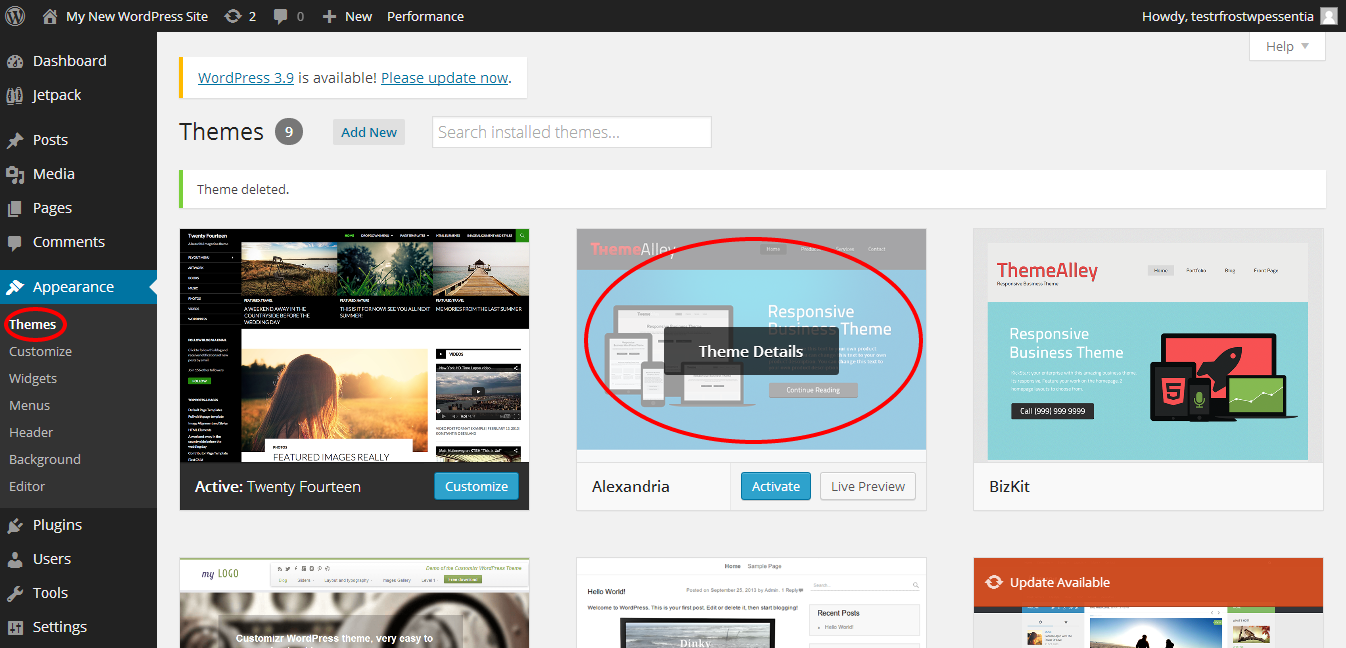
Start by logging into your WordPress Dashboard. Use your admin username and password. Once inside, find the Appearance option. It’s on the left side menu. Click on it. This will show you the Themes page. You will see all your installed themes here.
Select the theme you want to delete. Make sure it’s not the active theme. You can check if it’s active by looking for the Active label. Click on the theme’s details. A new window will pop up. Look for the Delete button at the bottom right. Click it to remove the theme. Confirm the deletion when asked. The theme will disappear from your list.
Using Ftp For Theme Deletion
FTP offers a straightforward way to delete WordPress themes permanently. Access the server, locate the theme folder, and remove it. This method ensures complete removal, freeing up space and avoiding potential conflicts.
Setting Up Ftp Access
First, you need to access your website files. Install an FTP client like FileZilla. Connect to your website using FTP credentials. These include hostname, username, and password. You can find them in your hosting account. Make sure you use port 21 for FTP. Check if you have access to the files.
Navigating To Theme Directory
After connecting, locate the wp-content folder. Inside, find the themes folder. This is where all themes are stored. You will see a list of themes. Each theme has its own folder. Make sure to identify the theme you want to delete. Double-check the theme name.
Deleting Themes Via Ftp
To delete a theme, right-click on the theme folder. Select delete from the menu. This will remove the theme. Be careful, this action is permanent. Make sure you don’t delete the active theme. Always check before deleting. Confirm the deletion when prompted.
Database Clean-up
Deleting a theme is not always enough. Leftover data can slow your site. Access your WordPress database. Find tables related to your old theme. Be careful not to delete useful data. Use a plugin like WP-Optimize. It helps clean up unused tables. Always backup your database before changes. This prevents data loss.
Some files hide in your wp-content folder. Check for leftover theme files. Look in the themes directory. Use an FTP client to access your server. Delete unnecessary files safely. This keeps your site tidy. Residual files can affect site performance. Regular checks are important. It keeps WordPress running smoothly.
Credit: www.domain.com
Verifying Theme Removal
Ensure your site still works. Click on the links. Check every page. Make sure all buttons respond. Broken links can mean something is wrong. Check if all forms work. Test every important feature. Your site’s functionality is key.
Look at your site’s design. Ensure nothing looks odd. Are all images showing? Check the font style and size. Make sure the colors are right. Every page should look the same. No visual changes should be visible.
Best Practices For Theme Management
Removing unwanted themes from WordPress helps improve website performance. Access the dashboard and navigate to “Appearance” then “Themes. ” Click on the theme you wish to delete and press “Delete. ” Regularly clearing unused themes can enhance security and speed.
Simple steps ensure a smoother site experience.
Regular Theme Audits
Regular checks on themes help keep your site safe. Delete themes you don’t use. This keeps your site clean. It also saves space. Unused themes can slow down your site. Check for updates often. This keeps themes fresh and secure. Stay alert for theme news. This helps catch issues early. Regular audits prevent problems.
Staying Updated With WordPress
Always use the latest WordPress version. Updates add new features. They also fix old problems. Updated themes work better with new WordPress. Check for updates weekly. This ensures your site runs smoothly. Updates protect from security risks. Old versions may have bugs. Updating keeps your site safe.

Credit: honarsystems.com
Frequently Asked Questions
How Do I Delete A WordPress Theme Permanently?
To permanently delete a WordPress theme, access your WordPress dashboard. Navigate to Appearance > Themes. Select the theme you want to remove and click on “Theme Details. ” Then, click “Delete” in the bottom right corner. Confirm the deletion. This will remove the theme files from your WordPress installation.
Can I Remove Unused Themes Safely?
Yes, removing unused themes is safe and recommended. It helps improve site performance and security. Make sure to keep a backup before deletion. Unused themes can pose security risks if they remain outdated. Always ensure your active theme is up-to-date before removing others.
Does Removing Themes Affect Site Speed?
Removing themes can improve site speed. Unused themes can increase the size of your WordPress installation. This can slow down your website. By removing them, you reduce server load and improve site performance. Always backup your site before making changes.
How To Backup WordPress Before Theme Removal?
To backup WordPress, use a plugin like UpdraftPlus. Install and activate the plugin, then navigate to Settings > UpdraftPlus Backups. Click “Backup Now” and follow the prompts. Ensure your database and files are included. This provides a safety net in case of accidental deletions.
Conclusion
Removing themes from WordPress boosts site performance. Follow the steps outlined above. Your website will run smoother and faster. Unused themes can slow down your site. Regular cleanup keeps it efficient. Always back up your site before changes. This prevents data loss.
Your focus should be on active themes only. Keep your WordPress dashboard organized. Site visitors will enjoy faster load times. A clean WordPress setup benefits everyone. Remember, simplicity enhances user experience. Stay updated with WordPress best practices. Your site will thank you.


