
Are you looking to make the most out of your Bluehost account by parking a domain? Whether you have multiple domains or just want to save a web address for future use, parking your domain is a smart and simple way to manage your online presence.
In this guide, you’ll learn exactly how to park a domain in Bluehost step-by-step—no confusion, no tech jargon. By the end, you’ll have full control over your domains and be ready to expand your website portfolio with ease. Keep reading to unlock this handy Bluehost feature!
What Is Domain Parking
Domain parking means holding a domain name without using it for a website. You keep the domain registered but do not build a full site on it yet.
Parking is useful if you want to reserve a domain for future use. It helps protect your brand or idea from others.
Many people buy domains to keep them safe or sell later. Domain parking makes this easy and cost-effective.
What Does Domain Parking Do?
Domain parking shows a simple page on your domain. This page often says “Coming Soon” or “Under Construction.”
It tells visitors that the domain is active but not ready for a full website.
Some parking pages display ads, which can earn small money while you hold the domain.
Why Park A Domain?
Parking secures your domain name before building a site. It stops others from registering it first.
It gives you time to plan your website or business. You avoid rushing decisions about domain use.
Parking also helps manage multiple domains easily in one place, like Bluehost.
How Does Domain Parking Work On Bluehost?
Bluehost lets you park domains inside your account quickly. You point the parked domain to your main hosting.
Visitors who enter the parked domain see the parking page or your main site.
This process keeps your domains organized and ready for future use or sale.
Benefits Of Parking Domains
Parking domains offers several useful benefits. It allows you to reserve a web address without building a website right away. This keeps your domain safe and ready for future use.
Many people use domain parking to protect their brand or business name online. It stops others from buying the same domain or a similar one. This way, your identity stays unique on the internet.
Protect Your Brand Identity
Parking a domain helps keep your brand name safe. No one else can register the same domain. It stops confusion and keeps your business strong online.
Save Costs On Hosting
You do not need to pay for web hosting immediately. Parking lets you hold the domain without extra fees. It is an affordable way to keep your web address.
Prepare For Future Projects
Many people park domains to plan new websites. It gives time to create content and design. Your domain is ready when you start building.
Redirect Traffic Easily
Parked domains can point visitors to your main website. This helps gather more traffic. It improves your site’s visibility and reach.
Test Domain Names
Parking allows you to check how a domain looks. You can see if it fits your brand. This helps pick the best web address before launching.
Preparing Your Domain For Parking
Before parking your domain on Bluehost, it is important to prepare it properly. Preparation ensures the domain points correctly and avoids conflicts.
Start by checking your domain’s current status. This step confirms if the domain is ready to be parked or if any issues exist.
Next, access your domain registrar. This is where you manage your domain’s settings and can update its nameservers.
Checking Domain Status
Check if your domain is active and not expired. An expired domain cannot be parked. Use WHOIS lookup tools to see domain details.
Look for any domain locks or holds. These can prevent changes needed for parking. Remove locks if necessary by contacting your registrar.
Accessing Domain Registrar
Log in to the website where you bought your domain. This is your domain registrar account.
Find the domain management or DNS settings area. You will need to update nameservers here to point to Bluehost.
Keep your login details handy. You will need them to make changes and verify ownership.
Accessing Bluehost Control Panel
Accessing the BlueHost control panel is the first step to park a domain. The control panel is your dashboard. It lets you manage your hosting and domains easily. You can add, remove, or update domains here.
Logging into the control panel is simple. You only need your BlueHost username and password. Keep these details ready to start.
How To Log In To Bluehost
Open your web browser and go to the BlueHost website. Click the “Login” button at the top right corner. Choose “Hosting Login” from the dropdown menu. Enter your username and password. Click “Submit” to access your control panel.
Finding The Domain Manager
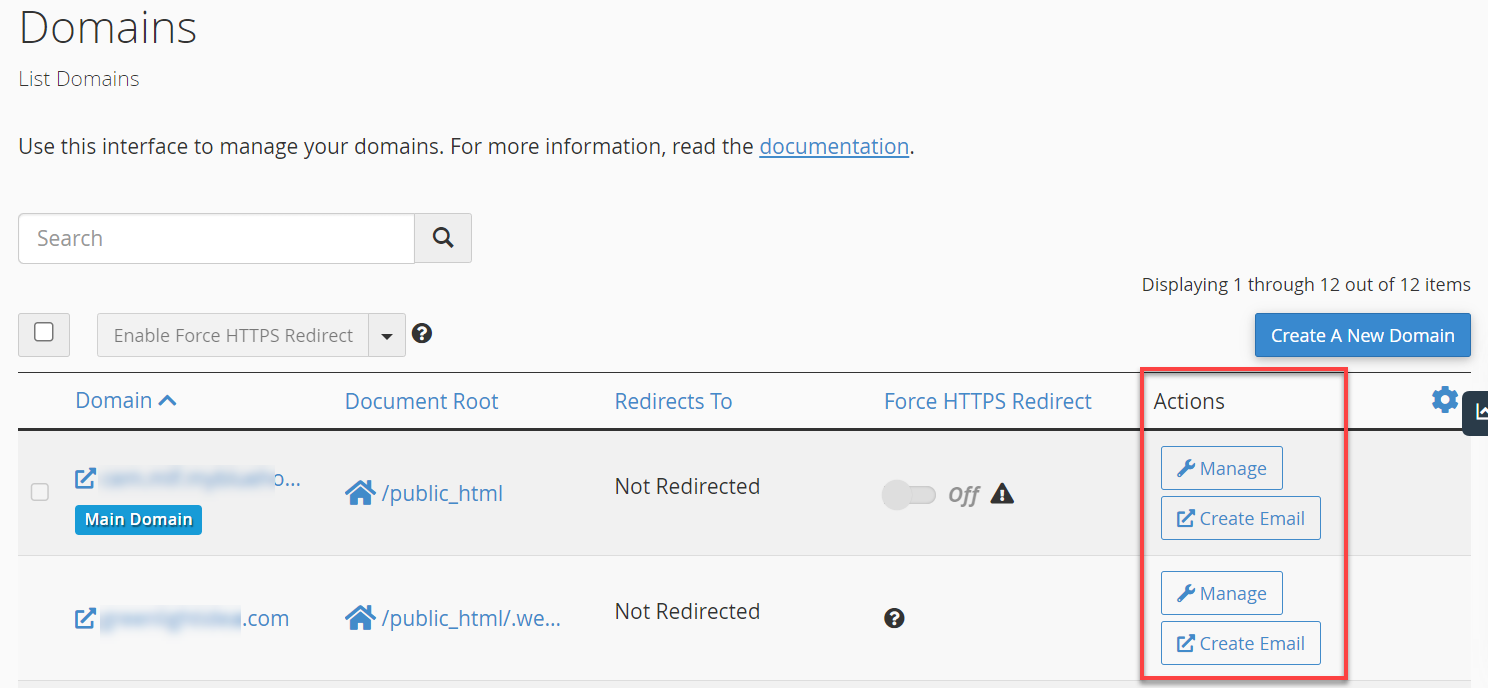
Once logged in, look for the “Domains” tab on the main menu. Click it to open the Domain Manager. This is where you can see all your domains. You can also manage domain settings here.
Understanding The Control Panel Interface
The control panel shows various options like Email, Files, and Domains. Each section has tools to manage your website. The Domain Manager helps you add parked domains easily. Spend a few minutes exploring the layout.
Step-by-step Domain Parking In Bluehost
Parking a domain in BlueHost is a simple process. It lets you use one domain to point to another. This is helpful if you want to reserve a domain name or run multiple sites from one account. Follow these steps to park your domain quickly and easily.
Navigating To Domain Manager
First, log in to your BlueHost account. Look for the “Domains” tab on the main dashboard. Click it to open the Domain Manager. This section shows all your domains in one place. It helps you manage domain settings and parking options.
Adding A Parked Domain
Inside Domain Manager, find the “Parked Domains” option. Click on “Add Domain” or “Park a Domain.” Enter the domain name you want to park. Double-check the spelling to avoid mistakes. Click “Add Domain” to finish this step.
Verifying Domain Addition
After adding, the domain appears in the parked domains list. Wait a few minutes for BlueHost to update settings. Visit the parked domain in your browser. It should now show the primary site or a parking page. This confirms successful domain parking.

Credit: www.youtube.com
Updating Nameservers For Domain Parking
Updating nameservers is a key step to park your domain on BlueHost. It connects your domain to BlueHost’s servers. This change tells the internet where to find your parked domain. Without updating nameservers, your domain won’t point to BlueHost.
The process is simple and fast. You need to know the correct BlueHost nameservers. Then, change them at your domain registrar. This ensures your domain shows the parked page from BlueHost.
Locating Bluehost Nameservers
Start by logging into your BlueHost account. Go to the domain section or hosting details. You will find your nameservers listed there. Usually, BlueHost uses nameservers like ns1.bluehost.com and ns2.bluehost.com.
Write down these nameservers exactly. You will need them for the next step. Using the correct nameservers is crucial for proper domain parking.
Changing Nameservers At Registrar
Visit your domain registrar’s website where you bought your domain. Log into your account and find the domain settings. Look for “DNS settings” or “Nameservers” options.
Replace the current nameservers with the BlueHost nameservers you copied. Save the changes. It may take some time for the update to spread across the internet.
Once updated, your domain will point to BlueHost. Your parked domain page will show correctly. This step completes the domain parking process.
Common Issues And Fixes
Parking a domain on Blue Host is usually simple. Still, some common issues can occur. These issues can stop your domain from showing as parked or cause delays. Knowing the fixes helps save time and avoid frustration.
Domain Not Showing As Parked
Sometimes, your domain may not show as parked right after setup. This can happen if the domain settings are not correct. Check if you entered the domain name properly in the Blue Host dashboard. Also, make sure the domain is registered and active.
Clear your browser cache and cookies. Old data may stop the new parking status from appearing. Try another browser or device to see if the issue stays.
Propagation Delays
Domain parking changes need time to spread across the internet. This process is called propagation. It can take from a few minutes to 48 hours. During this time, the domain may not show as parked.
Patience is key here. Avoid making repeated changes. Each update resets the propagation time. Check your domain status after a few hours.

Credit: www.bluehost.com
Tips For Managing Parked Domains
Managing parked domains on Blue Host requires regular attention. Keeping track of your domains helps avoid unexpected issues. Simple steps can ensure your domains stay active and useful.
Monitoring Domain Status
Check your domain status often. Confirm your parked domains are active and not expired. Use Blue Host’s domain manager to view each domain’s details. Look for any warnings or alerts about renewal dates. Staying informed prevents losing your domain by accident.
Renewing Parked Domains
Set reminders to renew domains before they expire. Blue Host allows easy renewal through your account dashboard. Renew early to avoid extra fees or domain suspension. Keep payment information updated to ensure smooth renewals. Renewing on time protects your domain ownership and online presence.
Credit: www.bluehost.com
Frequently Asked Questions
What Is Domain Parking In Bluehost?
Domain parking in Bluehost means pointing a domain to your hosting account. It displays a placeholder page until you build a website. This helps reserve the domain without hosting a full site immediately.
How Do I Park A Domain In Bluehost?
To park a domain, log into your Bluehost account, go to Domains, select Parked Domains, and add your domain. Bluehost will then display a default page for the parked domain.
Can I Park Multiple Domains On Bluehost?
Yes, Bluehost allows parking multiple domains on one hosting account. You can add several parked domains, each showing a placeholder page or redirecting to your primary site.
Is Domain Parking Free With Bluehost Hosting?
Yes, domain parking is free when you have a Bluehost hosting plan. You can park additional domains without extra charges as part of your hosting package.
Conclusion
Parking a domain in Blue Host is simple and quick. Just follow the steps carefully to avoid mistakes. This helps you manage multiple domains easily in one place. You can use parked domains to point visitors to the main website.
It saves time and keeps your web space organized. Try it yourself and see how smoothly it works. Managing domains does not have to be hard or confusing. Blue Host makes it clear and easy for everyone.


