
Have you ever wished to make your WordPress site truly unique by customizing its theme? You might have found yourself stuck, wondering how to overwrite theme HTML without messing things up.
You’re not alone. Many WordPress users face this challenge, eager to tweak their site’s appearance and functionality but uncertain about where to start. This guide is here to help you confidently navigate the process, showing you exactly how to overwrite theme HTML in WordPress.
Imagine the thrill of seeing your vision come to life, with your website reflecting your unique style and needs. Dive into the full article to unlock the secrets of seamless customization and transform your WordPress site into the masterpiece you’ve always envisioned.
Understanding WordPress Theme Structure
WordPress themes are like clothes for your website. They change how it looks. Every theme has many parts. These parts work together. Some parts are templates. Templates decide how pages look. Other parts are stylesheets. Stylesheets change colors and fonts.
Themes also have functions. Functions help your site do special things. Each theme has a style.css file. This file tells WordPress about the theme. It includes the theme’s name and version.
A theme has many files. Each file has a job. The index.php file is very important. It shows your main page. Another file is header.php. This file shows the top part of your site. The footer.php file shows the bottom part.
WordPress themes also have sidebar.php. This file shows the side part of a page. Inside the theme folder, you will see the functions.php file. This file adds special features. Each part is important. They make your site look nice and work well.
Credit: martech.zone
Identifying The Files To Overwrite
To change your theme, you need to find the right files. Theme files are stored in the wp-content/themes folder. Each theme has its own folder. Open this folder to see the files you can edit. These might be header.php, footer.php, or index.php.
Make sure to back up your theme before editing. This way, you can restore it if needed. Use a good text editor to make changes. This will help you avoid mistakes.
The most important files are header.php, footer.php, and index.php. Header.php contains the head section of your site. Footer.php has the end part, like closing tags. Index.php is the main file for your site’s layout.
Changes to these files will affect your whole site. So, be careful! Always save a copy before you edit. This helps you keep your site safe.
Creating A Child Theme
Child themes help you save the original theme. They allow you to make changes without losing updates. Your changes stay safe after theme updates. This keeps your website stable. Child themes are handy for small tweaks or big changes. They help you test new ideas safely.
- Create a new folder in the themes directory.
- Name it with your theme and add -child.
- Create a style.css file in this folder.
- Add a Theme Name and Template header.
- Create a functions.php file.
- Enqueue the parent theme stylesheet.
- Activate the child theme in your dashboard.
Copying And Editing Html Files
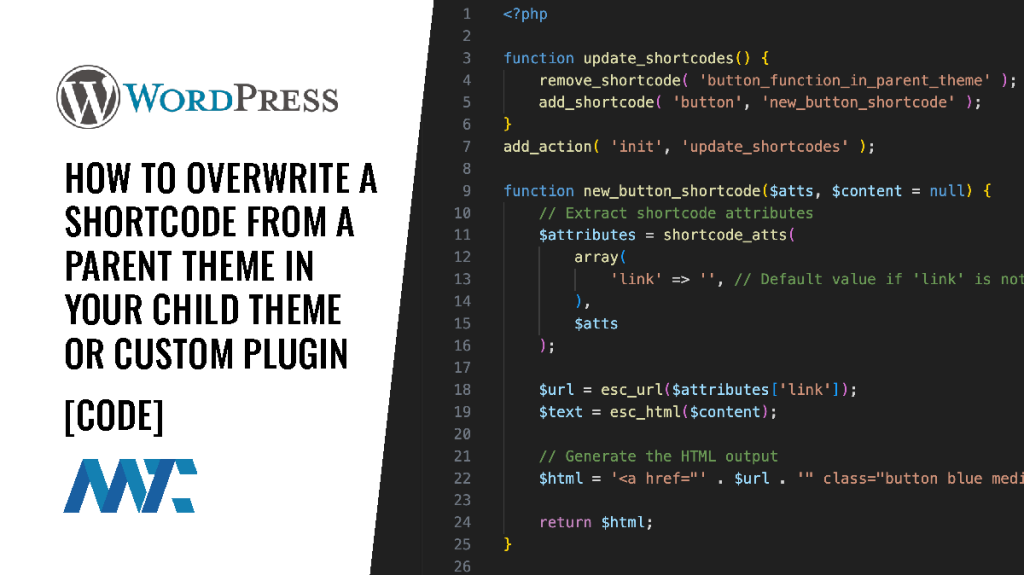
To change your theme, use a child theme. This keeps updates safe. First, copy the HTML files you want to change. Find them in your main theme folder. These are often in the ‘template’ folder. Copy and paste them into your child theme folder. The child theme folder must have the same structure. This means folders and files should match.
Open your copied HTML files. Use a text editor like Notepad++. Change the parts you want. Maybe you want to add a new button or change a title. Make sure to save your changes. Check your site to see if it looks good. If something breaks, you can check your edits. Always test your site after each change.
Testing Changes Safely
Making changes to your theme can be tricky. Always use a staging environment. This is a safe place to test. Your live site stays untouched. Check every change here first. Look for broken links or messed-up layouts. Ensure everything looks good. Happy with the changes? Then, move them to the live site. This keeps everything professional and smooth.
Sometimes, things don’t work right. Errors happen. Start by checking the WordPress console. It shows error messages. Is the page not showing? Clear the cache. This can fix many problems. Still not working? Deactivate your plugins one by one. This helps find the troublemaker. Remember, patience is key. Troubleshooting is like solving a puzzle. Keep calm and solve it step by step.
Best Practices For Overwriting
It is vital to keep your code neat. Always use comments to explain changes. This makes it easy to remember what you did. Back up your site before making changes. If something goes wrong, you can restore it. Avoid editing the main theme files directly. Use a child theme for changes. This keeps the main theme safe.
Child themes need updates too. Check for updates often. Update plugins and child themes regularly. This keeps your site secure. If you add new features, test them. Testing helps find mistakes. Fix them before they cause trouble. A well-maintained site runs smoothly.
Utilizing Plugins For Customization
Plugins can help change how your WordPress site looks. They offer easy ways to change theme HTML. This is great because it does not need coding skills. Many plugins can make your site look unique. They have tools and options for adjusting colors, fonts, and layouts.
Benefits And Limitations
Plugins give many benefits. They are easy to use and save time. With them, anyone can change a theme. But, there are limitations too. Some plugins may slow down your site. They might not work with all themes. Always check if a plugin is compatible. This can avoid problems later. It’s important to choose trusted plugins. This keeps your site safe and fast.

Credit: www.wpzoom.com
Understanding Risks And Challenges
Editing theme HTML in WordPress involves risks, like breaking site functionality or design. Understanding these challenges helps in making careful changes. Always back up your site before editing to prevent data loss.
Potential Pitfalls
Changing theme HTML can be tricky. Mistakes can break your site. Some changes may cause compatibility issues. Plugins might stop working. Your site can look different on mobile. Testing is crucial before going live. Backup your site first. This avoids losing important data. Watch for unexpected behavior. Your site could become slow. Visitors might face broken links.
Ensuring Website Security
Always secure your site when editing HTML. Use trusted themes and plugins. Avoid downloading from unknown sites. Keep your WordPress updated. Regular updates fix security holes. Use strong passwords for login. Limit user access to important parts. Install security plugins for extra safety. These help monitor suspicious activity. Protect your site from hackers. Regularly check for vulnerabilities. Stay safe online.
Credit: www.fixrunner.com
Frequently Asked Questions
How Can I Overwrite Theme Html In WordPress?
To overwrite theme HTML in WordPress, create a child theme. This prevents changes from being lost during updates. Copy and modify the theme file you want to change. Save it in the child theme directory. Activate the child theme via the WordPress dashboard.
Why Use A Child Theme For Customization?
A child theme ensures your customizations aren’t lost during theme updates. It safely modifies theme files without affecting the original theme. This allows you to update the parent theme and maintain your custom changes. It’s a best practice for WordPress customization.
What Tools Are Needed To Edit Theme Html?
You need an FTP client like FileZilla to access your theme files. A text editor such as Sublime Text or Notepad++ is also essential. These tools help you safely edit and modify the HTML files of your WordPress theme.
Is It Safe To Modify Theme Html?
Modifying theme HTML can be safe if done correctly. Always use a child theme to prevent losing changes during updates. Backup your website before making any changes. This ensures you can restore your site if something goes wrong during the modification process.
Conclusion
Editing theme HTML in WordPress can be simple. Follow the steps outlined. With practice, you gain confidence and skill. Always back up your files first. This ensures safety if something goes wrong. Use child themes to avoid losing changes during updates.
This approach keeps your site stable and secure. Explore other customization options as you grow. Learning these skills helps you personalize your website. Remember, practice makes perfect. Keep experimenting and enjoy the process. Your WordPress site can reflect your unique style and needs.
Stay curious and keep learning. Your efforts will pay off over time.


