Ever tried tweaking your WordPress site only to find yourself in a maze of confusing code and tangled templates? You’re not alone.
Knowing how to overwrite the file of a theme template in WordPress is a game-changer. Imagine the power to customize your site just the way you want, without breaking a sweat. This process might seem intimidating at first, but with the right guidance, you can master it in no time.
Understanding this skill not only boosts your site’s functionality but also gives you the creative freedom to make your website truly yours. Are you ready to unlock this secret and transform your WordPress site? Dive in, and let’s unravel this mystery together.
Credit: forum.tagdiv.com
Theme File Structure
WordPress themes have a special file structure. It includes core components and customizable files. These make it easy to change the look of your site. The style.css file is important. It controls the style of your theme.
The core components are the main parts of a theme. They include header.php and footer.php files. These files help set up the top and bottom of each page. Functions.php is another key file. It adds extra features to your theme.
Customizable files let you change how your theme looks. The page.php file helps you design a single page. Want to change how posts appear? Edit the single.php file. These files give you the power to make your site unique.

Credit: codecanel.com
Child Themes
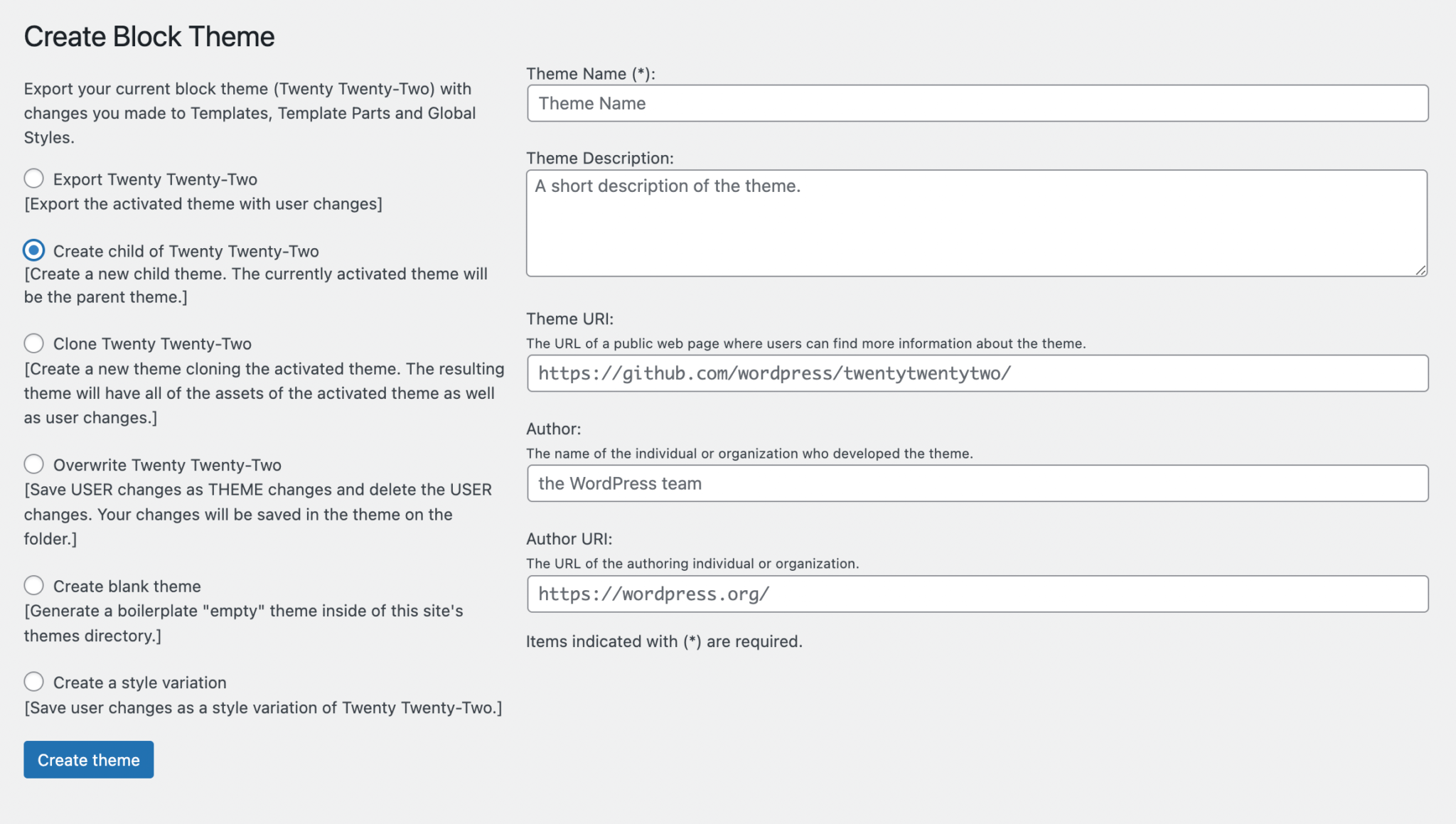
A child theme lets you change your website without breaking the main theme. First, make a new folder for your child theme. This folder goes in the themes directory. Next, create a style.css file. This file will hold your custom styles. The file should start with a special header. This header tells WordPress it is a child theme. You also need a functions.php file. This file helps load the parent theme styles. Use the enqueue function for this. Your child theme is ready once these steps are done.
Using a child theme is smart. It keeps your changes safe during updates. Updates won’t erase your work. Child themes make future changes easy. They help keep your site looking fresh. Developers use them to test new ideas safely. You can experiment without risk. Mistakes in a child theme won’t break your main theme. They offer a safe way to learn and grow. Child themes are a big help for everyone.
Locating Theme Files
FTP clients help access your website files. First, install an FTP client like FileZilla. Connect it to your website using your FTP credentials. These credentials include a username and password. Once connected, look for the wp-content folder. Inside, you will find the themes folder. This folder contains all your theme files. Find the theme you want to edit. Open its folder to see all the files. Be careful while editing files. Always make a backup before changes.
The WordPress Dashboard is another way to find theme files. Log into your WordPress Dashboard. Go to the Appearance section, then click on Theme Editor. Here, you can see all your theme files. Select the file you want to change. Remember to click Update File after editing. This saves your changes. Be cautious while editing directly in the dashboard. Mistakes can break your site.
Credit: torquemag.io
Editing Theme Files
Changing HTML and PHP files can tweak a theme. Open your theme’s folder. Find the file you need to change. Use a text editor like Notepad++. Be careful with PHP code. A small mistake can break your site. Save your changes and upload the file. Refresh your site to see the changes.
CSS changes affect how your site looks. Open the style.css file. Change colors and fonts there. Adjust layouts and spacing too. JavaScript adds special effects to your site. Find JavaScript files in your theme folder. Make changes and save them. Check your site to see the new effects. Always keep backups of original files.
Template Hierarchy
WordPress uses a template hierarchy to load pages. This means it looks for specific files. If a file exists, WordPress will use it. If not, it moves to the next file in line.
Overriding a template can change the look of your site. You can create a new file in your theme folder. Name it the same as the default file. WordPress will use your file instead. This method is simple yet powerful.
| Template File | Purpose |
|---|---|
| header.php | Contains the site’s header section |
| footer.php | Contains the site’s footer section |
| sidebar.php | Contains sidebar elements |
| single.php | Displays single posts |
Backup And Safety Measures
Always save a copy of the original files. This is important before making any changes. Use a secure location for backups. A cloud service or external drive works well. If something goes wrong, you can restore the original files easily. Make this a habit to avoid losing important data.
Test your changes in a safe environment. A local server or staging site is best. This lets you see what your changes will do. It keeps your live site safe from errors. You can fix any issues before they affect users. Always test before going live.
Troubleshooting
File overwrite issues can cause a lot of confusion. Sometimes, changes don’t appear. This happens when files are cached. Clearing cache often solves this problem. Permission errors are common too. Files need correct permissions. Without them, changes won’t save. Always check permission settings. Syntax errors in code can break themes. Double-check your code to avoid this. These errors are quite simple to fix.
Restoring settings brings back original files. This is useful if errors persist. Navigate to the theme settings. Look for the restore default option. Click to revert changes. Make sure you backup important files first. Sometimes, old settings work better. Restoring is a quick fix for many problems. It helps reset your theme to its original state. This process is straightforward and easy.
Best Practices
Always keep your WordPress themes updated. Updates bring new features and fix bugs. Old themes can have security holes. These holes can be dangerous. Use a child theme. It keeps changes even after updates. Regular updates also improve site performance.
Documentation helps you remember changes made. Write down each change. Use version control tools. They track changes and avoid mistakes. Tools like Git are popular. Backup your theme before edits. It saves you from losing work. Always keep a copy of the original files. This practice is essential for safety.
Frequently Asked Questions
How Can I Safely Overwrite Theme Files?
To safely overwrite theme files, use a child theme. Child themes allow you to customize without losing changes during updates. Create a child theme folder, add a style. css file, and import the parent theme. Then, copy and modify template files as needed.
What Tools Help In Editing Theme Files?
Tools like FTP clients and code editors help in editing theme files. FTP clients, such as FileZilla, allow easy file access on servers. Code editors, like Visual Studio Code, provide features for efficient coding. These tools make theme file editing manageable.
Why Use A Child Theme For Customization?
Using a child theme for customization preserves changes during updates. Without a child theme, updates overwrite modifications. Child themes keep your customizations intact, allowing safe updates to the parent theme. This ensures your website remains functional and aesthetically pleasing.
Can I Edit Theme Files Directly?
Directly editing theme files can lead to loss during updates. Instead, use a child theme for safe modifications. If direct edits are necessary, back up files before proceeding. This approach minimizes risks and protects your customizations.
Conclusion
Overwriting a theme template in WordPress can seem daunting. Follow these steps carefully. Start by creating a child theme. This keeps your changes safe. Next, copy the template file you want to modify. Place it in your child theme folder.
Make your changes in this copied file. Your original theme stays untouched. This method ensures your edits persist through updates. Always backup your site before making changes. This protects your content. With practice, you’ll become confident in customizing your WordPress site.
Take your time and enjoy the process. Happy editing!