
Are you tired of wrestling with your WordPress site to achieve the perfect look? You know the frustration of finding a theme that almost meets your needs—but not quite.
That’s where the magic of child themes comes into play. Imagine having the power to tweak your website’s appearance without losing your customizations every time you update the parent theme. You’ll discover how to override parent theme CSS using a child theme in WordPress, giving you full control over your site’s aesthetics.
Get ready to transform your website into the masterpiece you envision, without the headache of coding from scratch. Stick around, and you’ll soon master the art of child themes, making your WordPress site truly yours.
Credit: wordpress.stackexchange.com
Understanding WordPress Themes
The parent theme is the main theme in WordPress. It comes with many features and styles. Think of it as the base of your website. Every parent theme has its own design. It controls how your site looks. Using a parent theme is easy and quick. But sometimes, you want to change things. You don’t want to lose the original design. This is where child themes help.
A child theme is like a helper theme. It lets you change parts of the parent theme. You can add your own CSS and styles. This way, you keep the parent theme safe. Changes stay even after updates. This means your site stays unique. Making a child theme is not hard. It needs two files: style.css and functions.php. These files tell WordPress about your changes.

Credit: www.reddit.com
Benefits Of Using Child Themes
Child themes keep changes safe. You can update the parent theme easily. Your customizations stay intact. No more worries about losing work. This allows you to focus on design.
Modify styles and functions with ease. Child themes offer more control over your site’s appearance. Adjust colors, fonts, and layouts. All without altering the main theme. Create a unique look tailored to your needs.
Setting Up A Child Theme
First, open your WordPress folder. Then, find the wp-content/themes directory. Create a new folder here. Name it for your child theme. For example, mytheme-child. This folder is your child theme directory.
Inside the child theme directory, you need some files. The first file is style.css. This file holds your custom styles. Create this file in your child theme folder. Add a comment block at the top. This block should include the Theme Name, Template, and Author.
Another important file is functions.php. This file lets you add custom functions. It helps load the parent theme’s styles. Make sure you add the proper code for this. Without it, your styles may not work.

Credit: learn.wordpress.org
Enqueuing Stylesheets Correctly
Enqueue scripts manage how files load in WordPress. Using them is important. They keep your site fast and organized. The enqueue function is key. It helps link stylesheets. You can add or remove styles easily. This keeps your site looking good.
Linking child and parent stylesheets needs care. Use the wp_enqueue_style() function. It makes sure files load in the right order. First, load the parent theme CSS. Then, add the child theme CSS. This method avoids conflicts. It keeps your design safe and neat.
Customizing Child Theme Css
Open the child theme folder using an FTP client. Find the style.css file inside. This file holds the child theme’s styles. Add new CSS rules here to change the design. Always use the correct CSS selectors. This ensures your changes appear.
CSS rules follow specificity rules. More specific rules win over less specific ones. If two rules have the same specificity, the last one wins. Use this to your advantage. Make sure your rules are more specific than the parent theme’s rules. Some styles are inherited, like font and color. Not all styles inherit, like margins and borders.
Testing And Troubleshooting
Customizing a WordPress site involves using child theme CSS to override parent theme styles. Begin by creating a child theme directory and adding a style. css file. Apply your custom styles by enqueuing the child theme’s stylesheet in the functions.
php file, ensuring your modifications take precedence.
Common Css Issues
Some CSS issues are very common. Your styles might not show up. This could be due to wrong CSS selectors. Or, your child theme CSS is not loaded properly. Check if you have added the right enqueue function in your functions.php file.
Debugging Techniques
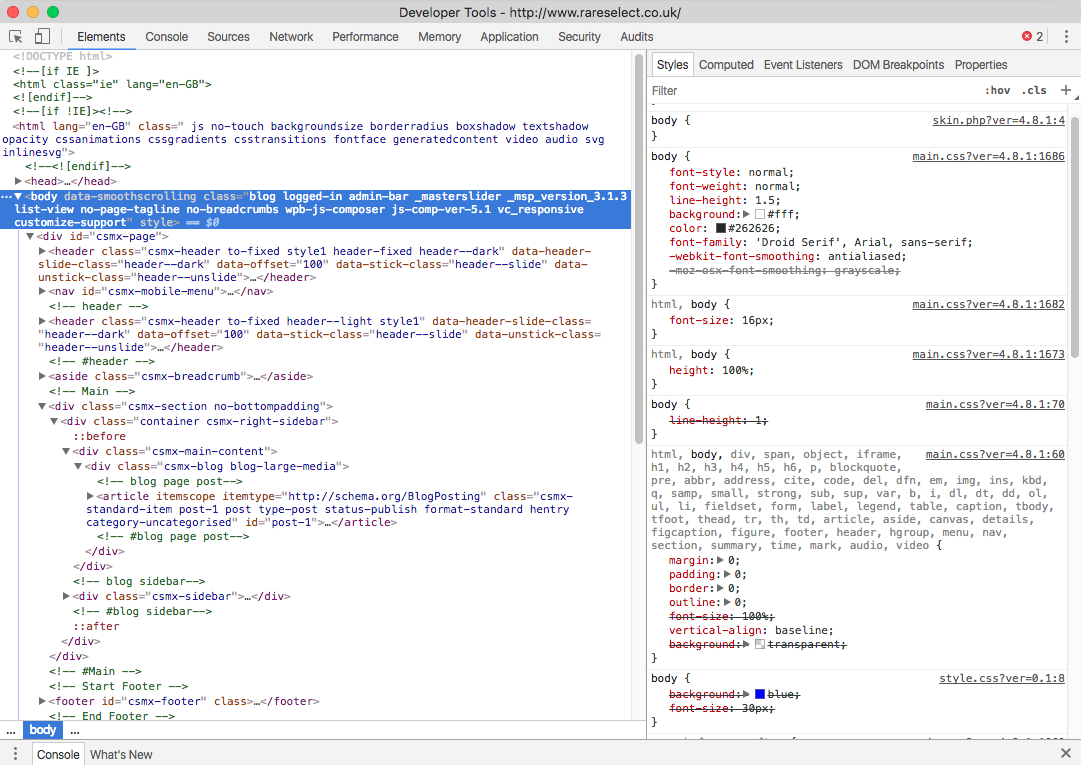
Debugging helps solve these issues. Use browser developer tools to inspect elements. See if the CSS is applied. Look for conflicting styles. Sometimes, parent theme styles override child styles. Add !important to your CSS if needed. Refresh your browser often. Clear any cache to see changes.
Best Practices For Child Theme Development
Create a child theme to modify your WordPress site without altering the parent theme. Copy and customize CSS files to change styles. This method keeps your changes safe during updates.
Maintaining Clean Code
Use clean and organized code to keep your theme neat. This helps in easy understanding and quick changes. Always indent your code properly. It makes reading easier. Use comments to explain complex code parts. This helps others and your future self. Avoid using inline styles. Instead, use separate CSS files. It keeps your code tidy. Regularly check for unused code. Remove it to keep things clean. Follow coding standards and guidelines. It ensures consistency and quality. Always test your code changes. This ensures everything works well.
Version Control And Documentation
Version control helps track changes in your code. Use tools like Git for this. It records every change. You can go back to any version anytime. Make small and meaningful commits. It helps in understanding changes better. Write clear commit messages. They explain what each change does. Keep a log of all changes. This is your documentation. It helps in knowing what was changed and why. Write notes on major changes and features. This is helpful for future reference. Regularly update your documentation. It keeps it accurate and useful.
Frequently Asked Questions
What Is A Child Theme In WordPress?
A child theme in WordPress inherits functionalities from a parent theme. It allows customization without altering the original theme files. This way, updates to the parent theme won’t affect your changes. It’s an efficient way to maintain design tweaks and custom code while ensuring compatibility with future theme updates.
Why Override Parent Theme Css?
Overriding parent theme CSS ensures your custom styles are maintained. This allows you to tailor the appearance of your site to better fit your brand. Using a child theme for CSS changes preserves your customizations during theme updates, ensuring a consistent look and feel.
How To Create A Child Theme In WordPress?
To create a child theme, create a new folder in the themes directory. Add a style. css file and a functions. php file. In style. css, define the theme’s details and import the parent theme’s style. Activate the child theme from the WordPress dashboard to start customizing.
Can A Child Theme Affect Website Performance?
A well-coded child theme generally doesn’t affect performance. However, excessive or poorly written customizations can slow down your site. It’s important to optimize your CSS and other code. Regularly test your site speed and performance to ensure it runs efficiently with the child theme.
Conclusion
Mastering child theme CSS offers great benefits. Customizing your WordPress site becomes easier. You maintain changes during theme updates. This method keeps your design consistent. Avoids losing edits with each update. Save time and effort with this approach. Your site remains unique and professional.
Implement these steps today. Enjoy a more personalized website experience. Happy designing!


