
Are you feeling overwhelmed by the clutter in your WordPress theme folder? You’re not alone.
Many WordPress users find themselves lost in a sea of files and folders, unsure of where to start. But worry not! Organizing your WordPress theme folder doesn’t have to be a daunting task. In fact, with the right approach, it can be both simple and satisfying.
Imagine the ease of navigating a well-structured folder, where everything is in its rightful place. Not only will it streamline your workflow, but it will also enhance your website’s performance. Ready to transform chaos into order? Let’s dive into the practical steps you can take to get your WordPress theme folder organized and working efficiently for you.
Credit: www.wpzoom.com
Theme Folder Structure
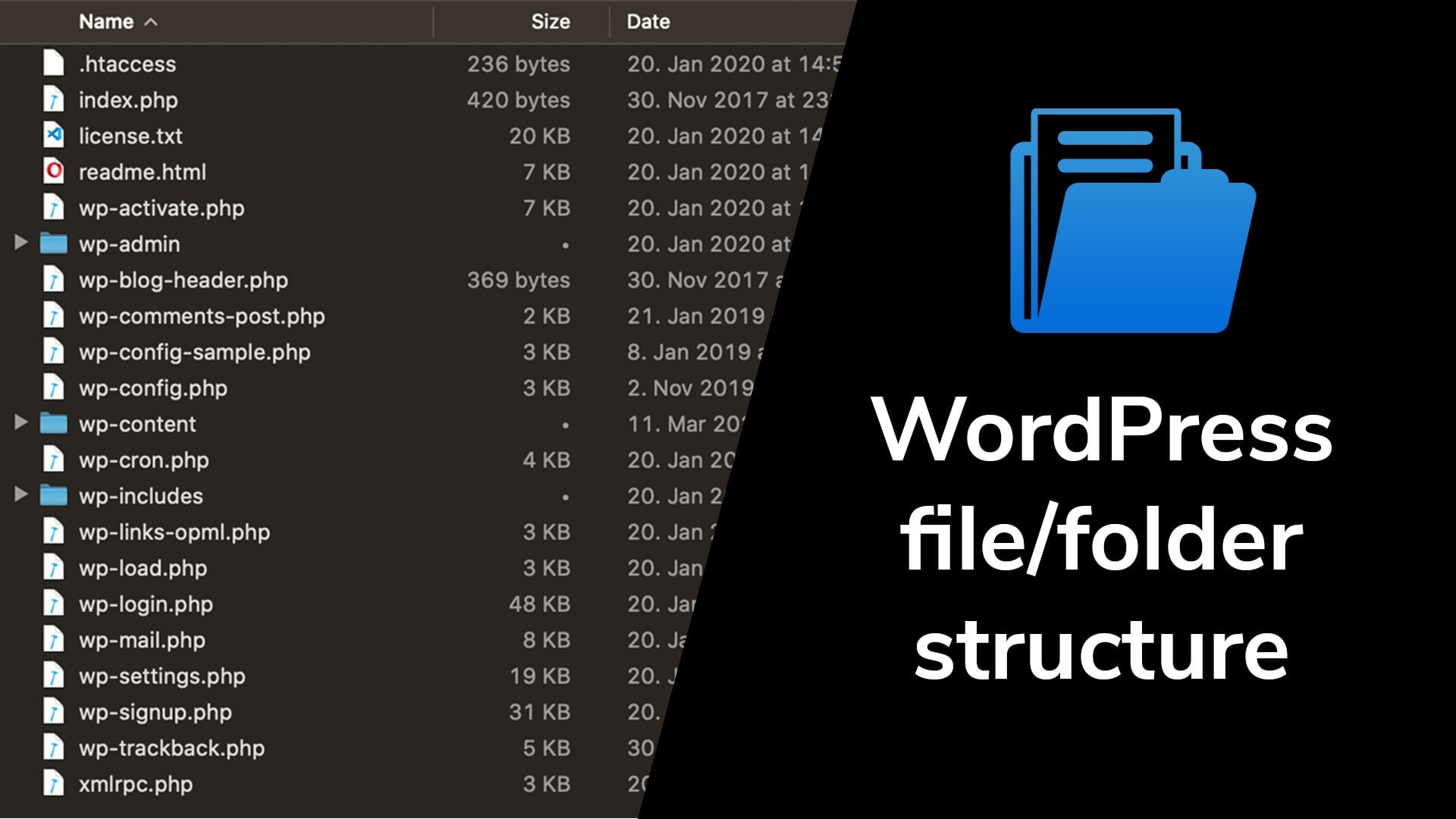
Every WordPress theme has core files. These include style.css and index.php. The style.css file controls the look of the theme. It holds the theme’s information and design. The index.php file is the main template file. It helps show content on the site.
WordPress themes have key subfolders. The templates folder has parts of the page layout. The assets folder stores images, fonts, and scripts. The includes folder contains extra PHP files. They add special features to the theme. Each folder has a unique role in the theme’s function.
Essential Files
The style.css file is very important in a theme. It holds the main styles for your site. This file also gives details about the theme. It includes the theme’s name, author, and version. A missing style.css means the theme will not work. Always keep this file updated. It helps to manage the site’s look.
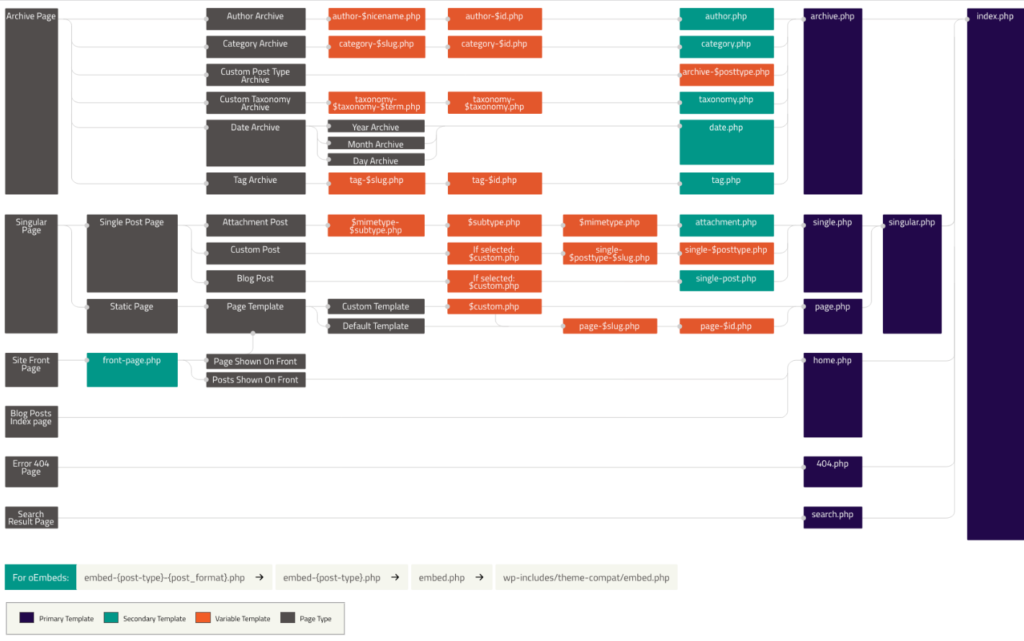
The index.php file is the main template file. It is used to display posts. If other templates are missing, this file steps in. It is like a safety net for your theme. Always ensure it is present in your theme folder.
The functions.php file is a key part of a theme. It acts like a plugin for adding features. This file allows custom functions to be added. You can add menus, widgets, and scripts here. Keep it organized to avoid errors. This helps in expanding the theme’s abilities.
Template Files
The header template is important. It shows the top part of your website. It often has the site name and menu. The footer template is at the bottom. It can have links and contact information. Each part helps users find their way around. Make sure both templates look nice and are easy to read. Your website will look better with good templates.
Sidebar templates are useful. They can show extra content. Widgets are small tools. They can be in sidebars. Widgets help show things like news or weather. They add value to your site. Arrange your widgets in a smart way. This makes the site easier to use. Good sidebar templates make your site look neat.
Page templates decide how pages look. Posts use post templates. Both types have different styles. A good page template makes reading easy. Post templates help show articles. Each template helps organize content. Keep them simple and clear. Users will find information faster.
Assets Organization
Keep all images in one folder. Name it “images” for easy finding. This helps in knowing where your pictures are. Use subfolders for different types of images. For example, have one for icons and another for banners. This makes it easy to manage. Keep your media files separate from scripts and stylesheets. This keeps your theme folder clean and organized.
Store your scripts in a folder named “js”. It stands for JavaScript. Place all CSS files in a folder called “css”. This keeps your stylesheets in one place. Organize scripts and stylesheets by their purpose. For example, have a folder for third-party scripts. Keep custom styles separate. This makes updates easier.
Custom File Integrations
Custom Post Types help organize content. They give structure to your theme folder. Use them for different types of content. For example, you can create a portfolio or events section. This keeps your theme folder tidy. Each post type should have its own folder. This way, you can find files easily. It also makes updating simpler.
Custom Taxonomies let you group content. They work with custom post types. Use taxonomies to tag or categorize content. This helps users find information fast. It’s like creating labels for your files. For instance, you can tag a post type with “summer” or “2023”. These tags help users navigate your site. Keep taxonomy files organized in separate folders. This keeps your theme folder clean.
Credit: devowl.io
Localization Files
Language translation files help your theme speak different languages. They are stored in a folder called languages. This folder must have the right files. These files end with .po or .mo. A translator uses these files. This makes your website easy to read.
Text domain is important for translations. It tells WordPress which files to use. You add it to the style.css file. Write it like this: Text Domain: yourthemename. This connects your theme with the translation files. Your theme needs this to work well in many languages.
Debugging And Testing
Organizing a WordPress theme folder aids in efficient debugging and testing. Properly structured files help locate errors quickly, ensuring smoother functionality. Keep style, template, and script files grouped logically for easy access.
Error Logs Management
Error logs help find problems in your theme. They show you what went wrong. Check them often to catch issues early. Logs can be found in your WordPress folder. Look for a file named error_log. Open it with a text editor. Read the messages carefully. Note down what needs fixing. This will save time later. Fix small errors first. These are often simple mistakes. They can cause big problems if not fixed. Review the logs again after fixing. Make sure the error is gone. Logs should be clean now. A clean log means your theme is working well.
Testing Environment Setup
A testing environment is like a practice area. Use it to try new things safely. This place is separate from your live site. It keeps your main site safe. You can use tools like Local by Flywheel or XAMPP. These tools are easy to set up. Follow the steps they give you. Install WordPress here. Copy your theme to this environment. Now, you can test changes without worry. Fix errors and test again. Once everything works, move to the live site. Your site stays safe. Changes happen smoothly. This method keeps your site fast and error-free.
Credit: www.cloudways.com
Frequently Asked Questions
What Is A WordPress Theme Folder?
A WordPress theme folder contains all files needed for a theme. It includes templates, stylesheets, scripts, and images. Organizing it properly ensures efficient theme management and customization.
How Do I Start Organizing My Theme Folder?
Begin by categorizing files into subfolders like CSS, JS, and images. Use descriptive names for files and folders. This approach makes it easier to locate and manage your theme components.
Why Is Folder Organization Important For Themes?
Proper organization improves theme performance and maintenance. It makes locating and updating files easier. Well-organized folders also enhance collaboration among developers and maintain a clean codebase.
Can I Rename Theme Folder Files?
Yes, you can rename files to make them descriptive. Ensure you update all references in the code. This practice helps in understanding file functions and maintaining consistency.
Conclusion
Organizing a WordPress theme folder is crucial for smooth site management. Clear structure helps in locating files quickly. Arrange assets in distinct directories. Keep style sheets, scripts, and images organized. It’s essential for efficient updates. A tidy folder avoids confusion, saving you time.
Regular maintenance keeps your theme running well. Always backup before making changes. This prevents data loss. By organizing your theme folder, you simplify your workflow. You enhance your site’s performance and reliability. A well-organized folder is your key to a stress-free WordPress experience.


