
Are you struggling to keep certain pages on your WordPress site hidden from search engines? Whether it’s outdated content, a thank-you page, or a draft that isn’t quite ready, there are times when you might want to keep prying eyes away.
The Astra Theme, known for its speed and flexibility, offers a fantastic platform for your WordPress site. But when it comes to privacy, you need to know how to no-index a page properly. Imagine the relief of having full control over what Google and other search engines can see on your site.
By learning how to no-index a page in the Astra Theme, you can ensure that your site maintains a polished, intentional look without any unnecessary clutter. This not only enhances your visitor’s experience but also boosts your website’s SEO performance. Stick with us as we dive into the step-by-step process of making sure your content remains exactly where you want it—hidden or visible. Keep reading to discover the secrets of managing your WordPress site like a pro!

Credit: wordpress.org
WordPress Astra Theme Overview
The Astra Theme is a popular choice for WordPress users. It’s known for being lightweight and fast. Many people choose it because it’s easy to use. You can create beautiful websites without coding. Astra is also highly customizable. This means you can change colors, fonts, and layouts easily.
Astra supports many plugins. These add extra features to your website. With Astra, your site can be responsive. This means it looks good on phones and tablets too. It’s also SEO-friendly. This helps your site appear in search results. Astra is a great starting point for beginners and experts alike.
Credit: wprblogger.com
Importance Of No-indexing Pages
No-indexing tells search engines to ignore certain pages. This helps in maintaining SEO health. Some pages might not be useful for search results. Duplicate content can confuse search engines. It can lead to lower rankings. Unimportant pages should be no-indexed. This keeps your site clean and effective. Important pages remain visible and easy to find.
Impact On Seo
No-indexing can improve SEO. It helps in focusing on important pages. Search engines will see only valuable content. This can lead to better rankings. A clutter-free website is user-friendly. It enhances user experience.
Use Cases For No-index
Not every page needs to be indexed. Admin pages should be hidden. Thank you pages are not for search engines. Duplicate product pages can be no-indexed. Archives might not be useful for SEO. Login pages are not for everyone. Privacy policies should be private.
Preparing For No-indexing
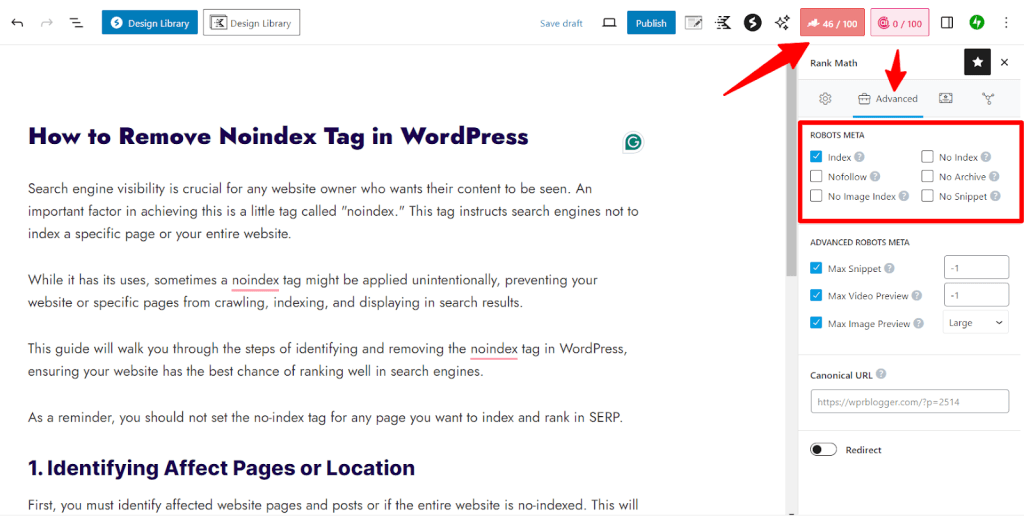
Easily manage no-indexing for pages in the WordPress Astra Theme. Start by installing an SEO plugin. Next, select the pages you want to no-index in the plugin settings. This prevents them from appearing in search results.
Identifying Pages To No-index
First, list all pages on your site. Some pages may not be useful for search engines. Duplicate content or archive pages might be less important. Identify these pages for no-indexing. Check your site’s analytics. This helps find pages with low views or engagement. Focus on pages that don’t add value to SEO. Categorize them for easy identification. Once identified, prepare to set them as no-index.
Backup And Safety Measures
Backup your website data before making changes. Use a reliable plugin for backups. Ensure you have a copy of your site’s files. Accidental changes can harm your site. Safety is crucial. Check if your theme supports no-indexing. Some themes may not have this option. Consider using a plugin for more control. Always have a backup plan. This keeps your content safe.
Using Astra Theme Settings
First, go to your WordPress dashboard. Look for the Astra Options menu. This is where you control theme settings. Click it to open the options. You will find many settings here.
Find the Layout options. These control page and post layouts. You need to check these settings first. They are important for no-indexing pages.
To no-index a page, open the page editor. Look for the Document settings on the right. Scroll down to find the SEO options. You will see a toggle for No-Index.
Turn this toggle on to no-index the page. Save the changes when done. Your page will not show in search engines now. This keeps certain pages private. It’s useful for sensitive content.
Utilizing Seo Plugins
Many people use plugins for SEO tasks. These tools help make pages no-index. One popular option is Yoast SEO. Another choice is All in One SEO. Both plugins are easy to use. They are great for beginners.
Plugins help make changes quickly. They save time. Use them to control how search engines see your site. This is important for site privacy. It helps keep some pages hidden.
First, install the plugin. Go to the plugin menu. Choose ‘Add New’. Type the plugin name. Click ‘Install Now’.
After installation, activate the plugin. Look for the plugin settings. Find the no-index option. Select it. Save your changes.
This setup is simple. Follow each step carefully. Your pages will be no-indexed. This makes them less visible online.
Credit: wpastra.com
Testing And Verification
To no-index a page in the Astra theme on WordPress, navigate to the page settings. Locate the SEO options and select ‘no-index’. This prevents search engines from indexing the page, keeping it out of search results.
Checking No-index Implementation
Ensure your page is set to no-index. Open your WordPress dashboard. Go to the page you want to check. Look for the SEO settings or Astra settings. Ensure the no-index option is selected. Save your changes.
Using Search Console For Verification
Google Search Console can help you verify. Log in to your Search Console account. Navigate to the URL Inspection Tool. Enter the URL of your page. Check if the page status shows no-index. If it does, your setup is correct. If not, revisit your settings.
Troubleshooting Common Issues
Easily manage page visibility by no-indexing in the WordPress Astra Theme. Use the WordPress dashboard and adjust the settings. This prevents search engines from displaying specific pages in results.
Resolving Plugin Conflicts
Plugins often cause problems. Conflicts occur when plugins clash. Disable plugins one by one. Check if the issue goes away. Deactivate all plugins at once. Activate them one at a time. Identify the problematic plugin. Update it or find an alternative. Always use trusted plugins. Read reviews before installing.
Addressing Indexing Errors
Pages may not index properly. Verify settings in WordPress. Check your robots.txt file. Ensure it’s not blocking pages. Use Google Search Console. Submit a sitemap. Check if pages are indexed. Fix any errors shown in Console. Clear cache after changes. Wait for Google to re-crawl. Monitor indexing status regularly. Ensure pages are SEO-optimized.
Best Practices For No-indexing
Keep your website clean. Remove unwanted pages. No-index pages that don’t help your site. Search engines won’t show these pages. This keeps your site healthy. SEO health is important. It helps people find your website.
Check your pages often. Look for pages that are not needed. Page audits help find problems. Fix them quickly. Don’t forget to check links. Broken links can hurt your site. Keep your site clean and strong. Regular audits make your site better.
Frequently Asked Questions
How Do I No-index A Page In Astra Theme?
To no-index a page in Astra Theme, use an SEO plugin like Yoast SEO. Edit the page, and in the Yoast SEO settings, go to the “Advanced” tab. Set “Allow search engines to show this Page” to “No. ” This ensures the page is excluded from search engine results.
Why No-index Pages In WordPress?
No-indexing pages prevents them from appearing in search results. This is useful for pages with duplicate content, low-value content, or private information. It helps improve your website’s SEO by focusing search engines on valuable content, enhancing overall search engine rankings and user experience.
Can I No-index Multiple Pages At Once?
Yes, you can no-index multiple pages at once using an SEO plugin. Tools like Yoast SEO or Rank Math allow bulk editing. Navigate to the plugin settings, select the pages you wish to no-index, and apply the no-index setting. This streamlines your SEO management.
Is No-indexing Bad For Seo?
No, no-indexing is not bad for SEO when used strategically. It helps manage which pages search engines index, focusing on high-quality content. This can improve your site’s search performance and user experience by directing attention to valuable pages, enhancing overall SEO effectiveness.
Conclusion
No-indexing pages in WordPress Astra Theme is straightforward. It helps manage search engine visibility effectively. You can control which pages are indexed. This improves site organization. Use the built-in Astra options or plugins. Both methods are user-friendly. Ensure you follow each step carefully.
Your site will benefit from cleaner search results. Non-essential pages stay out of search engine listings. This maintains focus on important content. Keep experimenting to find what works best. Regular updates keep your site optimized. Enjoy a more streamlined approach to managing your WordPress site.


