
Are you struggling to customize your WordPress theme just the way you want it? You’re not alone.
Many find themselves stuck when trying to move blocks around, making their website look less than perfect. But don’t worry, you’re about to discover the simple steps that will give you the control you need. Imagine being able to shift blocks effortlessly, creating a layout that not only looks professional but also captivates your visitors.
You want your website to stand out, right? Learning how to move blocks in WordPress is key. Stick with us, and by the end of this article, you’ll have the skills to transform your site, boosting both its appeal and functionality. So, let’s unlock your site’s potential together!
Credit: wordpress.com
Setting Up Your WordPress Environment
Plugins make your WordPress site better. They give you extra features. Search for plugins in the WordPress plugin store. Look for popular ones with good reviews. Click “Install Now” to add them. After installing, click “Activate.” Your plugins are now ready to use.
Themes change how your site looks. Go to “Appearance” in the WordPress dashboard. Click on “Themes.” Choose one you like. Click “Activate” to make it live. Your site will now use this theme. Themes can be changed anytime. Try different ones to see what fits best.
Understanding WordPress Blocks
WordPress offers many types of blocks. Text blocks help you add words to your site. Image blocks allow you to place pictures. Video blocks let you add clips. Button blocks create clickable buttons. List blocks are for making lists. Quote blocks help share quotes. These blocks let you build pages easily.
Blocks shape the look of a website. They help in organizing content. Positioning blocks correctly is key. It affects how users see your page. Align blocks to guide the reader’s eye. Good design uses blocks smartly. It makes the website nice to look at. Blocks help in creating a clean layout. They make sure everything fits well.
Accessing The Block Editor
First, go to your WordPress dashboard. Find the post or page you want to edit. Click on it to open the block editor. The editor lets you change your website easily. It’s simple and fun!
The block editor has many parts. On the left, see your tools. On the right, find settings. Each block has its own settings. Use these to make changes. Add text or images. Move blocks around. Just click and drag to move them. Blocks make your site look great!
Selecting And Moving Blocks
Pick the block you want to move. Click on the block. A toolbar will appear. Look for the move option. It’s usually an arrow or a grid icon. Make sure you select the right block. Blocks can be text, images, or videos. You can move many blocks. Just select them one by one.
Drag the block to the new spot. Hold the block with the mouse. Move it across the screen. Drop it where you want. This method is easy. Anyone can do it. It feels like moving things on a desk. Make sure it’s in the right place. Double-check the position.
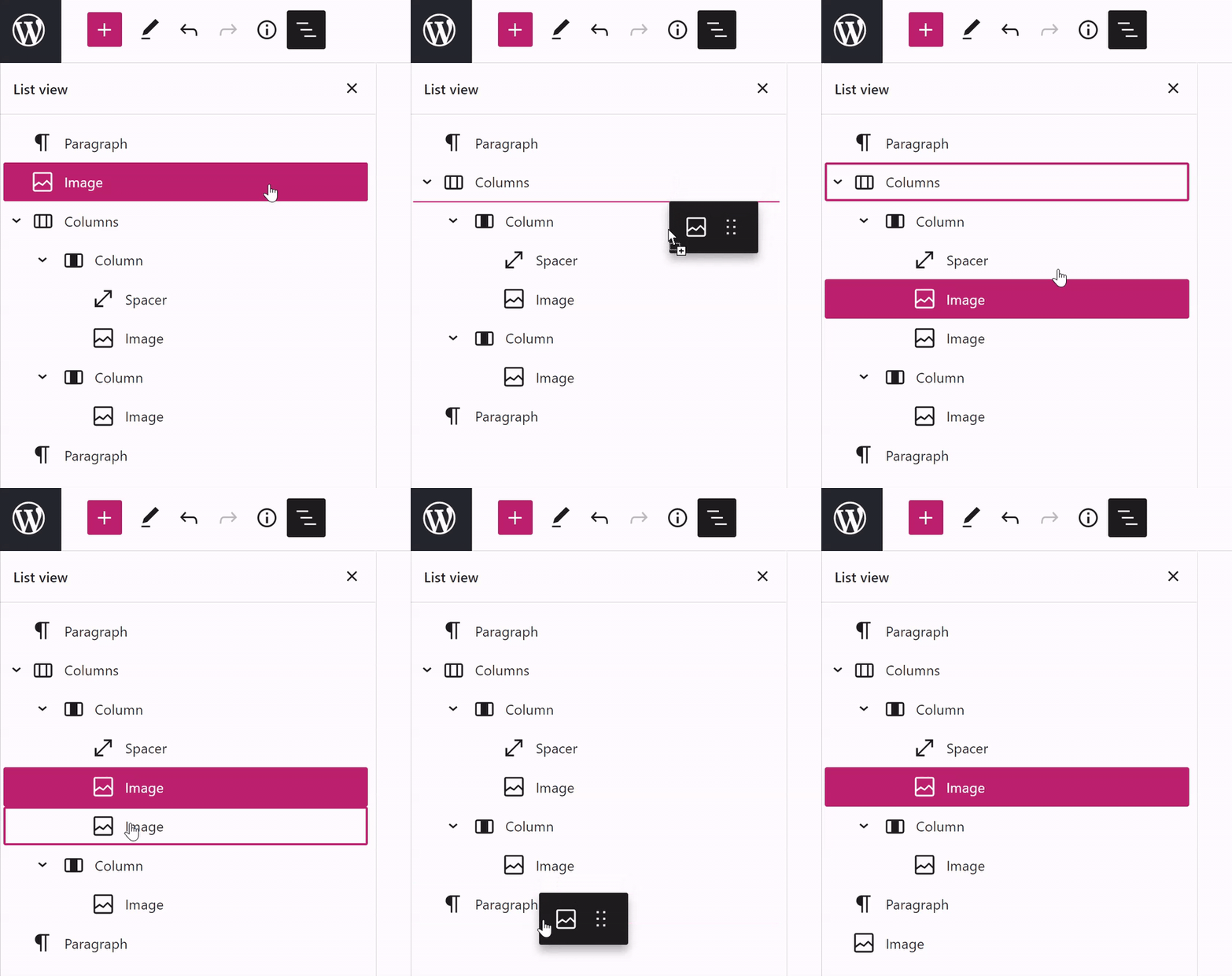
Use block navigation for precise moves. Find the block list on the side. Click the block name. Use arrows to change its position. Move it up or down. It’s like a list on paper. Easy to follow. Helps with organized blocks. Best for big pages with many blocks.
Customizing Block Layout
Adjusting Block Position in WordPress is simple. Click on the block. A toolbar appears. Use the arrows to move. You can shift the block up or down. The block moves as you click. Watch the changes instantly. It’s easy for beginners.
Aligning Blocks Precisely requires focus. Click the block. Look for alignment settings. Choose left, right, or center. The block aligns neatly. Check your page layout. Make sure everything looks right. It’s important for a clean design.

Credit: wordpress.org
Troubleshooting Common Issues
Struggling with moving blocks in WordPress themes? Learn step-by-step solutions to shift blocks effortlessly. Simplify your theme customization process. Gain control over your website’s design without stress.
Resolving Drag And Drop Problems
Sometimes, you can’t move blocks in WordPress. This can be frustrating. Make sure your browser is updated. An outdated browser can cause issues. Try clearing your browser cache. This can fix many problems. Also, check if your plugins are up-to-date. Outdated plugins can block features. Disable plugins one by one. This helps find the problem. If all else fails, try a different theme. Some themes have bugs. Changing themes can solve the issue.
Fixing Alignment Errors
Blocks might not align properly. This can mess up your page. Use the block settings to adjust alignment. Click on the block. Choose the alignment option. Sometimes, custom CSS can help. Add CSS in the theme customizer. Be careful with CSS. It can break your site. Try using a child theme. A child theme is safe for changes. It keeps your main theme intact. Always preview changes before publishing. This helps catch errors early.
Advanced Tips For Block Management
Grouping blocks makes editing easy. Select blocks you want to group. Click the “Group” option. Your blocks are now together. Change them as one. This saves time. You can move them easily. Groups help keep your page neat. It’s a simple trick.
Reusable blocks are handy. First, create a block. Save it as reusable. Use it on other pages. It saves effort. Changes update everywhere. No need to redo work. This is useful for headers. Or footers. Keeps things consistent. Easy to manage.
Maintaining Consistency Across Pages
Moving blocks in a WordPress theme helps keep your pages looking the same. Use the WordPress editor to drag and adjust blocks. This makes sure every page looks neat and organized.
Duplicating Block Layouts
Copying block layouts helps keep pages consistent. First, find the block you want to copy. Click on the block options. Choose “Duplicate”. The block will appear below. You can drag it to the right spot. This saves time and keeps styles the same. Always check the layout after copying. Make sure it looks good on all devices. Keep block styles uniform.
Ensuring Uniform Style
Uniform style makes pages look neat. Use the same fonts and colors. Check that headers match across pages. Use similar spacing for blocks. This helps pages look tidy. Keep buttons and links styled the same way. Always preview changes before publishing. This ensures everything looks right. Uniform style creates a professional look. Readers find it easy to navigate pages.
Credit: wpengine.com
Frequently Asked Questions
How Do I Move Blocks In WordPress?
To move blocks in WordPress, simply click on the block you want to move. Use the up or down arrows that appear in the toolbar to reposition the block. You can also drag and drop the block to your desired location within the content.
Can I Rearrange Blocks In WordPress Themes?
Yes, you can rearrange blocks within WordPress themes. Use the block editor to click and drag blocks to your preferred position. This flexibility helps customize layouts easily without coding knowledge, enhancing your website’s appearance and functionality.
What Are The Steps To Drag Blocks In WordPress?
To drag blocks in WordPress, hover over the block until the toolbar appears. Click and hold the drag handle, then move the block to your desired location. Release the mouse button to drop the block into place, rearranging your page effortlessly.
Why Can’t I Move Blocks In WordPress?
If you can’t move blocks, ensure you’re in the block editor. Some themes or plugins might limit functionality. Check for updates or conflicts. Switching to a different theme or deactivating plugins can help resolve the issue.
Conclusion
Mastering block movement in WordPress themes enhances your site’s design. It’s simple and doesn’t take much time. Just follow the steps carefully. Practice makes it easier. Experiment with different layouts. See what works best for your content. This skill helps make your site unique.
Keep learning and exploring WordPress features. You’ll find more ways to improve your site. Remember, a well-organized site attracts more visitors. Happy designing!


