
Are you looking to give your WordPress site a fresh look by changing its theme? Moving a theme manually might sound daunting, but it’s simpler than you think.
Whether you’re aiming for a more professional vibe or just want to switch things up, mastering the manual theme migration process puts you in control. You won’t need to rely on automated tools or risk losing customizations. Instead, by following a few straightforward steps, you can ensure that your website transitions smoothly.
This guide is here to walk you through each part of the process, ensuring you feel confident and empowered. Ready to dive in and transform your WordPress site? Let’s get started!
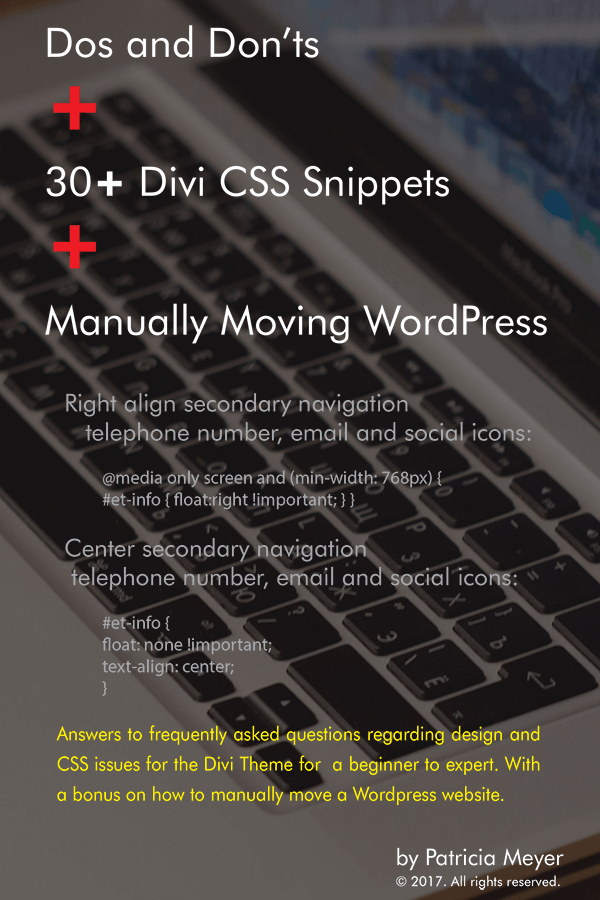
Credit: elegantmarketplace.com
Preparing For Theme Migration
Migrating a WordPress theme manually involves careful steps to ensure seamless transfer and functionality. Start by backing up your current site to avoid data loss. Then, upload the new theme files via FTP, adjusting settings to match your site’s requirements.
Backup Your Website
Make sure to backup your website. This saves your content. Use a plugin or do it manually. You need all your files safe. Nothing should be lost or changed. Store the backup on a different device. This keeps your data secure.
Gather Necessary Credentials
Gather all important credentials. You need your WordPress login. Also, know your FTP details. Have your database username and password. These are crucial for theme migration. Without them, you can’t access your site. Keep them handy during the process.
Locating Theme Files
First, open your WordPress dashboard. Go to Appearance. Click on Themes. Here, you can see all themes. To access theme files, use FTP or File Manager. Find the wp-content folder. Inside, locate the themes directory. This contains all your theme files.
Core theme files include style.css, functions.php, and index.php. These files control the look of your site. They also manage the basic operations. Style.css handles the design. Functions.php contains special code. Index.php is the main file. Other files might be present too. Each has a specific role. Always back up before changes.
Transferring Theme Files
FTP stands for File Transfer Protocol. It helps move files online. Use an FTP client to access your WordPress files. First, connect to your website’s server. Enter your FTP credentials. These include your username and password. Find the theme folder on your computer. It is usually in a zipped format. Unzip it to see the theme files inside. Now, locate the theme folder on the server. It is inside the wp-content/themes directory. Drag your unzipped theme files to this directory. This action uploads the files to your site. Check your WordPress dashboard. Make sure the theme appears under the themes section.
cPanel is a control panel for websites. It lets you manage files easily. Log in to your cPanel account. Navigate to the File Manager. Find the public_html/wp-content/themes folder. Click the upload button. Select your theme file from your computer. Make sure it is in a zipped format. Once uploaded, extract the zip file. This will place the theme files in the correct folder. Check your WordPress dashboard. The new theme should be available now.
Activating The New Theme
Open the WordPress dashboard. Go to Appearance, then Themes. You will see a list of themes. Click on the theme you want. Press the Activate button. The new theme will be live. Check your website. Make sure it looks good. Refresh the page if needed. Sometimes changes take a while.
Before activating, ensure the theme is compatible. Look at the theme details. Check the WordPress version it supports. Read user reviews. They help understand theme issues. Test theme on a test site. It prevents real site problems. Check if plugins work well. Some themes conflict. Make sure you have a backup. It saves time if things go wrong.
Resolving Common Issues
To move a WordPress theme manually, start by downloading the theme files. Next, use an FTP client to upload them to your server. Ensure the theme is placed in the correct directory for seamless activation.
Fixing Broken Links
Broken links can make your site look unprofessional. They also confuse visitors. Always check for broken links after moving a theme. Use a simple tool like an online link checker. This will help find broken links fast. Once found, replace or update them. It’s important to keep all links working. This helps with both user experience and SEO.
Addressing Styling Problems
Styling problems can occur with a new theme. Sometimes styles do not load correctly. This can make your site look strange. Always clear your browser cache first. This might solve the problem. If not, check the CSS file paths. Paths should be correct and updated. Make sure all style files are uploaded. Proper styling helps your site look great and professional.

Credit: www.youtube.com
Testing The New Theme
Ensuring functionality is key for your new theme. Check every page. Make sure all links work. Test forms and buttons. Try different browsers. See if everything looks right. Also, check on mobile devices. This helps catch hidden problems. If something is broken, fix it. This keeps users happy.
Verifying design elements is also important. Look at colors and fonts. They should match your brand. Images need to load well. Make sure they are clear. Check spacing and alignment. This makes your site look neat. A tidy site is easier to read. Users will enjoy their visit more.
Optimizing Theme Performance
Fast websites make users happy. Slow sites can lose visitors quickly. Use a caching plugin. This helps pages load faster. Choose a theme with clean code. Less code means quicker loading. Compress images before uploading. Smaller images load quicker. Minimize the use of external scripts. They can slow down your site. Always keep your WordPress updated. New updates improve speed.
SEO helps people find your site. Use SEO-friendly URLs. They are easy to read and understand. Add keywords in titles and headings. This helps search engines know your content. Use a responsive theme. It works well on all devices. Add alt text to images. Search engines use this to understand images. Always keep content fresh and updated. This keeps visitors returning.

Credit: sevencreative.co.uk
Frequently Asked Questions
How To Backup WordPress Before Moving A Theme?
Backing up WordPress is crucial before moving a theme. Use plugins like UpdraftPlus to easily create backups. Alternatively, manually copy your site’s files and database using FTP. Ensure backups are stored securely, either on a cloud service or an external drive, to prevent data loss during theme transfer.
Can I Move A Theme Without Plugins?
Yes, you can move a theme without plugins. Access your WordPress files via FTP client. Navigate to the ‘wp-content/themes’ directory and download the theme folder. Then, upload this folder to the same directory on your new WordPress installation. Activate the theme in the WordPress admin panel.
What Are Common Issues When Moving Themes?
Common issues include broken links, missing widgets, and different theme settings. To resolve these, reconfigure theme settings manually after activation. Check for missing widgets and add them back. Use tools like Broken Link Checker to identify and fix any broken links that may occur during the move.
How To Test A Theme After Moving?
After moving, test your theme thoroughly. Check for layout consistency, functionality, and responsiveness across devices. Use tools like Google Mobile-Friendly Test and BrowserStack. Ensure that all links, images, and widgets display correctly. Resolve any errors or discrepancies to ensure the theme works seamlessly on the new site.
Conclusion
Moving a WordPress theme manually can seem complex, but it’s manageable. Remember to backup your data first. This protects your site from potential loss. Follow each step carefully to avoid errors. Use a file manager or FTP client for easy file transfers.
Double-check your work to ensure everything runs smoothly. Keep your WordPress updated to prevent issues. With practice, this process becomes simpler. Now, you can confidently handle theme changes. Your website’s appearance can be just how you want it. Enjoy your customized WordPress experience!


