
Imagine transforming your WordPress site into a unique expression of your brand with just a few tweaks. You have the power to make your website stand out, but sometimes it’s the little things that make the biggest difference.
Modifying your WordPress theme CSS is one of those impactful changes. This isn’t just about aesthetics; it’s about control. If you’ve ever felt frustrated by limitations in theme settings, you’re not alone. But here’s the secret: with a little know-how, you can break free from those constraints.
This guide will walk you through the steps to unlock the potential of your site, giving you the tools to reshape it exactly as you envision. Get ready to dive into a world where you call the shots, and your website truly reflects your style and purpose.
Credit: tommcfarlin.com
Understanding WordPress Themes
A WordPress theme changes how your website looks. It includes templates and styles. Themes help you make your site unique. Many themes are free, but some cost money. Each theme has its own design. Some are simple; others are complex. A theme can change your site in seconds. It’s like dressing up your website.
Customizing themes makes your site special. It helps show your brand. You can change colors, fonts, and layouts. This makes your site look different from others. Personal touches attract more visitors. It shows your creativity. A unique site stands out. Customizing themes is easy with WordPress. You don’t need to code. Just a few clicks make big changes.
Basics Of Css
CSS stands for Cascading Style Sheets. It tells how a web page looks. CSS changes the color, layout, and fonts. It makes the web page pretty. Without CSS, web pages would be plain and boring.
CSS is like clothes for the web. It gives style and flair. Think of it as the artist’s brush. With CSS, pages become attractive and user-friendly.
WordPress uses CSS to style themes. Themes are like templates for blogs. CSS changes how these themes appear. It can make a button look big or small. It can change text color to red or blue.
Every theme has its own CSS file. This file controls the look of the site. By editing this file, you can change the theme style. CSS makes the site unique. No two sites look the same with CSS.
Accessing Theme Files
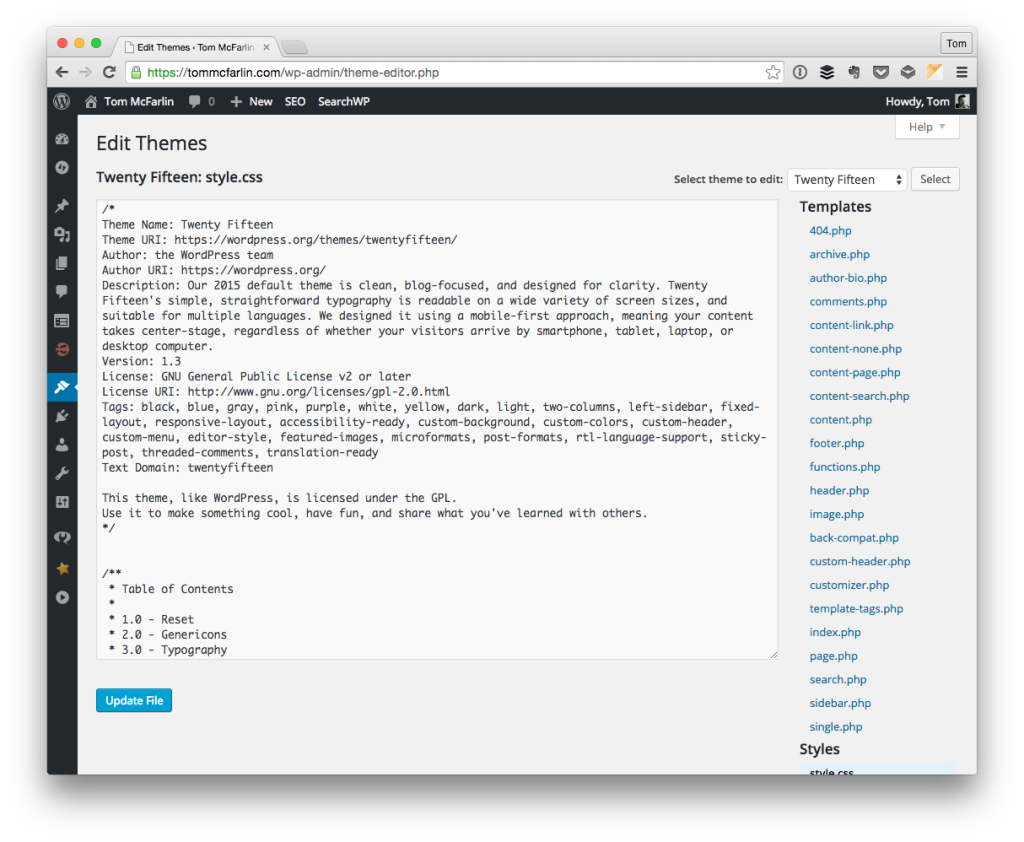
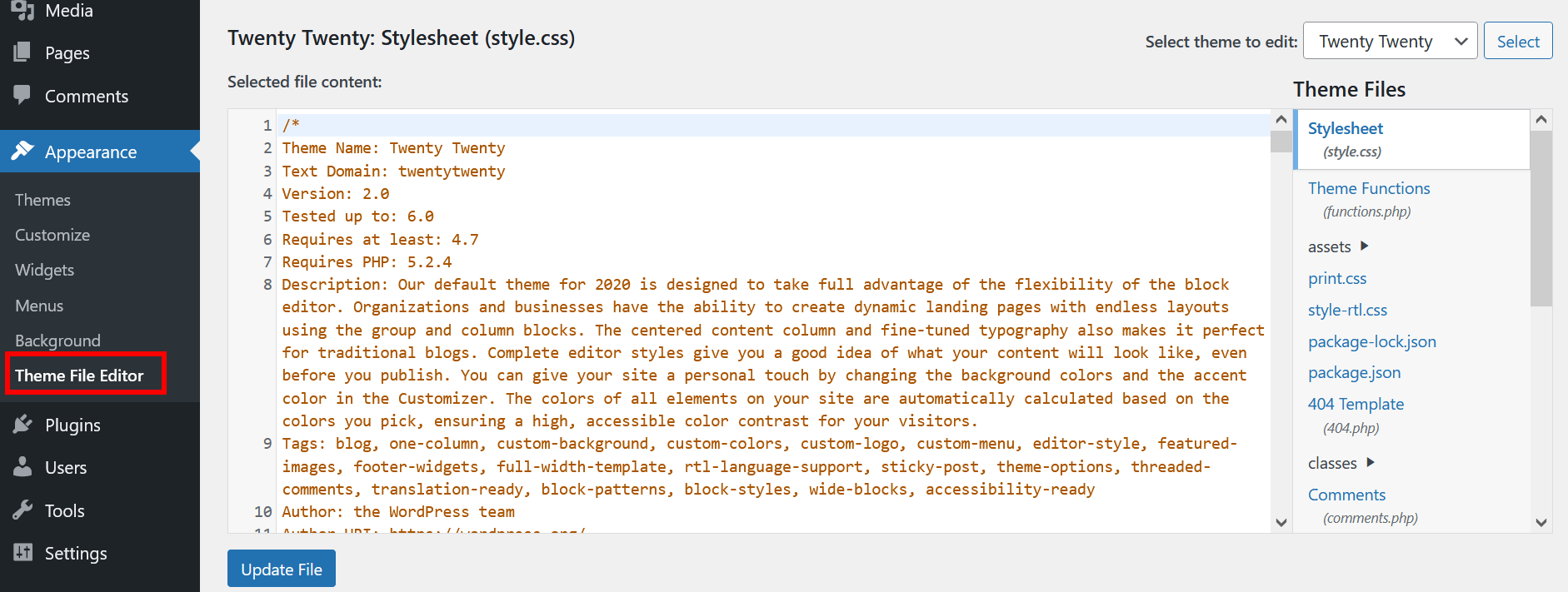
Accessing your theme files is easy with the WordPress Dashboard. Go to the dashboard and find the Appearance section. Click on Theme Editor. Here, you can see and edit your theme files. The CSS file is often named style.css. This file controls the look of your site. Always make a backup before changes. This keeps your site safe.
Another way to access files is through FTP Clients. Use software like FileZilla. Connect to your site’s server. Enter the host, username, and password. Find the wp-content folder. Inside, look for themes. Open the folder of your current theme. Here, you will see the style.css file. Download it, make changes, and upload it back. Changes will show on your site. Always be careful.
Credit: www.ionos.com
Customizing Css With Additional Css
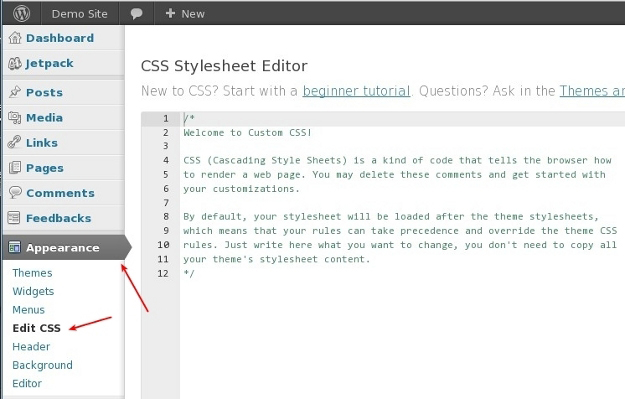
The WordPress Customizer is a tool. It helps you change your website’s look. Additional CSS is part of this tool. It allows easy CSS changes without touching theme files. Open the Customizer from your dashboard. Find the Additional CSS option. Write your CSS code there. Save changes and check your site. It’s simple and safe.
Using Additional CSS is helpful. It keeps your changes safe during updates. Theme files stay untouched. You can try new styles quickly. If you make a mistake, it’s easy to fix. Changes appear instantly. No need for FTP or coding skills. Even beginners can use it.
Modifying Css In Style.css
The Style.css file is key in WordPress themes. It controls how your site looks. You can find it in your theme’s folder. Go to your WordPress dashboard. Click on Appearance, then Theme Editor. Look for the file named style.css. This file holds the CSS code. You can change colors, fonts, and more. Be careful not to delete anything important. Always make a backup first.
Editing the Style.css file needs care. First, make a backup. This keeps your work safe. Use a child theme for changes. It protects the main theme. Editing directly can be risky. Mistakes can break your site. Use a text editor for changes. It highlights code and helps spot errors. Save changes often to avoid losing work. Preview changes before going live. This checks everything works well. Small changes can make a big difference.
Creating A Child Theme
A child theme keeps the main theme safe. Your changes won’t be lost after updates. It allows customization while protecting the original design. Using a child theme is a safe way to change your site. You can add new features easily. No need to touch the main theme files.
- Create a new folder in the themes directory.
- Name it with the main theme’s name and add “-child”.
- Create a style.css file inside this folder.
- Add a comment block at the top of the file.
- Include the parent theme’s name and template.
- Create a functions.php file in the same folder.
- Enqueue the parent and child theme styles.
- Activate the child theme in the WordPress dashboard.
Using Custom Css Plugins
Custom CSS plugins offer an easy way to change WordPress theme styles. These plugins allow users to add their own CSS code. This makes it simple to adjust fonts, colors, and layouts without altering the theme’s core files.
Popular Css Plugins
Custom CSS plugins are handy tools. They let you change your site’s look without touching core files. WP Add Custom CSS is a favorite. It offers simplicity and ease. Simple Custom CSS is another choice. It works well with any theme. SiteOrigin CSS provides more control. It has a visual editor. This makes editing fun and simple.
Advantages Of Using Plugins
- Easy to use. You don’t need coding skills.
- Safe for your website. Core files stay untouched.
- Quick changes. You see updates instantly.
- Lots of options. Choose from many plugins.
- Accessible. Most plugins are free to use.
Testing And Debugging Css Changes
Browser developer tools help you see CSS changes. Open the tools by pressing F12 or right-click and select Inspect. Look for the Elements tab. This shows your webpage’s structure. On the right, find the Styles tab. Here, you can edit your CSS. Changes show instantly. Test different styles. Check how they look. This helps find errors fast.
Errors can break your site’s look. Missing semicolons are common. Always check for them. Incorrect selectors might cause styles not to apply. Ensure your selector matches the HTML element. Overlapping styles can confuse. Use specific selectors to avoid this. Spelling mistakes in properties or values can stop styles from working. Double-check your spelling.
Best Practices For Css Modifications
Keep your CSS clean and organized. Create different files for different styles. Use comments to explain your code. This helps everyone understand the changes. Make sure to name your classes clearly. This avoids confusion later. A neat code is easy to manage.
Update themes without losing changes. Use a child theme for custom CSS. A child theme saves your changes. Even after an update, your styles stay the same. Avoid editing the original theme files. This practice keeps your website safe and consistent.
Credit: www.8theme.com
Frequently Asked Questions
How To Access WordPress Theme Css?
To access WordPress theme CSS, go to your WordPress dashboard. Navigate to Appearance > Theme Editor. Find the stylesheet named style. css on the right sidebar. This file contains the CSS code for your theme. Remember to back up your site before making changes.
Can I Modify Css Without Coding Skills?
Yes, you can modify CSS without coding skills. Use plugins like Simple Custom CSS. These plugins provide user-friendly interfaces. They allow you to add custom CSS without directly editing files. Ensure to check changes on different devices to maintain responsiveness.
Why Customize WordPress Theme Css?
Customizing WordPress theme CSS allows you to personalize your site’s appearance. You can change colors, fonts, and layouts. It helps in aligning your website with your brand identity. Custom CSS ensures a unique look, enhancing user experience and engagement.
What Tools Help In Editing Css?
Several tools help in editing CSS. Popular ones include WordPress plugins like Simple Custom CSS and Jetpack. Browser developer tools, like Chrome DevTools, are also useful. These tools allow you to inspect and test CSS changes live before applying them.
Conclusion
Modifying WordPress theme CSS is easier than it seems. Begin by backing up your site. Use WordPress Customizer for simple changes. For advanced edits, access the theme’s CSS file. Utilize a child theme to keep changes safe. Test every change to ensure it looks right.
Never rush the process; patience is key. Online forums and communities can offer support. Practice makes perfect, so keep experimenting. Soon, your site will reflect your unique style. Enjoy the creative process and happy coding!


