
Have you ever found yourself staring at your WordPress site, wishing it could reflect more of your personal style or brand? Sometimes, the perfect theme just needs a little tweak to become exactly what you envision.
Whether you’re looking to change a font, adjust a color, or add a unique feature, modifying your WordPress theme code can be the key to unlocking your website’s full potential. But before you dive in, it’s important to know where to start and what to watch out for.
By understanding how to safely edit your theme’s code, you can transform your site into a one-of-a-kind masterpiece. Ready to make those changes? Let’s explore the simple steps to customize your WordPress theme like a pro.
Choosing The Right Theme
Pick a theme that fits your site. Think about your site’s purpose. Is it a blog, store, or gallery? Each has different needs. A blog might need readable fonts. A store needs a fast checkout. A gallery needs big images. Write down your needs first.
A theme must work on all devices. Computers, tablets, and phones. This is responsiveness. Check if the theme is compatible with popular plugins. Plugins add features to your site. Ensure the theme supports them. Ask yourself, “Does it load fast?” Speed is key for users. They like a site that works well. Always test before choosing.

Credit: kinsta.com
Understanding Theme Files
Template files form the structure of your WordPress site. They control how your site looks. Each page can have a different template. Templates include header, footer, and sidebar files. You can edit these files to change your site’s look.
Stylesheets make your site look nice. They use Cascading Style Sheets (CSS). CSS files are in the theme folder. You can change colors, fonts, and layouts. Small changes can make a big difference.
JavaScript adds extra features to your site. It makes things interactive. You can find JavaScript files in the theme folder. Use these files to add sliders or pop-ups. Be careful when editing. Small mistakes can break your site.
Setting Up A Child Theme
Child themes protect your changes. They keep your main theme safe. Updates do not break your work. You can edit the theme without fear. Mistakes are easy to fix. They save your time in the future. It is smart to use a child theme. You learn and grow with less worry. Many people use child themes. They are popular and useful.
Start by creating a new folder. Name it like your theme plus “-child”. Inside, add a style.css file. This file needs to have certain details. Add a header with theme name and parent theme. Next, create a functions.php file. This file connects your child theme to the parent theme. It loads the parent theme styles. You are now ready to customize safely.
Credit: www.easywp.com
Modifying Css
Modify CSS in your WordPress theme to personalize the look of your site. Access the theme editor from your dashboard. Adjust styles like colors and fonts to match your brand.
Locating Stylesheets
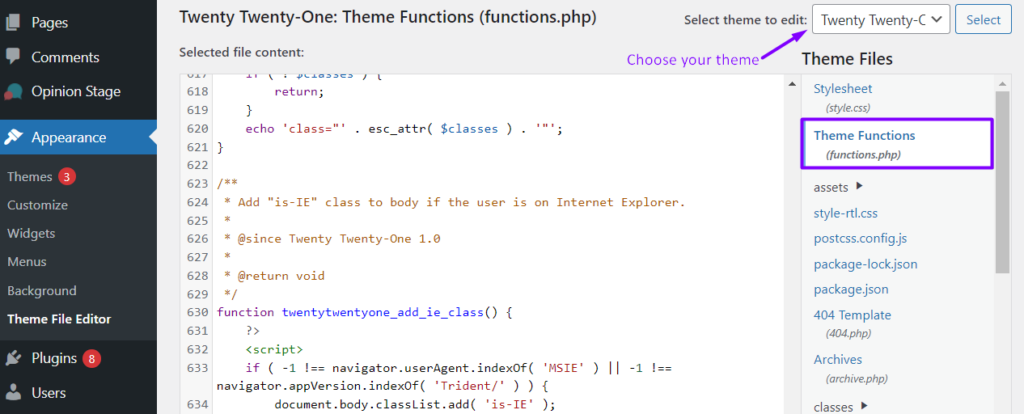
WordPress themes have files called stylesheets. These files end with .css. They control how your website looks. To find them, go to the WordPress dashboard. Click on Appearance, then Theme Editor. On the right, you will see a list of files. Look for one named style.css. This is where you can change the look of your site.
Changing Colors And Fonts
You can make your site look different by changing colors and fonts. Find the color lines in the style.css file. They look like this: color: #000000;. Change the numbers to the color you like. For fonts, search for font-family. You can replace the font name with another one. Make sure it’s a web-safe font or add a Google Fonts link.
Editing Php Files
Functions.php is a key file in WordPress themes. It controls many theme features. Adding custom functions here can enhance your website. Always make a backup of this file. This prevents losing important changes. Use a code editor for easy editing. Avoid online editors as they can be risky. Mistakes in this file can break your site. Carefully test each change before saving. Check your website after editing. Ensure everything works smoothly.
Adding Custom Functions
Custom functions add new features to your theme. They can create unique functionality. Write functions with simple code. Avoid complex codes that can cause errors. You can add widgets, menus, or shortcodes. Test these functions on a local server first. This helps in avoiding crashes. Keep your code clean and organized. Others can understand it easily. Use comments to describe your functions. This is helpful for future edits.
Customizing Html Structure
Every WordPress theme has a special order. This order is called the template hierarchy. It tells the theme which file to use. For example, a page uses the page.php file. A post uses the single.php file. Understanding this is very important. It helps you know which file to change. To change the home page, edit the index.php file. Always keep a backup before changes.
Changing the layout can make your site look different. Use HTML and CSS to change how things look. Want to move the sidebar? Change the code in the sidebar.php file. Need a wider header? Adjust the header.php file. Make changes carefully. Small changes can make a big impact. Test your site after every change. This ensures everything works well.
Implementing Javascript Changes
Adding scripts to your WordPress theme can change its behavior. You can add JavaScript to the header or footer. Use the wp_enqueue_script function to add scripts safely. This function helps load your script in the right place. You can also set dependencies for your script. Dependencies are other scripts that your script needs. Make sure you follow WordPress coding standards. This ensures your code works well with other themes and plugins. Adding scripts can enhance user interaction. Always test your changes to see if they work as expected.
Debugging JavaScript is crucial for smooth theme operation. Errors can break your theme or make it slow. Use browser tools like console.log() to find errors. The console shows you error messages and helps trace problems. Check for typos or missing semicolons in your code. These small mistakes can lead to big problems. Always test your code in different browsers. This ensures compatibility across various platforms. Debugging helps maintain a fast and functional site. Regular checks can prevent future issues.

Credit: kinsta.com
Using WordPress Hooks
Action hooks let you add or change features. They run at specific times. You can use them to add new functions. For example, add a widget to your sidebar. Or change the header image. These hooks are easy to use. Find the right hook and add your code. Always check your changes. Make sure they work well.
Filter hooks change data before it shows. They help tweak text or images. Use them to change titles or modify content. Filters work by passing data through a function. Your code changes it along the way. They are useful for customizing features. You can also combine filters for more control. This method keeps your site unique and tailored.
Testing And Previewing Changes
Setting up a local environment is very important. It helps in testing theme changes. Use tools like XAMPP or MAMP for this. They create a local server on your computer. Install WordPress on it. This lets you try changes safely. You can make mistakes here. No harm will come to the live site. This is a great way to learn and experiment.
Staging sites are copies of your live website. They help in testing changes. You can try new code here. If something breaks, it won’t affect your main site. Many hosting companies offer staging environments. Always test here before going live. This keeps your site safe and running smoothly.
Backing Up And Restoring
Making a backup is important before changing theme code. Use plugins like UpdraftPlus or BackWPup. These help save your site. You can also copy files using FTP. This stores them on your computer. Keep backups safe. Store them on cloud services like Google Drive. Regular backups protect your work. They are easy to set up. Some plugins schedule backups automatically. You don’t have to worry about losing data.
Restoring your site is easy with backups. Use your backup plugin. Click the restore button. Your site returns to the saved version. This is quick and simple. You can also upload files back using FTP. This fixes any problems. Always check your site after restoring. Make sure everything works fine. Test all pages and features. Restoration keeps your site safe. It is a smart step after making changes.
Troubleshooting Common Issues
Error messages can be confusing. Read them carefully. They often tell what’s wrong. Check for missing semicolons or brackets. Small errors can cause big problems. Double-check your file paths. Incorrect paths lead to errors. Ensure all plugins are compatible. Some plugins conflict with themes.
Always backup your theme files before changes. This saves you from trouble. Use an FTP client to access files. If things go wrong, revert to your backup. This step restores the original files. Keep a copy of custom code separately. Having a separate file helps recover changes easily.
Frequently Asked Questions
How To Access WordPress Theme Code?
To access the WordPress theme code, navigate to Appearance > Theme Editor in your admin dashboard. Choose the theme you wish to modify. Edit PHP, HTML, CSS files directly. Ensure you have a backup before making changes, as incorrect edits can break your site.
Can I Modify WordPress Theme Safely?
Yes, you can modify WordPress themes safely by using a child theme. A child theme keeps changes separate, preventing loss during updates. Use FTP or cPanel for direct file access. Always backup your website before starting modifications to avoid potential data loss.
What Tools Help In Editing WordPress Themes?
Tools like FTP clients (FileZilla), code editors (Sublime Text), and WordPress plugins (Theme Editor) assist in editing themes. FTP allows direct server access. Code editors offer syntax highlighting. Plugins provide in-dashboard editing. These tools streamline the modification process, ensuring accuracy and efficiency.
Why Should I Backup Before Theme Changes?
Backing up before theme changes prevents data loss from accidental errors. If modifications cause issues, backups allow easy restoration. This safeguards your site from downtime or broken functionality. Regular backups ensure you can revert changes without hassle, maintaining site stability.
Conclusion
Modifying WordPress theme code is simpler than it seems. Start small. Change colors or fonts. Explore the theme editor. Practice makes perfect. Use child themes to keep changes safe. Backup your site before editing. Mistakes happen, so stay patient. Learn from online resources.
Forums and tutorials can help. Experiment and see what works. Enjoy the process of learning. Your website should reflect your style. Personalize it to your taste. Keep testing and improving. Stay curious and creative. Building your skills takes time. Embrace the journey of growth.


