
Migrating your WordPress site to Namecheap might seem daunting at first, but it doesn’t have to be. Imagine a smoother, faster, and more secure website experience.
That’s what awaits you when you make the switch. Whether you’re seeking better performance, superior support, or simply a fresh start, Namecheap offers an ideal hosting solution. In this guide, you’ll discover step-by-step instructions, handy tips, and insider secrets to ensure your migration is seamless.
Ready to elevate your online presence? Read on to unlock the full potential of your WordPress site with Namecheap.
Credit: www.namecheap.com
Preparation For Migration
Migrating your WordPress site to Namecheap requires careful planning. Preparation is key for a smooth transition. This section will guide you through the necessary steps.
Backup Your WordPress Site
Ensure you have a complete backup of your site. Use a reliable plugin to save everything. This includes your database, themes, plugins, and media files. A backup protects your data in case something goes wrong.
Store the backup in a safe location. Consider cloud storage or an external hard drive. This ensures easy access if you need it later.
Review Hosting Requirements
Check Namecheap’s hosting requirements. Make sure they match with your site needs. Look at PHP version, database support, and server resources. This helps avoid compatibility issues.
Assess the bandwidth and storage limits. Ensure they can handle your site’s traffic and content. This prevents performance problems.
Gather Necessary Credentials
Collect all necessary login details. You need your WordPress admin username and password. Also, gather your current hosting login information. This includes FTP and database credentials.
Have your Namecheap account details ready. This includes your username and password. Being prepared speeds up the migration process.
Credit: wp-staging.com
Setting Up Namecheap Hosting
Migrating a WordPress site to Namecheap is simple. Start by backing up your site files and database. Then, use Namecheap’s cPanel to upload and configure your WordPress site. Enjoy seamless performance and reliable support.
Migrating your WordPress site to Namecheap involves several steps, and setting up hosting is one of the most crucial. Your hosting environment dictates your site’s performance, security, and scalability. If you’ve ever felt overwhelmed by technical jargon, don’t worry—you’re not alone. Setting up Namecheap hosting can be straightforward, and with the right guidance, you’ll be up and running in no time. ###Choose The Right Hosting Plan
Namecheap offers a variety of hosting plans tailored to different needs. Whether you’re running a personal blog or an e-commerce site, there’s a plan for you. Stellar is perfect for small sites, while Stellar Plus and Stellar Business cater to larger sites with more traffic. Evaluate your website’s requirements in terms of storage, bandwidth, and potential growth. Think about your future needs. Will your site expand? Will you need more features down the line? Choose a plan that not only meets your current requirements but also accommodates future growth. ###Configure Your Domain Settings
Once you’ve selected a hosting plan, it’s time to configure your domain settings. If your domain is registered with Namecheap, the process is seamless. Simply log in to your Namecheap account and navigate to the Domain List section. Here, you can adjust your DNS settings to point to your new hosting server. This step is crucial for directing internet traffic to your new site location. Double-check your settings to ensure there’s no disruption in your site’s accessibility. ###Access Your Namecheap Control Panel
Now that your domain is configured, it’s time to access your Namecheap control panel. This is your command center, where you can manage all aspects of your hosting. Log in to your account and head over to the cPanel. This user-friendly interface lets you manage files, databases, and email accounts with ease. Familiarize yourself with its features, as they will be essential for maintaining your site. Have you ever wondered why some sites load faster than others? Sometimes, the secret lies in efficient control panel management. By optimizing settings here, you can significantly enhance your site’s performance. Setting up hosting doesn’t have to be daunting. With Namecheap, the process is designed to be intuitive and hassle-free. What challenges do you anticipate in this migration journey? Share your thoughts and let’s navigate this path together.Transferring Website Files
Migrating a WordPress site to Namecheap involves transferring website files seamlessly. Start by backing up your WordPress files and database. Then, upload them to Namecheap’s hosting via cPanel or FTP.
Transferring website files is a crucial step in migrating your WordPress site to Namecheap. This process involves exporting your database, uploading files, and editing configurations. Each step requires careful attention to ensure a smooth transition. Let’s dive into the steps to successfully transfer your website files.Export WordPress Database
To start, you need to export your WordPress database. Access your hosting control panel and locate the database section. Use phpMyAdmin to export your database. Click on your database name and select the “Export” tab. Choose the “Quick” option and click “Go”. This will download a .sql file to your computer. Keep this file safe; it contains all your site data.Upload Files To Namecheap Server
Next, it’s time to upload your website files to the Namecheap server. Connect to your Namecheap account using FTP. Use software like FileZilla for the connection. Drag and drop your WordPress files from your computer to the server. Ensure all files, including the wp-content folder, are uploaded. Double-check to prevent any missing files.Edit Wp-config.php File
Finally, edit the wp-config.php file. This file is crucial for connecting your site to the database. Open wp-config.php using a text editor. Update the database name, username, and password fields. Use the details provided by Namecheap for accuracy. Save changes and upload the file back to the server. This step links your site to the Namecheap database. By following these steps, you ensure your WordPress site is successfully migrated to Namecheap.
Credit: www.namecheap.com
Configuring Database On Namecheap
Migrating a WordPress site to Namecheap involves configuring the database correctly. Ensure database settings match those in your WordPress configuration file. Access Namecheap’s cPanel to create and import the database, ensuring a smooth transition for your website.
Configuring the database on Namecheap is a crucial step. It ensures your WordPress site functions smoothly. This process involves a few clear and simple steps. Let’s dive into them.Create A New Database
Start by logging into your Namecheap cPanel. Locate the ‘MySQL Databases’ section. Click on it to proceed. Find the ‘Create New Database’ field. Enter a unique name for your database. Click ‘Create Database’. Note down the database name. You will need it later.Import Database Backup
Navigate to the ‘phpMyAdmin’ section in your cPanel. Select the database you created. Look for the ‘Import’ tab. Click on it to open the import page. Use the ‘Choose File’ button. Upload your database backup file. Ensure it is in SQL format. Click ‘Go’ to start the import process. Wait for the confirmation message.Set Up Database User Permissions
Return to the ‘MySQL Databases’ section. Find the ‘Add New User’ field. Create a username and password. Click ‘Create User’. Scroll to ‘Add User to Database’. Select the user and database you created. Click ‘Add’. Grant the user all privileges. Confirm your selection. Your database is now ready.Updating Dns Settings
After migrating your WordPress site to Namecheap, updating DNS settings is crucial. This step ensures your domain points to the new server. It involves modifying DNS records, pointing the domain to the new server, and verifying DNS propagation. Each task requires careful attention to maintain site accessibility.
Modify Dns Records
Log into your Namecheap account to access the Domain List. Click on the ‘Manage’ button next to your domain. Navigate to the ‘Advanced DNS’ tab. Here, you will see various DNS records like A, CNAME, and MX. Update these records with the details from your new hosting provider.
Ensure each record points to the new server’s IP address. Check for any old records that need removal. Consistent updates here prevent downtime and ensure a smooth transition.
Point Domain To New Server
Find the Nameservers section within your domain settings. Change the Nameservers to the ones provided by your new hosting provider. This action directs your domain to the new server.
Choose ‘Custom DNS’ if required. Then, enter the new Nameservers. Save changes once completed. Your domain will now begin pointing to the new server.
Verify Dns Propagation
After changing DNS settings, it takes time to update globally. This process is known as DNS propagation. Use online tools to check propagation status.
Enter your domain into a DNS checker tool. This tool shows where changes have taken effect. Full propagation can take up to 48 hours. Ensure your site is accessible worldwide by verifying this step.
Testing The Migration
Migrating a WordPress site to Namecheap involves careful testing to ensure a smooth transition. Verify all links, images, and functionalities work correctly on the new server. Thoroughly check site performance to avoid issues post-migration.
Testing the migration of your WordPress site to Namecheap is a crucial step to ensure everything works seamlessly. After all the effort of moving your content, you wouldn’t want your visitors to encounter broken pages or missing images. This stage is where you double-check that every part of your website is running smoothly and securely.Check Website Functionality
Begin by navigating through your website just as a user would. Click on each menu item and visit different pages. Are the images loading correctly? Make sure to test forms and any interactive elements. Does the contact form send emails as expected? It’s beneficial to check your site’s performance on multiple browsers and devices. A site that works well on Chrome may not have the same functionality on Safari or mobile devices.Resolve Common Issues
During testing, you might encounter common issues such as broken links or missing images. Don’t panic. These are often simple fixes. Use a tool like Broken Link Checker to identify any non-working links. Update or remove them to enhance user experience. Check your media library for missing images. If some are missing, re-upload them to ensure your content is complete.Ensure Ssl Certificate Installation
An SSL certificate is essential for website security. It encrypts data, keeping your visitors’ information safe. Visit your site using the “https://” prefix. If you notice a warning or red padlock, your SSL isn’t correctly installed. In the Namecheap dashboard, ensure that your SSL settings are active. If you’re unsure, Namecheap support can guide you through the SSL installation process. Testing your migration thoroughly ensures a smooth transition. Have you encountered any unexpected issues during migrations before? Engaging with these steps ensures your site is ready for visitors without any hiccups.Post-migration Tasks
Ensure your WordPress site functions smoothly on Namecheap by verifying all plugins work correctly. Check media files for any missing content. Adjust permalinks to avoid broken links and enhance user experience.
After migrating your WordPress site to Namecheap, post-migration tasks are crucial. These tasks ensure your website functions smoothly and maintains its SEO rankings. Addressing these tasks promptly will enhance user experience and security. Here are important steps to follow.Update Permalinks Structure
Permalinks impact your site’s navigation and SEO. After migration, check the permalinks settings in your WordPress dashboard. Go to Settings, then Permalinks. Choose the structure that best suits your site. Custom structures may require manual updates. Test a few links to ensure they work correctly. This step helps maintain search engine rankings.Reinstall Plugins And Themes
Reinstalling plugins and themes ensures compatibility with Namecheap’s environment. Access your WordPress dashboard. Navigate to the Plugins section. Reinstall each plugin individually. Do the same for themes. Check for updates and compatibility issues. Enable each plugin and theme after installation. This keeps your site functional and secure.Conduct Final Site Audit
A final site audit checks for errors or issues. Use tools like Google Search Console for insights. Check for broken links and missing images. Verify that all pages load correctly. Ensure your site is mobile-friendly. Test site speed and performance. A thorough audit improves user experience and SEO.Frequently Asked Questions
How Do I Transfer A WordPress Site To Namecheap?
To transfer a WordPress site to Namecheap, first, back up your site files and database. Then, upload them to Namecheap hosting using FTP. Update your domain’s DNS settings to point to Namecheap. Finally, ensure your WordPress configuration file reflects the new server details.
How To Migrate An Entire WordPress Website?
Start by backing up your WordPress files and database. Install a migration plugin for easy transfer. Export the site and import it to the new host. Update DNS settings to point to the new server. Verify the website functionality after migration.
Ensure proper URL redirection to maintain SEO ranking.
How Do I Export An Entire WordPress Site?
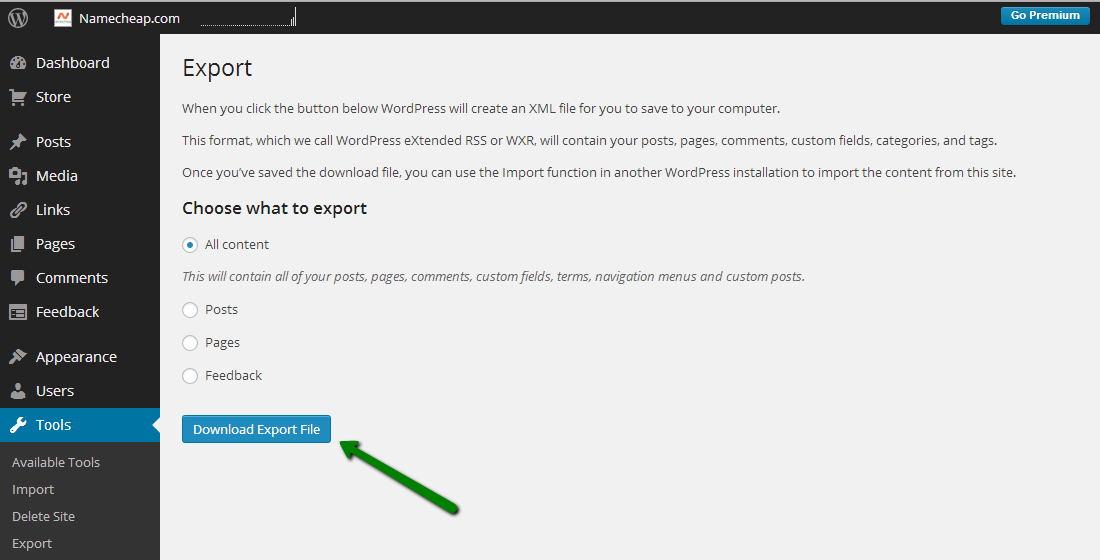
Export a WordPress site by accessing the dashboard. Click Tools, then Export. Select “All Content” and download the XML file. This file includes posts, pages, comments, custom fields, categories, and tags. Use plugins for complete backups, including themes and databases.
Always verify the export for completeness.
How Do I Transfer My WordPress Site To A Domain?
To transfer your WordPress site, backup files and database. Install WordPress on the new domain. Import the backup. Update URLs using a plugin. Check everything works correctly.
Conclusion
Migrating your WordPress site to Namecheap is straightforward. Careful steps ensure success. Backup your site first. Then, transfer files and database. Update DNS settings for smooth transition. Namecheap provides tools and support. These assist during migration. Keep your site secure and updated.
Regular maintenance is vital. This ensures your site runs smoothly. A seamless move protects your data. It also enhances user experience. Following these steps makes the process easier. Your WordPress site can flourish with Namecheap. Enjoy a reliable hosting service.
Your website deserves the best care and attention.


