
Switching to a new WordPress theme can be as thrilling as it is daunting. You’ve finally found the perfect design that matches your brand’s personality, but the thought of migrating makes you pause.
You worry about losing content, breaking links, or even worse, damaging your SEO ranking. Sound familiar? You’re not alone. Many WordPress users face this dilemma. Imagine transforming your website’s look and feel without the stress and fear of losing what you’ve built.
With the right approach, you can seamlessly migrate to a new theme while maintaining your site’s performance and search engine visibility. In this guide, you’ll discover step-by-step instructions on how to make this transition smooth and stress-free. Get ready to revamp your website with confidence, knowing you’re equipped with the knowledge to handle any hiccups along the way. Let’s dive in and turn your theme migration into a seamless experience.
Choosing The Right Theme
Think about what your website needs. Do you want a blog, shop, or photo gallery? Each has different needs. Your theme must fit these needs. Make a list of must-have features.
Look for themes that match your needs. Some themes are free, some are paid. Check reviews and ratings. A high rating means users like it. Make sure the theme is popular and trusted.
Your new theme must work with your plugins. Plugins add extra features. Some themes do not work with all plugins. Check the theme’s details. It should say which plugins it works with.
Preparing For Migration
Before changing your WordPress theme, back up your site. Use plugins like UpdraftPlus or Duplicator. They save your site’s current state. This way, you won’t lose any data. It’s like having a safety net.
Create a child theme next. This protects your changes. If you update the main theme, your edits remain safe. A child theme is like a copy. It holds your custom code and styles.
Test everything in a staging environment. Think of it as a practice run. It’s a copy of your live site. Here, you can see how your new theme works. If something breaks, your real site stays okay. This step is crucial for a smooth switch.
Installing The New Theme
Open your WordPress dashboard. Click on Appearance then Themes. Choose Add New at the top. Press Upload Theme button. Select your theme file from your computer. Hit Install Now to upload.
After upload, look for the Activate button. Click it to make the theme live. Check your site to see the new look.
Go to Appearance then Customize. Adjust your site title and colors. Change fonts and add logo if needed. Save changes before leaving the page.

Credit: www.bluehost.com
Customizing Design Elements
Choose a simple layout. It keeps your site clean. Use colors that match your brand. This makes your site look good. Always test your changes. Make sure everything is easy to read. Keep your layout neat. It helps users find things quickly.
Menus help users navigate. Place them at the top of the page. Widgets add features. Like a clock or search bar. Put widgets in the sidebar. They should not clutter the page. Always check if they work. Broken links can confuse visitors.
Many people use phones to surf. Your site should look good on small screens. Use a responsive design. It changes size automatically. Text should be easy to read. Buttons must be big enough to click. Test on different devices. Make sure it works everywhere.
Transferring Content
Keep posts and pages safe. Use export tools. Export tools help. Export from old theme. Import to new theme. Check if posts moved. Check if pages moved. Double-check everything.
Media files are important. Pictures, videos, audio. Use file transfer tools. Move files to the new theme. Ensure all files are there. Broken links can upset users. Fix them quickly.
SEO matters a lot. Keep search rankings high. Use SEO plugins. Check SEO settings. Update metadata. Correct broken links. Keep URLs same. Prevent SEO loss. Stay visible online.

Credit: www.bluehost.com
Testing And Tweaking
Checking functionality is crucial. Each button and link must work. Ensure all forms load properly. Images should display without errors. Test on different devices. Phones, tablets, and desktops. Catch any issues early.
Resolving theme conflicts is essential. Sometimes, themes clash with plugins. Check for errors in the site. Deactivate one plugin at a time. Identify the problem source. Fixing conflicts enhances user experience.
Gathering user feedback is important. Ask friends to test your site. Get their honest opinions. Note any difficulties they face. Use their feedback to improve. A better site is a happy site.
Going Live
Switching to a new WordPress theme is a straightforward process. Begin by backing up your current site to prevent data loss. Next, choose a compatible theme and install it via the WordPress dashboard. Adjust settings and customize to fit your brand, ensuring seamless navigation and functionality before going live.
Finalizing Settings
Check all settings before making the site live. Ensure plugins work well. Update the site’s title and tagline. Set the correct timezone. Review privacy settings. Test the site’s speed and performance. Make sure images display properly. Verify that all links work. Fix any broken links you find.
Monitoring Performance
Watch the site’s speed and uptime closely. Use tools to track user visits. Check for errors daily. Adjust settings for better speed. Keep an eye on server load. Ensure the site stays secure. Regular updates are crucial. Analyze traffic patterns regularly. Learn what users like most.
Promoting The New Look
Share the update on social media. Tell friends and followers about the new look. Write a blog post about the changes. Update email subscribers. Encourage users to give feedback. Create engaging content to attract visitors. Highlight new features and design. Use visuals to show the new style. Celebrate the launch with a special offer.
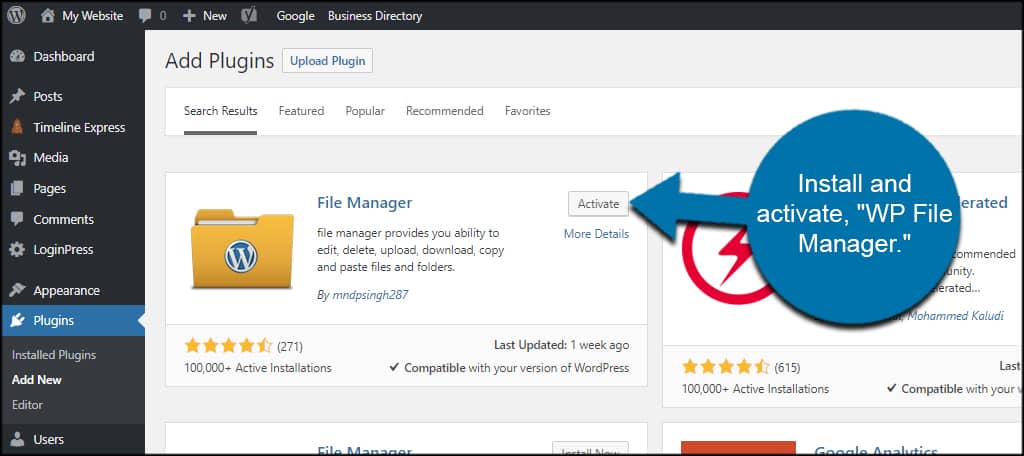
Credit: www.greengeeks.com
Frequently Asked Questions
What Are The Steps To Migrate A WordPress Theme?
To migrate a WordPress theme, first, back up your site. Then, install and activate the new theme. Customize the new theme’s settings to match your design preferences. Finally, test your site for any issues and optimize for performance.
How Do I Prepare For A Theme Migration?
Before migrating, back up your entire website. Create a list of essential features to retain. Ensure all plugins are compatible with the new theme. Test the new theme on a staging site to avoid live issues.
Will I Lose Content When Changing Themes?
Generally, changing themes doesn’t affect your content. However, some theme-specific features might disappear. Ensure you have a backup before making changes. Review your website post-migration to ensure everything displays correctly.
Can I Test A New Theme Before Going Live?
Yes, you can test a new theme using a staging environment. This allows you to see how your website looks and functions without affecting the live site. Always test thoroughly to ensure compatibility and performance before making it live.
Conclusion
Switching to a new WordPress theme can feel overwhelming. But with careful planning, it becomes manageable. Start by backing up your site. This ensures your data stays safe. Test your new theme thoroughly. Check for any glitches or display issues.
Make necessary adjustments. Keep your audience in mind. Choose a theme that enhances user experience. Stay patient during the process. A smooth transition takes time and effort. With these steps, your WordPress site will shine with its new look. Enjoy exploring fresh design possibilities.


