
Are you tired of waiting for automatic updates to keep your WordPress theme fresh and secure? Imagine having complete control over your theme, ensuring it runs smoothly and looks stunning.
You’ve clicked on the right article to guide you through manually updating your WordPress theme. Here, you’ll discover a straightforward process that empowers you to take charge of your website’s appearance and functionality. No more relying on sluggish automatic updates or risking compatibility issues.
With this method, you’ll maintain your site’s unique character while keeping it up-to-date. So, why not dive in and learn how to manually update your WordPress theme, enhancing both your site’s performance and your peace of mind? Let’s get started!
Preparation Steps
Backup your website before any changes. This protects your data. Use a plugin or manual methods. A backup keeps your files safe. Always check the backup files after saving.
Ensure your theme is compatible with the update. Visit the theme’s page. Check for recent updates. Read user reviews. Make sure there are no known issues. This saves time and trouble later.
Deactivate caching plugins before updating. These plugins can cause errors. Find them in your dashboard. Click on “Plugins”. Then click “Deactivate”. This step is very important.
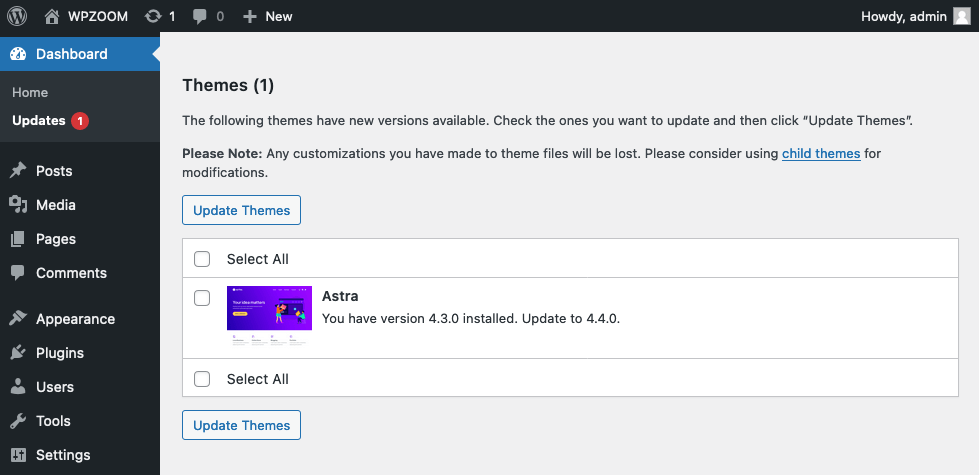
Credit: www.wpzoom.com
Downloading The Theme
First, go to the theme website. Find the theme you want. Look for a download button. Click to start downloading. Save the file on your computer.
Check if you have the latest version. Go to the theme page. Look for version details. Compare with your current version. Click download if newer version exists. Save the new version on your computer.
Accessing Your Website’s Files
First, install an FTP client like FileZilla. Open the software and enter your website’s FTP details. These include the host, username, and password. You should find these details in your hosting account. Connect to the server by clicking ‘Quickconnect’. On the right side, see your website’s files. Navigate to the ‘wp-content/themes’ folder. Here, you can upload or update your theme files.
Log in to your cPanel account. Find the File Manager icon and click it. You will see a list of your files. Go to the ‘public_html’ directory. Inside, open the ‘wp-content’ folder. Then, go to the ‘themes’ folder. Here, you can upload the new theme files. Select ‘Upload’ to add the files from your computer. Replace the old theme files with the new ones.
Uploading The New Theme Version
Begin by going to your WordPress Dashboard. Click on Appearance, then choose Themes. Find the theme you want to update. It must not be active. Click on the Theme Details. Look for the Delete button. Click it to remove the old theme files. Ensure you have a backup before deleting.
Go back to the Appearance section and select Add New. Click on Upload Theme. Choose the new theme file from your computer. It should be in a .zip format. Click Install Now. Once installed, activate the theme. Check your website to ensure it looks good.
Activating The Updated Theme
Click on Appearance in the sidebar. Select Themes. Find your updated theme. Click Activate. Your theme is now live. Refresh your site. Check if everything looks good. Sometimes changes need time.
Visit theme settings. Ensure everything is correct. Check the menu and widgets. Look at the header and footer. Make adjustments if needed. Some settings might change. Always save changes. Preview your site. Make sure it looks right.

Credit: docs.themeisle.com
Testing And Troubleshooting
Start by checking if your website works well. Make sure all links open the right pages. Look at your images. They should show up correctly. Check if your forms can be filled out. Test buttons to see if they work. This helps find any problems.
If you see a problem, fix it. Clear your browser’s cache first. Sometimes this solves the issue. If not, deactivate your plugins one by one. This helps find if a plugin causes trouble. Check your theme settings. Make sure they are right. Always keep a backup before making big changes. This way, you stay safe.
Restoring From Backup
Backup is very important. It saves all your data. If something breaks, you can go back to an old version. First, find your backup file. It should be safe and complete. Then, start the restore process. This will bring back your old theme. Make sure to check the restored files. Ensure they are correct. Look at your website carefully. Everything should work as before.
Revert To Previous Version
Old versions can fix many issues. Sometimes new themes have bugs. Reverting helps solve these problems. Start by downloading the old theme file. Next, upload it to your WordPress site. Replace the new theme with the old one. Check if the site works well. Test all pages and features. Make sure nothing is broken. Data integrity is key.
Ensure Data Integrity
Data integrity is crucial for a smooth site. Always check your files after changes. Verify your data is safe and unchanged. Look for missing or broken files. Fix them right away. Regular checks help keep data safe. This ensures your site runs well. Backups also help maintain data integrity.

Credit: blog.hubspot.com
Frequently Asked Questions
How Do I Update A WordPress Theme Manually?
To manually update a WordPress theme, download the latest version from the theme provider. Then, access your WordPress dashboard and navigate to Appearance > Themes. Deactivate your current theme and upload the new version. Activate it once uploaded to ensure the update is successful.
Can Theme Update Affect My Website Design?
Updating a theme can sometimes affect your website’s design, especially if customizations were made directly to theme files. To prevent this, use a child theme for customizations. Always backup your site before updating, so you can restore it if needed.
Is It Safe To Update WordPress Themes Manually?
Updating themes manually is safe if done correctly. Always backup your website before proceeding with updates. Download themes from reputable sources and ensure compatibility with your WordPress version. Manual updates allow control but require careful attention to avoid issues.
What If My Theme Update Fails?
If a theme update fails, your site might experience design issues or errors. Restore your site from a backup to revert changes. Check compatibility issues or conflicts with plugins. You may need to contact theme support for further assistance.
Conclusion
Updating your WordPress theme manually is straightforward. This process ensures your site stays current and secure. Start by backing up your website. A backup protects your data. Next, download the latest theme version. Install it using FTP or the WordPress dashboard.
Check your site after the update for any issues. Regular updates enhance functionality and security. Consistent updates keep your website running smoothly. Remember, staying updated is essential for optimal site performance. Follow these steps, and your WordPress theme will always be up-to-date.


