
Are you looking to give your WordPress site a fresh, unique look without relying solely on the built-in options? Discovering how to manually add themes to WordPress can open up a whole new world of customization for your website.
Imagine having the power to transform your site’s appearance to match your brand’s personality or the vibe you’re aiming to convey. This guide will walk you through every step, making it simple and straightforward, even if you’re not a tech whiz.
By the end of this article, you’ll not only know how to expand your theme library beyond what’s available in the WordPress repository, but you’ll also gain the confidence to experiment with different designs. With just a bit of effort, you can elevate your website’s aesthetic appeal, making it more engaging and visually captivating for your audience. Keep reading to unlock the secrets of manual theme installation that can set your site apart from the rest.
Choosing The Right Theme
Think about your site’s purpose. Is it a blog, store, or a portfolio? Different sites need different themes. A blog theme might not suit a store. Write down your site’s goals. List features you need. Consider colors and fonts too.
Remember, the theme should feel right. It should match your style. Check if the theme is mobile-friendly. Many people use phones to browse. A good theme looks nice on all screens.
Start by searching online. Use simple words like “best WordPress themes.” Check reviews and ratings. They help you know if a theme is good.
Look at the theme’s features. Does it have what you need? Some themes are free, others cost money. Decide your budget. A free theme might work fine. But paid themes can offer more features.
Credit: www.scalahosting.com
Preparing Your WordPress Site
Discover the simple steps to manually add themes to your WordPress site. Navigate to your dashboard, select ‘Appearance,’ then ‘Themes. ‘ Upload your chosen theme, activate it, and enjoy a refreshed look.
Backing Up Your Website
Backing up your website is very important. It keeps your data safe. Use a plugin like UpdraftPlus for easy backups. Download your backup files to your computer. This ensures you have a copy offline. You can also store them in cloud services. Google Drive or Dropbox are good options. Regular backups prevent data loss. Always check if the backup is complete.
Checking WordPress Version
Your WordPress version should be up-to-date. Go to your dashboard. Find the “Updates” section. Check if you have the latest version. An updated version ensures better security. It also supports new themes. If needed, update WordPress before adding themes. Always back up your site first. This avoids any issues during the update process.
Downloading The Theme Files
Finding a safe theme is important. Choose trusted websites for downloads. Look for sites with good reviews and ratings. Avoid sites that seem suspicious or have many ads. Popular sites like WordPress.org offer safe themes. Always check the author and theme details.
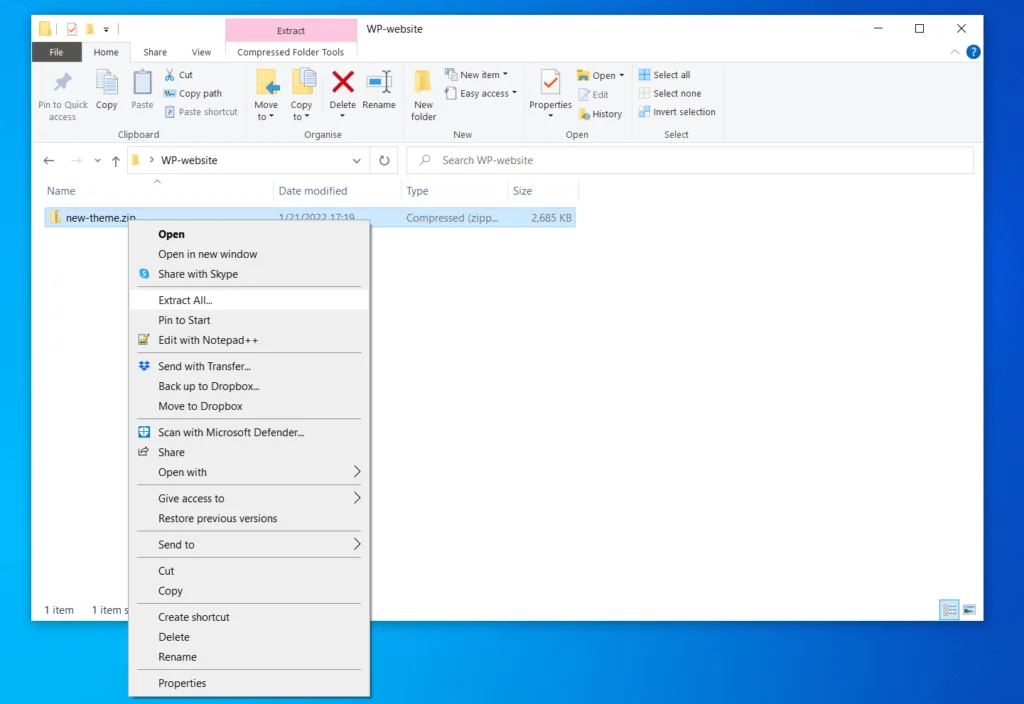
Check if the theme works with your WordPress version. Look for recent updates to the theme. This ensures it is up-to-date. Read the theme description for compatibility info. Some themes need special plugins to work. Make sure to have those plugins ready. This helps avoid errors when using the theme.
Credit: www.scalahosting.com
Uploading Themes Via WordPress Dashboard
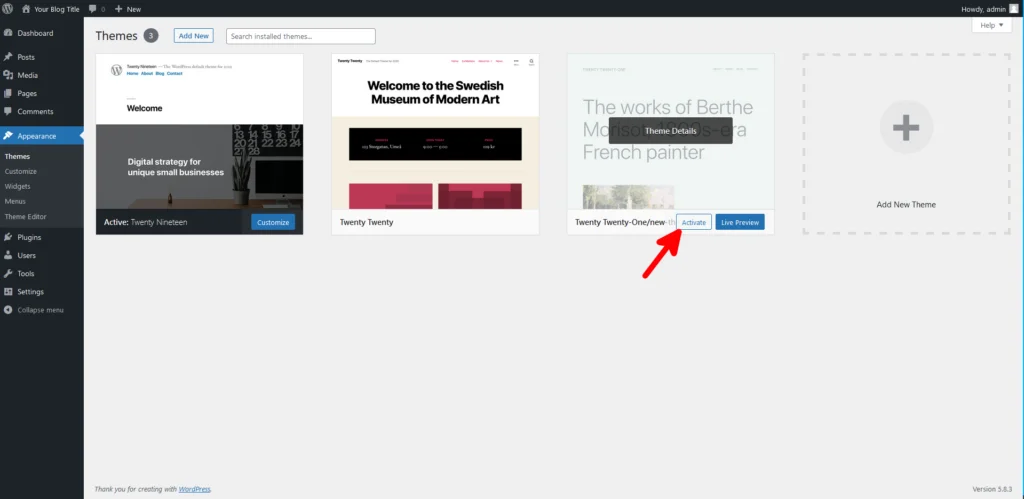
Easily add themes to your WordPress site through the dashboard by navigating to the “Appearance” section. Upload your desired theme’s ZIP file and click “Install Now. ” Activate the theme to give your site a fresh look.
Accessing The Theme Upload Section
First, log in to your WordPress dashboard. Find the “Appearance” option on the left menu. Click on “Themes” under Appearance. This takes you to the theme area. Look for the button that says “Add New”. Click it to open the upload section. You will see the option “Upload Theme”. This lets you add new themes.
Uploading And Activating The Theme
Click on “Upload Theme” to start. Choose the theme file from your computer. The file must be in .zip format. After selecting the file, click “Install Now”. Wait for the installation to finish. Once installed, click the “Activate” button. Your theme is now active. You can see it live on your site. If needed, customize the theme from the “Customize” option.
Uploading Themes Via Ftp
Setting up an FTP client is simple. First, download an FTP program. FileZilla is a good choice. Install it on your computer. Open the program and enter your server details. You need your username and password. Find these in your hosting account. Connect to your server. You now see your site’s files. Navigate to the wp-content folder. Inside, find the themes folder. This is where you will upload.
Transferring theme files is easy. First, download your theme to your computer. It usually comes in a zip file. Extract the zip file. Now, go back to your FTP client. Drag the extracted theme folder to the themes folder. Wait for the transfer to complete. Your theme files are now on your server. Check your WordPress dashboard. Your new theme should be listed there. Activate it to see your new design.
Troubleshooting Common Issues
Upload errors can be frustrating. First, check the file size. WordPress has a limit. You might need to increase it. Go to your hosting settings. Find the upload limit option. Set a higher number. Next, ensure the theme file is a .zip. Other formats won’t work. Finally, check your internet. A slow connection can cause issues. Restart your router if needed.
Compatibility problems can cause themes to break. Always update WordPress first. Old versions may not support new themes. Check the theme’s requirements. Ensure all plugins are updated too. Conflicts can occur with outdated plugins. Disable plugins one by one. See if the theme works. Reactivate each plugin slowly. Find the one causing the problem.
Customizing Your New Theme
Explore the Theme Customizer to change your site’s look. You can adjust colors, fonts, and layouts easily. It helps make your site unique. Click on different options to see changes live. No coding needed. Save your changes when you’re happy. It’s a fun way to play with your site’s style.
Enhance your theme with custom features. Consider adding widgets for extra content. Use plugins to add special tools. Make sure your new features match your theme. This keeps your site looking neat and organized. Try to keep your site easy to use. Too many features can confuse visitors.

Credit: www.youtube.com
Frequently Asked Questions
How To Upload A Theme To WordPress Manually?
To upload a theme manually, access your WordPress dashboard. Go to Appearance > Themes > Add New. Click ‘Upload Theme’ and choose the theme ZIP file from your computer. Press ‘Install Now’ and then activate it. Ensure your theme is compatible with your WordPress version for best performance.
Can I Add Themes Without A Plugin?
Yes, you can add themes without a plugin by uploading them manually. Download the theme ZIP file to your computer. Then, in your WordPress dashboard, navigate to Appearance > Themes > Add New > Upload Theme. Select the file, click ‘Install Now’, and activate it.
Where To Find WordPress Themes Online?
You can find WordPress themes in the official WordPress Theme Directory. Other options include marketplaces like ThemeForest or Elegant Themes. Make sure to choose themes that are well-rated and regularly updated. Check compatibility with your WordPress version before downloading.
What Is The Safest Way To Add A Theme?
The safest way to add a theme is through the WordPress dashboard. This ensures compatibility and security. Download themes from trusted sources. Always back up your site before making changes. After installation, check for updates regularly to keep your site secure.
Conclusion
Manually adding themes to WordPress is straightforward. It gives you control. Choose a theme that suits your style. Download the theme files from a trusted source. Upload them via the WordPress dashboard. Activate your new theme. Customize it to fit your needs.
This process enhances your site’s look and feel. Stay creative and explore different designs. Remember, your website reflects your brand. Regular updates keep your site fresh. Enjoy building your unique digital space. With practice, you’ll become more confident. Your WordPress site will stand out.
Happy theming!


