
Are you struggling to make your WordPress theme compatible with PHP 7? You’re not alone.
As technology evolves, so does the need for websites to keep up with these advancements. If you’re using an older WordPress theme, it might not be optimized for PHP 7, which can cause performance issues or even break your site.
This can be incredibly frustrating, especially when you want your website to run smoothly and efficiently. In this guide, you’ll learn the essential steps to update your WordPress theme for PHP 7 compatibility, ensuring your site stays fast, secure, and ready for the future. Stick around to discover simple tweaks that can make a world of difference for your website’s performance and reliability.

Credit: code.market
Understanding Php 7 Compatibility
PHP 7 is faster than older versions. It can handle more requests. This makes your website quick. Faster sites rank better on Google. PHP 7 uses less memory. This saves server resources. With PHP 7, security is improved. It fixes old bugs. Your site is safer. Many new features are in PHP 7. These features help developers. They make coding simpler.
Some plugins may not work with PHP 7. Check if plugins are updated. Themes can also have problems. Old themes might break. Update themes to fix this. Code syntax changes in PHP 7. Some functions are removed. Update your code for PHP 7. Test your site after updates. Find and fix any errors. Always back up before changes.
Preparing Your Theme For Php 7
Always backup your theme files first. Use a trusted plugin or FTP. This helps you restore if changes break things. Save a copy on your computer. Keep another copy in the cloud. Google Drive or Dropbox are good choices. You might need this backup later.
A child theme is a safe way to edit. It protects your changes. Main theme stays intact. First, create a new folder in your theme directory. Name it ‘theme-child’. Next, create a style.css file. Add a few lines of code. This file connects to the parent theme. Now, you can customize safely. Your changes won’t disappear with theme updates.
Identifying Compatibility Issues
PHP 7 is faster and better. Some themes may not work well. Use compatibility tools to check your theme. These tools find problems quickly. Plugin Detective is a good choice. It shows which parts need fixing. Another option is PHP Compatibility Checker. It scans your site. Alerts show errors or issues. Fix them to make your theme run smoothly.
Functions change over time. Some functions become deprecated. They won’t work in PHP 7. Check your theme for old functions. Replace them with new ones. Use the official PHP documentation. It helps find new functions. Update your theme code. This keeps it working well. Always test after changing code. Testing ensures everything works fine.
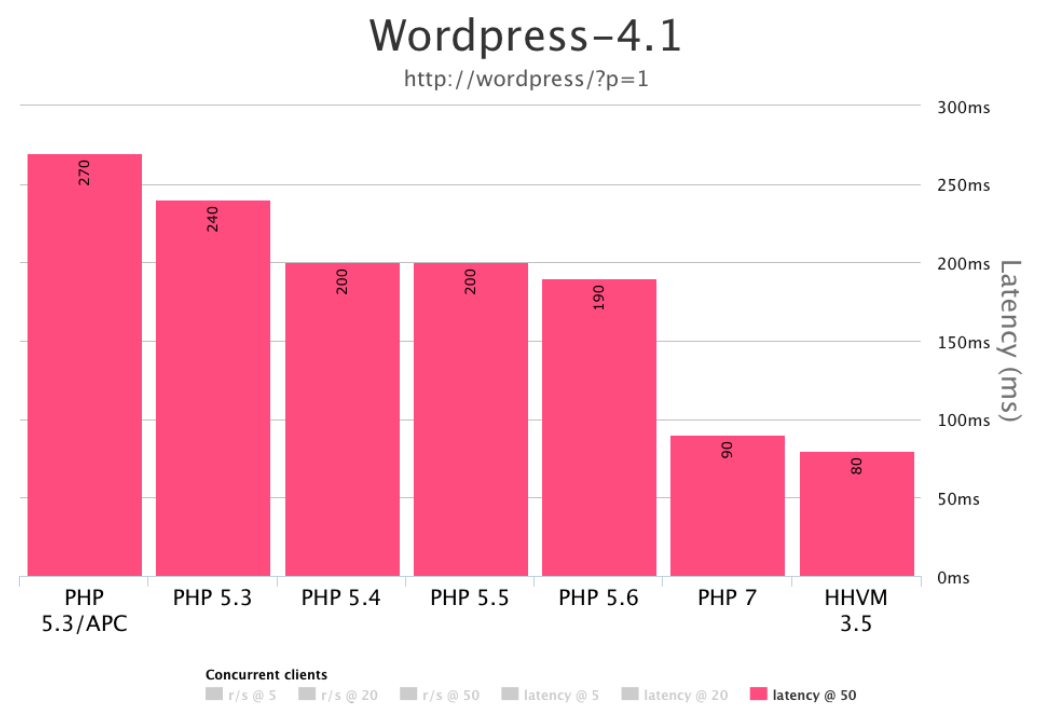
Credit: www.nexcess.net
Updating Theme Code
Many old functions no longer work in PHP 7. These are called deprecated functions. It’s important to check your theme’s code. Look for functions that are outdated. Replace them with new ones. New functions are safer and faster. They help your theme run better. This step is very important.
A fast theme is a good theme. Check your code for any slow parts. Clean up messy code. This makes the theme run faster. Also, remove any unused plugins. These slow down your site. Use a caching plugin to speed things up. This helps your site load quickly. Fast sites make visitors happy.
Testing Your Theme
Setting up a local development environment is crucial. It allows testing without affecting the live site. Many tools help in this. XAMPP and MAMP are popular choices. They create a local server on your computer. This setup is safe for making changes. You can test how your theme works with PHP 7. Ensure compatibility before going live.
Debugging tools help find errors. WP_DEBUG is a feature in WordPress. It shows errors and warnings. Use it to see what needs fixing. The Query Monitor plugin is also helpful. It gives detailed error reports. Learn to read these reports. They help find where issues are. Fixing them makes your theme PHP 7 compatible. Regularly check for errors during development. This practice improves your theme’s performance.
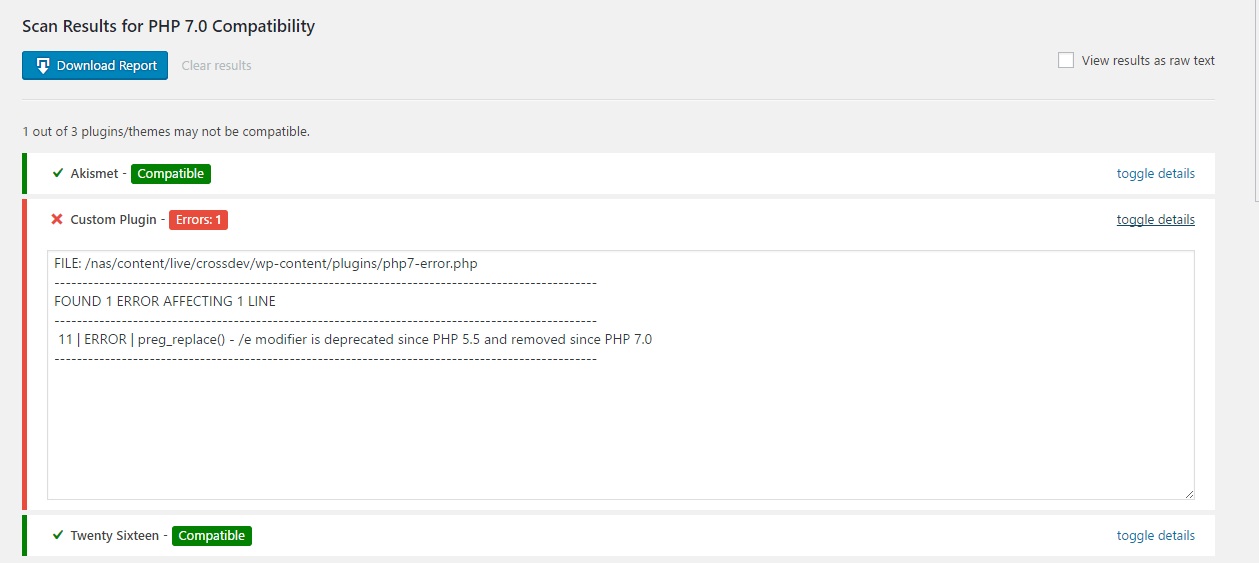
Credit: winningwp.com
Deployment And Maintenance
First, save all theme files. This prevents loss. Next, upload the updated theme to your server. Use an FTP client for this step. After uploading, check your website. Ensure all parts are visible and working. If any errors show, fix them quickly. Always test on multiple devices. This ensures a smooth user experience.
Regular checks keep your theme PHP 7 compatible. Set reminders to do this monthly. Use tools to scan for issues. Fix any found problems immediately. Always backup before making changes. This keeps your site safe. Finally, stay updated on PHP news. Sometimes updates affect compatibility.
Frequently Asked Questions
How To Check Php Version In WordPress?
You can check your PHP version by accessing your WordPress dashboard. Navigate to ‘Tools’ > ‘Site Health’ > ‘Info’. Under the ‘Server’ section, you will find your current PHP version. Alternatively, you can use plugins like ‘Display PHP Version’ to easily view your PHP version directly on the dashboard.
Why Update WordPress Themes For Php 7?
Updating themes ensures compatibility with PHP 7, enhancing site performance and security. PHP 7 offers improved speed and reduced memory usage, benefiting both site owners and visitors. Failing to update may lead to errors and functionality issues, affecting your site’s user experience and search engine rankings.
What Common Errors Arise With Php 7?
Common errors include deprecated functions, syntax issues, and incompatible plugins. Themes not updated for PHP 7 may produce warnings or fatal errors. Resolving these requires reviewing code, updating functions, and ensuring plugins are compatible. Regular updates and testing help mitigate such issues effectively.
How To Update Theme Code For Php 7?
To update theme code, start by identifying deprecated functions and syntax. Replace old functions with PHP 7 compatible ones. Use a staging environment to test changes safely. Tools like PHP Compatibility Checker can help identify issues. Always backup your site before making any updates.
Conclusion
Making your WordPress theme PHP 7 compatible is essential. It ensures better performance and security. Follow the steps outlined to update your theme. Test changes thoroughly. Backup your files before starting. Use online resources for guidance. Compatibility improves site speed.
Visitors enjoy a smoother experience. Your theme stays up-to-date with PHP 7 features. This enhances site reliability. Regular updates protect against vulnerabilities. Keeping your theme compatible is a smart move. It benefits both your site and users. Stay proactive in managing your WordPress theme.
Your website deserves the best performance.


