
Are you tired of your WordPress theme feeling like a rigid box that doesn’t quite fit your vision? Imagine the power of transforming it into a canvas where your creativity can truly shine.
In this guide, you’ll discover how to make your WordPress theme editable, allowing you to tailor every detail to match your brand’s unique personality. By the end of this article, you’ll have the tools to break free from design limitations and craft a website that captivates and engages your audience.
Get ready to unlock the potential of your WordPress site and take control of your online presence.
Setting Up Your Environment
Start by installing WordPress on your computer. This is called a local installation. First, download XAMPP or MAMP. These tools help run WordPress on your computer. After installing, open the tool and start the server. Then, download WordPress from the official website. Unzip the file into the htdocs folder in XAMPP or the MAMP folder.
Next, open your browser. Type “localhost/phpmyadmin” in the address bar. Create a new database. Name it whatever you like. Now, open another tab. Type “localhost/wordpress”. Follow the instructions. Enter the database name, username, and password. Click install. WordPress will set up on your computer.
Picking the right theme is important. Go to the WordPress dashboard. Click on Appearance. Then, click Themes. You will see many themes. Some are free, some are paid. Look for a theme that fits your website’s purpose. If you want a simple blog, pick a clean theme. For a business site, choose a professional theme. Make sure the theme is responsive. This means it looks good on phones and tablets. Check if the theme is easy to edit. Some themes allow more customization than others.
Credit: 10web.io
Understanding Theme Files
The core files in a WordPress theme define its look. These files include index.php, style.css, and functions.php. Each file has a special job. The index.php file is the base. It shows the structure of your theme. The style.css file is for design. It tells how things should look. The functions.php file adds extra features. It can add new functions to your theme.
Scripts and stylesheets bring a theme to life. Stylesheets make the website look good. They use CSS to style pages. Scripts use JavaScript to make things move. They can add interactive parts to your site. Keep your scripts and styles clean. It helps the site load fast. Fast loading makes users happy.
Customizing Theme With Child Themes
Creating an editable WordPress theme is easy with child themes. Child themes let you change designs safely. Use them to modify your site’s look without touching the main theme. This method keeps your customizations safe during updates.
Creating A Child Theme
First, make a new folder in your WordPress themes directory. Name it after your parent theme with “-child” at the end. Inside, create a style.css file. In this file, use a template tag to link to the parent theme. Add your own styles here. This keeps your changes safe when the parent theme updates. Don’t forget to create a functions.php file too. This file lets you add new functions or modify existing ones. Be careful with code changes to avoid errors.
Modifying Styles And Functions
In your style.css, write new styles or override existing ones. Always test changes to ensure they work. Use the functions.php file for adding custom code snippets. This can include new widget areas or custom scripts. Remember to check your site after changes. Fix any problems quickly to keep your site running well. Child themes make changes easy and safe.

Credit: wordpress.com
Using Page Builders
Page builders make editing themes easy. They offer drag-and-drop features. Users can design pages without coding. Popular options include Elementor, Beaver Builder, and Divi. These plugins help create custom layouts. They provide various widgets and modules. Users can add text, images, and buttons. The process is simple and user-friendly.
Popular Page Builder Plugins
Elementor is widely used. It offers many design options. Beaver Builder is another choice. It has a clean interface. Divi is known for its flexibility. These plugins support theme customization. They come with templates and pre-designed sections. Users can start quickly. These tools save time and effort.
Integrating Page Builders With Themes
Most themes support page builders. Integration is smooth and seamless. Simply install the plugin. Activate it from the dashboard. The builder works with the theme. Users can then start designing. Choose a layout, add elements, and customize. Builders allow real-time editing. Preview changes instantly. This makes theme editing fun and easy.
Editing Theme Code
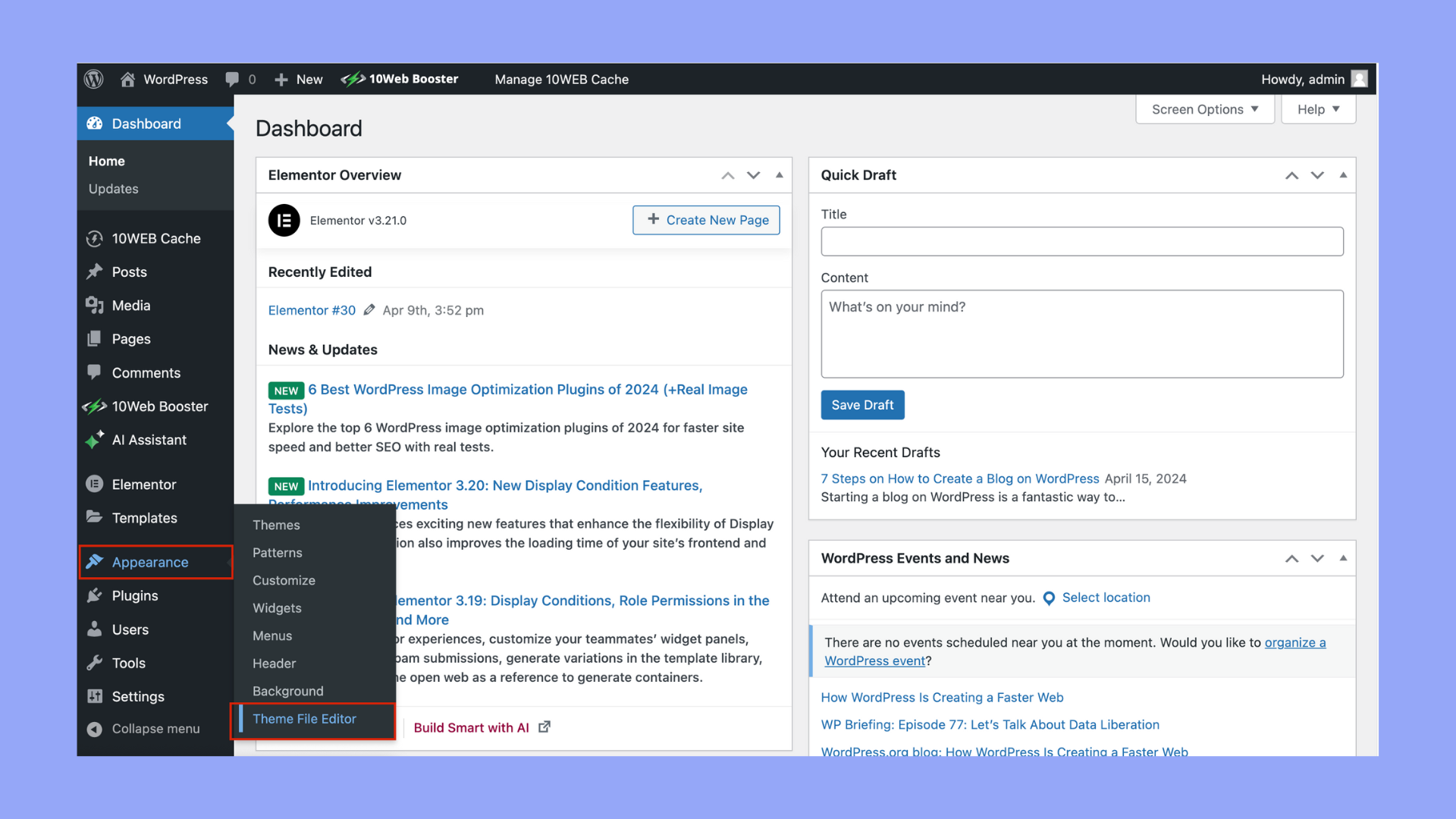
WordPress has a built-in theme editor. You can find it in your dashboard. Go to Appearance and then Theme Editor. Here, you can see and change your theme files. Be careful! Small changes can break your site.
PHP is the language WordPress uses. It can change how your site works. Find the functions.php file. This file lets you add new features. You can also change template files. These files control how your pages look. Always save your changes. Test them right away.
Advanced Customization Techniques
Explore easy methods to make your WordPress theme editable. Start by diving into the theme’s code. Change fonts, colors, and layouts to suit your style. Use child themes for safe customization. Add plugins to simplify edits without coding skills. Transform your site with these straightforward techniques.
Custom Post Types
Custom post types help make unique content. This is different from posts or pages. They let you add custom features to your website. Imagine creating a portfolio or product page. It looks neat and organized. You can also use plugins for this. They make the task easier.
Customizing Widgets And Menus
Widgets let you add content to sidebars. You can include text, images, or links. Menus organize your website links. They help users find information quickly. Drag and drop items to change their order. It’s simple and quick. You can also add custom links. This guides users to important pages.
Testing And Debugging
Customizing WordPress themes requires careful testing and debugging. Ensure all elements are editable by checking the theme’s settings. Use developer tools to identify and fix any issues, enhancing user experience and flexibility.
Checking For Errors
Errors make themes look bad. Check your theme for mistakes. Use tools to find errors. Fix them quickly. Clean code runs better. Users like clean themes. Errors upset users. They leave your site. You lose visitors. Keep your theme error-free. Make users happy. Happy users stay longer.
Ensuring Compatibility
Themes must work on all devices. Test on phones and tablets. Try different browsers. Check your theme’s look everywhere. It should look good always. Compatibility is important. Everyone can see your site. This brings more visitors. Test for different screen sizes. Make sure it works well.
Credit: 10web.io
Deploying Changes
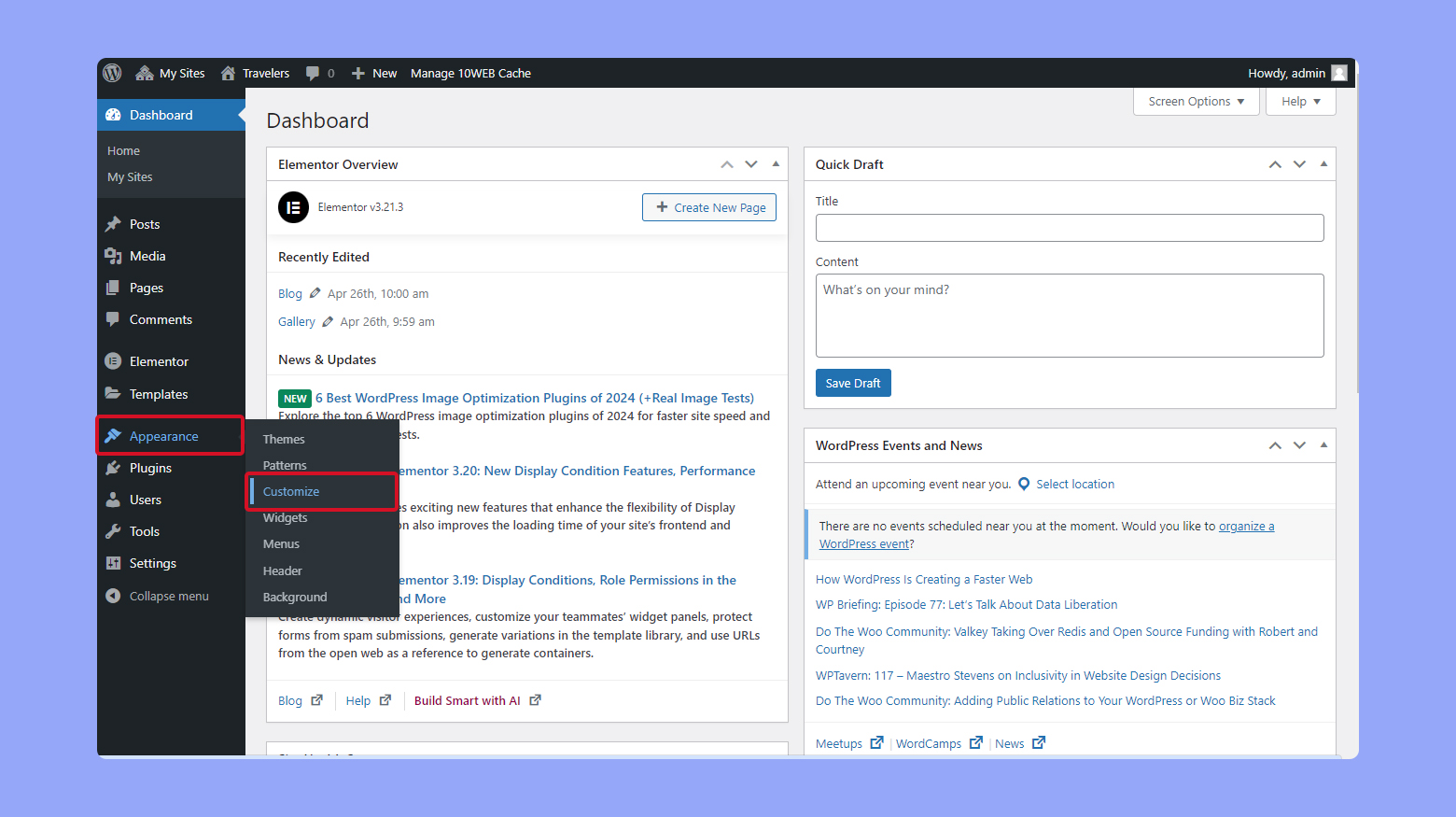
Transforming a WordPress theme into an editable design involves utilizing the WordPress Customizer. This tool allows you to modify colors, fonts, and layouts effortlessly. Explore theme options to adjust elements, ensuring your site reflects your style and branding.
Backing Up Your Site
Before making any changes, create a backup of your site. This ensures you don’t lose any important data. Use a plugin to help you do this easily. Plugins like UpdraftPlus or BackupBuddy are popular choices. Save the backup to a safe place. This could be your computer or cloud storage. Check the backup to see if it’s complete. A good backup is your safety net. It makes fixing mistakes easier. Always have a recent backup before changing anything on your site.
Pushing Changes Live
After making changes, it’s time to push them live. First, check everything on a test site. This helps you find errors before users do. Once everything looks good, update your live site. Use a tool like FTP or a plugin for this. Plugins like WP Migrate DB can help move changes safely. Double-check your live site after updating. Ensure all parts work well. This keeps your site running smoothly for everyone.
Frequently Asked Questions
How Can I Edit A WordPress Theme?
To edit a WordPress theme, access your WordPress dashboard. Navigate to Appearance > Theme Editor. Here, you can modify theme files. Ensure you back up your site before making changes. Alternatively, use a child theme to preserve updates and customizations.
What Tools Are Needed For Theme Editing?
To edit a WordPress theme, you need a code editor like Sublime Text or Visual Studio Code. Basic knowledge of HTML, CSS, and PHP is beneficial. Using FTP clients like FileZilla can help access theme files directly.
Can I Customize Themes Without Coding?
Yes, you can customize themes without coding using WordPress Customizer. Navigate to Appearance > Customize to access various options like colors, fonts, and layouts. Many themes also offer built-in customization features and settings.
Is It Safe To Edit WordPress Themes?
Editing WordPress themes is safe if done carefully. Always back up your site before making changes. Use a child theme to prevent losing customizations during updates. Follow best practices to ensure security and functionality.
Conclusion
Editing your WordPress theme is now within reach. With these steps, customize with ease. Explore theme options to fit your style. Change colors and fonts for a unique look. Use plugins for more flexibility. Remember to backup before making changes.
Experiment with layouts and features. Make your website truly yours. Keep practicing to improve your skills. Don’t hesitate to ask for help if needed. A well-edited theme enhances user experience. Engage visitors with a personalized site. Your journey to a better WordPress theme starts today.


