
Are you struggling to make your WordPress child theme look just like the parent theme? You’re not alone.
Many WordPress users find themselves in a similar situation, eager to customize their site but hesitant to stray too far from the original design. But here’s the good news: achieving this balance is easier than you might think. You’ll discover simple, actionable steps to ensure your child theme mirrors your parent theme perfectly.
Imagine having the power to tweak and personalize your site without losing the aesthetic you’ve come to love. Intrigued? Keep reading to unlock the secrets to a seamless WordPress experience and transform your website with confidence.
What Is A Child Theme?
A child theme is like a copy of the main theme. It keeps the main theme safe. Changes you make won’t break the main theme. This is good for updates. The main theme can update without losing changes.
To make a child theme, you need two files. One is style.css. The other is functions.php. These files tell WordPress what the child theme does. The child theme uses the main theme’s files. This keeps things looking the same.
A child theme is a safe way to change your site. It protects your work. You can try new things without fear. This is great for learning and trying new ideas.
Benefits Of Using Child Themes
Child themes keep your website safe. They help you make changes without breaking things. You can update your parent theme and not lose changes. This is very important.
Child themes let you experiment. You can try new styles and layouts. If you do not like them, just remove them. Your main theme stays the same.
Child themes are great for learning. You can learn how themes work. You can also practice coding. This is helpful for beginners.
Customizing a child theme is simple. You can add new features. You can change fonts and colors. All this without worrying. Your parent theme is safe.
Setting Up A Child Theme
First, open your WordPress directory. Find the themes folder. Create a new folder. Name it whatever you like. But keep it simple. This is your child theme folder.
Inside the child theme folder, create a new file. Name it style.css. This file will hold your style rules. It helps your child theme look like the parent.
Open style.css. Add the template name at the top.
Use this format: Template: parent-theme-name. Replace
parent-theme-name with your theme’s name. This tells WordPress
which theme you are using as a parent.

Credit: jetpack.com
Copying Parent Theme Files
Copy the style.css file first. It holds the theme’s style rules. You need it for the child theme. The next important file is the functions.php. It contains the theme’s functions. Copy it carefully.
Avoid copying the entire template folder. It might break your theme. Choose only the files you need to change. This keeps the child theme light. Use a text editor to check file contents. It helps in knowing what to copy.
The functions.php in a child theme is special. It does not replace the parent file. It runs alongside it. Add new functions here. Do not copy everything from the parent. It could cause errors.
Include only the functions you need to change. This keeps your theme safe. Always check for errors after making changes. It helps in catching mistakes early.
Customizing The Child Theme
Change the CSS styles of your child theme. First, find the style.css file. This file controls the look of your site. Add new styles or copy from the parent theme. Use the same classes and IDs. This makes sure the child theme looks the same. Remember to save your changes. Check your site to see the difference.
Copy files from the parent theme to your child theme. This helps you change the layout. Pick the files you want to edit. Use the same file names. Open the files in a text editor. Make the changes you want. Save the files in the child theme folder. Your site will use these files instead of the parent ones.
Credit: www.dreamhost.com
Ensuring Compatibility
Testing changes is important to keep your website safe. Try changes on a test site first. This way, if something breaks, your live site stays okay. Use tools like WordPress Debug to find errors. Always check the site on different devices. Phones, tablets, and computers should all show the site well. Make sure all plugins work with your theme. Check for updates often. Updates fix bugs and add new features.
Updating the parent theme safely helps keep your site stable. Before updating, back up your site. This way, you can restore it if needed. Use a backup plugin for easy backups. Check the update notes. They tell you what changes come with the update. If the update breaks your child theme, fix it right away. Test your site after each update. This ensures everything works well together.
Common Issues And Solutions
Struggling with a child theme resembling its parent in WordPress? Copy key files like styles. css from the parent theme. Adjust settings to match design and functionality. Debugging ensures consistent appearance and performance.
Resolving Style Conflicts
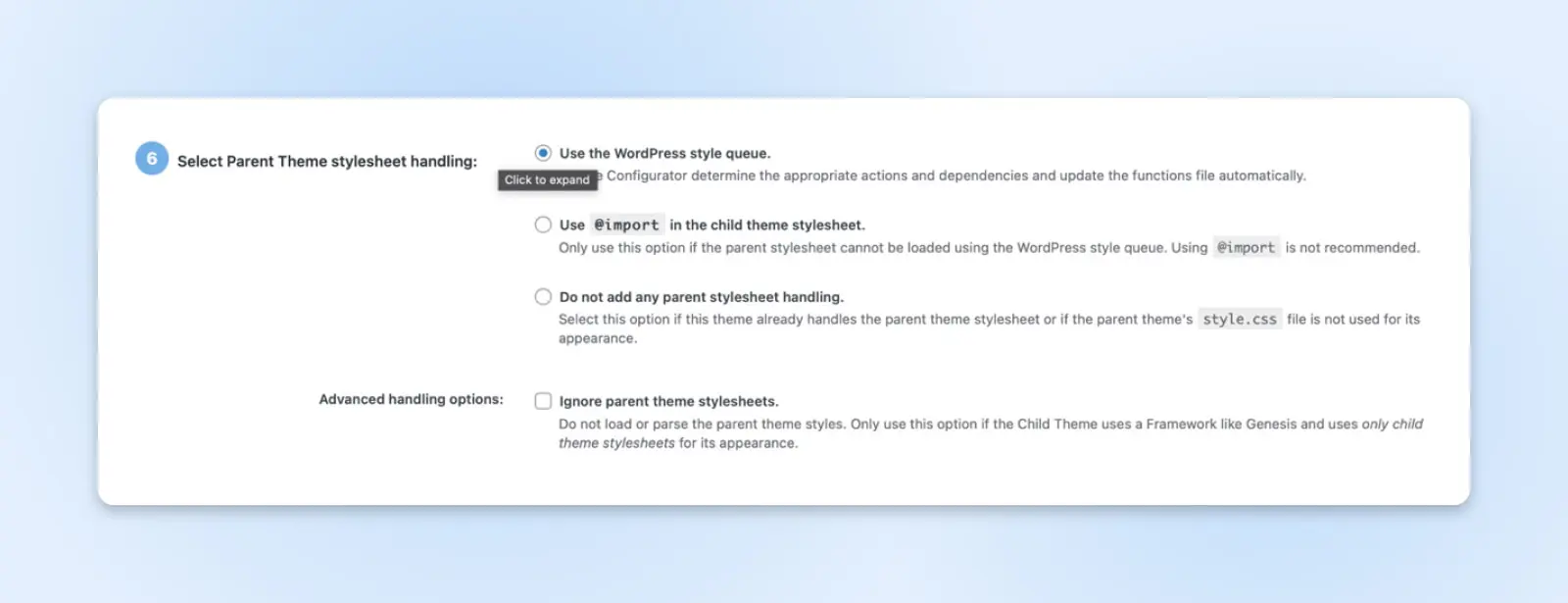
Style conflicts can make your child theme look different. Parent styles might not load. Check your functions.php file. Ensure you enqueue the parent styles correctly. Use wp_enqueue_style function. It loads styles from the parent theme. Check the paths and names. They must match the parent theme.
Override styles in your child theme’s CSS. Use higher specificity. This ensures your styles take effect. Test changes. Sometimes, small errors cause big style problems. Check browser console for errors. Fix them promptly.
Fixing Broken Layouts
Broken layouts can be frustrating. Check your template files. Ensure they match the parent theme structure. Look at your child theme’s functions. Are they causing layout issues? If so, adjust them. Sometimes, missing elements cause layout breaks. Inspect element positions. Compare with the parent theme.
Use browser tools to inspect layouts. They help find errors. Check the grid, flexbox, or other layout methods. Ensure they work as expected. Regularly update themes. Updates fix bugs and improve compatibility. This helps maintain layout integrity.
Best Practices
Keeping your code clean makes it easy to read. Use proper indentation for better clarity. Avoid using unnecessary code lines. This helps in finding errors quickly. Organize your code logically. Divide it into sections. Each section should have a clear purpose. Make sure to use comments. Comments explain what your code does. This is helpful for others. Or even your future self.
Backups protect your work. Things can go wrong unexpectedly. Regular backups save your progress. Use plugins for backups. Some plugins do this automatically. Always keep a recent copy of your work. Store backups in a safe place. Cloud storage is good. You can also use external drives. Check your backups often. Make sure they are working. Restore a backup sometimes. Test if it works fine.

Credit: www.elementoraddons.com
Frequently Asked Questions
What Is A WordPress Child Theme?
A WordPress child theme allows you to modify a theme without losing changes when the parent theme updates. It inherits styles and functions from the parent theme, enabling customization. Creating a child theme ensures that your website remains visually consistent while implementing unique tweaks and features.
How To Create A Child Theme?
To create a child theme, start by creating a new folder in your themes directory. Add a style. css file with the template name and enqueuing functions in functions. php. This setup links the child theme to the parent, ensuring it inherits styles and functionalities.
Why Does My Child Theme Look Different?
If your child theme looks different, it might lack proper enqueuing of parent styles. Ensure stylesheets are correctly enqueued in functions. php. Verify if customizations in style. css override parent theme settings. This ensures your child theme maintains the desired look of the parent theme.
How Can I Make A Child Theme Resemble The Parent?
To make a child theme resemble the parent, correctly enqueue parent styles in functions. php. Avoid unnecessary overrides in style. css. Use the same layout settings and widgets. This approach ensures your child theme maintains the visual consistency of the parent theme.
Conclusion
Creating a child theme that mirrors the parent is achievable. Follow the steps carefully. First, copy the parent theme’s styles and templates. Next, customize as needed without altering core files. This method preserves updates and enhances flexibility. Your site remains secure and future-proof.
Building a child theme might seem complex. But practice and patience make it easier. Explore new designs and features confidently. Your WordPress skills will grow stronger. Enjoy crafting your site with creativity and assurance. Visitors will appreciate the smooth and consistent design.
Your hard work will pay off with a stunning website.


