
Have you ever installed a WordPress theme and found yourself disappointed when your site didn’t look anything like the stunning demo that made you fall in love with it? You’re not alone.
Many website owners face this challenge, but the good news is that you can achieve that professional look without breaking a sweat. Imagine your website capturing the same elegance and functionality as the demo, making visitors stay longer and engage more with your content.
In this guide, you’ll learn simple, effective steps to transform your website into a mirror image of that perfect demo. Get ready to boost your site’s appeal and make your online presence unforgettable. Let’s dive into the secrets of aligning your site with your theme’s demo and watch your online dreams become a reality.
Choosing The Right Theme
Picking a theme means finding the right features. Look for options like custom colors and fonts. Some themes offer drag-and-drop builders. This helps in easy design changes. Check for responsive design. This ensures your site looks good on phones and tablets. Themes with SEO-friendly code are a bonus. They help your site rank better. Widgets are small tools on themes. They add extras like calendars or search bars. Make sure the theme supports plugins you need. Some themes have built-in eCommerce tools. Perfect for online stores.
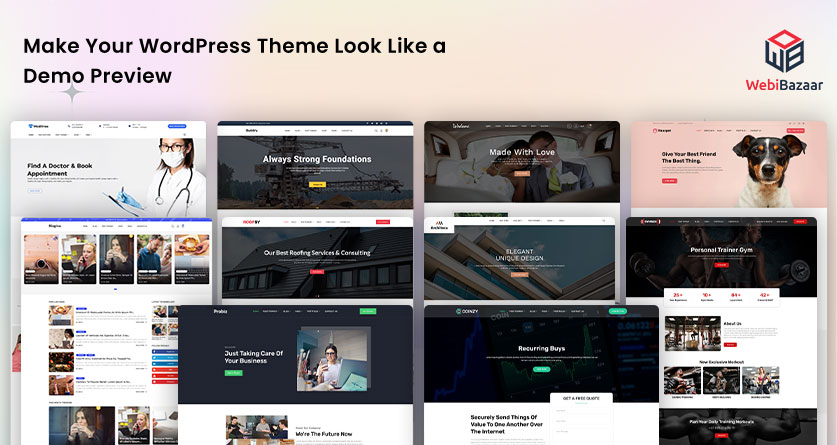
Check if the theme works with your WordPress version. This is important for updates and security. See if the theme supports multilingual sites. Useful if your audience speaks different languages. Look for themes that are browser compatible. This means the site looks good in Chrome, Firefox, and more. The theme should not slow down your site. Performance is key. Some themes offer demo content. This helps in setting up your site fast. Check user reviews and ratings. They show if others had problems or loved the theme.
Credit: www.webibazaar.com
Setting Up WordPress Environment
Begin by downloading the latest version of WordPress from the official website. It’s free and safe. Unzip the downloaded file on your computer. Next, upload the files to your web host using an FTP client. Popular tools like FileZilla work well. Create a new database in your hosting account. Note down the database name, user, and password. You will need these details later.
Open your browser and go to your website URL. You will see the WordPress installation screen. Choose your preferred language. Enter your database details. Click on the Install Now button. After a few seconds, you will see a success message. Set your site title and admin email. Pick a strong password for your admin account. Now, log in to your WordPress dashboard. You have installed WordPress.
Importing Demo Content
Many themes come with import tools. These tools help add demo content. First, find the import tool in the theme settings. Next, click to start the import process. Wait for the process to finish. Now, your site looks like the theme demo. This is fast and easy.
Some themes need manual setup. This means adding content by hand. Start by downloading demo files. These files have images and text. Upload these files to your site. Arrange them to match the demo. This takes more time but is very customizable.
Customizing Design Elements
To make your website look like a WordPress theme demo, start by adjusting layout options. You can change the width and height of different sections. Try to match the demo style. Arrange text and images neatly. This makes your site look clean. Use columns and rows to organize content. These small changes help a lot. They give your website a fresh look.
Modifying color schemes is another important step. Choose colors that match the demo. You might need to change the background color. Or adjust the text color. Also, pick colors for buttons and links. Make sure they are easy to see. Good colors make your site look nice. They make it more attractive. People will enjoy visiting your site. Colors can change the whole feel of a website. Choose wisely.
Configuring Plugins
Plugins help your site look like the demo. Install plugins that come with the theme. They are often free and easy to use. Begin by accessing the WordPress dashboard. Next, find the plugins section. Click on “Add New” to search for the required plugins. Install each plugin one by one. Remember to activate them after installing. This makes sure they work properly.
Configure each plugin to match the demo. Start with basic settings. Many plugins have setup wizards. Use these to make setup simple. Check the plugin documentation for help. Adjust settings like color or layout to match the demo. Some plugins need extra settings. Explore all options to achieve the desired look. Your website will soon resemble the demo!
Credit: www.webibazaar.com
Optimizing For Performance
Website speed is very important. Slow sites make people leave. To make your site faster, use fewer plugins. Plugins can slow down your site. Also, choose a good hosting service. A fast host will help a lot.
Compress images to make them smaller. Big images take longer to load. Use tools to compress images easily. You can also use a content delivery network (CDN). This helps load your site from places closer to the user.
A responsive site looks good on all devices. Test your site on phones and tablets. Make sure it looks right. Use flexible layouts that adjust to screen size. This helps with responsiveness.
Choose fonts and buttons that are easy to see on small screens. This helps users navigate your site. Keep your design simple. Too many elements can confuse users.
Testing And Troubleshooting
Websites must work well on all browsers. Testing is crucial. Use tools like BrowserStack or CrossBrowserTesting. Check your site on Chrome, Firefox, and Safari. Make sure all buttons and links work. Check for layout problems. Fix them. This helps your site look good everywhere.
Common issues include broken images and missing styles. Check if all images load. Fix any broken ones. Missing styles can make the site ugly. Ensure CSS files are in the right place. Sometimes, scripts do not work. Check JavaScript files. Keep your WordPress updated. This reduces errors. Regular updates help.
Credit: www.youtube.com
Frequently Asked Questions
How To Match Website With Theme Demo?
To match your website with a WordPress theme demo, start by installing the theme and importing demo content. Customize the settings, widgets, and plugins as per the demo layout. Ensure your images and content align with the demo’s style for consistency and professional appearance.
What Plugins Are Needed For Theme Demo Look?
For a theme demo look, install essential plugins like page builders, sliders, and contact forms. Plugins like Elementor or WPBakery can help create custom layouts. Check the theme’s documentation for recommended plugins to replicate the demo’s features and functionality seamlessly.
How To Import Demo Content In WordPress?
To import demo content in WordPress, navigate to your theme’s settings or install a demo importer plugin. Follow the guided steps to import pages, posts, and images. This process helps you achieve a layout similar to the theme demo, providing a strong starting point for customization.
Why Doesn’t My Site Look Like The Demo?
If your site doesn’t look like the demo, check if you’ve imported the demo content correctly. Ensure all recommended plugins are activated and configured. Double-check theme settings and compare them with demo instructions to make necessary adjustments for a similar appearance.
Conclusion
Creating a website that mirrors a WordPress theme demo is doable. Focus on key details. Customize your layout to match the demo. Choose similar fonts and colors. Add high-quality images that fit the theme. Check responsiveness across devices. Your site should load quickly.
Keep it clean and user-friendly. With these steps, your website will impress visitors. It will look professional and polished. Stay consistent with updates. This keeps your site fresh and appealing. Practice these tips regularly. Your website will stand out and engage users effectively.


