
Imagine having complete control over your website, with easy access to manage files, databases, and emails—all in one place. That’s the beauty of cPanel, a popular web hosting control panel that simplifies managing your online presence.
If you’ve ever felt overwhelmed by technical jargon or complex interfaces, don’t worry. Creating your own cPanel doesn’t require a degree in computer science; it just takes a few straightforward steps. You’ll learn how to create a web hosting cPanel that empowers you to effortlessly handle your website’s needs.
Whether you’re a beginner or looking to enhance your hosting skills, this guide is designed with you in mind. Let’s unlock the potential of your website together, and give you the tools to make web hosting as simple as it should be. Ready to dive in?
Understanding Web Hosting
There are different types of web hosting. Shared hosting is the most common. It is cheap and easy to use. VPS hosting gives more control and power. It is like having your own space but shared with others. Dedicated hosting is all yours. It is the most powerful and expensive. Cloud hosting uses many servers. It is good for big websites. Each type has its own benefits.
Cpanel is a tool for managing your web hosting. It makes tasks easy. You can set up emails with a few clicks. It helps in managing files and databases. Installing applications becomes simple with Cpanel. You can check your website’s stats. Security features in Cpanel keep your site safe. It is user-friendly and saves time.
Setting Up Your Cpanel
First, you need a reliable web host. This is where your website lives. Look for a host with good reviews. Make sure they offer 24/7 support. Check if they provide a money-back guarantee. Compare different hosts before choosing. This helps you find the best option. Your host should offer easy Cpanel installation.
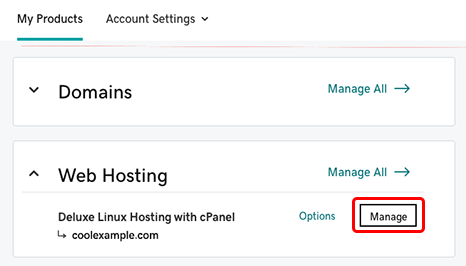
After choosing a host, it’s time to install Cpanel. Login to your web host account. Look for the Cpanel icon. Click to start the installation. Follow the on-screen instructions. It usually takes a few minutes. Once done, you can access your Cpanel. This is where you manage your website. You can add email accounts, set up databases, and more.
Cpanel Interface Overview
The Cpanel dashboard is your control center. It shows important tools and features. You can see account details here. Check your disk usage and bandwidth easily. Many icons help you. They are for managing files, emails, and databases. Use them to keep things organized. The dashboard also has a search bar. It helps you find things quickly.
Navigation is simple in Cpanel. Use the side menu to move around. It has sections for different tasks. Click on a section to see more options. The breadcrumbs at the top show your current location. They help you return to previous pages. Remember to log out when done. It keeps your account safe.
Managing Domains
Every website needs a domain name. It is your site’s address. First, choose a unique name. Then, register it with a domain registrar. Popular registrars include GoDaddy and Namecheap. Always check if your chosen name is available. Registering a name costs money. Prices vary by registrar. Keep your registration information updated. This ensures you own the domain. Renew your domain on time. Avoid losing ownership.
Subdomains help organize your site. They act like folders. For example, blog.yoursite.com. Create them in your Cpanel easily. No extra cost for subdomains. Add-on domains are different. They host new websites. Each needs a unique domain name. They share the same hosting account. Useful for managing multiple sites. Add them via Cpanel too. Both features enhance site structure. Make navigation simple and clear.
Setting Up Email Accounts
First, log into your Cpanel. Find the Email Accounts section. Enter the name for your new email. Choose a strong password for safety. Click Create to finish. Your email account is ready.
Check the Email Settings section for options. You can set forwarding to another address. Choose to filter unwanted emails. Change your password if needed. Remember to save changes.
Credit: www.godaddy.com
File Management
File Manager helps manage your site files easily. It shows files in a list. You can upload, download, and even delete files. This tool is very handy.
To upload a file, click the upload button. Choose the file from your computer. Wait for it to finish uploading.
Managing files is simple. Select a file to move or delete. You can also rename files. This keeps your files organized and easy to find.
Remember to always keep a backup. This helps if you lose any files. Backups save time and keep your work safe.
Database Management
Creating a web hosting cPanel involves setting up a user-friendly interface for managing website files and databases. This tool helps organize, update, and maintain your website efficiently. Users can easily access various features to handle their site’s needs.
Creating Databases
Creating a database in Cpanel is easy. You start by logging into Cpanel. Look for the MySQL Databases section. Click on it. You will see a field to name your database. Pick a simple name. Click Create Database. Your database is ready. Remember the name for later use. It’s important to keep your database safe. Use strong passwords. Never share your passwords.
Managing Mysql
Managing MySQL is simple in Cpanel. First, access the MySQL Databases section. You can add users to your database. Set their permissions wisely. Choose privileges carefully. You can also remove users easily. Backup your databases regularly. This keeps your data safe. Check your database size often. Clear unnecessary data. This helps in smooth running. Keep your database organized. It helps in quick access.

Credit: metabox.io
Security Features
SSL Certificates keep your data safe. They create a secure connection. This protects private information. It’s important for any website. Without SSL, data can be stolen. Hackers might read your data. SSL Certificates are like locks. They help keep your site secure. Using them is simple. Most web hosts offer them. You can get one with a few clicks.
Security settings keep your website safe. Adjust them in the cPanel. You can block bad visitors. Limit who can see your site. Two-factor authentication adds extra safety. It needs a code and password. This makes it hard for hackers. You can set up firewalls too. They stop harmful traffic. Keep your security settings up-to-date. This protects your site from threats.
Backup And Restore
Keeping backups is very important. It saves your data from loss. In cPanel, making a backup is simple. First, find the backup tool. It’s usually in the home section. Click it to start. Choose full backup to save everything. Or, pick specific files to save. After you choose, press the generate button. Your backup will start. It might take time. Once done, download the backup. Save it on your computer. Now your data is safe.
Restoring data is easy too. Go to the backup tool. Find the restore option. Click to open it. Select the backup file. This is the file you saved earlier. Now, press the restore button. Wait a bit for it to finish. Once done, your data is back. It’s like magic. Always check if everything is restored. This keeps your site running well.
Optimizing Website Performance
Performance tools help speed up websites. They find slow parts and improve them. Some tools work on the server. Others work on the website itself. Google PageSpeed Insights is popular. It shows how fast a page loads. It gives tips to make it faster.
GTmetrix is another tool. It checks website speed. It offers a detailed report. It suggests changes for better speed. These tools are easy to use. They help make websites faster.
Caching saves website data. It helps pages load quicker. Browser caching stores data on the user’s device. Server caching keeps data on the server. Both options reduce load time. They make browsing smooth.
Caching plugins are useful. They work with websites like WordPress. They offer simple setup steps. They improve website speed easily. Caching is key for faster performance.
Troubleshooting Common Issues
Sometimes, websites show error pages. These pages are frustrating. Common error pages include 404 Not Found and 500 Internal Server Error. A 404 error means the page is missing. A 500 error means the server has issues. Check your URL for typos. Clear your browser cache. These steps might help solve the issue. If the error remains, contact your host.
Many hosting providers offer support resources. These include FAQs, tutorials, and live chat. Use these resources for quick help. They can guide you through common problems. Support teams are there for more complex issues. Always keep your support contact details handy.

Credit: w3layouts.com
Frequently Asked Questions
Can I Host My Website On Cpanel?
Yes, you can host your website on cPanel. It provides an easy-to-use interface for website management. CPanel supports various hosting features like domain management, email setup, and file uploads. It’s a popular choice for both beginners and experienced users.
What Is The Difference Between Web Hosting And Cpanel Hosting?
Web hosting provides server space for websites. CPanel hosting includes web hosting with a user-friendly control panel for managing files, databases, and domains easily. CPanel simplifies tasks like backups and email setup, enhancing user experience. Both options host websites but cPanel adds convenience and management tools.
Does Cpanel Have A Website Builder?
Yes, cPanel includes a website builder called Site Publisher. It helps users create basic websites quickly. Site Publisher offers customizable templates for easy setup. It’s perfect for beginners needing simple sites. For advanced features, consider integrating third-party builders. CPanel ensures seamless hosting and management options.
Can I Create My Own Web Hosting?
Yes, you can create your own web hosting. You need a server, internet connection, and technical skills. Install server software and manage security settings. Consider hosting costs, maintenance, and technical support. This DIY approach offers control but requires commitment and expertise.
Many opt for professional hosting services.
Conclusion
Creating a web hosting cPanel is simpler than it seems. Follow the steps carefully. You’ll manage your website efficiently. Remember, practice makes perfect. Start with basic features. Explore more as you grow comfortable. Don’t rush the process. Take your time to learn each tool.
Keep experimenting to enhance your skills. Consistent use will build your confidence. Soon, navigating cPanel will be second nature. Share your experiences with others. Helping friends can also deepen your understanding. Enjoy the journey of mastering your web hosting cPanel.
It’s a valuable skill for anyone online.


