

Are you ready to give your website a unique look that truly represents your brand? Making your own WordPress website template might sound tricky, but it’s easier than you think.
Imagine having full control over your site’s design without relying on generic themes. When you create your custom WordPress template, you can tailor every detail to fit your style and goals perfectly. In this guide, you’ll discover simple, step-by-step instructions to build a template that makes your website stand out.
Keep reading, and you’ll soon have a powerful, personalized WordPress site that grabs attention and keeps visitors coming back.
Credit: docs.presscustomizr.com
Choose A WordPress Theme
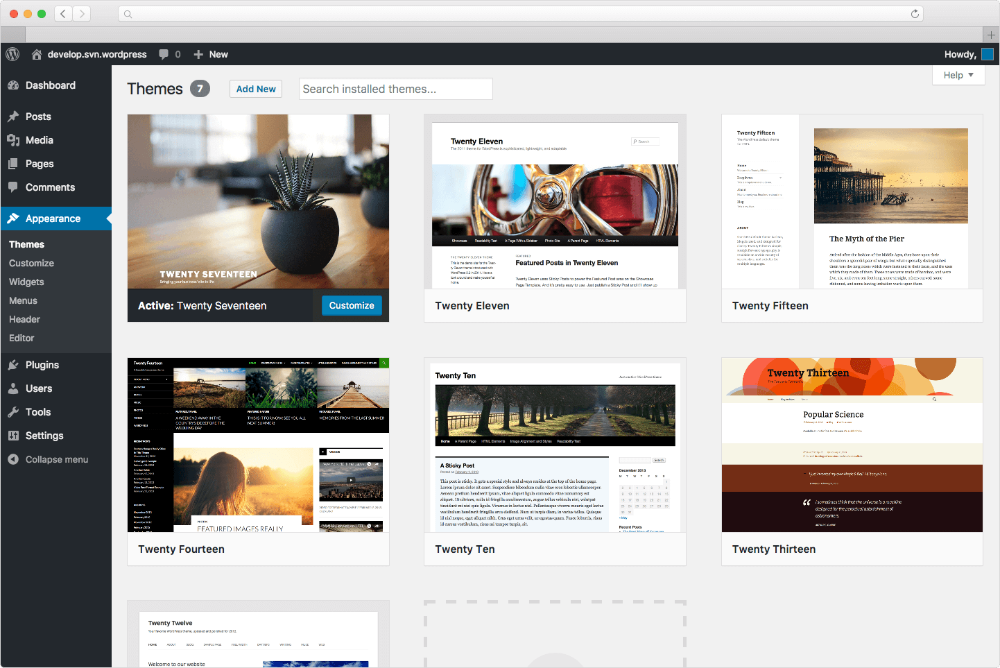
Choosing the right WordPress theme sets the foundation for your website. A theme controls the site’s look and feel. It affects layout, colors, fonts, and functionality. Picking a theme that fits your needs makes building easier. It also improves visitor experience. Spend time exploring your options before deciding.
Explore Free And Premium Themes
WordPress offers thousands of free themes in its official directory. These themes are easy to install and use. Free themes suit basic websites and blogs. Premium themes come with more features and support. They often include customization options and better design. Premium themes cost money but add value. Both free and premium themes can work well. Choose based on your budget and site goals.
Select A Theme Matching Your Style
Look for a theme that matches your content and brand style. Consider colors, fonts, and layout options. Your theme should be mobile-friendly and fast. Check if it supports plugins you plan to use. Read reviews and test demos to see how it looks. Pick a theme that feels right for your audience. A matching style helps keep visitors engaged and returning.
Set Up WordPress Environment
Setting up the WordPress environment is the first step in creating your website template. A proper setup ensures your site runs smoothly and is easy to manage. This section guides you through installing WordPress and accessing its dashboard.
Follow the simple steps to get your WordPress site ready for customization.
Install WordPress On Your Server
Start by downloading the latest WordPress package from the official site. Upload the files to your web hosting server using FTP or a file manager. Create a MySQL database for WordPress to store your data. Run the WordPress installation script by visiting your domain in a browser. Fill in the requested information, like site name and admin credentials. Complete the setup and log in to your new WordPress site.
Access The WordPress Dashboard
Log into your site by going to yourdomain.com/wp-admin. Enter your username and password created during installation. The dashboard is your control center for managing content and appearance. From here, you can install themes, add plugins, and customize settings. Explore the menu to familiarize yourself with all tools available.
Create A New Template
Creating a new template in WordPress lets you customize page layouts.
This process gives your website a unique look and feel beyond default themes.
Follow simple steps to add a custom template that fits your needs.
Navigate To Appearance And Editor
Start by logging into your WordPress dashboard.
Look for the “Appearance” option in the left menu.
Click on “Editor” to open the theme file editor.
This area allows you to view and edit theme files directly.
Add A Custom Template
Inside the editor, find the Templates folder or section.
Click the button labeled “Add New Template” or similar.
Name your new template clearly, such as “Custom Page”.
Write or paste your HTML and PHP code for the template.
Save your changes to make the template available for pages.
Assign this template when editing any page in WordPress.
Now, your page uses the new layout you created.
Customize Template Layout
Customizing the template layout lets you shape your website’s look and feel. It helps create a unique style that matches your brand. Editing layout parts improves user experience and site navigation.
This section focuses on two key layout elements: the header and footer, and the overall page structure. Adjusting these areas makes your site more attractive and easier to use.
Modify Header And Footer
The header and footer are visible on every page. They hold important links, logos, and contact info. Start by accessing your WordPress dashboard. Go to Appearance > Customize, then select Header or Footer.
Change the logo or site title to reflect your brand. Edit menus to help visitors find pages quickly. Add social icons or phone numbers in the footer for easy contact. Keep the design simple and clean to avoid clutter.
Adjust Page Structure
Page structure controls how content is arranged on each page. Use the WordPress block editor to add or move sections. Create columns, insert images, or embed videos to make pages engaging.
Set clear headings to organize content. Break text into short paragraphs for easy reading. Include calls to action to guide visitors through the site. Preview changes on different devices to ensure responsiveness.
Edit Template With Block Editor
Editing your website template with the WordPress Block Editor gives you control over your site’s look. The Block Editor uses blocks to build pages. Each block holds a piece of content, like text, images, or buttons. This method simplifies adding and changing elements on your site. It also lets you see exactly how your page will look as you edit.
Use Blocks To Add Content
Start by opening your template in the Block Editor. Choose the spot where you want new content. Click the plus (+) icon to add a block. Blocks come in many types: paragraphs, images, headings, lists, and more. Pick the block that fits your content needs. After adding, type or upload your content directly into the block. You can add as many blocks as needed to build your page.
Arrange Elements Visually
Drag blocks up or down to change their order. This lets you arrange your page visually and easily. Use the toolbar above each block to adjust alignment or style. Group blocks together for better layout control. Adjust spacing to keep your design clean. Preview your template on different devices to check its appearance. This ensures your template looks great everywhere.
Add Custom Css And Scripts
Adding custom CSS and scripts to your WordPress template lets you control design and functionality. This step allows you to personalize your website beyond the default settings. You can change colors, fonts, layouts, and add interactive features. Custom CSS targets the style, while scripts like JavaScript add dynamic behavior.
Enhance Design With Css
Custom CSS helps you improve your website’s look. You can change background colors, font sizes, and spacing easily. Use simple CSS rules to match your brand style. WordPress lets you add CSS via the Customizer or a child theme. This keeps your changes safe during updates. Small tweaks make your site more unique and professional.
Include Javascript For Interactivity
JavaScript adds life to your website with interactive elements. Use scripts to create sliders, pop-ups, or form validations. You can insert JavaScript in the theme’s header or footer files. Plugins also help add scripts without coding. Interactive features engage visitors and improve user experience. Keep scripts light to avoid slowing down your site.
Integrate Plugins For Features
Integrating plugins is essential to enhance your WordPress website template. Plugins add new features without changing the core code. They allow you to customize functionality easily. This section explains how to choose and configure plugins properly.
Choose Plugins For Added Functionality
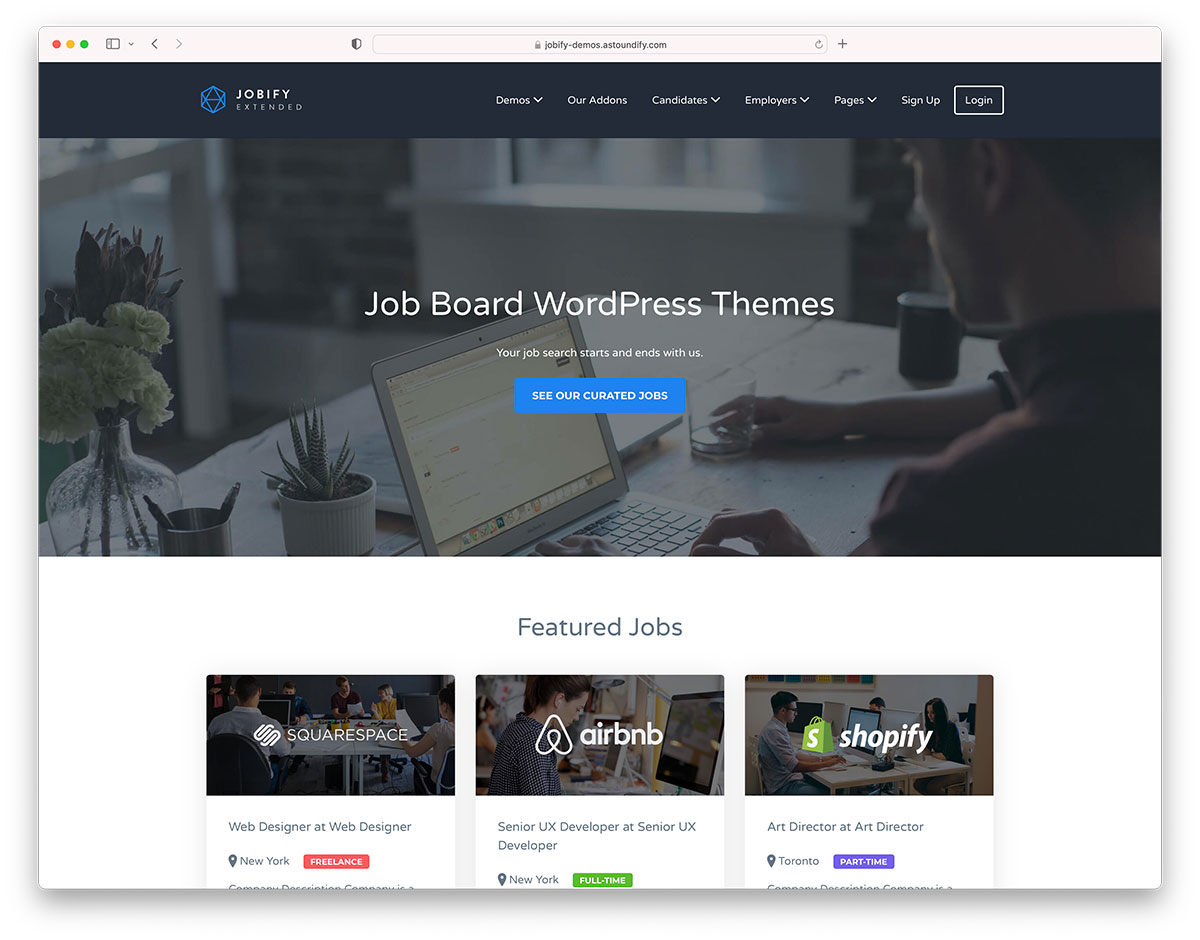
Select plugins that improve your website’s purpose. Look for plugins with good reviews and regular updates. Focus on features like SEO, security, contact forms, or social sharing. Avoid too many plugins to keep the site fast. Pick only what your template and visitors need most.
Configure Plugins To Match Template
After installation, set up each plugin carefully. Match plugin styles with your template design. Adjust settings to fit your website’s look and feel. Test each feature to ensure it works well. Proper configuration keeps your site smooth and user-friendly.
Credit: colorlib.com
Test Template Responsiveness
Testing your WordPress template’s responsiveness ensures it looks great on all devices. A responsive template adapts its layout to fit screens of different sizes. This step is crucial for user experience and SEO performance.
Responsive design helps visitors easily navigate your site on phones, tablets, and desktops. Without testing, some elements might appear broken or misaligned. Fixing these issues early saves time and improves your site’s professionalism.
Check Mobile And Desktop Views
Start by viewing your template on various screen sizes. Use your browser’s developer tools to toggle between mobile and desktop views. Pay close attention to menus, images, and text spacing.
Open the site on real devices too, like smartphones and tablets. This helps spot problems that simulators might miss. Look for elements that overlap or text that is too small to read.
Fix Layout Issues
Identify any broken layouts or misaligned sections during your checks. Adjust CSS styles to correct widths, margins, and font sizes. Use flexible units like percentages and ems instead of fixed pixels.
Ensure buttons and links remain easy to tap on small screens. Test changes regularly to confirm fixes work across all devices. A clean, consistent layout improves user trust and engagement.
Assign Template To Pages
Assigning templates to pages in WordPress controls how each page looks. Templates give pages unique layouts. This adds variety and improves user experience.
You can assign different templates to different pages. This lets you customize each page easily. WordPress makes this process simple and fast.
Select Custom Template Per Page
To select a custom template, open the WordPress dashboard first. Go to the Pages section and choose the page to edit. On the right side, find the Page Attributes box. Under Template, click the dropdown menu. Pick the custom template you want for that page. Save or update the page to apply the template.
Each template changes the page’s style and structure. Use templates for special pages like About or Contact. This keeps your website organized and visually appealing.
Manage Page-specific Layouts
Page-specific layouts help you control page design. You can show different headers, footers, or sidebars per page. This fits the content type perfectly. WordPress allows easy switching between layouts with templates.
To manage layouts, create templates with unique code in your theme folder. Name them clearly, so you recognize each one. Assign these templates on the page editor as needed. This method makes your site flexible and user-friendly.
Backup And Publish Your Site
Backing up and publishing your website template is a vital step. It protects your work and makes your design visible online. Saving changes regularly avoids data loss. Publishing puts your custom site live for visitors.
Save Template Changes
Always save your template updates before leaving the editor. Use the built-in save button in WordPress. This ensures all your customizations are stored safely. Consider exporting a copy of your template files. Keep backups on your computer or cloud storage. This helps restore your site if anything breaks.
Go Live With Your Custom Design
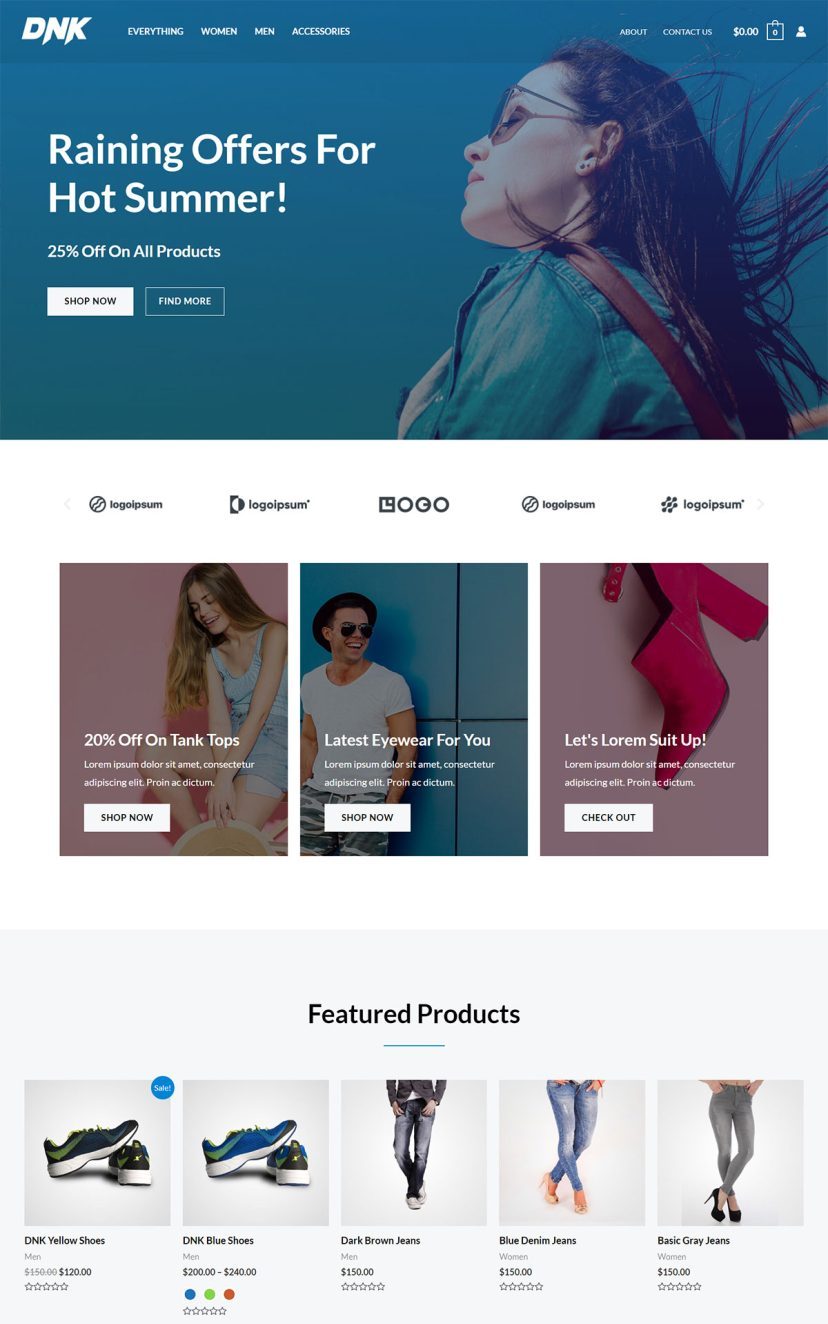
After saving, check your template for errors. Preview your site on different devices for a smooth look. When ready, publish the template to make it public. Click the publish button in your WordPress dashboard. Confirm your site loads correctly after going live. Share your new design with your audience.
Credit: wpastra.com
Frequently Asked Questions
How To Make A Website Template In WordPress?
Access your WordPress dashboard, go to Appearance → Editor, select Templates, and click “Add Template. ” Customize and save your new template.
Can You Create Your Own Template In WordPress?
Yes, you can create your own WordPress template by accessing Appearance > Editor and adding a new template. Customize it using the Block Editor.
How To Create A Customized Template?
Open your document or site editor. Select “Save as Template” or “Add New Template. ” Name and customize it. Save to use later.
What’s The Difference Between A WordPress Theme And A Template?
A WordPress theme controls the overall design and functionality of your entire site. A template defines the layout of a single page within that theme.
Conclusion
Creating a WordPress website template is simpler than it seems. Start by accessing your dashboard and exploring the template options. Customize layouts step-by-step to match your style. Testing your template on different devices ensures it looks great everywhere. Keep your design clean and user-friendly for better visitor experience.
Practice and patience will improve your skills over time. Your website will stand out with a unique, well-built template. Keep learning and updating to stay current with WordPress features. Success comes from consistent effort and simple, clear design choices.


