
Are you eager to customize your WordPress site without the fear of losing your changes with the next update? You’ve landed in the right place.
Creating a child theme in WordPress is your secret weapon for safe and efficient customization. Imagine having the freedom to tweak your website’s design and functionality while keeping the core theme intact. Sounds intriguing, right? By the end of this article, you’ll be equipped with the simple steps to create your own child theme.
This will not only empower you to personalize your site but also ensure that your changes are future-proof. Dive in to discover how you can unlock a world of customization possibilities without compromising your site’s stability.
What Is A Child Theme
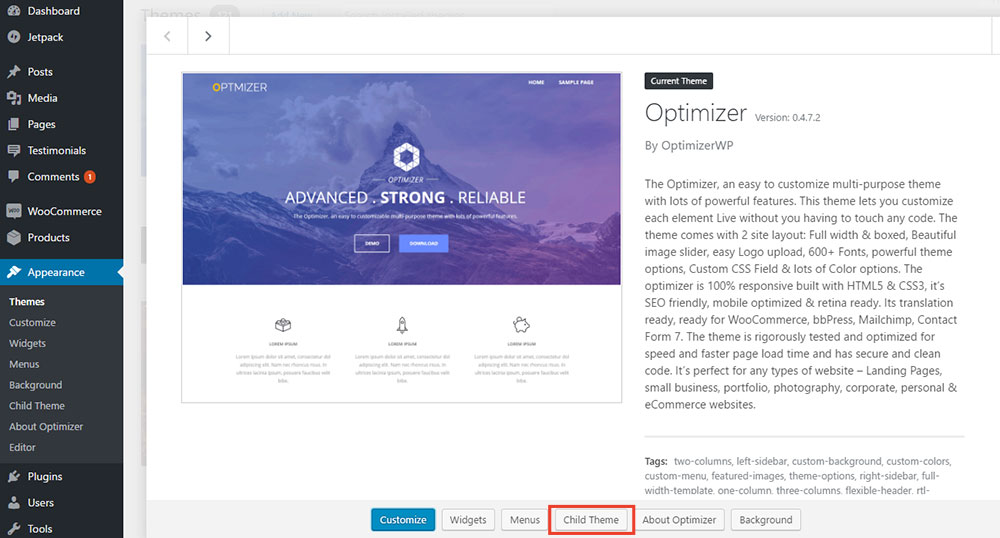
A child theme is like a copy of a main theme. It helps to keep changes safe. When the main theme gets updated, the child theme saves your work. This is great for keeping your website look the same. A child theme is not hard to make. You just need two files. The first file is style.css and the second is functions.php. These files help to make changes easy.
Using a child theme is a smart choice. It lets you try new looks. You can change colors or fonts. Your main theme stays safe. Many WordPress users like child themes. They make website design fun and safe. No worries about losing work. It’s a simple way to get creative.
Credit: optimizerwp.com
Benefits Of Using Child Themes
Child themes keep your main theme safe. They make updates easy. You can change the look without breaking the main theme. This is useful for beginners. Changes stay even after updates. Your design won’t disappear. This means less work for you.
Using child themes helps in learning. You get to know how WordPress works. It’s a fun way to learn. You can try new things. Mistakes won’t hurt your main theme. This gives you freedom to explore. It’s a safe way to grow skills.
Preparing For Child Theme Creation
Choose a parent theme that suits your needs. Look for themes with good reviews. Ensure the theme is regularly updated. This will help avoid security issues. Popular themes are often a safe choice.
Set up your development environment on your computer. You need a text editor like Notepad++ or Sublime Text. Install WordPress locally using software like Local by Flywheel or XAMPP. This lets you test changes easily without affecting your live site. Organize files neatly to keep track of modifications. A tidy workspace helps avoid confusion.
Creating The Child Theme Directory
Start by opening your WordPress installation folder. Look for the wp-content folder. Inside, you will find the themes directory. This is where all your themes live.
Create a new folder here. Name it something like my-child-theme. This will be your child theme directory. Make sure the name is simple and clear.
Inside this new folder, you need two files. One is style.css. The other is functions.php. These files are important for your child theme to work.
Your child theme is now ready to take shape. Keep it organized. It helps in managing styles and features easily. Remember, a child theme is like a mini theme that relies on a parent theme.
Adding The Style.css File
Child themes need a style.css file. This file tells WordPress about the theme. First, create a new folder for your child theme. Inside this folder, make a file named style.css. This file includes important details. Write the theme name, author, and version at the top. Use comments to add this information. Comments help keep things clear.
Structuring The Css File
Organizing the CSS file is important. Keep styles clean and tidy. Group similar styles together. Use comments to explain sections. This makes the file easy to read. Start with basic styles. Then add custom styles below. This order helps WordPress understand the file.
Enqueuing Parent And Child Styles
Both parent and child styles need to load. Use functions.php for this. Add code to enqueue parent styles first. Then enqueue child styles. This ensures child styles overwrite parent styles. Use wp_enqueue_style() function for this. Place the code in the child theme’s functions.php file. This setup makes sure styles work correctly.
Setting Up The Functions.php File
The functions.php file is like a toolbox. You can add features here. Want a new menu? You can do it. Need a sidebar? Add it here.
Make sure each code line is correct. A small mistake can cause problems. Always test your changes. This keeps your site safe.
Errors can break a site. So, have a backup plan. Save a copy of your original functions.php file.
Use a code editor to spot mistakes. These tools help find errors quickly. Test changes on a test site first. This keeps the main site safe.
Customizing Template Files
First, find the template file you want to change. Use your file manager to locate it. Copy this file to your child theme folder. Keep the same name for the file. Now, your child theme can edit this file. Your changes will not affect the parent theme. This keeps your website safe during updates.
Open the copied template file in a text editor. Look for the parts you want to change. Make small changes at first. See how they look on your website. This helps you learn how templates work. Be creative but careful with your edits. Always save a backup before making changes.
Testing The Child Theme
Creating a child theme in WordPress allows you to customize your site while preserving the original theme’s settings. Testing ensures that the child theme functions correctly without disrupting your website’s design or features. Regular checks prevent potential issues, keeping your site efficient and user-friendly.
Checking Compatibility
Ensure the child theme works well with the parent theme. Activate the child theme first. Check if the layout looks correct. Also, see if the colors match. Test the fonts too. They should not change unexpectedly. Click through different pages. Make sure all links work. Test on different devices. Use a phone and a tablet. Everything should look good on all screens.
Debugging Common Issues
Sometimes, problems happen with child themes. A page might not load. Or, images may not show. First, check the error logs. They can give clues. Look for missing files or code errors. Try clearing the cache if things don’t update. Update both parent and child themes. It helps fix many bugs. If problems stay, disable plugins one by one. Some might cause conflicts. Keep testing until everything works well.
Deploying The Child Theme
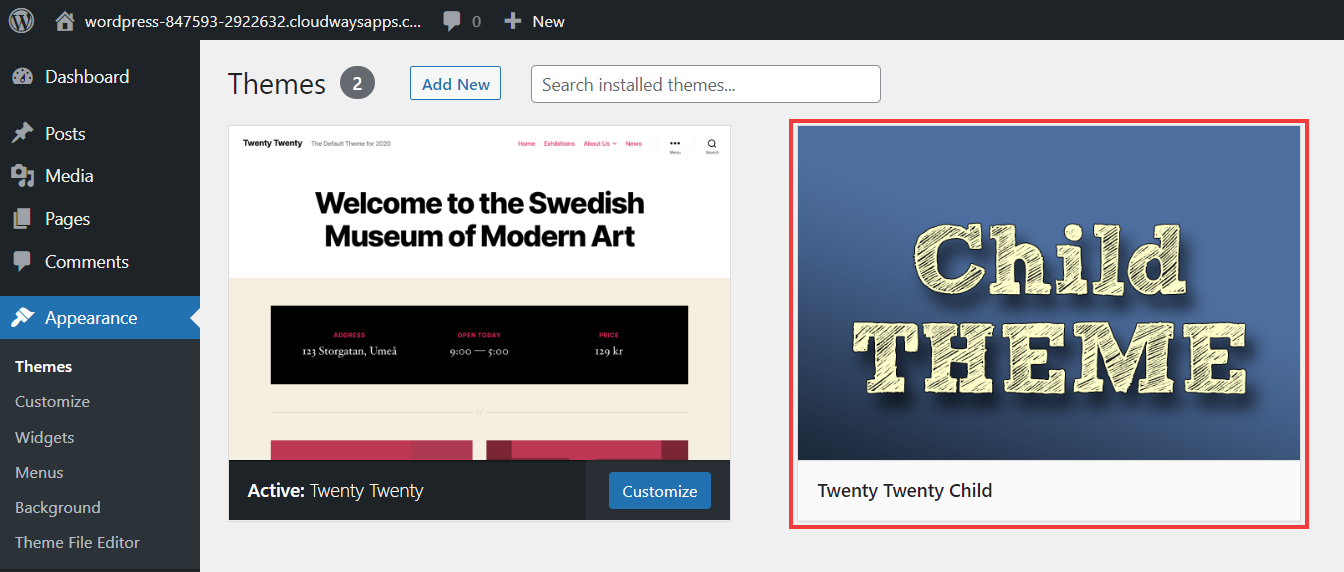
Go to your WordPress dashboard. Click on Appearance, then Themes. You will see your new child theme. Click on Activate to use it. The child theme will now be active on your site.
Always preview your site after activating the child theme. Check if everything looks fine. Ensure that all customizations are intact. Verify that all plugins work well. Look for any errors or broken links.
Test the site on different devices. Make sure it is responsive and user-friendly. Resolve any issues before launching. This helps in providing a smooth user experience.
Credit: www.cloudways.com
Credit: www.cloudways.com
Frequently Asked Questions
What Is A Child Theme In WordPress?
A child theme in WordPress is a sub-theme that inherits functionality from a parent theme. It allows you to modify the appearance and features of a website without altering the original theme files. This ensures updates to the parent theme don’t override your customizations, maintaining a seamless, customized design.
Why Use A Child Theme In WordPress?
Using a child theme in WordPress allows for safe modifications without affecting the parent theme. It preserves your customizations during updates, ensuring your site remains functional and up-to-date. This approach is ideal for developers seeking to tweak a theme’s design or functionality while maintaining its core features.
How Do I Create A WordPress Child Theme?
To create a WordPress child theme, first create a new folder in the themes directory. Then, add a style. css file with a template header referencing the parent theme. Finally, add a functions. php file to enqueue styles. Activate the child theme in the WordPress dashboard for your changes to take effect.
Can I Modify Theme Files Directly?
Modifying theme files directly is not recommended, as updates will overwrite changes. Instead, use a child theme to make modifications. This method ensures your customizations remain intact when the parent theme updates, preserving your site’s design and functionality without the risk of losing important changes.
Conclusion
Creating child themes in WordPress empowers your website customization. With child themes, changes are safe and updates are easy. This method preserves your original theme, reducing risks. Beginners can experiment without fear of breaking the site. Remember, planning is key before starting.
Organize your files well. Test your new theme thoroughly to ensure compatibility. Child themes offer flexibility and control. Your site can evolve with your vision, remaining stable. Dive in with confidence, knowing you have the tools to create. Child themes help you build a unique and dynamic site.


