
Ready to create your own website but not sure where to start? Making a WordPress website is easier than you think, even if you have no technical skills.
Whether you want a blog, a business site, or an online store, WordPress gives you the tools to build exactly what you need. In this guide, you’ll discover simple, step-by-step instructions to get your site up and running quickly. By the end, you’ll have the confidence to design a site that looks great and works perfectly for your goals.
Let’s dive in and turn your website idea into reality!
Credit: wedevs.com
Choosing Between WordPress.com And WordPress.org
Choosing between WordPress.com and WordPress.org is an important step. Both platforms help you build a website but work very differently. Picking the right one depends on your needs, budget, and technical skills.
WordPress.com is a hosted service that manages the technical side for you. WordPress.org provides software you install on your own web host, giving full control over your site.
Free WordPress.com Plan Features
The free WordPress.com plan lets you create a website quickly. It includes a WordPress subdomain like yoursite.wordpress.com. You get basic themes and customization options. Hosting and security are handled by WordPress.com. It also offers free SSL for safe browsing. Automatic updates and backups are included. This plan is good for simple blogs or personal sites.
Limitations Of WordPress.com Free Plan
The free plan restricts your site’s growth. You cannot install custom plugins or themes. Storage space is limited to 3 GB. Ads placed by WordPress.com appear on your site. Monetization options are not available. You cannot upload custom code or make advanced changes. The WordPress.com branding stays on your site. These limits may affect business or professional websites.
Benefits Of Self-hosted WordPress.org
WordPress.org gives full control over your website. You choose your own domain name and web host. You can install any theme or plugin to extend features. There are no storage limits, only by your host. You control your site’s design, SEO, and functionality. It is possible to monetize your site freely. You are responsible for updates, backups, and security. This option suits users ready to manage their site.
Getting A Domain And Hosting
Getting a domain and hosting is the first step to build a WordPress website. The domain is your website’s address on the internet. Hosting is where your website files are stored online. Both are essential for your site to be live and accessible to visitors.
Choosing the right domain and hosting provider can affect your website speed, security, and ease of management. It is important to pick options that fit your budget and needs. This guide explains how to register a domain, select hosting, and compare popular providers.
Registering A Domain Name
Your domain name should be short, memorable, and related to your site’s topic. Use simple words and avoid complex spellings. Check availability using domain registrars like Namecheap or GoDaddy. Register your domain for one year or longer to secure it.
Choose a domain extension that suits your website type. Common extensions include .com, .net, and .org. Some countries have their own extensions, such as .us for the United States. Registering a domain gives your website a unique identity online.
Selecting A Budget Web Host
Web hosting plans vary in price and features. Look for affordable options that offer good uptime and fast servers. Shared hosting is a low-cost choice for new websites. It means your site shares server space with others.
Check if the host provides one-click WordPress installation. This feature saves time and effort. Also, consider customer support availability. Reliable support helps solve problems quickly. Always read reviews to ensure the host is trustworthy.
Comparing Popular Hosting Providers
Popular hosts like Bluehost, SiteGround, and Hostinger are great starting points. Bluehost offers beginner-friendly tools and free domain registration for one year. SiteGround is known for excellent speed and support. Hostinger provides very low prices with solid performance.
Compare features such as storage, bandwidth, security, and backups. Some hosts include free SSL certificates for website security. Look for renewal prices too, as initial discounts often increase after the first term. Choose a provider that balances cost and quality well.
Installing WordPress
Installing WordPress is the first key step in creating your website. It puts the WordPress software on your web server. This lets you start building your site with ease. There are two main ways to install WordPress: one-click installation or manual installation. Both methods are straightforward and user-friendly. Choose the one that fits your comfort level and hosting setup.
One-click Installation Options
Many web hosts offer one-click WordPress installation. This tool installs WordPress automatically for you. It saves time and effort. Usually, you find this option in your hosting control panel. Popular hosts like Bluehost, SiteGround, and HostGator include it. You just click the WordPress icon, select your domain, and start the install. The system handles the rest, creating your database and files.
This method is great for beginners. No technical skills needed. It sets up WordPress quickly and correctly. After installation, you get a link to log in to your new site’s dashboard.
Manual Installation Steps
Manual installation means doing it yourself step-by-step. You download the WordPress package from WordPress.org. Then, upload it to your hosting server using FTP. Next, you create a database in your hosting control panel. After this, run the WordPress installation script by visiting your domain in a browser. You will enter your database details and site info during setup.
This method gives full control over the installation. It helps if you want a custom setup or your host does not support one-click install. The process is simple and well-documented on the WordPress site.
Accessing The WordPress Dashboard
Once WordPress is installed, access the dashboard to start building your site. Go to yourdomain.com/wp-admin in a browser. Enter the username and password you created during installation. The dashboard is your WordPress control panel. It lets you add posts, pages, themes, and plugins.
From here, customize your site’s look and functions. The dashboard is easy to navigate and designed for users of all skill levels. It’s your hub for managing your WordPress website.
Choosing Themes And Plugins
Choosing the right themes and plugins is a key step in building your WordPress website. Themes control the look and feel, while plugins add important functions. Picking the best ones ensures your site runs smoothly and looks professional.
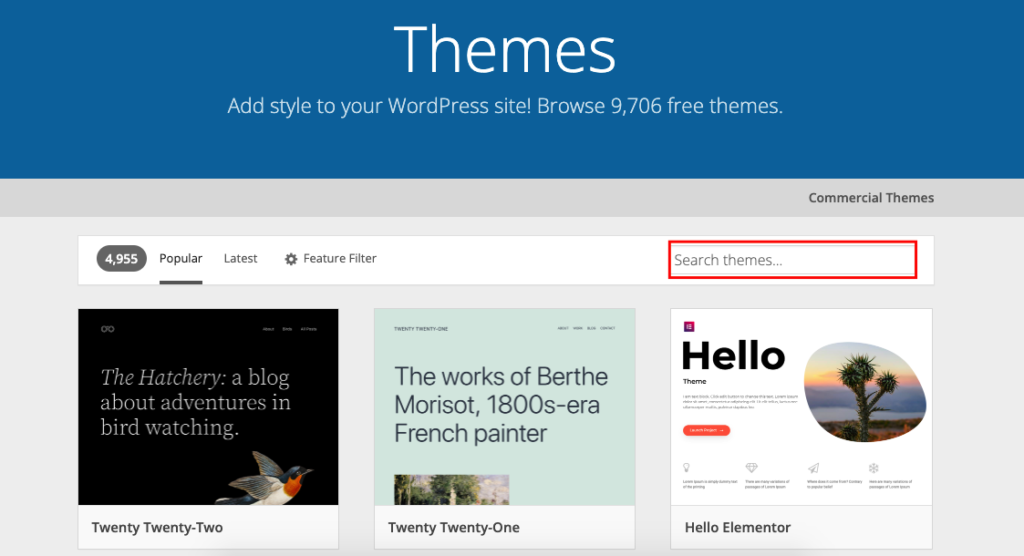
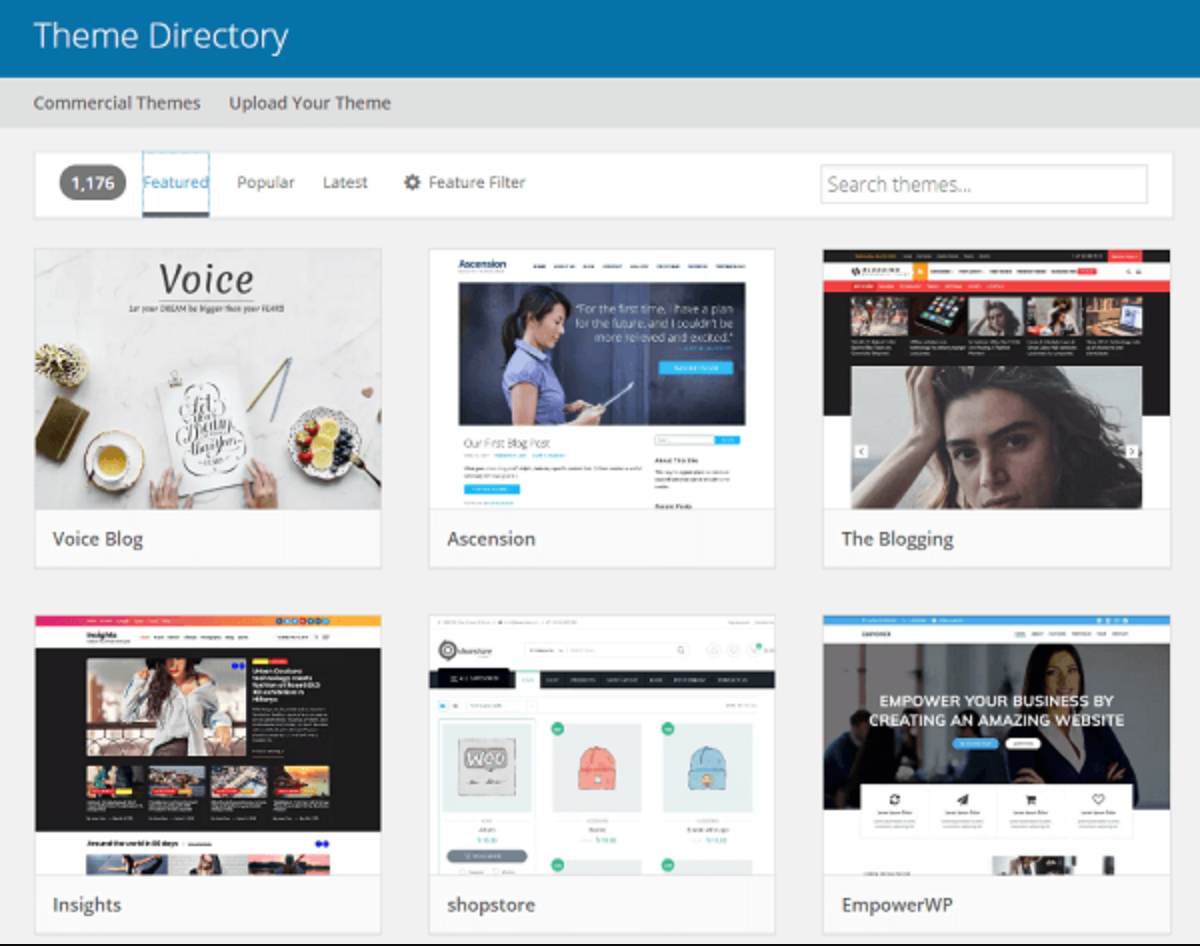
Exploring Free Themes
Free themes offer a simple way to start your website design. WordPress has a large library with many styles and layouts. These themes are easy to install and update. They help you create a clean and responsive site without cost.
Look for themes that match your website’s purpose. Check user ratings and reviews before choosing. Make sure the theme works well on phones and tablets too.
Installing Essential Plugins
Plugins add features that your site needs. Some must-have plugins include security, SEO, and backup tools. They protect your site and help it rank better on search engines.
Install only plugins from trusted sources. Too many plugins can slow down your site. Keep your plugins updated to avoid issues.
Using Page Builders For Custom Design
Page builders let you design pages easily with drag-and-drop tools. They do not require coding skills. You can create unique layouts and add elements like buttons, images, and forms.
Popular page builders work with most themes and plugins. They help you make your website look exactly how you want. Experiment with these tools to build a user-friendly site.
Customizing Your Website
Customizing your WordPress website helps you create a unique online presence. It allows you to control how your site looks and feels. This step is crucial to engage visitors and make navigation easy. Let’s explore key ways to personalize your website effectively.
Modifying Site Identity And Layout
Start by setting your site title and tagline. These elements appear in the browser tab and help visitors recognize your brand. Next, upload a logo to strengthen your identity. Adjust your website layout to fit your content style. Choose from full-width, boxed, or grid layouts based on your theme. Changing colors and fonts also adds personality. Use the WordPress Customizer for these edits. It shows live previews before saving changes.
Adding Menus And Widgets
Menus guide visitors through your site. Create clear menus for easy navigation. Include important pages like Home, About, and Contact. WordPress lets you add menus in header or footer areas. Widgets add extra features to sidebars or footers. Common widgets include search bars, recent posts, and social media links. Drag and drop widgets to your preferred spots. Customize each widget’s settings to match your site’s style.
Optimizing For Mobile Devices
Many visitors use phones or tablets to visit websites. Ensure your site looks good on all screen sizes. Choose a responsive theme that adapts automatically. Check your site on different devices to spot issues. Use WordPress tools to adjust font sizes and button placements. Fast loading speed is essential for mobile users. Compress images and minimize plugins to improve performance. A mobile-friendly site increases visitor satisfaction and search rankings.
Creating Content
Creating content is the heart of any WordPress website. It helps you share your message clearly and attract visitors. Good content keeps people interested and encourages them to explore your site more.
Focus on organizing your content well. Use pages and posts wisely to separate different types of information. Add media like images and galleries to make your site visually appealing and engaging.
Adding Pages And Posts
Pages are for static content like About or Contact information. They stay the same and help visitors find key details. Posts are for regular updates or blog entries. They appear in reverse order with the newest first.
To add a page or post, go to your WordPress dashboard. Click on “Pages” or “Posts,” then choose “Add New.” Write your content, give it a title, and publish it. Keep your text clear and simple for easy reading.
Using Categories And Tags
Categories group your posts by broad topics. They help visitors browse related content easily. Tags describe specific details or keywords in your posts. They offer another way to find related articles.
Assign categories and tags when creating or editing posts. Use only a few categories to avoid confusion. Choose tags that match the main ideas in your post. This improves your site’s structure and helps search engines understand your content.
Incorporating Media And Galleries
Images and videos make your content more attractive and engaging. They break up text and keep readers interested. Use high-quality media that fits your message and style.
To add media, click “Add Media” in the editor. Upload files from your computer or select from your media library. Create galleries to display multiple images in a neat layout. Galleries help showcase products, events, or portfolios clearly.
Setting Up Basic Website Features
Setting up basic features is essential for any WordPress website. These features help your site run smoothly and attract visitors. They also protect your site from threats and make it easy for users to contact you.
Focus on three main areas: SEO settings, contact forms, and security. Each plays a key role in your website’s success. Let’s explore how to set up these features clearly and simply.
Configuring Seo Settings
SEO helps search engines find and rank your website. Start by installing an SEO plugin like Yoast SEO or Rank Math. These tools guide you to optimize your pages with keywords and meta descriptions.
Set up a sitemap and submit it to Google Search Console. This helps Google index your site faster. Use clear titles and headings on each page. Keep URLs short and descriptive.
Regularly update content with relevant keywords. Avoid keyword stuffing; focus on natural writing. Good SEO makes your site easier to find and brings more visitors.
Enabling Contact Forms
Contact forms let visitors reach you quickly. Install a plugin like Contact Form 7 or WPForms. These plugins offer easy drag-and-drop form builders.
Create a simple form with fields for name, email, and message. Place the form on a Contact page or in the footer. Test the form to make sure it sends messages correctly.
Use spam protection features like CAPTCHA. This keeps unwanted bots from flooding your inbox. A contact form builds trust and encourages communication.
Implementing Security Measures
Security protects your website from hackers and malware. Start by installing a security plugin such as Wordfence or Sucuri. These plugins monitor your site for threats.
Use strong passwords and change the default WordPress login URL. Enable two-factor authentication for extra protection. Keep WordPress, themes, and plugins updated to fix vulnerabilities.
Back up your website regularly. Store backups in a safe place outside your hosting server. Good security practices keep your website safe and reliable.
Credit: www.youtube.com
Launching And Maintaining Your Site
Launching and maintaining your WordPress website is a vital step for success. It lets visitors see your content and keeps your site safe and fast. Proper care ensures your site runs smoothly and grows over time. Follow simple steps to preview, publish, update, and monitor your site easily.
Previewing And Publishing Your Website
Before showing your site to the world, preview it carefully. Use WordPress’s preview tool to check how pages look on different devices. Fix any errors or design issues you find. Once happy, hit the publish button to make your site live. Publishing shares your work with visitors instantly. You can always update your site after publishing.
Regular Updates And Backups
Keep WordPress, themes, and plugins updated for security and new features. Updates protect your site from hackers and bugs. Schedule backups often to save your site data. Use plugins or hosting services to automate backups. Store backups offsite for safety. Regular updates and backups reduce risks and keep your site stable.
Monitoring Site Performance
Check your website speed and uptime regularly. Fast sites keep visitors happy and improve search rankings. Use tools like Google PageSpeed Insights or Pingdom to test performance. Monitor visitor traffic to understand user behavior. Fix slow-loading pages and broken links quickly. Monitoring helps you provide a better user experience and grow your site steadily.
Credit: www.crazyegg.com
Frequently Asked Questions
How Do I Create My Own Website On WordPress?
Choose a domain and hosting, install WordPress, select a theme, customize your site, then add content and plugins.
Can You Make A WordPress Website For Free?
Yes, you can create a free WordPress website using WordPress. com’s free plan, but it has limited features and displays ads. For full control, use free WordPress. org software with paid hosting and a domain, which involves some costs but offers greater customization and flexibility.
Why Are People Moving Away From WordPress?
People move away from WordPress due to complex updates, security risks, slow performance, and high maintenance costs. Alternative platforms offer easier use and faster setup.
Can A Beginner Make A WordPress Website?
Yes, beginners can easily create a WordPress website using free themes and plugins. WordPress offers user-friendly tools and guides.
Conclusion
Creating a WordPress website is simpler than it seems. Choose the right platform: WordPress. com for ease or WordPress. org for full control. Pick a good hosting service to ensure speed and reliability. Use free themes and plugins to customize your site’s look and features.
Keep your site updated and secure for the best experience. With patience and practice, anyone can build a functional website. Start small, learn as you go, and watch your site grow. Your online presence is just a few steps away.


