
Ready to create your own WordPress site but not sure where to begin? You’re in the right place.
Building a WordPress website might sound complicated, but it doesn’t have to be. Whether you want a simple blog, an online store, or a professional portfolio, this guide will walk you through every step with clear, easy instructions. By the end, you’ll have a site that looks great and works perfectly—without any guesswork.
Stick with me, and you’ll see just how simple making your own WordPress site can be. Let’s get started!

Credit: wordpress.org
Choosing Between WordPress.com And WordPress.org
Choosing between WordPress.com and WordPress.org is a key step in building your site. Both platforms use WordPress but differ in control and setup. Your choice affects your website’s flexibility, cost, and ease of use. Understanding their features helps you pick the best fit for your needs.
Features Of WordPress.com
WordPress.com hosts your site for you. It manages backups and security automatically. You get a free subdomain like yoursite.wordpress.com. Storage space is limited, which can restrict uploads. Themes and plugins are limited to what WordPress.com offers. You cannot install custom plugins or themes on the free plan. It is simple to set up and use. Good for beginners or small blogs.
Benefits Of WordPress.org
WordPress.org gives you full control over your site. You download the software and install it on your own hosting. There are no limits on themes or plugins. You can customize your site completely. It supports e-commerce and advanced features. Requires more technical skills to manage hosting and security. Ideal for businesses and serious bloggers.
Cost Considerations
WordPress.com offers a free plan but with restrictions. Paid plans remove ads and add features, starting around a few dollars monthly. WordPress.org software is free but needs paid hosting and a domain name. Hosting costs vary from a few dollars to more depending on traffic. Domains usually cost about $10 to $15 per year. Budget accordingly based on your needs and goals.
Setting Up Domain And Hosting
Setting up your domain and hosting is the first step in creating a WordPress site. This step gives your website its address on the internet and a place to store its files. Choosing the right domain name and hosting provider makes your site fast and easy to find. Follow the steps below to start your website smoothly.
Selecting A Domain Name
Your domain name is the web address people type to visit your site. Choose a name that is short, simple, and easy to remember. Use keywords related to your site’s topic. Avoid numbers and special characters to reduce confusion. Check if the domain is available using domain search tools. Pick a domain extension like .com, .net, or .org based on your site’s purpose.
Picking A Hosting Provider
Hosting providers store your website’s files and make them accessible online. Select a provider with good speed, uptime, and customer support. Look for hosting plans that support WordPress installations. Shared hosting is affordable for beginners, while VPS or dedicated hosting suits larger sites. Check if the provider offers easy WordPress setup and security features like SSL certificates.
Linking Domain And Hosting
After buying your domain and hosting, connect them to make your site live. Update your domain’s nameservers to the hosting provider’s nameservers. This change links your domain to your hosting space. It may take a few hours to propagate worldwide. Then, install WordPress through your hosting control panel or use a one-click installer. Your site will be ready to customize and launch.
Installing WordPress
Installing WordPress is the first step to creating your website. It sets up the core files needed to run your site. The process is simple and takes only a few minutes. There are two main ways to install WordPress. You can use a one-click installer or install it manually. Both methods lead to the same result: a ready-to-use WordPress site.
One-click Installation
Many web hosts offer one-click WordPress installation. This method is fast and easy. You just log in to your hosting account. Find the WordPress installer in the control panel. Click the install button and fill in basic site details. The installer does all the work automatically. No technical skills are needed. Your WordPress site is ready in minutes.
Manual Installation Steps
Manual installation gives you more control over the setup. First, download the latest WordPress package from WordPress.org. Next, upload the files to your web server using FTP. Create a new database on your hosting account. Open the WordPress setup URL in your browser. Follow the on-screen steps to connect WordPress to your database. Enter your site name, username, and password. Finish the installation and log in to your new site.
Accessing The WordPress Dashboard
After installation, access your WordPress dashboard. It is the control panel for your site. Go to yoursite.com/wp-admin in your browser. Enter your username and password to log in. The dashboard lets you add posts, pages, and themes. You can also install plugins and manage settings here. It is the heart of your WordPress site.
Choosing And Customizing Themes
Choosing and customizing a theme shapes the look and feel of your WordPress site. The right theme creates a strong first impression for visitors. It sets the style, colors, and layout. Customizing the theme lets you make your site unique and match your brand. You can change fonts, colors, and more without coding. A well-chosen and customized theme improves user experience and keeps visitors engaged.
Free Vs Premium Themes
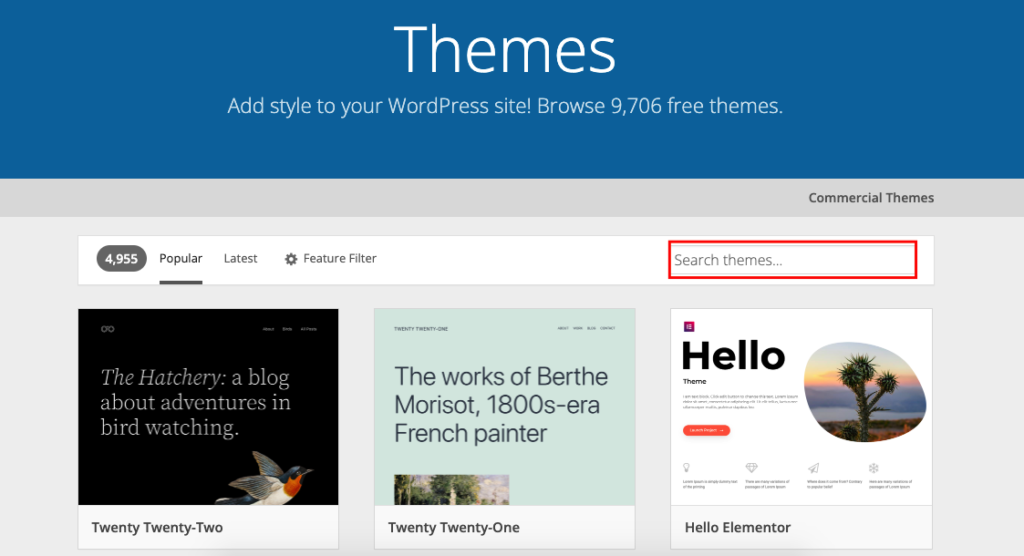
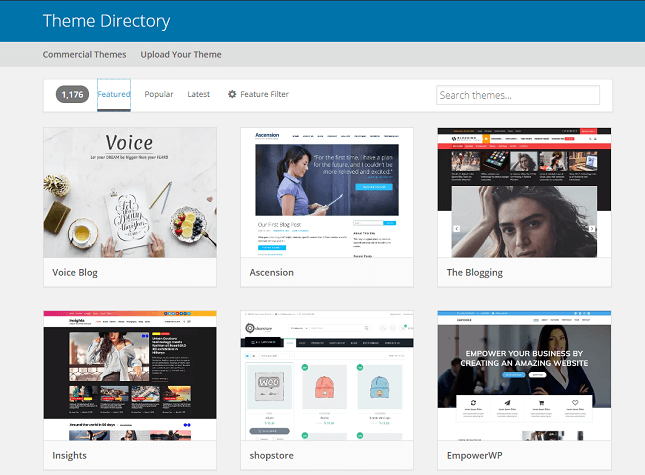
Free themes cost nothing and offer basic designs. They are easy to find in the WordPress theme directory. Many free themes work well for blogs and small sites. Premium themes cost money but have more features. They often include better support and regular updates. Premium themes provide advanced customization and unique designs. Choose based on your budget and site needs.
Installing A Theme
To install a theme, go to your WordPress dashboard. Click on “Appearance” then “Themes.” Click “Add New” to browse themes. Use the search bar to find a theme you like. Click “Install” and then “Activate” to apply the theme. You can also upload themes from your computer. Use the “Upload Theme” button for this. Installing is simple and takes just a few clicks.
Customizing Appearance
After activating a theme, customize it to fit your style. Go to “Appearance” and then “Customize.” Use the options to change site identity, colors, and menus. Some themes add extra settings for layouts and widgets. You can see your changes live before saving. Adjust fonts, backgrounds, and header images easily. Customization makes your site look professional and personal.
Adding Essential Plugins
Adding essential plugins improves your WordPress site’s features and performance. Plugins help you customize your site without coding. They add functions like security, SEO, and contact forms. Choosing the right plugins keeps your site fast and secure. Here is a simple guide to adding essential plugins.
Must-have Plugins For Beginners
Start with plugins that improve security and SEO. Install a security plugin to protect your site from hackers. SEO plugins help your site rank better on Google. Use a plugin for creating easy contact forms. A caching plugin speeds up your site. These plugins make your site more user-friendly and reliable.
Installing And Activating Plugins
Go to your WordPress dashboard and click on “Plugins.” Click “Add New” to search for plugins. Use the search bar to find the plugin you want. Click “Install Now” and wait for it to finish. Then click “Activate” to turn the plugin on. Your plugin is now ready to use.
Managing Plugin Settings
After activation, go to the plugin settings page. Customize the options to fit your site’s needs. Some plugins have simple settings, others have many options. Change settings carefully to avoid conflicts or errors. Save your changes and test the plugin on your site. Update plugins regularly to keep your site secure.
Creating Pages And Posts
Creating pages and posts is a key step in building your WordPress site. Pages and posts hold your content and let visitors find what they need. Understanding how to use them well helps your site stay organized and easy to use.
WordPress offers a simple way to add new content with its block editor. This editor lets you build your pages and posts with different blocks like text, images, and videos. It makes your content look good without needing to know code.
Difference Between Pages And Posts
Pages are for static content that rarely changes. Examples include About Us, Contact, or Privacy Policy pages. They sit outside the blog timeline.
Posts are for timely content like news or blog updates. They show in reverse order on your blog and can be grouped by categories and tags.
Using The Block Editor
The block editor uses blocks for each piece of content. You can add text, images, buttons, and more. Blocks are easy to move and edit.
Each block has its own settings to customize style and layout. This makes your pages and posts look professional and clean.
Organizing Content With Categories And Tags
Categories group posts by broad topics. They help visitors find posts on similar subjects. For example, a food blog might have categories like Recipes and Reviews.
Tags are more specific keywords that describe details in a post. They help with search and related content. Use tags to highlight key points or themes.
Optimizing For Seo
Optimizing a WordPress site for SEO improves its visibility in search engines. This helps attract more visitors and grow your audience. SEO involves several key steps that make your site easier to find and use.
Installing Seo Plugins
SEO plugins simplify many tasks needed for good SEO. They help with tasks like creating sitemaps, editing meta tags, and analyzing content. Popular plugins include Yoast SEO and All in One SEO Pack. These tools guide you to improve your site’s SEO without needing technical skills. Install and activate your chosen plugin from the WordPress dashboard. Then, follow the setup wizard to configure basic SEO settings.
Optimizing Titles And Meta Descriptions
Titles and meta descriptions show up in search results. They should be clear and include your main keywords. Keep titles under 60 characters and meta descriptions under 160 characters. Use simple language to describe each page’s content. SEO plugins allow easy editing of these elements on every post and page. Well-written titles and descriptions increase click rates and improve your rankings.
Improving Site Speed
Site speed affects both user experience and SEO rankings. Faster sites keep visitors longer and reduce bounce rates. Use tools like Google PageSpeed Insights to check your site speed. Compress images before uploading to reduce load time. Use caching plugins to serve pages faster. Choose a reliable hosting provider to ensure good server speed. Avoid heavy themes or too many plugins that slow down your site.
Setting Up Security Measures
Setting up security measures is vital for a WordPress site. It protects your content and users from hackers and malware. Safe websites build trust and improve site performance. Simple steps can strengthen your site’s defense.
Choosing Secure Passwords
Strong passwords stop unauthorized access. Use a mix of letters, numbers, and symbols. Avoid common words or easy patterns. Change passwords regularly to keep them fresh. Use different passwords for admin and users.
Installing Security Plugins
Security plugins add layers of protection. They block suspicious activities and scan for threats. Popular plugins include Wordfence and Sucuri Security. Set up alerts for unusual login attempts. Keep plugins updated to fix vulnerabilities.
Regular Backups
Backups save your site data in case of attacks. Schedule backups daily or weekly depending on updates. Store backups in a safe, separate location. Use plugins like UpdraftPlus for easy backup management. Test backups to ensure they work properly.
Launching And Promoting Your Site
Launching and promoting your WordPress site is an exciting step. It turns your hard work into a live website that visitors can explore. A smooth launch helps attract visitors quickly. Promoting the site spreads the word and builds your audience. Careful preparation ensures your site works well and looks professional from the start.
Testing Before Launch
Check every page and link on your site. Make sure all images load fast and appear correctly. Test your site on different devices like phones and tablets. Look for spelling mistakes or broken links. Fix any problems before the site goes live. This builds trust and keeps visitors happy.
Sharing On Social Media
Share your new site on platforms like Facebook, Twitter, and Instagram. Write clear, simple posts about your site’s purpose. Use images or videos to catch attention. Ask friends and followers to share your posts. Social media helps bring visitors to your site fast.
Monitoring Traffic
Use tools like Google Analytics to track visitors. See which pages get the most views and where visitors come from. Track how long people stay on your site. Use this data to improve your site and content. Monitoring traffic helps you grow your audience over time.
Credit: wedevs.com
Credit: www.websitebuilderexpert.com
Frequently Asked Questions
How Do I Build My Own WordPress Website?
Choose a domain and hosting, install WordPress, select a theme, customize your site, and add essential plugins. Publish your content to launch.
Can I Build A WordPress Site For Free?
Yes, you can build a free WordPress site using WordPress. com with limitations like a subdomain and limited storage. WordPress. org offers free software but requires paid hosting and a domain.
Why Are People Moving Away From WordPress?
People move away from WordPress due to complex maintenance, security risks, slower performance, and preference for simpler, more user-friendly platforms.
Can A Beginner Make A WordPress Website?
Yes, beginners can create a WordPress website easily using WordPress. com or WordPress. org with basic guidance.
Conclusion
Building a WordPress site is simpler than it seems. Choose between WordPress. com or WordPress. org based on your needs. Hosting and domain setup matter for full control. Customize your site with themes and plugins to fit your style. Keep learning and experimenting to improve your website.
Starting small and growing step by step works best. Enjoy creating your online presence with confidence and ease.


