
Do you want your WordPress website to stand out while maintaining its core functionality? Creating a child theme is the perfect solution.
It allows you to customize your site’s appearance without risking any updates to the parent theme. Imagine having the freedom to tweak your website’s design, add new features, and keep it fresh—all without breaking a sweat or losing your hard work with every update.
In this guide, you’ll discover the straightforward steps to make a child WordPress theme. Whether you’re a seasoned developer or a curious beginner, you’ll find this process empowering and surprisingly simple. Get ready to unlock the potential of your website and ensure it stays dynamic and user-friendly. Dive in and learn how to make your WordPress theme truly your own.
Understanding WordPress Child Themes
A child theme is a copy of another theme. It’s called the parent theme. You can make changes without breaking the parent theme. This is helpful for keeping updates safe. Your main theme stays untouched.
Always use a child theme for customization. This keeps your site secure and up-to-date. You can add new styles or functions. The original theme will not be harmed.
First, create a new folder for your child theme. Next, make a style.css file. This file tells WordPress about your child theme. Finally, create a functions.php file. This file links your child theme to the parent theme. Now, your child theme is ready to use!
Credit: www.cloudways.com
Benefits Of Using A Child Theme
Child themes help keep your customizations safe. You won’t lose changes after updates. This means less work later. Parent themes can be updated easily. Your site stays fresh and secure.
Flexibility is another plus. You can tweak your site design. Child themes allow easy editing. It is simple to change styles or functions. You can do this without harming the original theme.
Learning becomes fun with child themes. Kids can practice coding skills. You can experiment without fear. Mistakes won’t break your site. Build confidence and learn new skills.
Preparing For Child Theme Creation
Creating a child WordPress theme involves duplicating the parent theme’s style and functionality. Start by setting up a new directory for the child theme. Include a style. css file to define custom styles and a functions. php file to enqueue the parent theme styles.
Selecting The Parent Theme
Choosing a suitable parent theme is crucial. A parent theme provides the base for your child theme. Make sure it has a solid design and clean code. Popular themes often have good support and updates. Always check for compatibility with the latest WordPress version. Read reviews from other users for insights. Once you select, download and install it on your site. This step is essential before creating your child theme.
Setting Up The Development Environment
A good development setup makes work easier. Start by installing a code editor like Visual Studio Code or Atom. These editors help you write code clearly. Use an FTP client to access your site’s files. FileZilla is a popular choice for this. Ensure you have a local server environment. XAMPP and MAMP are user-friendly options. These tools help test changes before going live. Keeping your environment organized saves time.
Creating The Child Theme Directory
Choose a simple name for the child theme directory. The name should relate to the parent theme. Use lowercase letters and numbers. Avoid spaces and special characters. This helps in smooth functioning.
Place the child theme directory in the wp-content/themes folder. This is where WordPress looks for themes. Ensure the directory is inside the themes folder. This keeps everything organized and easy to find.
Configuring The Style.css File
Every child theme needs a style.css file. This file holds key details. Add your theme’s name, description, and author. Also include the template line. This line connects your child theme to the parent theme. Without this, your child theme won’t work.
Importing parent theme styles is crucial. Use the @import rule. This rule brings in the parent theme’s styles. Copy this code: @import url("../parent-theme/style.css");. Replace “parent-theme” with the actual name. Now, your child theme inherits styles. It makes your site look the same.
Credit: www.cloudways.com
Setting Up Functions.php
Begin by creating a functions.php file in your child theme folder. This file allows you to add or modify PHP functions. To enqueue styles, use the wp_enqueue_style() function. This function links your child theme’s stylesheet. Ensure the parent theme’s styles load first. This keeps the design consistent. For scripts, use wp_enqueue_script(). It helps load custom scripts. Place these inside the wp_enqueue_scripts action hook. This ensures they load correctly. Always use unique function names to avoid conflicts.
Add your custom code in functions.php. This can include widgets, menus, or custom post types. Ensure the code is well-commented. This helps with future updates. Test each function separately. It helps identify errors early. Avoid adding too many functions. This can slow down your site. Keep your code organized and clean for best results.
Activating The Child Theme
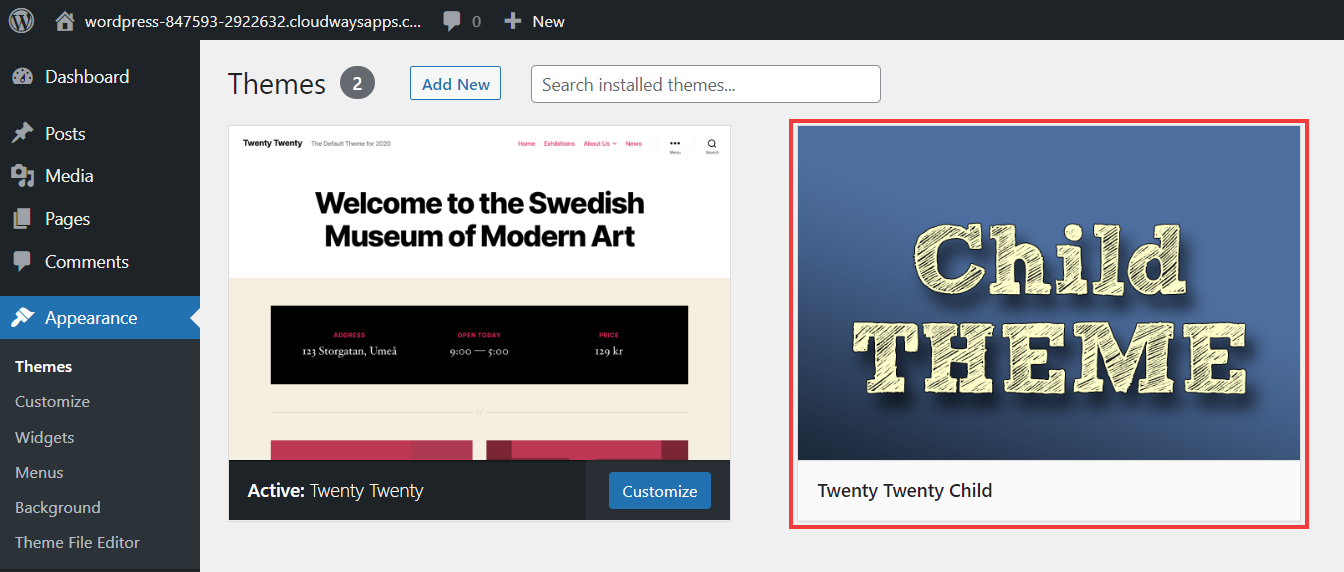
Access the WordPress Dashboard first. Find the Appearance menu. Click on Themes under it. You will see your available themes here. Look for the Child Theme. Select it with a click. This action will activate the theme. Your site now uses the child theme.
Accessing WordPress Dashboard
Open your web browser. Type in your site URL. Add /wp-admin to it. Press enter. A login screen appears. Enter your username. Then, enter your password. Click login. You are now in the WordPress Dashboard.
Switching Themes
From the dashboard, go to Appearance. Click on Themes. You will see a list of themes. Choose the Child Theme. Click Activate. Your site will now use the new theme. Changes are visible instantly.
Credit: wpengine.com
Testing The Child Theme
Testing a child theme ensures it functions correctly without impacting the main theme. Check for compatibility and any errors. This step is vital to maintain the site’s design and features.
Verifying Functionality
Activate your child theme to start testing. Check if the website looks the same. Go through each page and post. Ensure that the layout remains consistent. Look for any broken images or links. Next, try changing some styles in the child theme’s CSS. These changes should reflect immediately. This verifies that the child theme is working. Ensure the speed of the site is the same as before. Check for any error messages during the process.
Troubleshooting Common Issues
Sometimes, things might not work as expected. The first thing is to check the functions.php file. Ensure there are no syntax errors. Review the stylesheet for any missing code. Missing codes can break the appearance. If widgets or menus disappear, reassign them. Always back up your site before making changes. This ensures you can restore it if needed. Seek help in forums if you remain stuck.
Customizing The Child Theme
Creating a child WordPress theme allows customization without altering the parent theme. Make changes safely by copying files from the parent theme. Ensure updates won’t affect your customizations, keeping your site stable and unique.
Overriding Template Files
To change template files, copy the file from the parent theme. Put it in the same folder in the child theme. This tells WordPress to use the child theme file. Changes in the child theme do not affect the parent theme. This keeps your work safe during updates. Be careful with the file names. They must match the parent theme.
Adding Custom Styles
Create a new style.css file in the child theme. Add new styles for the child theme in this file. Make sure to include the parent theme styles. Use @import to do this. This keeps the parent styles active. Write your custom styles below the import line. You can change colors, fonts, and layout. This helps make your site unique.
Maintaining The Child Theme
Crafting a child WordPress theme ensures custom changes stay intact during updates. Begin by creating a new theme folder, then add a stylesheet for design tweaks. Keep the functions. php file updated for custom functionalities. This approach safeguards your site while allowing personalized enhancements.
Updating Parent Theme Safely
Always ensure that the parent theme is updated carefully. This keeps your website safe. Before updating, check for any incompatibilities with the child theme. This prevents errors. Use a staging site for testing updates. It protects the live site. Make sure to review change logs. They show what’s new or fixed. This helps in understanding updates better.
Regular Backups And Security
Backing up your site is very important. It protects your data. Use plugins that offer automated backups. This saves time and effort. Keep your WordPress site secure. Use strong passwords and change them often. Update all plugins and themes regularly. This prevents security loopholes. Consider adding a security plugin. It provides extra layers of protection. Regular checks keep your site safe and sound.
Frequently Asked Questions
What Is A Child WordPress Theme?
A child WordPress theme is a sub-theme that inherits functionalities and styles from a parent theme. It allows you to modify specific elements without altering the parent theme’s code. This ensures that your customizations remain intact even when the parent theme is updated, making it a preferred choice for developers.
Why Use A Child Theme In WordPress?
Using a child theme in WordPress is crucial for preserving your customizations. When the parent theme gets updated, the child theme keeps your changes safe. This practice helps avoid potential conflicts and errors, ensuring your website runs smoothly while maintaining your unique design and features.
How To Create A Child Theme In WordPress?
Creating a child theme involves three steps. First, create a new theme folder. Then, add a style. css file with a Template header pointing to the parent theme. Lastly, create a functions. php file to enqueue the parent theme’s styles.
This setup allows your child theme to function correctly.
Can Child Themes Affect Website Performance?
Child themes typically do not affect website performance negatively. They rely on the parent theme for most functionalities, ensuring efficient operation. However, poorly coded customizations can impact speed. It’s vital to write clean, optimized code in your child theme to maintain performance standards.
Conclusion
Creating a child WordPress theme can feel daunting at first. But, it’s a rewarding process. Start with a solid base theme. Copy its style, but make it your own. Keep changes minimal to avoid errors. Test your theme often to ensure it works well.
This practice will improve your skills. Over time, you’ll create better designs. Remember, patience and practice are key. Experiment with small changes first. Build confidence as you go. Soon, you’ll craft themes with ease. Enjoy the learning journey and watch your creativity grow.


