
Are you looking to customize your WordPress site without messing up the original theme? Creating a child theme is your best bet.
It’s a simple yet powerful way to tweak your website’s appearance while preserving the parent theme’s structure. Imagine having the freedom to modify styles, layouts, and functionality without the fear of losing changes during updates. In this guide, you’ll discover how to make a child theme in WordPress, step by step, even if you’re not a tech wizard.
By the end, you’ll have the confidence to enhance your site and make it truly yours. Let’s dive in and unlock the potential of your WordPress site!
Credit: www.etsy.com
What Is A Child Theme?
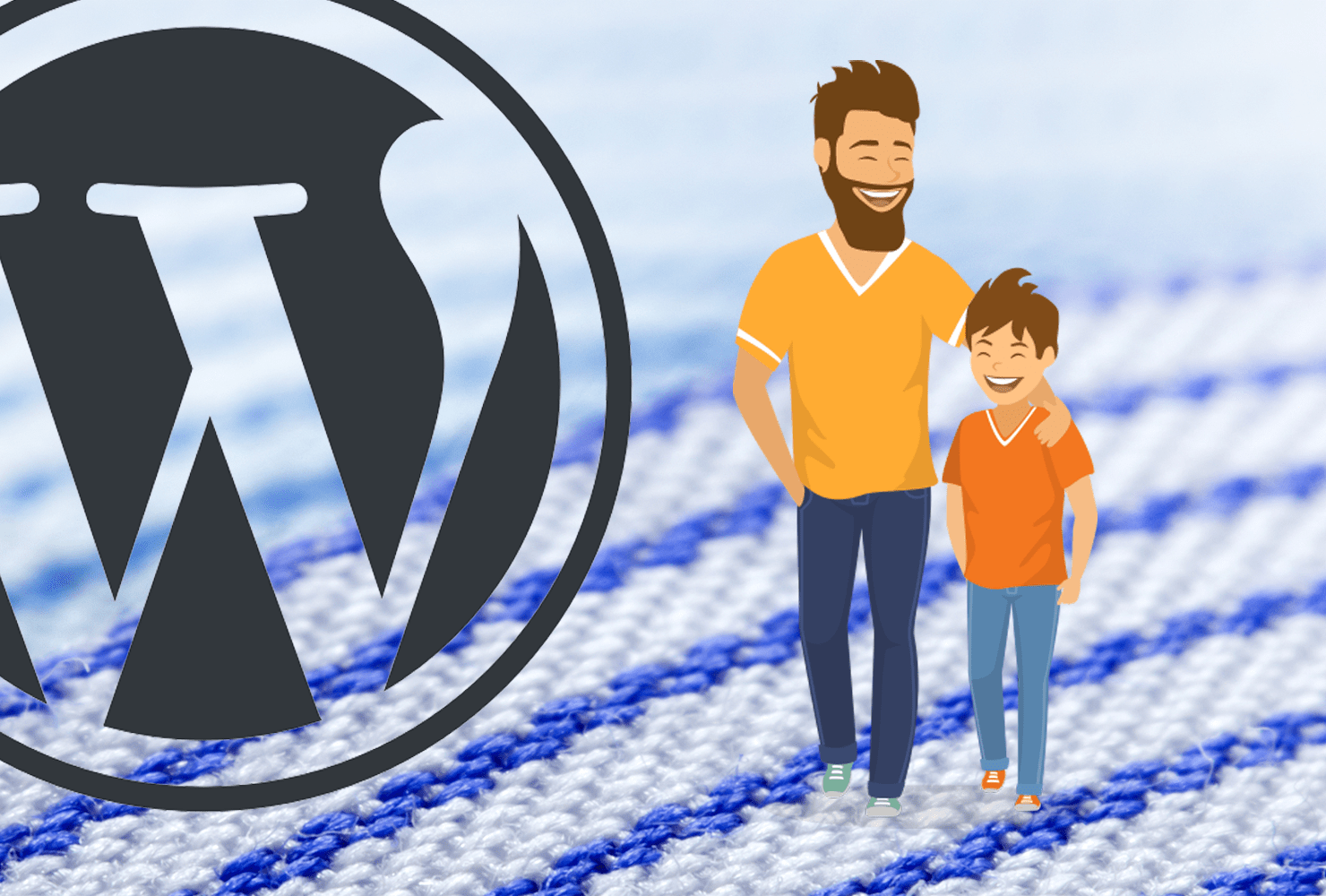
A Child Theme is like a small house. It sits on a big house called the Parent Theme. The Parent Theme gives the Child Theme its looks. You can change the Child Theme without breaking the big house. This way, your website stays safe. A Child Theme helps you customize your site. You can change colors and fonts easily. Many people use it to make their sites special. It is a simple way to update your site. If the Parent Theme updates, the Child Theme stays the same. This keeps your changes safe. It’s a smart way to keep your site fresh.
Benefits Of Using A Child Theme
A child theme keeps your website safe from updates. You won’t lose changes when you update the parent theme. This is a big help for keeping your website looking good. Making changes in a child theme is easy and safe. Even if you make a mistake, your site will stay up. This is because the parent theme stays untouched. Using a child theme makes customization simple. You can add new features without touching the main code. You can learn and try new things without any worry. A child theme is like a safety net for your site. It helps you play and learn without fear.
Essential Tools And Requirements
To create a child theme, you need a few important tools. First, a text editor like Notepad++ or Sublime Text is essential. These help you edit files easily. Next, a FTP client such as FileZilla is useful. It allows you to upload files to your server. Having a basic understanding of WordPress structure is also helpful. This knowledge makes the process smoother. Ensure you have access to your website’s hosting account. This is where you will store your child theme files. Finally, a little patience is key. Creating a child theme might take some time. But it is worth it for a personalized website look.
Creating The Child Theme Directory
First, go to your WordPress installation folder. Find the themes directory inside it. Create a new folder here. Name this folder as your child theme. The name should be easy to remember. This helps you later. For example, if your main theme is “twentytwenty,” name the folder “twentytwenty-child.”
Inside the new folder, make a file. Name it style.css. This file is for your child theme’s styling. It tells WordPress about your theme. Write some code in it. Start with a comment at the top. Mention the theme’s name, template, and author. This helps WordPress know your child theme.
Now, create another file. Call it functions.php. This file is very important. It handles your child theme’s functions. It can add features or change styles. Make sure it’s in the child theme folder. This keeps it organized.
Adding The Style.css File
To start, create a new folder for your child theme. Name it something simple. Inside this folder, create a file named style.css. This file will hold your theme’s styles. Open the file and add the theme’s basic information at the top. Include Theme Name, Template, and Version. This helps WordPress recognize your child theme. Below this information, you can add your CSS rules.
To ensure your styles work, you must import the parent theme’s CSS. Use the @import rule. Write @import url("../parent-theme-folder/style.css"); at the top. Replace parent-theme-folder with your parent theme’s name. This ensures your child theme inherits the parent’s styles. Add your unique styles below this line.
Credit: memberpress.com
Configuring The Functions.php File
The functions.php file is very important. It helps you add new features. First, create a new functions.php file. Place it in your child theme folder. This file should start with php</strong. It tells WordPress to run PHP code.
You can add custom functions here. For example, enqueue scripts or styles. Use wp_enqueue_style() to add stylesheets. Use wp_enqueue_script() for scripts. Always remember to give your functions unique names. This prevents conflicts with other themes.
Do not add closing tag ?> at the end. It is not needed in WordPress. Save your changes and test them. If something breaks, check your code again. Ensure there are no typos or errors.
Enqueuing Stylesheets Properly
WordPress needs you to add stylesheets the right way. This is called enqueuing stylesheets. It helps keep your site neat and fast. Use the functions.php file in your child theme. Add a function to it. This function will load your styles.
Never use @import to add styles. It makes the site slow. The right way is by using wp_enqueue_style. This helps WordPress know about your styles. It tells WordPress when to load them.
Here is a simple code example:
function my_child_theme_styles() {
    wp_enqueue_style( 'parent-style', get_template_directory_uri() . '/style.css' );
}
add_action( 'wp_enqueue_scripts', 'my_child_theme_styles' );
This code adds the parent theme’s style. Always add your own styles after this. This way, your styles will not clash. It keeps your design smooth and nice.
Activating Your Child Theme
First, go to your WordPress dashboard. Click on Appearance. Then, select Themes. You will see your child theme listed there. Click on the Activate button for your child theme. Your website will now use this child theme.
Check your site to see the changes. It should look the same as the parent theme. But now, you can make changes safely. The child theme lets you customize without losing changes. Updates to the parent theme won’t affect your work.
This is the power of a child theme. It keeps your website safe and up-to-date. Always remember to keep backups just in case. This way, if something goes wrong, you can restore your work.
Customizing The Child Theme
Copy the template files from the parent theme. Place them in the child theme folder. Edit these files to make changes. This won’t affect the original theme. Keep the files organized. Use clear names for easy understanding.
Create a style.css file in the child theme. Add your new styles here. This file will load after the parent styles. This means your styles will show on the site. Always test your styles. Check on different devices. Make sure everything looks good.
Make a functions.php file in the child theme. Use this to change theme functions. Write new functions or change existing ones. Do not directly edit the parent theme’s functions. This keeps updates simple. Always backup your files. In case something breaks, you can restore it.
Testing Your Child Theme
First, make sure your child theme is active. Go to the WordPress dashboard. Click on Appearance, then select Themes. Find your child theme and click Activate. This ensures your changes show up.
Next, check the website’s appearance. Look for any design changes. Make sure everything looks right. Sometimes, things might not look correct. This means there is an error. You might need to fix it.
Use a different browser. This helps see if the problem is your browser. It’s important to check the mobile view too. Many people use phones to visit websites. Your site should look good on all devices.
If something is wrong, check your style.css and functions.php files. Errors can hide there. Fixing them can solve many problems. Always keep a backup. This is very important. It saves time if something goes wrong.
Troubleshooting Common Issues
Many face problems with child themes in WordPress. The theme might not show changes. Check if the style.css file is loaded. Use browser tools to inspect. Sometimes, functions don’t work. Ensure the functions.php file has correct codes. Missing files cause errors too. Copy all needed files from parent theme. Child themes sometimes break after updates. Update parent theme first. Then update the child theme. Some plugins may conflict. Try disabling plugins one by one. Some themes need specific settings. Check documentation for instructions. Backups are important. Backup files before making changes. It saves time if something goes wrong. Keep things simple. Avoid adding too many changes at once. It helps identify errors easily.
Best Practices For Child Themes
Creating a child theme helps keep your changes safe. It makes updating the main theme easy. Always use a descriptive name for the child theme. This helps in identifying it later. A well-organized structure is key. Keep files tidy and easy to find.
Use a simple style.css file. It should contain only the changes you make. This keeps it clean and simple. Always test your child theme. Make sure it works well with the main theme. Test every change to avoid mistakes.
Keep a backup of your child theme. This is important to avoid data loss. Follow these practices to ensure your child theme is successful.
Credit: wpengine.com
Frequently Asked Questions
What Is A Child Theme In WordPress?
A child theme in WordPress is a theme that inherits functionality from a parent theme. It allows you to modify, or add, to the design and functionality of a parent theme. Using a child theme ensures that your customizations are preserved when the parent theme is updated.
How Do I Create A Child Theme?
To create a child theme, first create a new folder in the themes directory. Then, add a style. css file with the required header information. Include a functions. php file to enqueue the parent theme styles. Activate the child theme from the WordPress dashboard.
Why Use A Child Theme In WordPress?
Using a child theme ensures your customizations remain intact when the parent theme updates. It allows you to safely modify themes without altering the original code. This makes it easier to maintain your website and integrate new updates without losing your changes.
Can I Use Any Theme As A Parent Theme?
Yes, you can use any WordPress theme as a parent theme, provided it is well-coded. It’s important to choose a reliable and well-supported theme. Ensure the parent theme has the features you need, as the child theme will inherit its functionality and design.
Conclusion
Creating a child theme in WordPress is simple and beneficial. It allows you to customize your site without altering the main theme. Follow the steps carefully to ensure success. Start with a clear plan for your design changes. Use a reliable code editor for accuracy.
Always remember to back up your files before making changes. This way, your site remains safe and functional. Experiment with styles and functions to make your site unique. With practice, creating child themes becomes easier. Enjoy the process and watch your website transform.
Happy customizing!


