
Are you ready to take control of your WordPress website? Logging into your web hosting cPanel is the first step towards mastering your site.
Whether you’re looking to tweak settings, upload files, or manage databases, the cPanel is your gateway to unlocking a world of possibilities. But how do you access it? Don’t worry if you’re feeling unsure—you’re not alone. By the end of this article, you’ll feel confident about logging into your cPanel and navigating it like a pro.
Let’s dive in and empower you with the knowledge you need to manage your web hosting with ease.
Accessing Your Web Hosting Account
First, find your hosting provider. It’s the company where you bought your web space. You might have an email from them. This email usually has details about your account. Check your inbox or spam folder. Look for words like “hosting” or “account”. This can help you find the email quickly.
You need your username and password to login. These are often sent by email after purchase. Check your emails for these details. Sometimes, they are on the provider’s website. Have these credentials ready. Without them, you cannot access your control panel. If you forget them, ask your provider for help.
Navigating To The Cpanel Login Page
Use your web browser to find the Cpanel login page. Type the URL that looks like www.yourwebsite.com/cpanel. This is the direct path to your Cpanel. Your Cpanel page will load up. You will see a login form. Enter your username and password. These are the details from your hosting provider. Click the login button to enter. You will now see your Cpanel dashboard.
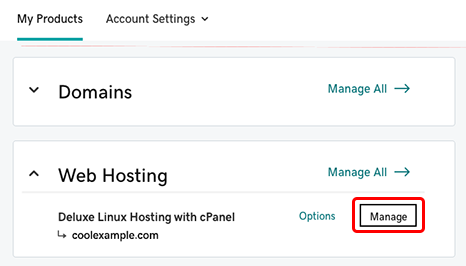
Go to your hosting website. Log in to your hosting account first. Look for the Cpanel link in your account dashboard. It might be in the hosting section. Click on the Cpanel link. You might be logged in automatically. If not, enter your username and password. This will open your Cpanel dashboard.
Entering Login Credentials
A username and password are needed for Cpanel. Always keep them safe. Use a strong password with letters, numbers, and symbols. It should be hard to guess. Your username is usually provided by your hosting company. Write it exactly as given. Case-sensitive is important for both username and password. Always check for spelling errors. Never share your login details with anyone.
Sometimes login problems happen. Double-check your username and password. Make sure the caps lock is off. A forgotten password can be reset using the “Forgot Password” link. Ensure your internet connection is working. Clear your browser’s cache if issues persist. If all else fails, contact your web hosting support for help.

Credit: www.crazydomains.com
Exploring Cpanel Features
The Cpanel dashboard shows many tools. It helps manage your website. Each section has its own function. Icons help find what you need. The layout is easy to use and friendly. Each tool has a name and icon. This makes it simple to find things.
Important tools include File Manager and Database options. File Manager helps organize your files. You can upload or download files easily. Database tools help manage data. Email settings are also available. These help create and manage email accounts. Backup options are crucial. They save your work. Always keep backups updated. Security tools protect your site. They help keep it safe from hackers.
Security Best Practices
Accessing your WordPress cPanel securely involves using strong passwords and two-factor authentication. Always log out after each session to protect your account. Update your software regularly to prevent unauthorized access.
Updating Passwords Regularly
Change passwords often for better security. Old passwords are easy to guess. New passwords keep your account safe. Use strong passwords with numbers and symbols. Avoid using common words. This makes it harder for hackers to crack your password. Write down passwords safely. Do not share them with others. This keeps your account private and secure. Regular updates protect your hosting.
Enabling Two-factor Authentication
Two-factor authentication adds an extra security layer. It needs a code sent to your phone. This code is unique. It changes each time you log in. Hackers can’t access your account without this code. It’s important to set up this feature. It makes your account safer. Security is stronger with two-factor authentication. Always use this feature for your account safety.

Credit: www.interserver.net
Credit: www.godaddy.com
Frequently Asked Questions
How Do I Log Into My Cpanel Website?
Access cPanel by entering “yourdomain. com/cpanel” in your browser. Enter your username and password, then click “Log in”. Ensure your credentials are correct to avoid login issues. If you encounter problems, contact your hosting provider for assistance.
How Do I Log Into My WordPress Hosting?
To log into your WordPress hosting, visit your hosting provider’s website. Enter your username and password in the login section. Access the hosting dashboard, then navigate to the WordPress admin panel. Ensure your credentials are correct for a seamless login experience.
How To Connect WordPress To Cpanel?
To connect WordPress to cPanel, first log into your cPanel account. Find the “Softaculous Apps Installer” and select WordPress. Click “Install Now” and fill in the required details. Finally, complete the installation to connect WordPress to cPanel.
How To Find WordPress Login Url In Cpanel?
Log into cPanel, open File Manager, navigate to public_html, and locate the wp-login. php file. Accessing this file directs you to your WordPress login URL. Ensure WordPress is installed in the public_html directory for accurate navigation.
Conclusion
Accessing your web hosting Cpanel on WordPress is simple. Follow the steps outlined. Use your login credentials carefully. Cpanel offers many tools for website management. Regularly update your settings for security. Explore features that improve your site’s performance. Troubleshoot issues with available resources.
For further help, contact your hosting support. Keep your login details safe. Avoid sharing them with others. Secure access ensures smooth website operation. Familiarize yourself with Cpanel options. It can enhance your website’s functionality. Start managing your website confidently. Empower yourself with the right tools.
Your WordPress site will thrive.


