

If you’re new to WordPress, figuring out how to log in might seem tricky at first. But don’t worry – it’s simpler than you think.
Getting into your WordPress site is the first step to customizing your content, managing your pages, and making your website truly yours. In this guide, you’ll learn exactly how to find your login page, enter your credentials, and access your dashboard quickly and securely.
By the end, you’ll feel confident navigating your site like a pro. Ready to take control of your WordPress site? Let’s dive in!
Locate Login Url
Finding the correct login URL is the first step to access your WordPress site. This URL leads you to the login page, where you enter your username and password. Knowing the login URL saves time and avoids confusion. WordPress sites typically use standard URLs, but some websites use custom addresses for security or branding. Below, learn about default and custom login URLs.
Default Login Urls
WordPress uses several standard URLs to reach the login page. The most common is /wp-login.php. Adding this to your site’s address opens the login screen. For example, www.yoursite.com/wp-login.php.
Another option is /wp-admin. This URL takes you to the admin dashboard if logged in. If not, it redirects to the login page. Use www.yoursite.com/wp-admin to access it.
Sometimes, /login or /admin can also work. These URLs often redirect to the main login page.
Custom Login Urls
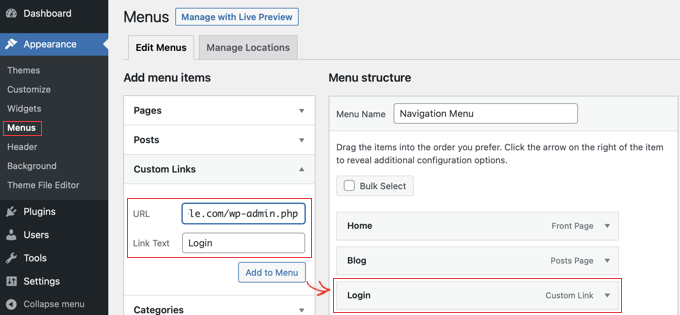
Some websites change the login URL for security reasons. Custom URLs help block hackers from guessing the login page. These URLs are set by the site owner or developer.
Custom login URLs look different from the default ones. They might be like /mylogin or /secure-login. You must know the exact custom URL to access the login page.
If you cannot find your login URL, check with your website administrator or hosting provider. They can provide the correct address to log in safely.
Credit: www.wpbeginner.com
Access Login Page
Accessing the login page is the first step to managing your WordPress site. Without reaching this page, you cannot enter the dashboard where all site settings reside. The login page is simple to find and easy to use. This section explains two clear ways to get there quickly.
Using Browser Address Bar
Open your web browser like Chrome or Firefox. Click on the address bar at the top of the window. Type your website URL, for example, www.yoursite.com.
After the URL, add /wp-admin or /wp-login.php. Press Enter on your keyboard. This action will load the WordPress login page.
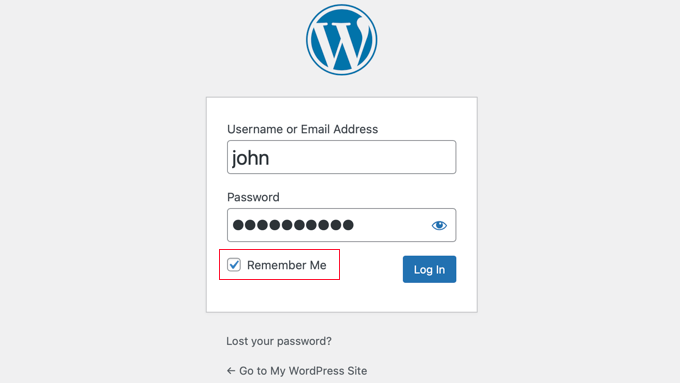
On this page, enter your username or email and password. Then click the “Log In” button. You will reach the WordPress dashboard.
Bookmarking Login Page
Bookmarking saves time and effort for future logins. After accessing the login page, click the star icon or bookmark option in your browser. Name the bookmark something easy to remember.
Next time you want to log in, click the bookmark. It will open the login page instantly. This method reduces errors in typing the URL.
Enter Credentials
Entering your credentials is the crucial step to access your WordPress site. This process ensures only authorized users can manage the website. You need to provide two pieces of information: your username or email and your password. These details verify your identity and protect your site from unauthorized access.
Username Or Email
You can use either your username or the email address linked to your WordPress account. Both work the same way on the login page. Make sure you enter this information correctly. Pay attention to spelling and capitalization. A small mistake can prevent you from logging in.
Password Tips
Your password should be strong and unique. Use a mix of letters, numbers, and symbols. Avoid simple or common passwords like “password123” or “admin.” Never share your password with others. If you forget it, use the “Lost your password?” link on the login page to reset it.
Credit: www.wpbeginner.com
Troubleshoot Login Issues
Login problems block site access. Troubleshooting fixes these issues fast. Follow simple steps to regain control.
Resetting Password
Start by clicking the “Lost your password?” link on the login page. Enter your username or email address to receive a reset link. Check your inbox and spam folder for the email. Click the link and create a new password. Use a strong but easy-to-remember password. This step often solves login failures caused by forgotten passwords.
Clearing Browser Cache
Browser cache stores old data that may cause login errors. Clear cache and cookies to remove outdated information. Open browser settings, find privacy or history options, and select clear cache. Restart the browser and try logging in again. This method fixes issues caused by corrupted or stale files stored by your browser.
Disabling Plugins
Plugins sometimes cause login conflicts. Disable all plugins to check for issues. Access your site files via FTP or hosting control panel. Rename the “plugins” folder inside the “wp-content” directory to “plugins-old.” Try logging in now. If successful, rename the folder back and activate plugins one by one to find the culprit. Removing problematic plugins restores login functionality.
Access WordPress Dashboard
Accessing the WordPress dashboard lets you manage your website easily. The dashboard is the control center for your site. Here, you create posts, change settings, and add plugins.
To reach the dashboard, open your browser and type your website address followed by /wp-admin or /wp-login.php. Enter your username and password on the login page. Click “Log In” to enter the dashboard.
Navigating Dashboard Features
The dashboard shows a menu on the left side. It includes links to posts, pages, media, and comments. Use this menu to move between different sections quickly.
The top bar displays your site name and notifications. You can also find shortcuts to customize your profile or visit your website.
Widgets on the main screen provide quick info like site stats and recent activity. These help you keep track of your site’s performance easily.
Logging Out Safely
Always log out after working on your site. Click your username in the top right corner. Then select “Log Out” from the dropdown menu.
Logging out protects your site from unauthorized access. It is especially important when using public or shared computers.
After logging out, close your browser to ensure your session ends completely. This keeps your WordPress site secure.

Credit: developer.wordpress.org
Enhance Login Security
Keeping your WordPress site safe starts at the login page. Strong login security stops many attacks before they begin. Simple steps can protect your site from hackers and unwanted access. These easy methods help you secure your WordPress login quickly and effectively.
Changing Login Url
The default login URL is easy for hackers to find. Changing the login URL hides your login page from common attacks. Use a plugin to create a custom login URL. This makes it harder for bots to reach your login page. A unique URL adds a strong layer of security.
Using Two-factor Authentication
Two-factor authentication (2FA) requires a second step to log in. After entering a password, users must confirm their identity with a code. This code comes from a phone app or text message. 2FA blocks access even if the password is stolen. It is a powerful way to protect your WordPress site.
Limiting Login Attempts
Limiting login attempts stops repeated password guessing. Set a limit on how many times users can try to log in. After the limit, the user is locked out for a short time. This reduces the risk of brute force attacks. Use a security plugin to manage login attempts easily.
Frequently Asked Questions
What Is The Login Url For My WordPress Site?
The WordPress login URL is your website’s address followed by /wp-admin or /wp-login. php. For example, www. yoursite. com/wp-admin. Enter your username and password to access the dashboard.
How Do I Login As Admin To A Website?
To login as an admin, go to your website URL followed by /wp-admin or /wp-login. php. Enter your username and password, then click “Log In” to access the admin dashboard.
How To Access A Website Through WordPress?
Access a WordPress site by entering your URL followed by /wp-admin or /wp-login. php. Enter your username and password, then click “Log In” to reach the dashboard. Manage content and settings from there.
How Do I Access The Admin Of A WordPress Website?
Access your WordPress admin by typing your website URL followed by /wp-admin or /wp-login. php. Enter your username and password, then click “Log In” to reach the dashboard.
Conclusion
Logging into your WordPress site is simple and quick. Just visit your login URL, enter your username and password, then click the login button. After that, you will see your dashboard where you can manage your website easily. Remember to keep your login details safe and secure.
Regularly updating your password helps protect your site. Now you are ready to work on your WordPress site with confidence and ease.


