
Are you struggling to access your ESXi host web client? You’re not alone, and you’re in the right place to find a solution.
Logging into the ESXi host web client might seem daunting at first, but once you know the steps, it becomes as simple as a few clicks. Imagine the time and frustration you’ll save by mastering this process. By learning how to effortlessly navigate this, you’ll empower yourself to manage your virtual environment more efficiently.
Dive into this guide to uncover the straightforward steps to accessing your ESXi host web client. Your virtual infrastructure awaits – let’s get started!
Prerequisites For Access
Ensure your device is connected to the same network as the Esxi host. A stable connection is necessary. Use a wired connection for better stability. Check if the network is configured correctly.
Use a browser that supports the Esxi web client. Chrome, Firefox, and Edge work best. Make sure the browser is updated to the latest version. Older versions might not function properly.
Access requires administrator credentials. Ensure you have the username and password. Double-check for accuracy before entering. Keep credentials secure and confidential.
Credit: www.vladan.fr
Accessing The Web Client
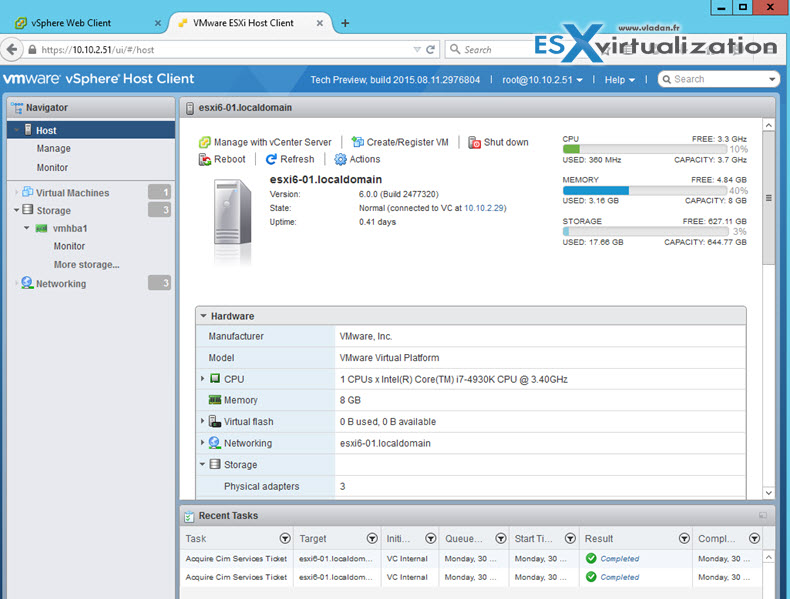
To open the Esxi Host Web Client, first, find the Host IP Address. This is a number that looks like 192.168.1.1. You can ask your network admin for help. Open a web browser like Chrome or Firefox. In the address bar, type the IP address. Press Enter. The browser will load the Esxi Host login page.
Now, you will see a page asking for your username and password. These are special codes to keep your information safe. Enter your details carefully. Then, click the login button. You will now enter the Esxi Host web client. You can see different options and settings here.
Logging In
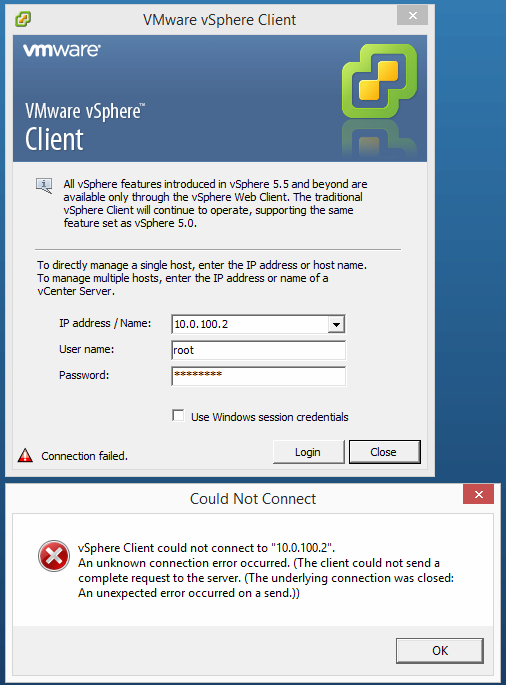
Start by opening your web browser. Type the Esxi Host Web Client address in the browser’s address bar. A login page will appear. Find the username field. Enter your username. Be sure it is correct to avoid errors.
Next, locate the password field. Carefully type your password. Make sure it matches your username. Double-check each character. Passwords are case-sensitive. This means “Password” and “password” are different.
Some users have extra security. This is called Two-Factor Authentication. You may receive a code on your phone. Enter this code in the designated field. This step keeps your account safe.
Credit: community.broadcom.com
Troubleshooting Login Issues
Always check if your username and password are correct. Use the right case for each letter. Many passwords are case-sensitive. So, small and big letters matter. Double-check your keyboard settings. Sometimes, they change by accident.
Make sure your internet connection is stable. Check if your network cable is plugged in. Restart your router if needed. It might help to solve the issue. Also, see if other devices can connect to the internet. If they can’t, contact your service provider.
Different browsers can act differently. Try using Chrome, Firefox, or Edge. Ensure your browser is up-to-date. Some old versions may not work well. Clear your cache and cookies. This can help fix weird issues. If problems persist, try using another device.
Security Best Practices
Accessing the ESXi Host Web Client securely starts with logging in using strong passwords. Ensure two-factor authentication is enabled for added security. Regularly update your credentials and monitor login activities for unusual patterns.
Password Management
Passwords should be strong and not easy to guess. Use a mix of letters, numbers, and symbols. Change passwords often to keep them safe. Do not use the same password for different accounts. Store passwords in a safe place, like a password manager. This tool helps remember and keep them secure.
Secure Connection Tips
Always use HTTPS when logging in. This keeps your data safe from hackers. Be sure to update your web browser regularly. Updates fix security bugs. Avoid using public Wi-Fi for logging in. Public networks are not secure. Use a VPN if needed. It encrypts your connection, making it safer.

Credit: www.youtube.com
Frequently Asked Questions
How To Access Esxi Host Through Web Client?
Access the ESXi host through the web client by entering the host’s IP address in a browser. Log in using your credentials. Ensure the host’s web interface is enabled and your network allows access. This method provides a user-friendly interface for managing your ESXi host efficiently.
How Do I Access Esxi Host Web Interface?
Access the ESXi host web interface by entering the host’s IP address in a web browser. Log in using your administrative credentials to manage the host. Ensure your browser is updated for compatibility.
How To Login To Esxi Host Client?
Open a web browser and enter the ESXi host’s IP address. Enter your username and password on the login screen. Click “Log In” to access the ESXi host client. Ensure you have the necessary credentials for successful login.
How Do I Access Vmware Esxi Web Client?
Access the VMware ESXi Web client by entering the ESXi server’s IP address in your browser. Log in using your credentials. Ensure your browser is compatible and network settings allow access. Keep your ESXi version updated for optimal performance.
Conclusion
Logging into the Esxi Host Web Client is straightforward. Follow the steps carefully. Start by accessing the login page. Enter your username and password. Check your credentials for errors. A successful login opens many features. Explore management tools and settings.
Remember to log out when finished. Security is important. Protect your data by logging out. Regularly update passwords for safety. Stay informed on Esxi updates. This ensures smooth operations and security. With practice, logging in becomes easier. Enjoy managing your virtual environment with confidence.
Keep learning to improve your skills.


