
Imagine having the ability to manage your virtual infrastructure from anywhere, with just a few clicks. This is exactly what you get when you know how to login to your ESXi host over the web.
Whether you’re a seasoned IT professional or a curious beginner, learning this skill opens up a world of convenience and control. As you navigate through this guide, you’ll discover a step-by-step process that’s straightforward and easy to follow. You’ll gain confidence in accessing your ESXi host remotely, ensuring your virtual machines are always within reach.
So, if you’re ready to simplify your virtual environment management, keep reading to unlock the secrets of web-based ESXi access.
Requirements
To login to an Esxi host, a supported browser is needed. Google Chrome works well with Esxi. Mozilla Firefox is another option. Both browsers support the latest web technologies. They ensure smooth login experience. Avoid using outdated browsers. They may cause login issues. Always update your browser. This ensures maximum compatibility.
Proper network configuration is crucial. The Esxi host must be on the same network. Ensure the network settings are correct. Use the right IP address. Check the subnet mask and gateway settings. Incorrect settings can block access. Always verify network settings before login. This helps prevent connection problems.
Accessing The Login Page
Find the ESXi host IP address on your network. It is essential for login. Check your network settings or device list. You may also use a network scanner. Note the IP address carefully. It will be a set of numbers like 192.168.1.100. Ensure the device and host are on the same network.
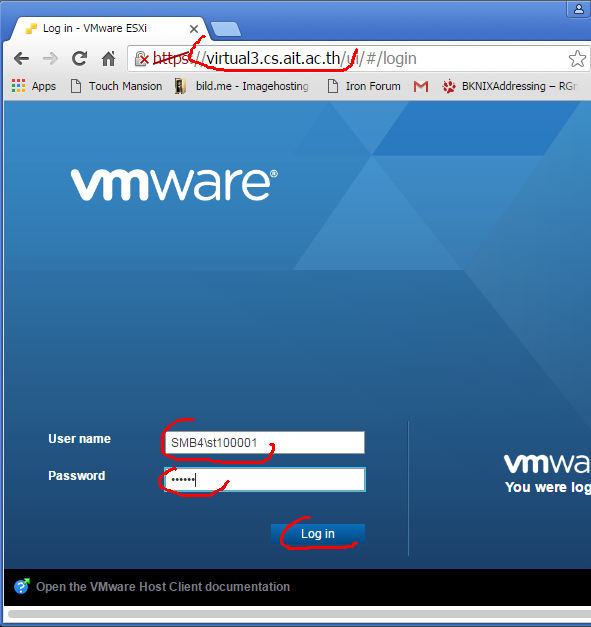
Open a web browser on your computer. Type the ESXi host IP address in the address bar. For example, type http://192.168.1.100. Press the Enter key on your keyboard. The login page should appear. Use your credentials to login. Make sure to keep your details safe.
Login Credentials
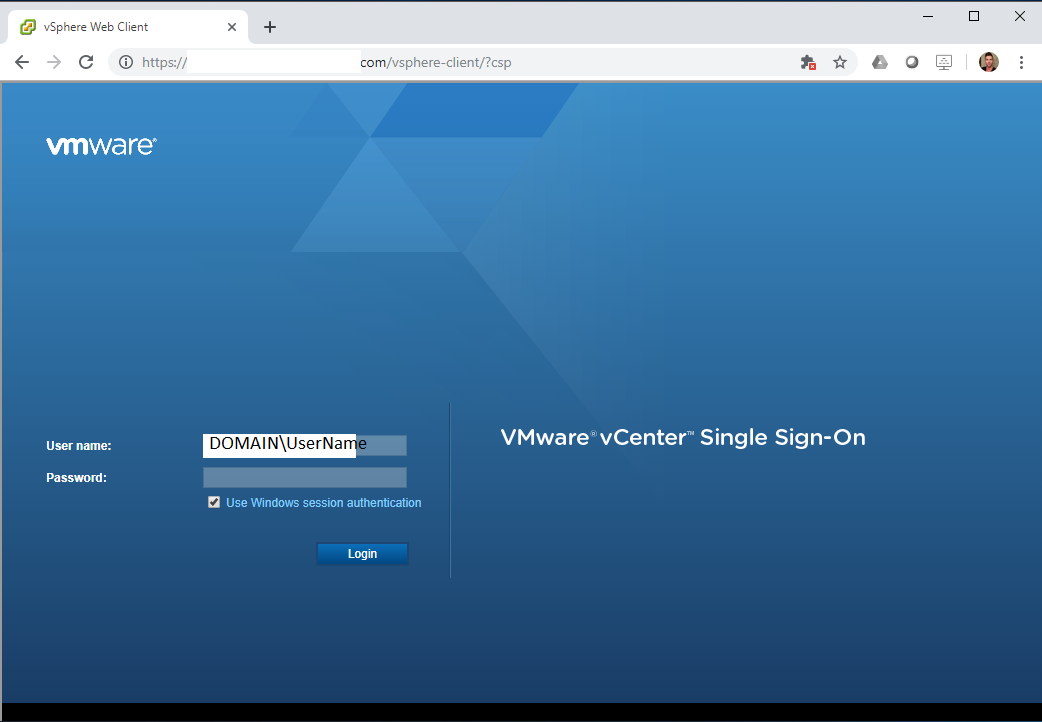
The default username for an Esxi host is usually “root”. The password might be blank or preset by your admin. Always check with your network team. They know the exact setup. If the default credentials don’t work, they may have been changed.
It is important to change the default credentials for security. Log in with the default username. Then, go to the settings menu. There, find the option to change the password. Pick a strong password. Use numbers, letters, and symbols. This keeps your data safe.
Credit: www.stephenwagner.com
Troubleshooting Login Issues
Users may see error messages like “Invalid Credentials” or “Connection Timed Out”. These messages mean the login attempt failed. Double-check the username and password. Ensure they are correct. Passwords are case-sensitive.
Another message might be “Host Unreachable”. This means the server cannot be reached. Verify the server address. Make sure it’s typed correctly.
Firewalls might block access to the Esxi host. Check the firewall settings. Ensure that the necessary ports are open. Network issues can also cause login problems. Verify that your internet connection is stable.
Sometimes, network settings need adjustments. Make sure your device is on the same network as the Esxi host. If unsure, contact the network administrator for help.
Security Best Practices
Passwords should be strong and unique. Use a mix of letters, numbers, and symbols. Avoid common words or simple sequences like “1234”. Change passwords regularly to keep your account safe. Never share your password with anyone. A secure password keeps your account safe.
Always use HTTPS for logging in. It encrypts data between your browser and server. This protects your information from hackers. Look for a padlock symbol in the browser. That means the site is secure. Do not enter sensitive information on HTTP sites. HTTPS ensures your data is safe.

Credit: www.youtube.com
Additional Features
The performance tab shows how the system is working. It is easy to see graphs and data. They help to understand CPU and memory use. Network traffic can also be checked here. The dashboard is simple to read. Users can spot any issues fast. This helps to keep the system healthy.
Users can start or stop virtual machines with ease. Changes to settings are simple. This includes memory and disk space. Creating new machines is also possible. Everything is done with a few clicks. The interface is user-friendly. It makes managing tasks smooth. Quick actions save time and effort.
Credit: www.cs.ait.ac.th
Frequently Asked Questions
How To Access Esxi Via Web Browser?
Open your web browser and enter “https://”. Log in using your ESXi credentials. Ensure your network allows access to the ESXi host. Use a supported browser for optimal performance. This process lets you manage your ESXi server efficiently.
How To Access Esxi Host Remotely?
Access ESXi host remotely using VMware vSphere Client. Download and install it on your computer. Enter the host’s IP address, username, and password to connect. Alternatively, use SSH for command-line access. Ensure SSH is enabled on the host.
How Do I Login To The Esxi Host?
To login to the ESXi host, open a web browser. Enter the host’s IP address in the URL bar. Use your administrator credentials to access the login screen. Ensure you have the correct username and password for successful access.
How To Connect Directly To Esxi Host?
Connect to an ESXi host using VMware vSphere Client. Enter the host’s IP address and login credentials. Ensure network access is enabled. Use SSH for command line access if needed.
Conclusion
Accessing the ESXi host via the web is straightforward. Follow these steps for a smooth login experience. Ensure you have the correct IP address and credentials. Always keep your login details secure. Regularly update your ESXi host for best performance.
A seamless connection helps manage your virtual environment efficiently. Understanding these steps enhances your IT skills. Practice frequently to build confidence in using ESXi. With these guidelines, you can handle basic tasks with ease. Enjoy managing your virtual machines effectively.


