
Are you ready to take control of your WordPress website but not sure how to get started? Logging into your WordPress site is the first essential step to managing your content, customizing your design, and growing your online presence.
Whether you’re a beginner or just need a quick refresher, this guide will walk you through the simple process of accessing your WordPress dashboard with ease. By the end, you’ll feel confident and ready to explore all the powerful features your site has to offer.
Let’s dive in and make logging in effortless for you!
Credit: www.youtube.com
Access The Login Page
Accessing the login page is the first step to managing your WordPress website. This page allows you to enter your credentials and enter the dashboard. The dashboard is where you control your site’s content and settings. Knowing how to reach this page quickly saves time and avoids confusion.
Use /wp-admin Url
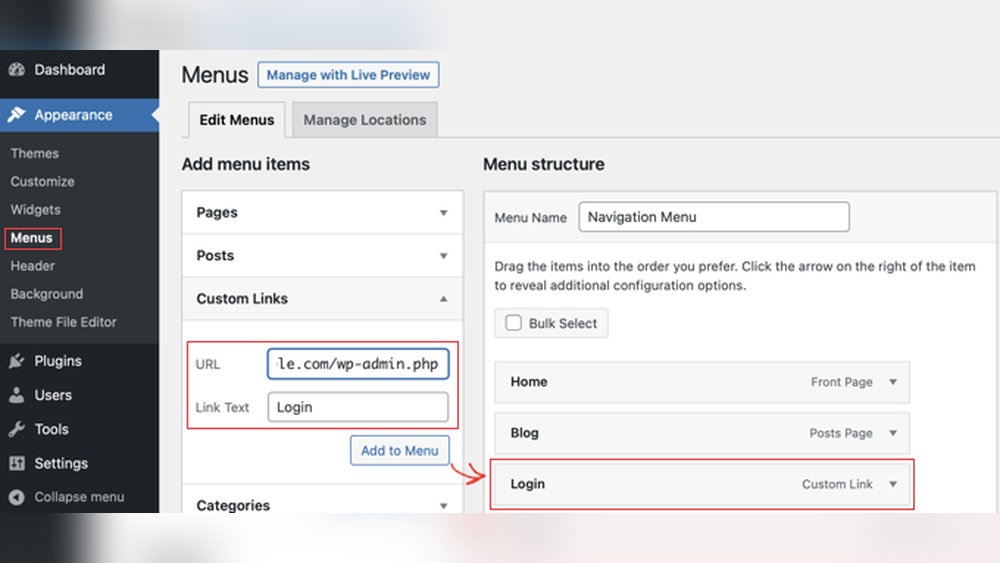
To access the login page, type your website’s address in the browser. Add /wp-admin at the end of the URL. For example, www.yourwebsite.com/wp-admin. This directs you straight to the WordPress login screen. Enter your username or email and password here. Then click the “Log In” button to enter the dashboard.
Alternative /wp-login.php Url
You can also use the /wp-login.php URL. This URL works like the /wp-admin link. Type www.yourwebsite.com/wp-login.php in the browser. It takes you to the same login page. This is helpful if the /wp-admin does not work or is blocked. Use your username or email and password to log in.
Enter Your Credentials
Entering your credentials is the key step to access your WordPress dashboard. This process requires your username or email and a password. Both pieces of information must be accurate to log in successfully. Keep your details ready before you begin.
Username Or Email
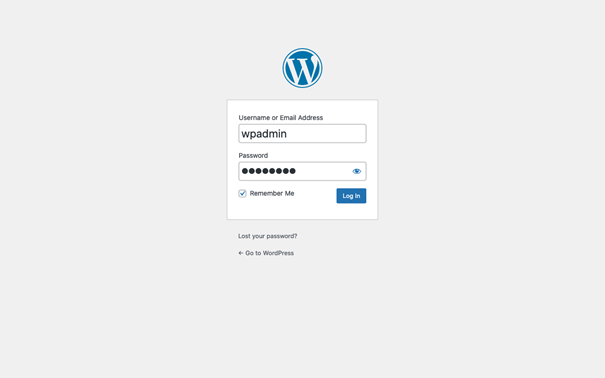
The first box on the login screen asks for your username or email. Use the username you created when setting up your WordPress account. Alternatively, you can enter the email address linked to your account. This helps WordPress identify who you are. Make sure you type it correctly to avoid login errors.
Password
The password field is just below the username or email box. This secret code protects your website from unauthorized access. Enter the exact password you set for your account. Passwords are case-sensitive, so check your caps lock key. If the password is correct, you will move to the next step and access your dashboard.
Navigate To The Dashboard
After logging into your WordPress website, the next step is to navigate to the dashboard. The dashboard is the control center of your site. It allows you to manage content, customize settings, and view site activity. Accessing the dashboard quickly helps you start working on your website without delay.
Once you successfully log in, WordPress will take you directly to the dashboard page. Here, you can see various menu options on the left side. These menus include posts, pages, media, comments, appearance, and plugins. Each section lets you perform specific tasks to maintain your site.
Successful Login
After entering the correct username and password, you will see the dashboard screen. It shows a welcome message and quick links to common tasks. The top bar displays your site name and a logout option. You can begin creating content or changing settings from this page.
The dashboard updates regularly with news and notifications from WordPress. Check it often to stay informed about updates or new features. Your site’s health status and recent comments also appear here.
Troubleshoot Login Issues
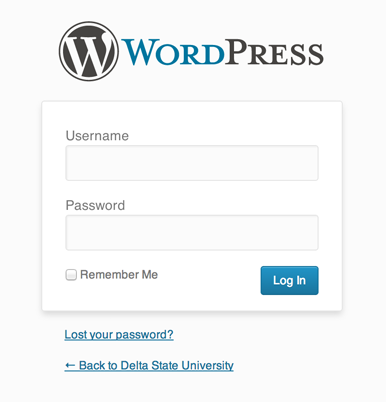
Sometimes, login problems occur. Incorrect username or password is the most common cause. Double-check your credentials and try again. Use the “Lost your password?” link to reset your password via email.
If you still cannot log in, clear your browser cache and cookies. Try a different browser or device. Disable browser extensions that might block the login page.
For persistent issues, contact your hosting provider. They can help check server or database problems that may affect login. Keep your WordPress version and plugins updated to avoid conflicts.
Credit: www.ionos.com
Reset Forgotten Password
Resetting a forgotten password is simple and quick. WordPress offers a built-in way to recover access. This helps you regain control without technical help. Follow the steps below to reset your password and log back in.
Use Lost Password Link
Go to the WordPress login page of your site. Find and click the “Lost your password?” link below the login form. This link takes you to the password reset page. Enter your username or email address linked to your account. Submit the form to request a password reset.
Follow Email Instructions
Check your email inbox for a message from WordPress. It contains a link to reset your password. Click the link to open the password reset page. Enter a new, strong password twice to confirm. Submit the form to save your new password. After this, return to the login page and enter your username and new password to access your dashboard.
Tips For Smooth Login
Logging into your WordPress site should be fast and hassle-free. Smooth login saves time and avoids frustration. Follow simple practices to keep your access quick and secure.
Clear Browser Cache
Old cache files can cause login problems. Clear your browser cache regularly. This removes outdated data that might block the login page.
Clearing cache also helps load the latest version of your website. It ensures your login page functions properly every time.
Check Internet Connection
A stable internet connection is essential for logging in. Slow or unstable connections can delay or fail the login process. Check your network before trying to log in. Use a reliable Wi-Fi or wired connection for best results.
Use Secure Passwords
Strong passwords protect your website from unauthorized access. Use a mix of letters, numbers, and symbols. Avoid common words or simple sequences. Change your password regularly to enhance security.
Consider using a password manager to keep your passwords safe and easy to access.
Credit: www.deltastate.edu
Frequently Asked Questions
How Do You Login Into Your WordPress Website?
Visit your website URL, add /wp-admin (e. g. , yoursite. com/wp-admin), enter your username/email and password, then click “Log In”.
How To Access A Website Through WordPress?
Access your WordPress site by typing yourwebsite. com/wp-admin in a browser. Enter your username and password, then click “Log In” to reach the dashboard. Use the “Lost your password? ” Link to reset credentials if needed.
What Is The Login Url For My WordPress Site?
The WordPress login URL is yourwebsite. com/wp-admin. Enter your username and password to access the dashboard. Use “Lost your password? ” To reset it.
How Do I Login As Admin To A Website?
To log in as admin, go to your website URL followed by /wp-admin. Enter your admin username and password, then click “Log In. “
Conclusion
Logging into your WordPress website is simple and quick. Just add “/wp-admin” to your site’s URL. Enter your username or email, then type your password. Click the “Log In” button, and you will reach your dashboard. Forgot your password? Use the “Lost your password?
” link to reset it by email. Following these steps helps you manage your site easily. Keep your login details safe and secure. Now you can focus on building and updating your WordPress site without trouble.


