
Are you ready to unlock the full potential of your website? Logging into your cPanel through Namecheap is the first step towards gaining complete control over your web hosting environment.
Whether you’re looking to manage files, set up email accounts, or install applications, understanding how to access your cPanel is crucial. But don’t worry; this process is easier than you might think. By following a few simple steps, you can effortlessly navigate your way into your cPanel and start optimizing your website like a pro.
Stick with us, and you’ll learn how to login to cPanel via Namecheap in no time, ensuring your website runs smoothly and efficiently. Keep reading to discover the secrets that will empower you to manage your online presence with ease!
Credit: www.namecheap.com
Accessing Namecheap Account
Accessing your Namecheap account is the first step to managing your cPanel. It’s where you handle domains, hosting, and other services. Logging in is simple and straightforward. Follow these steps to access your account with ease.
How To Open The Namecheap Website
First, open your web browser. Type “namecheap.com” into the address bar. Press Enter. This will take you to the Namecheap homepage.
Locating The Login Button
On the homepage, find the “Sign In” button. It’s at the top right corner. Click on it to proceed to the login page.
Entering Your Account Credentials
On the login page, you will see two fields. Enter your username in the first field. Type your password in the second field. Make sure both are correct.
Completing The Login Process
After entering your details, click the “Sign In” button. Wait a few seconds. You will be redirected to your Namecheap account dashboard.
If you can’t log in, check your username and password. Ensure they are typed correctly. If you forgot your password, use the “Forgot Password?” link. Follow the instructions to reset it.
Navigating To Cpanel
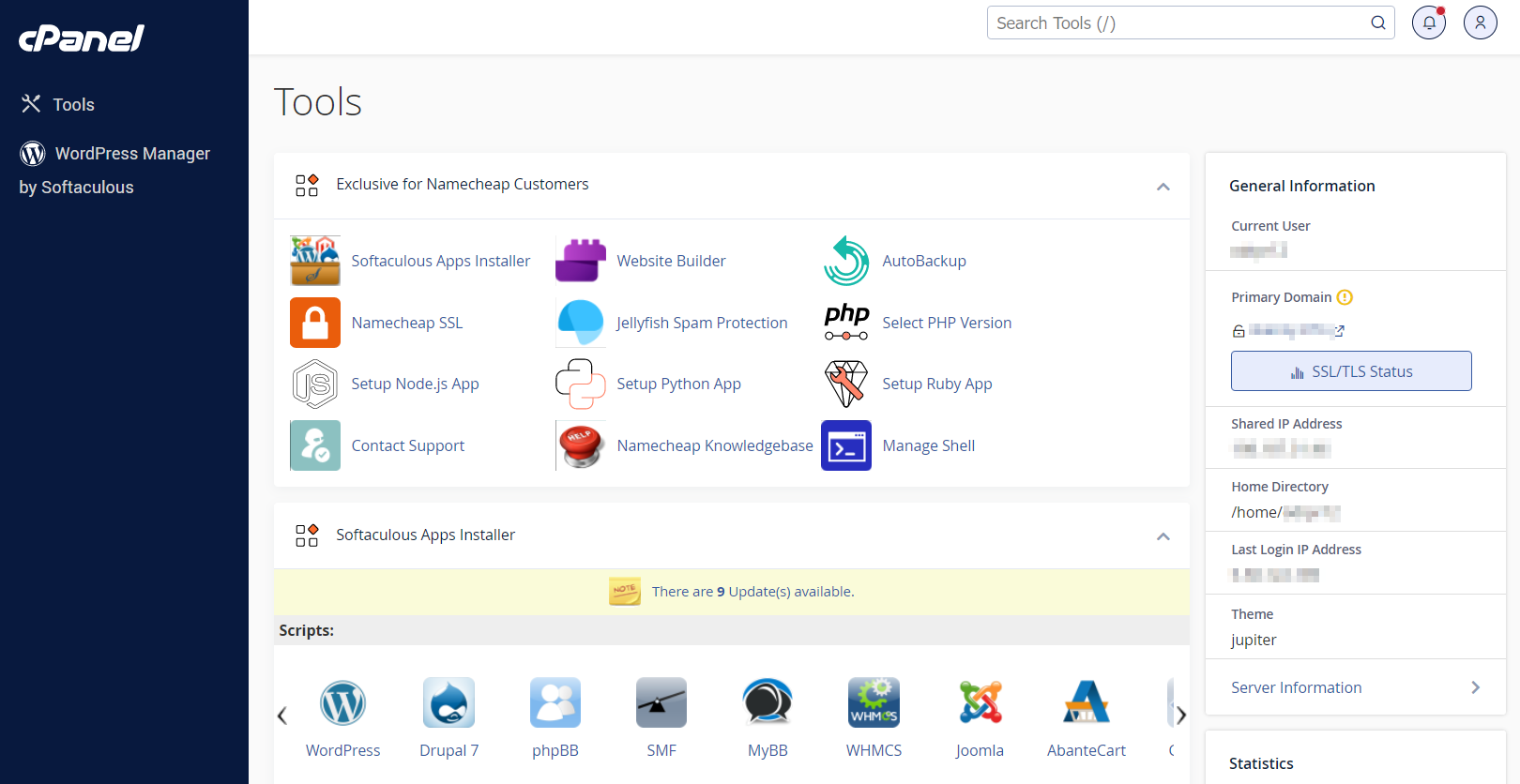
Accessing Cpanel on Namecheap is simple. Enter your domain followed by “/cpanel” in the browser. Use your credentials to log in and manage your website efficiently.
Navigating to Cpanel is a crucial step for managing your web hosting account with Namecheap. Whether you’re a seasoned webmaster or just starting out, accessing Cpanel allows you to handle everything from file management to email setup effortlessly. The process might seem daunting at first, but once you know where to click, it becomes a breeze. Let’s dive into how you can easily find your way to Cpanel on Namecheap. ###Accessing Your Namecheap Account
First, log into your Namecheap account. This is the gateway to all your hosting services. Use your registered email address and password to sign in. If you haven’t created an account yet, you’ll need to sign up first. Once logged in, you’ll land on the dashboard, which is your central hub for managing domain names, hosting services, and more. ###Finding Your Hosting Packages
After logging in, look for the “Hosting List” on the left-hand menu. This is where all your hosting packages are listed. Each package represents a different website or domain you have with Namecheap. Click on the specific package you want to access. The details of your hosting package, including Cpanel, will appear. ###Locating The Cpanel Link
Scroll through the package details until you find the “Go to Cpanel” button. This button is the key to entering the Cpanel interface. It’s often located near other important options like “Renew” or “Upgrade.” Clicking this button will redirect you to the Cpanel login page. ###Logging Into Cpanel
On the Cpanel login page, you’ll need to enter your credentials. These are usually provided in the welcome email from Namecheap when you purchase hosting. Input your username and password to access Cpanel. If you face any issues, double-check your credentials or contact Namecheap support for assistance. ###Exploring Cpanel Features
Once inside Cpanel, you’ll find a myriad of tools at your disposal. From managing databases to configuring email accounts, the interface is user-friendly and intuitive. Take some time to explore and familiarize yourself with the features that best suit your website needs. Navigating to Cpanel on Namecheap is straightforward once you know the steps. Have you ever considered how much control Cpanel offers you over your website? Every click brings you closer to mastering your online presence. So, take the plunge and explore the possibilities. Remember, a little curiosity goes a long way in the digital world!Locating Login Credentials
Accessing cPanel on Namecheap requires your login credentials. Visit the Namecheap website and click on “Login” at the top. Enter your username and password to access your account and manage your hosting services.
Locating your cPanel login credentials on Namecheap can be a straightforward task if you know where to look. It’s essential to have these details handy for quick access to your hosting environment. This section will guide you through finding your login credentials with ease.Understand Your Namecheap Dashboard
Begin by logging into your Namecheap account. Your dashboard is the hub for all your domain and hosting services. Familiarize yourself with its layout, as this is where you’ll find most of your account information, including your cPanel login details.Check Your Welcome Email
When you first set up your hosting with Namecheap, you receive a welcome email. This email contains crucial information, including your cPanel login credentials. Search your inbox for this email if you can’t find your credentials on the dashboard.Access Your Domain List
Navigate to the ‘Domain List’ section in your Namecheap account. Here, you’ll find all the domains you’ve registered. Locate the domain associated with your hosting package to proceed with finding your cPanel details.Locate The ‘product List’ Section
Under the ‘Domain List’, there’s a ‘Product List’ section. This is where Namecheap displays all the products and services linked to your account. Click on the hosting package associated with your domain to find more information.Find ‘manage’ And ‘cpanel’ Button
Once you’re in the ‘Product List’, look for a ‘Manage’ button next to your hosting package. Clicking this will bring up more detailed information. Among these details, you’ll find the ‘cPanel’ button, which will lead you to the cPanel login page.Take Note Of Username And Password
Upon accessing the cPanel login page, you will need your username and password. These are usually provided in the welcome email or can be found in your Namecheap account under the hosting details section. Make sure to store them securely.Reset If Necessary
If you cannot find your login credentials, don’t panic. Namecheap allows you to reset your cPanel password. Look for the ‘Reset Password’ option on the cPanel login page or within your account settings. Remember, having quick access to your cPanel is crucial for managing your website. Have you ever misplaced your credentials and lost precious time? Share your stories and how you overcame such challenges. Understanding where to find your login credentials not only saves time but also ensures you maintain control over your website’s functionalities.Entering Cpanel Login
Entering the Cpanel login on Namecheap is a straightforward process. This guide helps you navigate the steps with ease. Understanding the basics of Cpanel is crucial for managing your web hosting. It provides a graphical interface to simplify website management tasks.
Accessing The Namecheap Dashboard
First, go to the Namecheap website. Click on the “Sign In” button. This will take you to the login page. Enter your account credentials. Once logged in, you’ll see the dashboard.
Finding The Cpanel Option
In the dashboard, locate your domain. You will find a “Products” section. Click on “Manage” next to your domain. This will display more options. Look for the “Cpanel” button or link. It is usually in the hosting section.
Entering Your Cpanel Login Details
Click the Cpanel button. A new page will open. Enter your Cpanel username and password. These details are typically sent by email. If forgotten, use the “Forgot Password” option.
Security Tips For Cpanel Login
Use a strong password for your Cpanel account. Combine letters, numbers, and symbols. Change your password regularly. Avoid using the same password across different sites. Enable two-factor authentication if available.
Troubleshooting Login Issues
Accessing your Namecheap cPanel can be tricky sometimes. First, visit the Namecheap website and click on “Account. ” Then, enter your username and password. If login fails, double-check credentials or reset your password.
Logging into your cPanel on Namecheap should be a straightforward process, but sometimes, things don’t go as planned. Whether it’s a forgotten password or a typo in your username, login issues can be frustrating. Let’s explore some common problems and solutions so you can access your cPanel without a hitch. ###Incorrect Credentials
One of the most common reasons for login issues is entering incorrect credentials. You might be typing in your username or password wrong. Double-check for any typos or accidental spaces. Are you sure you’re using the right username? It might differ from your usual login for other accounts. Consider checking the welcome email from Namecheap where your credentials were first provided. It’s easy to overlook the Caps Lock key being on. Passwords are case-sensitive, so ensure it’s turned off unless your password specifically requires capital letters. ###Password Recovery
Forgot your password? It happens to the best of us. Namecheap provides a simple way to recover it. Look for the “Forgot Password” link on the login page. Clicking this link will guide you through the steps to reset your password. You’ll need access to your registered email for this, so make sure you’re checking the right inbox. Once you reset your password, try logging in again. Remember to save your new password somewhere secure to avoid future login hiccups. What if you don’t receive the password reset email? Check your spam or junk folder. Emails sometimes end up there by mistake. By keeping these troubleshooting tips in mind, you can handle login issues with ease. Have you ever faced a login problem that seemed unsolvable? Sometimes, the simplest solution is just a few clicks away.
Credit: www.namecheap.com
Tips For Secure Login
Accessing Namecheap’s Cpanel securely involves using a strong password and enabling two-factor authentication. Always log in through a secure network to protect your personal information. Regularly update your login credentials to maintain security.
Logging into your Namecheap cPanel is a crucial task for managing your website. Ensuring your login process is secure can protect your sensitive data from unauthorized access. Let’s dive into some straightforward tips for a secure cPanel login that you can implement easily. ###Using Strong Passwords
A strong password acts as the first line of defense against cyber threats. Avoid using obvious choices like “123456” or “password”. Instead, create passwords that mix uppercase and lowercase letters, numbers, and symbols. Aim for at least 12 characters to enhance complexity. Consider using a password manager to generate and store these complex passwords securely. It can save you from the hassle of remembering each one. ###Enabling Two-factor Authentication
Two-factor authentication (2FA) adds an extra layer of security. Even if someone gets your password, they won’t easily access your cPanel without the secondary factor. Enable 2FA through your Namecheap account by selecting the option in your security settings. You’ll usually need a smartphone app like Google Authenticator or Authy. Think of 2FA as a key that unlocks a vault. Without this key, unauthorized users can’t gain access, keeping your data safer. Have you ever wondered how secure your login practices are? Reflect on these tips and consider implementing them to fortify your cPanel access.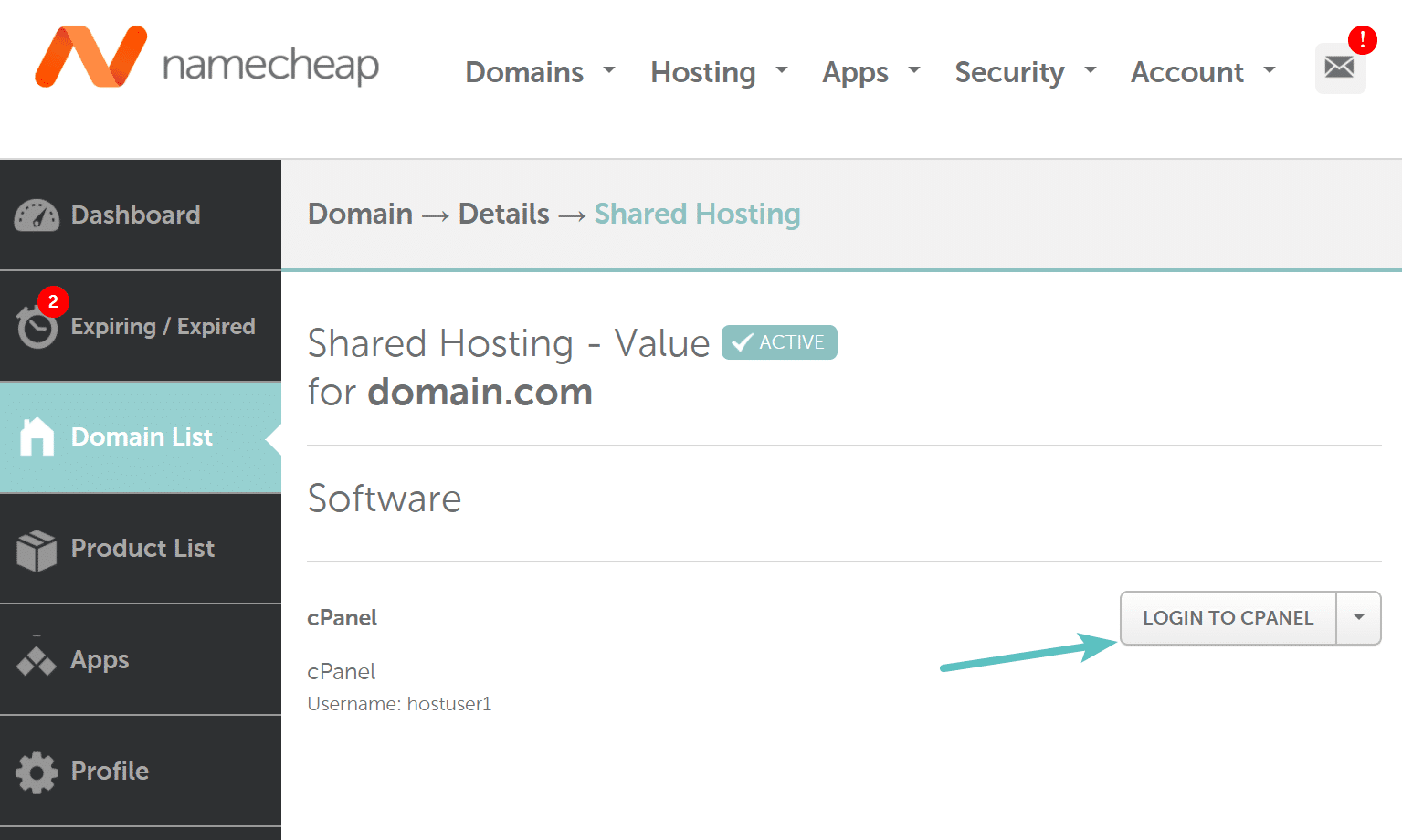
Credit: kinsta.com
Frequently Asked Questions
How Do I Log Into Cpanel Namecheap?
To log into cPanel with Namecheap, visit your account dashboard. Click “Account” and select “Dashboard”. Locate your domain, click “Manage”, then click “cPanel”. Enter your credentials to access the cPanel interface.
How Do I Login Directly To Cpanel?
Access cPanel by entering “yourdomain. com/cpanel” in your browser. Use your username and password to login. If unsure, check your hosting provider’s email for details. Ensure your credentials are correct to avoid login issues.
How To Access Terminal In Cpanel Namecheap?
Log in to cPanel via Namecheap. Navigate to the “Advanced” section. Click on “Terminal” to access it.
How To Get Username And Password In Cpanel?
Log into your hosting account and navigate to the cPanel dashboard. Locate the “Account Information” section to find your username and password details. If you can’t find them, contact your hosting provider for assistance. Always keep your credentials secure and confidential.
Conclusion
Accessing your cPanel on Namecheap is straightforward with these steps. Log in to your Namecheap account. Locate and select the “Hosting List” under your dashboard. Click on the “Go to cPanel” button next to your domain. These steps ensure a smooth login process.
Remember to keep your credentials secure. Regularly update your password for added security. Enjoy managing your website with ease. Stay informed and explore more features within cPanel. Now you’re ready to take control of your web hosting. Happy managing!


