
Are you ready to give your WordPress site a fresh look? Loading a new theme is the first step towards transforming your website’s appearance and functionality.
Whether you’re aiming for a sleek, minimalist design or a vibrant, interactive interface, choosing the right theme can make all the difference. But, let’s face it, diving into theme installation might seem daunting if you’re not familiar with the process.
Don’t worry—we’ve got you covered! This guide will walk you through each step, ensuring you can seamlessly load your chosen WordPress theme without any hiccups. By the end, you’ll feel confident and empowered to make your website truly yours. Keep reading to discover how simple it can be to unleash your site’s potential!
Credit: wordpress.org
Choosing The Right Theme
Free themes offer basic features. Great for small sites or beginners. They have less support. Premium themes have more options. Better designs and support. Can cost money. Choose based on needs and budget. Think about updates and security.
Check theme compatibility with your WordPress version. Some themes need newer versions. Others work with older ones. Look at plugin compatibility too. Some themes may not work with popular plugins. Read reviews. They help you know if a theme has issues.
Responsive design is key. Themes must look good on phones and tablets. More people use mobile devices now. A non-responsive theme can lose visitors. Check the theme demo. See how it adjusts on different screens.
Preparing Your WordPress Site
Always start with a backup of your site. Use a plugin or your hosting service. This protects your data if something goes wrong. A backup keeps your site safe.
Ensure your WordPress is updated to the latest version. Updates fix bugs and improve security. Old versions might not work well with new themes.
Review your plugins to ensure they are compatible with your theme. Some plugins might cause issues. Disable any unnecessary plugins to avoid problems.
Installing A WordPress Theme
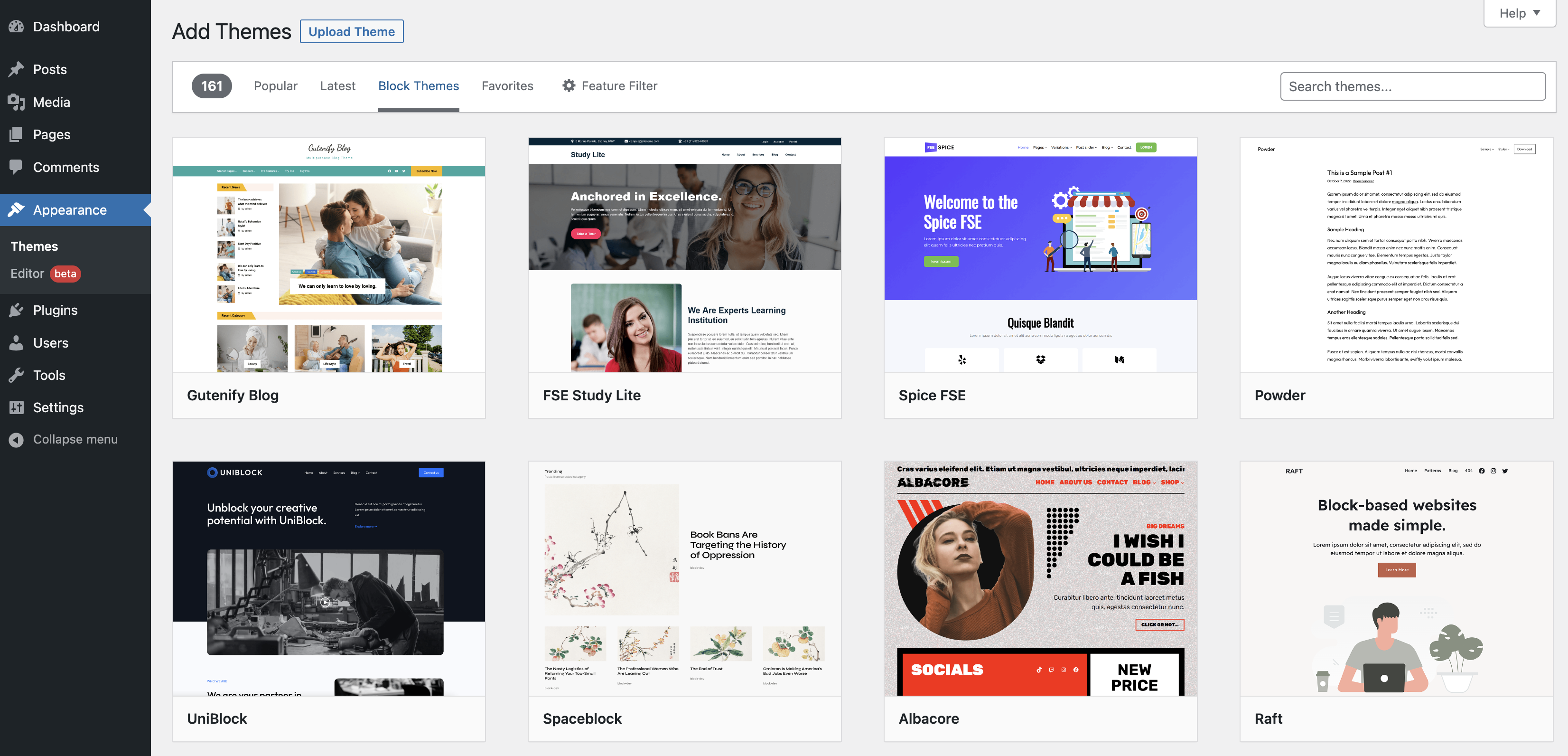
First, go to your WordPress dashboard. Find the “Appearance” menu. Click on it. Then select “Themes”. Next, click the “Add New” button. Here, choose “Upload Theme”. Click “Choose File” to select your theme file. Make sure it’s a .zip file. Finally, hit the “Install Now” button. Your theme will start uploading.
Connect to your website using an FTP client. Navigate to the wp-content/themes directory. Upload your theme folder here. Make sure the folder is not zipped. Once done, go back to the WordPress dashboard. You will see your theme listed. Ready for activation.
Go back to the “Themes” section. Find your newly uploaded theme. Hover over it. Click “Activate”. Your theme is now live. Refresh your site to see changes. Always check if everything looks good.

Credit: www.youtube.com
Customizing Your Theme
The Customizer is a great tool. You can change your site’s look easily. It lets you see changes in real-time. You can edit colors, fonts, and layout. Preview changes before saving. This helps in making decisions. It’s simple and fun to use.
Widgets are small blocks. They add features to your site. Add widgets to sidebars and footers. You can place a search bar or recent posts. Drag and drop to arrange them. Make your site more useful. Widgets enhance user experience.
Menus help users navigate. Create menus in the Menu Editor. Add pages, posts, or links. Drag items to organize them. Rename items for clarity. Menus improve site navigation. Users find content easily.
Troubleshooting Common Issues
Easily load a WordPress theme by accessing the dashboard, selecting “Appearance,” and clicking “Themes. ” Upload your chosen theme file, then activate it. If issues arise, check file formats and compatibility with your WordPress version to ensure smooth installation.
Theme Conflicts
Sometimes, themes don’t work together. This can cause problems. Plugins can clash with themes. Updates may fix these issues. Test changes in a safe environment. This helps avoid bigger problems on live sites.
Missing Style Sheets
Style sheets are crucial. They make the site look good. If missing, the site may look strange. Check if the theme has style sheets. Reinstall the theme if needed. Look in the theme folder for missing files. Sometimes, a simple refresh fixes the issue.
Broken Layouts
Layouts may break due to errors. Text and images may not align. This is common after updates. Clear browser cache to see changes. Check for broken links or images. Ensure all elements are placed correctly. Sometimes, adjusting settings can fix layout issues.
Optimizing Theme Performance
Loading fast is key. Use lightweight themes for better speed. Compress images before uploading. They load faster. Enable caching to store data temporarily. This reduces load times. Minimize CSS and JavaScript files. This helps your site run smoothly.
Write clear titles for your pages. They help search engines. Use keywords wisely. But, do not stuff them. Create an XML sitemap. It helps search engines find your pages. Ensure your theme is SEO-friendly. This boosts visibility.
Many people use phones. Ensure your theme is responsive. It should adjust to different screens. Test your site on various devices. Use mobile-friendly plugins. They improve user experience. Fast loading on mobile is crucial. Keep the design simple.

Credit: developer.wordpress.org
Frequently Asked Questions
How Do I Import A WordPress Theme?
To import a WordPress theme, go to your dashboard. Click “Appearance,” then “Themes,” and “Add New. ” Upload your theme file and click “Install Now. ” After installation, click “Activate” to use the theme. Ensure your theme is compatible with your WordPress version.
Why Won’t My WordPress Theme Load?
Your WordPress theme might not load due to plugin conflicts, corrupted files, or insufficient server resources. Check your theme compatibility, update plugins, and increase memory limits. Clear browser cache and disable caching plugins. Ensure your WordPress and PHP versions are up-to-date for optimal performance.
How Do I Install A WordPress Theme?
To install a WordPress theme, go to your dashboard. Click on “Appearance,” then “Themes,” and “Add New. ” Search for the desired theme, click “Install,” and activate it. Ensure the theme is compatible with your version of WordPress before installation.
How Do You Activate A WordPress Theme?
To activate a WordPress theme, log into your dashboard. Click on “Appearance” then “Themes. ” Select your desired theme and click “Activate. ” Your new theme will go live immediately. Ensure it’s compatible with your plugins for optimal performance.
Conclusion
Loading a WordPress theme is simple with these steps. First, choose a theme that fits your needs. Next, download and install it on your site. Activate the theme to see changes. Customize options to match your style. Check your site for errors after activation.
Troubleshoot any issues quickly to ensure smooth operation. Practice makes perfect, so don’t worry about mistakes. Use online resources if you need help. Enjoy the new look of your WordPress site. Your website is now ready for visitors. Keep exploring to enhance your site’s appeal.
Happy blogging!


