
Are you looking to streamline your web design process by integrating your favorite WordPress theme with Dreamweaver? You’re in the right place!
Imagine the ease and flexibility of crafting your website with Dreamweaver’s intuitive interface while leveraging the powerful features of WordPress themes. You might be wondering how to bridge the gap between these two tools, and that’s exactly what this guide is here to help you achieve.
By the end of this article, you’ll have the skills to seamlessly load a WordPress theme into Dreamweaver, enabling you to customize and tweak your site just the way you want. Don’t miss out on unlocking this powerful combination to enhance your web design experience. Keep reading to discover how you can make your workflow smoother and more efficient, and take your website design to the next level.
Setting Up Your Environment
Dreamweaver is a tool for building websites. To start, you need to install it. Find Dreamweaver on the Adobe website. Click the download button. Follow the steps on the screen. Agree to the terms. Wait for the installation to finish. Open Dreamweaver. You will see a welcome screen. It is ready to use now.
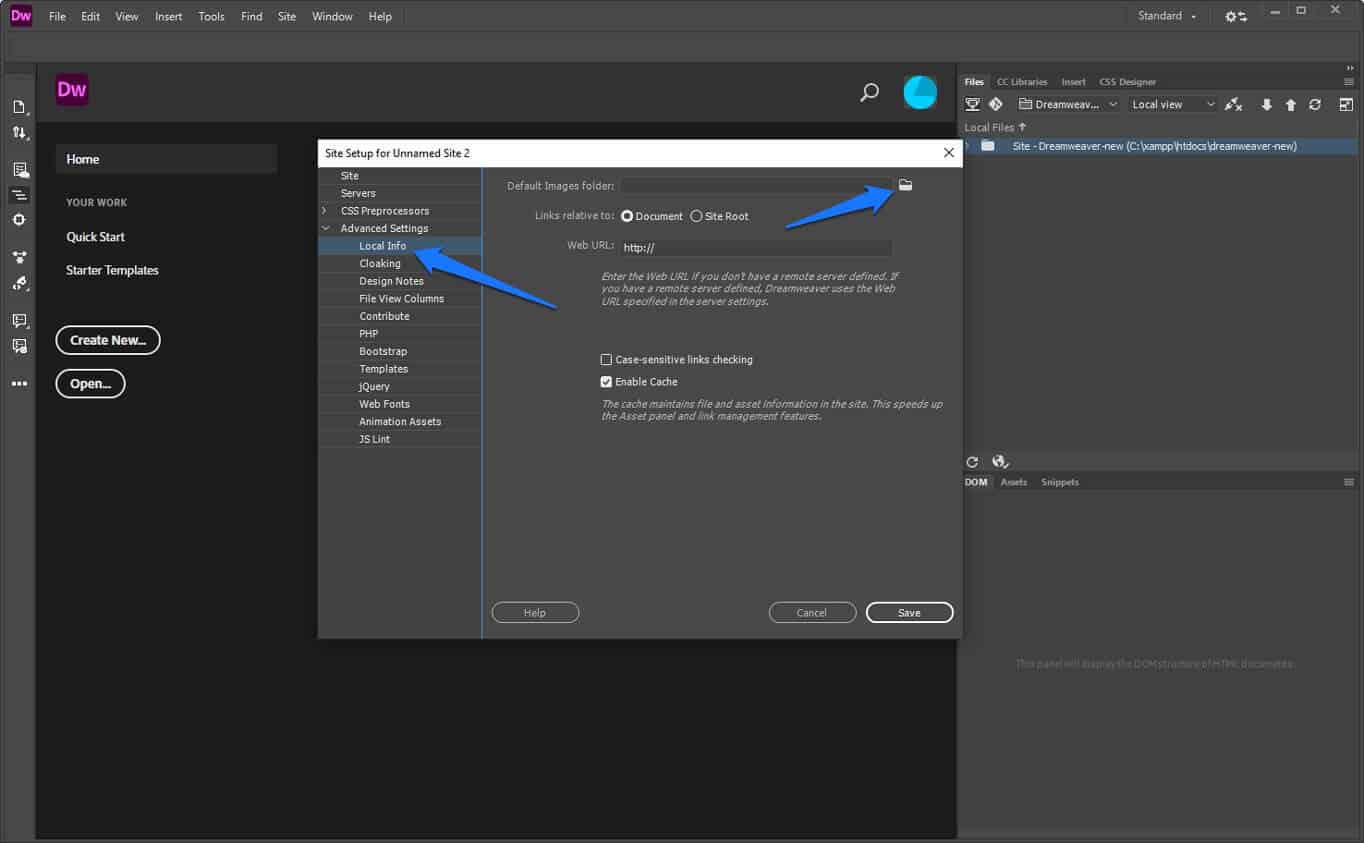
WordPress is a platform for websites. You need to set it up. First, download WordPress from its official site. Extract the files on your computer. Open Dreamweaver again. Go to the site setup option. Link Dreamweaver to your WordPress files. This helps Dreamweaver understand the WordPress theme. Make sure all settings are correct. Your environment is now ready.
Credit: websitesetup.org
Downloading A WordPress Theme
Choose a theme that fits your website’s look. Browse through the WordPress Theme Directory. It has many options. Popular themes often have good reviews. Check these reviews to see if the theme is reliable. Make sure the theme is compatible with your WordPress version.
After selecting, click on the Download button. The theme will save as a .zip file. Save it to your computer. Remember where you save it. You will need it later. Do not unzip the file yet. Keep it as it is. This will make it easy to upload later.
Preparing Dreamweaver For WordPress
Start by opening Dreamweaver. Click on the “Site” menu. Choose “New Site”. Enter a name for your site. Choose a folder on your computer. This is where you will store your files. Keep it organized and easy to find.
Next, add your WordPress theme. Download it from the WordPress site. Extract the theme files. Place them in your chosen folder. Dreamweaver will recognize these files. You are ready to work.
Begin with installing a local server on your computer. Use software like XAMPP or WampServer. They will help run WordPress locally. Once installed, start the server. Check if Apache and MySQL are running. They need to be active.
Create a new database for WordPress. Open phpMyAdmin from the server control panel. Click “Databases”. Name your new database. This will hold your WordPress data. Connect Dreamweaver to this database. Now, you can edit your site.
Credit: www.elegantthemes.com
Importing WordPress Theme Into Dreamweaver
Start Dreamweaver and open the Site Setup window. Choose New Site to begin. Name your project. It’s important to choose a name you will remember. Set your local site folder. This is where your files will save. Click Save to finish setting up the project. Now your project is ready.
Download the WordPress theme you want. Extract the theme files from the zip. Go back to Dreamweaver. In the Files panel, find your site folder. Drag and drop the theme files into this folder. Dreamweaver will now show these files in your project. Open any file to start editing. You have now imported your theme.
Customizing The Theme
Loading a WordPress theme into Dreamweaver enhances design flexibility. Start by downloading the theme files to your computer. Open Dreamweaver, then import the theme folder to customize the layout and style.
Editing Html And Css
Dreamweaver helps you change a WordPress theme easily. First, open your theme in Dreamweaver. You can see the HTML and CSS files. These files tell the theme how to look. Change colors or fonts by editing the CSS file. Change the layout by editing the HTML file. Always save your work after making changes. Dreamweaver shows changes in real-time.
Utilizing Dreamweaver Tools
Dreamweaver has many tools to help you. The Code Editor helps you write clean code. It shows mistakes in code with colors. The Design View shows how the theme looks. Change code and see changes instantly. Use the Properties Panel to change settings fast. It helps with font size and color. These tools make editing easy and fun.
Testing Your Theme
Loading a WordPress theme into Dreamweaver involves a few straightforward steps. First, download the theme from WordPress. Next, import it into Dreamweaver by accessing the theme files through the ‘Manage Sites’ option. This allows easy editing and customization in Dreamweaver’s interface.
Previewing In Browser
Open Dreamweaver and select your WordPress theme files. Click on the Live View button. This lets you see your theme in a browser. Check each page. Make sure all links work. Look at the images. Do they load properly? If something looks off, check your code. Fix any errors you find. Make sure every part of your site looks good.
Checking Responsiveness
Use the Responsive Design View in Dreamweaver. This tool shows how your theme looks on different devices. Check your theme on a phone, tablet, and computer. Each view should look neat. Text should be easy to read. Buttons must be clickable. Adjust your CSS if needed. Ensure your theme looks good everywhere.
Deploying The Theme
Loading a WordPress theme into Dreamweaver involves a few simple steps. First, download and extract the theme files. Then, open Dreamweaver and set up a new site pointing to your WordPress folder. Import the theme files into Dreamweaver to edit and customize your site’s design.
Uploading To WordPress
First, save your WordPress theme files on your computer. Open your WordPress dashboard and go to “Appearance.” Then, click on “Themes.” Select “Add New” and then “Upload Theme.” Choose your saved theme files. Click “Install Now.” Your theme is now uploaded to WordPress.
Activating The Theme
Go to the “Themes” section in your dashboard again. Find your uploaded theme. Hover over the theme and click “Activate.” Your website now uses the new theme. Check the front-end to see the changes. Make sure everything looks good. Adjust settings if needed. Enjoy your new website design!
Troubleshooting Common Issues
Loading a WordPress theme into Dreamweaver involves selecting your theme and exporting its files. Open Dreamweaver and start a new site, then import your theme files. Adjust settings to ensure everything displays correctly.
Resolving File Path Errors
File path errors are common. They can be confusing. Check file paths carefully. Ensure paths match the theme files. Pay attention to slashes and folder names. Double-check paths in Dreamweaver. Use the correct directory structure. This helps avoid mistakes. Errors happen with wrong paths. Fix them to load themes smoothly.
Fixing Styling Problems
Styling problems can occur. Themes may look wrong. Check CSS files first. Ensure they are linked correctly. Look for broken links or missing files. Adjust paths if needed. Verify HTML tags for mistakes. Dreamweaver can show errors. Correct them for proper styling. Sometimes, themes need custom CSS. Add it for better design. Fix problems to make themes look good.
Credit: www.youtube.com
Frequently Asked Questions
How To Import A WordPress Theme Into Dreamweaver?
To import a WordPress theme, first download the theme files. Then, open Dreamweaver and create a new site. Import the theme folder into the site files. This allows you to edit the theme using Dreamweaver’s tools. Ensure your server setup matches WordPress requirements for seamless integration.
Can Dreamweaver Edit WordPress Themes Directly?
Yes, Dreamweaver can edit WordPress themes directly. You need to set up the site correctly in Dreamweaver. Import the theme files and use Dreamweaver’s code editor. This helps you make changes to the theme’s HTML, CSS, and PHP files efficiently.
Is Dreamweaver Compatible With WordPress?
Dreamweaver is compatible with WordPress, enabling theme customization. It offers tools for editing HTML, CSS, and PHP. This compatibility allows developers to modify and preview changes before uploading to the server. Ensure you have a local server setup for optimal performance.
What Are The Benefits Of Using Dreamweaver For WordPress?
Using Dreamweaver for WordPress offers visual editing and a robust code editor. It provides real-time previews and integrates with FTP for easy uploads. The tool supports HTML, CSS, and PHP, making theme customization efficient. These features make Dreamweaver a powerful choice for developers.
Conclusion
Loading a WordPress theme into Dreamweaver is simple. Follow the steps outlined. Practice makes perfect, so don’t worry about mistakes. Dreamweaver offers a great way to edit themes. You gain control over your design and layout. Explore different features to enhance your site’s look.
Keep practicing and learning. Your skills will improve over time. Enjoy the process of creating and customizing. Your website will reflect your unique style. Remember, patience is key. Happy designing!


