
Are you struggling to customize your WordPress theme with a unique style? Loading a CSS file could be your game-changer.
Imagine transforming your site’s appearance effortlessly, making it not just a page, but a visual experience that captivates your visitors. Whether you’re aiming to tweak a few elements or overhaul the entire look, knowing how to properly load a CSS file is essential.
In this guide, we’ll walk you through the process, ensuring you can add your personal touch without breaking a sweat. Dive in to discover how easy it is to elevate your WordPress site’s aesthetics and functionality. Your path to a stunning website starts here.
Css File Basics
CSS makes websites look nice and pretty. It helps in designing the look and feel. It is like a dress for your website. With CSS, you can change colors, fonts, and layouts. It makes the website unique and interesting. Without it, websites would look plain and boring.
CSS gives style to web pages. It separates content from design. This makes it easy to change designs. You can update one file, and the whole site changes. This is very helpful for web developers. CSS also makes websites load faster. It reduces the amount of code in HTML files.
In WordPress, CSS is crucial for themes. It controls how themes look. Every theme has its own CSS file. This file sets the colors, fonts, and layout. Changing this file changes the theme style. It allows for easy customization. CSS makes your WordPress site look just how you want.
Credit: www.hostinger.co.uk
Locating Theme Files
Open your WordPress dashboard. Click on Appearance in the menu. Then, select Theme Editor. This takes you to the theme files. Always be careful here. Changes might affect your site.
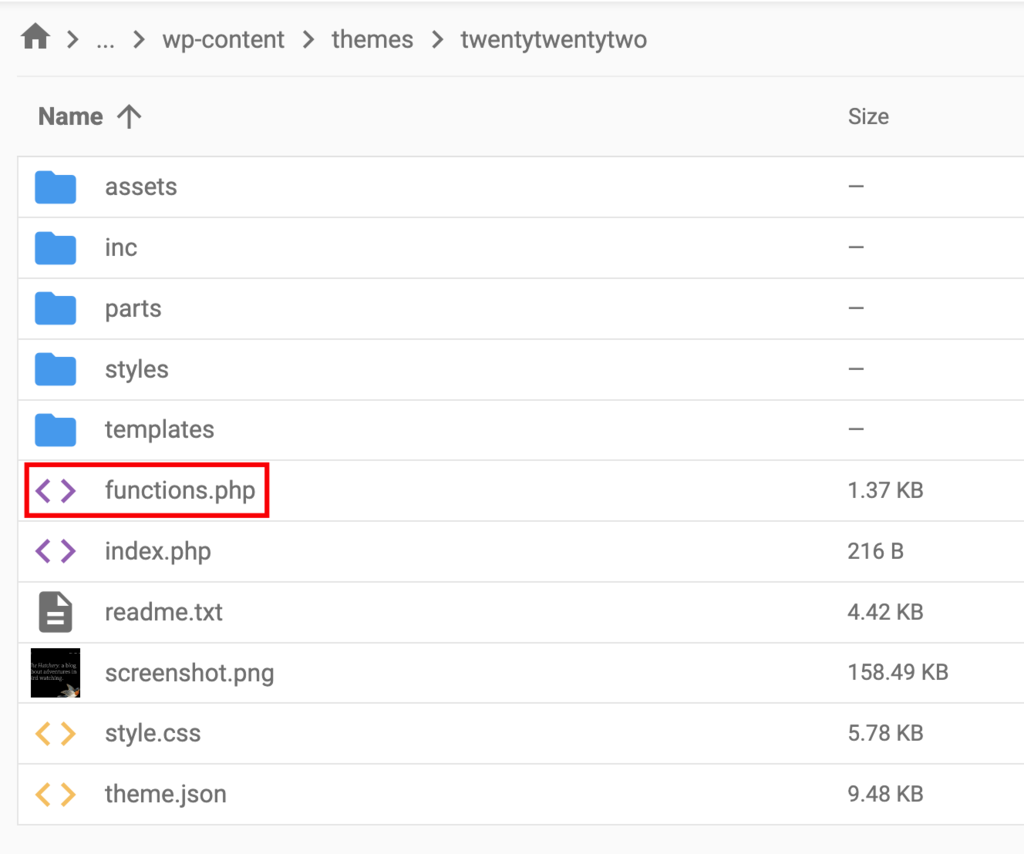
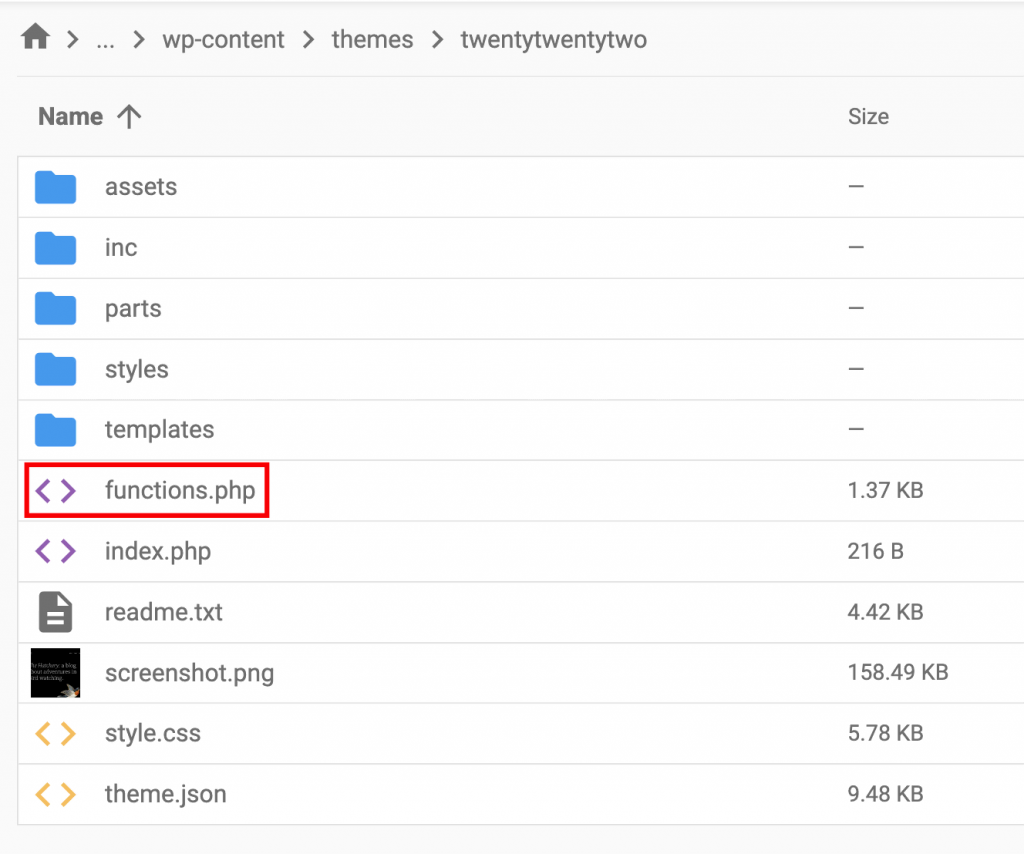
Find the style.css file. This file holds the theme’s CSS. Sometimes, themes also have a functions.php file. This file can load extra CSS files. Edit with care. Small mistakes can break your site.
Enqueuing Stylesheets
Loading CSS files in WordPress is easy with wp_enqueue_style. This function helps add stylesheets to your theme. It keeps everything neat and organized.
Use the wp_enqueue_style function with different parameters. The first parameter is the handle name. This is a unique name for your stylesheet. Choose any name you like.
The second parameter is the URL path of your CSS file. Use functions like get_template_directory_uri() to get the path. It makes things simple.
You can also set dependencies. This means you can list other stylesheets your CSS file depends on. If you have multiple stylesheets, set the order with dependencies.
The fourth parameter is for the version number. This is helpful when updating files. It tells browsers to load new styles.
Lastly, you can define the media type. This is optional. Media types include ‘all’, ‘print’, or ‘screen’. Choose based on your needs.
Credit: help.market.envato.com
Conditional Loading
Load CSS files only on pages that need them. It makes the site faster. Use WordPress functions to check the page type. For example, use is_front_page() for the homepage. Use is_single() for single posts. Load CSS with the wp_enqueue_style() function. This method is efficient and keeps the site neat.
Different devices may need different styles. Use CSS media queries for this. For example, @media rules can target mobile or tablet screens. Load styles only when the device matches. This keeps the theme responsive and user-friendly. Add these styles in your theme’s stylesheet or enqueue them conditionally. This ensures a smooth user experience across all devices.
Common Mistakes
A common mistake is forgetting to use `wp_enqueue_style` to properly load CSS files in WordPress themes. Incorrect file paths often lead to missing styles. Ensure file names are spelled correctly to avoid issues.
Incorrect Paths
Many users place their CSS files in the wrong folder. This causes the file not to load. Always check the file path. Ensure that your CSS file is in the correct directory. Use the get_template_directory_uri() function. This helps in getting the right URL. A missing slash can also cause problems. Double-check your paths. Make sure all links are correct.
Conflicting Styles
Loading multiple CSS files can cause conflicts. One CSS file might override another. This makes your website look different. Always check for conflicting styles. Use a consistent naming pattern. This helps in avoiding style clashes. Another good tip is to use a CSS reset. This ensures all styles start from a clean slate. It’s important to test changes. Make sure everything looks right on all devices.
Testing And Debugging
Browser tools help find problems with CSS files. Open the browser and press F12. This opens the developer tools. Look at the Console and Network tabs. These tabs show errors and file loading. Errors can tell you what is wrong. Fixing these errors makes the site look better.
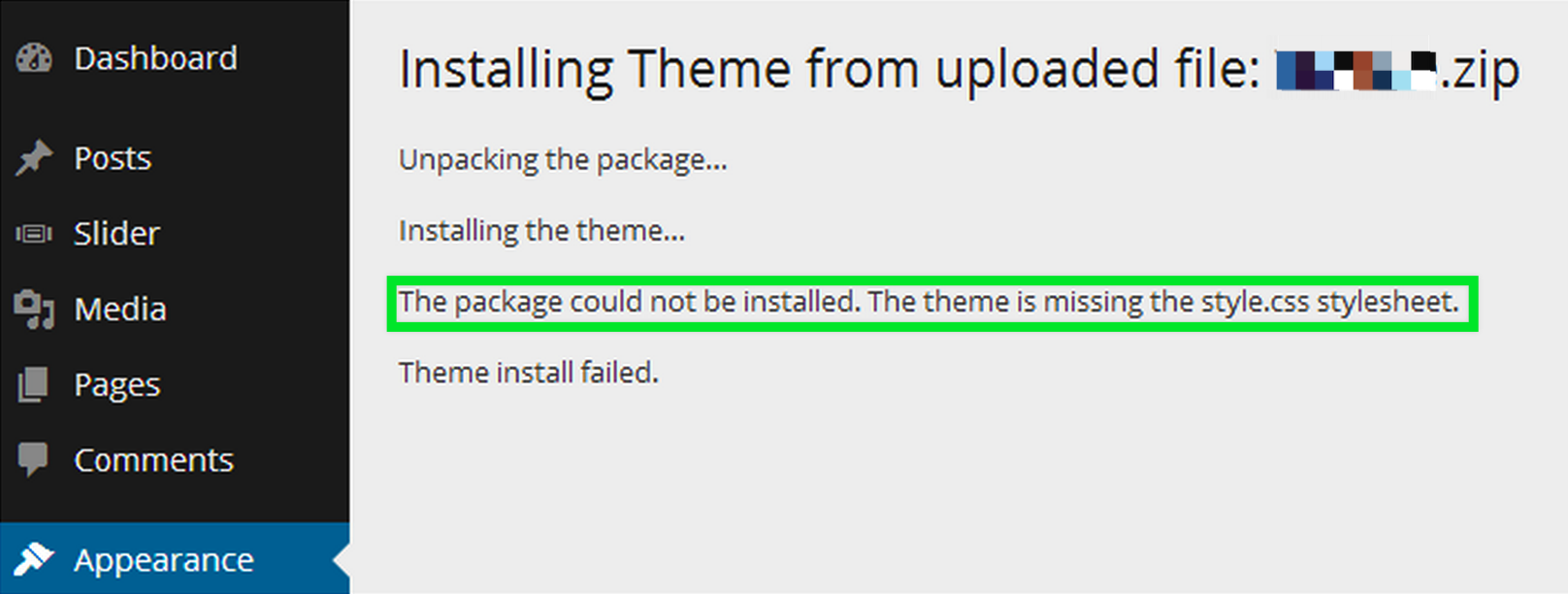
Sometimes, CSS files don’t load. Check if the file path is right. Make sure the file name is correct. Ensure no space or typo in the file name. If the file is missing, it won’t load.
Resolving Issues
If CSS changes do not show, clear the browser cache. This helps load the new CSS file. Refresh the page and check changes. Use a different browser to see if the problem stays. This can show if the issue is with one browser.
Check for conflicting CSS rules. Sometimes, rules fight each other. Use the Inspect Element tool to find these conflicts. Fixing them makes the page look right.
Credit: www.hostinger.com
Frequently Asked Questions
How Do I Enqueue A Css File In WordPress?
To enqueue a CSS file in WordPress, use the `wp_enqueue_style()` function in your theme’s `functions. php` file. Specify the stylesheet’s handle, path, and dependencies. Enqueuing ensures the CSS loads properly and avoids conflicts. This method is essential for maintaining WordPress theme compatibility and performance.
Where Do I Place Css Files In A WordPress Theme?
Place your CSS files in the theme’s directory, typically under a folder named `css` or `assets`. Ensure the path is correct when enqueuing them in `functions. php`. Organizing files helps in easy management and better performance. Keeping them in a designated folder maintains a clean theme structure.
Can I Use External Css In WordPress Themes?
Yes, you can use external CSS by enqueuing it in `functions. php` using `wp_enqueue_style()`. Provide the URL of the external stylesheet as the path. This approach allows you to integrate third-party stylesheets while maintaining compatibility with WordPress standards. It also ensures proper loading and order of styles.
Why Is My Css Not Loading In WordPress?
If your CSS isn’t loading, check the path in `wp_enqueue_style()`. Ensure the file exists and is correctly linked. Also, clear any caches that might be affecting the CSS. Browser and plugin caches can prevent new styles from appearing. Verify that there are no errors in the CSS file itself.
Conclusion
Loading a CSS file in a WordPress theme is simple. Follow the steps carefully. First, create a child theme. Then, enqueue your CSS file using functions. php. This process is essential for customization. It helps maintain your design changes. Keep your site looking great with these easy steps.
Remember, child themes protect your edits. They ensure updates won’t erase your changes. Always back up your files before starting. Practice makes perfect. Try it yourself and see the results. Enjoy your enhanced WordPress theme without losing style.


