
Are you ready to make your website live but don’t know how to connect your domain to your GoDaddy hosting? Linking your domain to your hosting is a crucial step that can feel confusing at first.
But don’t worry—this guide will walk you through the process step by step. By the end, you’ll have your website up and running smoothly. Keep reading, and you’ll unlock the simple secrets to get your site online without any hassle.
Choose Your Hosting Plan
Choosing the right hosting plan is a key step before linking your domain to GoDaddy hosting. The hosting plan decides your website’s speed, storage, and performance. Picking the best plan helps your website run smoothly and stay online.
GoDaddy offers various hosting plans for different needs. From simple websites to large online stores, there is a plan for every size. Understanding these plans makes it easier to select the perfect one.
Shared Hosting
Shared hosting is the most affordable plan. It means many websites share one server. This plan is good for small blogs or new websites. It offers enough resources for low traffic and basic needs.
Vps Hosting
VPS stands for Virtual Private Server. It gives more power than shared hosting. Your website gets a dedicated part of the server. This plan suits growing websites with more visitors and data.
Dedicated Hosting
Dedicated hosting means you rent an entire server. This plan gives full control and high performance. It works well for large websites with heavy traffic. It is more expensive but very reliable.
WordPress Hosting
WordPress hosting is made for WordPress websites. It includes tools to help build and manage your site. This plan is easy to use and often faster for WordPress sites.
Choosing Based On Your Needs
Think about your website’s size and traffic. Small sites do well with shared hosting. Larger sites need VPS or dedicated plans. WordPress hosting helps if you use WordPress.
Access Your Godaddy Account
Start by logging into your GoDaddy account to manage your domain settings. Change the domain’s nameservers to point to your hosting provider. This links your domain directly to your GoDaddy hosting service.
Go To The Godaddy Website
Start by opening your web browser. Type www.godaddy.com in the address bar. Press Enter. This takes you to the GoDaddy homepage. The site loads quickly on most devices.
Find The Sign In Button
Look at the top right corner of the homepage. You will see a button labeled Sign In. Click on it. This opens the login page where you enter your details.
Enter Your Login Information
Type your username or customer number in the first box. Then, enter your password in the second box. Make sure the information is correct. Use the Show Password option to check your typing.
Complete The Sign In Process
Click the Sign In button below your password. Wait a moment while GoDaddy verifies your details. Once logged in, you will see your account dashboard. This is where you manage domains and hosting.
Locate Domain Settings
Locating your domain settings is the first step to connect your domain to GoDaddy hosting. This area controls important details about your domain. You can manage your domain name, DNS records, and other settings here.
Finding the domain settings quickly saves time. It helps you make changes without confusion. Follow these simple steps to locate your domain settings on GoDaddy.
Log In To Your Godaddy Account
Start by going to the GoDaddy website. Enter your username and password. Click the sign-in button to access your account dashboard.
Go To Your Domain Manager
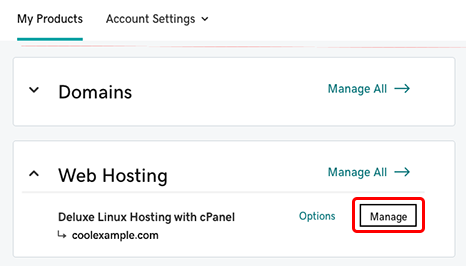
Once logged in, find the menu labeled “My Products” or “Domains.” Click it to see a list of your registered domains. This section shows all the domains you own.
Select Your Domain
Look through the list and choose the domain you want to link to hosting. Click on the domain name to open its detailed settings page.
Access The Domain Settings Page
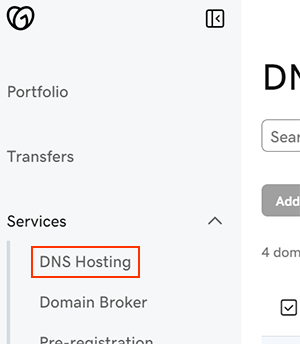
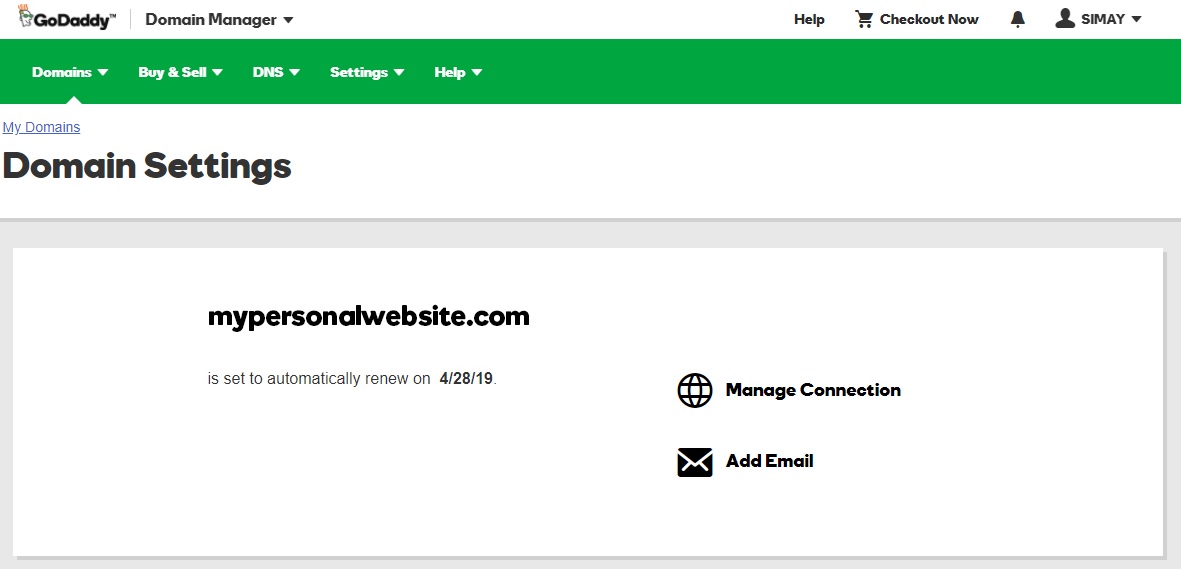
On the domain page, find the button or link labeled “Manage DNS” or “Domain Settings.” Click this to open the domain settings. Here, you can update name servers and other important records.
Credit: www.godaddy.com
Find Your Hosting Details
Updating nameservers is a key step to connect your domain with your hosting. Nameservers tell the internet where to find your website. Without updating them, visitors cannot reach your site. The process is simple and takes only a few minutes.
Get Nameserver Information
First, find the nameserver details from your hosting provider. These usually look like ns1.example.com and ns2.example.com. Check your hosting account dashboard or welcome email. Write down these nameservers carefully. You will need them to update your domain settings.
Change Nameservers In Godaddy
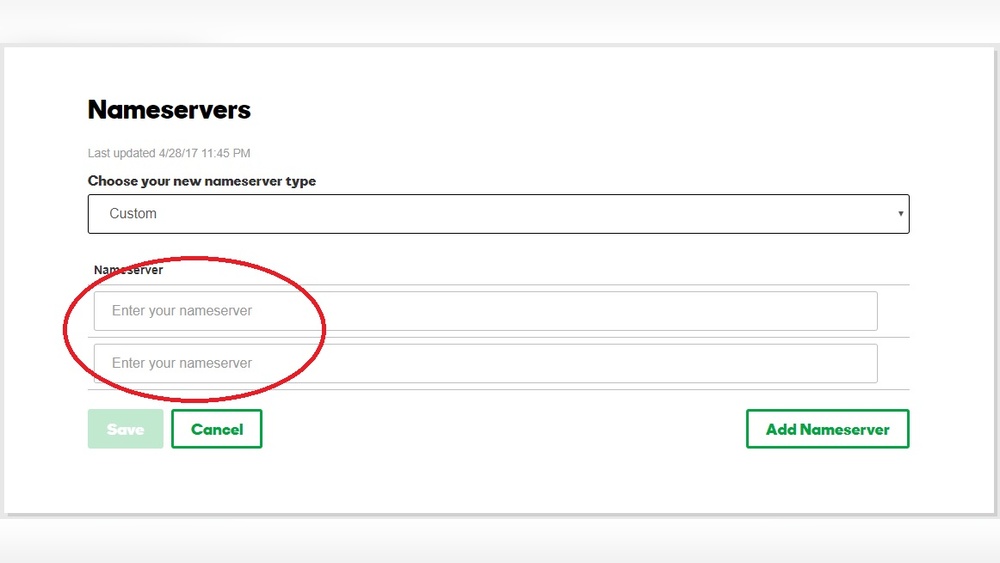
Log in to your GoDaddy account and go to your domain list. Select the domain you want to link to your hosting. Find the option to manage DNS or nameservers. Choose to enter custom nameservers. Type the nameserver addresses exactly as you got them. Save the changes. It may take a few hours for the update to work worldwide.
Update Nameservers
Linking your domain to GoDaddy hosting can sometimes face issues. Troubleshooting helps fix common problems quickly. Understanding these issues saves time and frustration. Let’s explore the most common problems and their solutions.
Propagation Delays
After changing DNS settings, updates take time to spread. This delay is called propagation. It can last from a few minutes to 48 hours. During this time, your website may not appear online. Patience is key. Avoid making repeated changes during propagation.
Incorrect Dns Settings
Wrong DNS entries cause connection failures. Check if you entered the correct nameservers. GoDaddy usually provides these details in your hosting account. Verify A records point to the correct IP address. Fixing DNS errors usually resolves most linking problems fast.
Credit: www.godaddy.com
Credit: www.godaddy.com
Frequently Asked Questions
How Do I Link My Domain To Godaddy Hosting?
Log in to your GoDaddy account and access the Domain Manager. Update the domain’s DNS settings by pointing the nameservers to your hosting provider. Save changes and wait for DNS propagation, which can take up to 48 hours.
Can I Link A Domain Bought Elsewhere To Godaddy Hosting?
Yes, you can link any domain to GoDaddy hosting by updating the domain’s nameservers to GoDaddy’s. This is done in your domain registrar’s dashboard where you purchased the domain.
How Long Does Domain Linking Take On Godaddy?
Domain linking usually completes within a few hours. However, full DNS propagation can take up to 24-48 hours depending on your internet service provider and DNS cache.
Do I Need To Change Nameservers To Link Domain?
Yes, changing nameservers is essential. Point your domain’s nameservers to those provided by your hosting service to establish the connection correctly.
Conclusion
Linking your domain to GoDaddy hosting is simple and quick. Just follow the steps carefully for a smooth setup. This connection lets your website go live for visitors worldwide. You can manage your domain and hosting in one place. Take your time to double-check each detail.
Soon, your site will be ready to share with everyone. Keep this guide handy for future reference. Starting your online presence has never been easier.


